
A strong WiFi signal doesn’t always mean fast internet. It’s a common frustration: your phone or laptop shows full bars, yet videos buffer endlessly, web pages load slowly, and downloads crawl. The disconnect often lies not in your ISP or device hardware, but in your router’s configuration. Routers are intelligent traffic directors, and when misconfigured, they can bottleneck even high-speed connections. Understanding the underlying causes—especially those tied to router settings—can transform your network from frustrating to flawless.
This guide dives into the technical and practical reasons behind this paradox, focusing on router-specific issues that degrade performance despite excellent signal strength. From outdated firmware to incorrect Quality of Service (QoS) rules, we’ll explore actionable fixes you can apply today to reclaim your bandwidth.
Why Strong Signal Doesn’t Guarantee Fast Internet
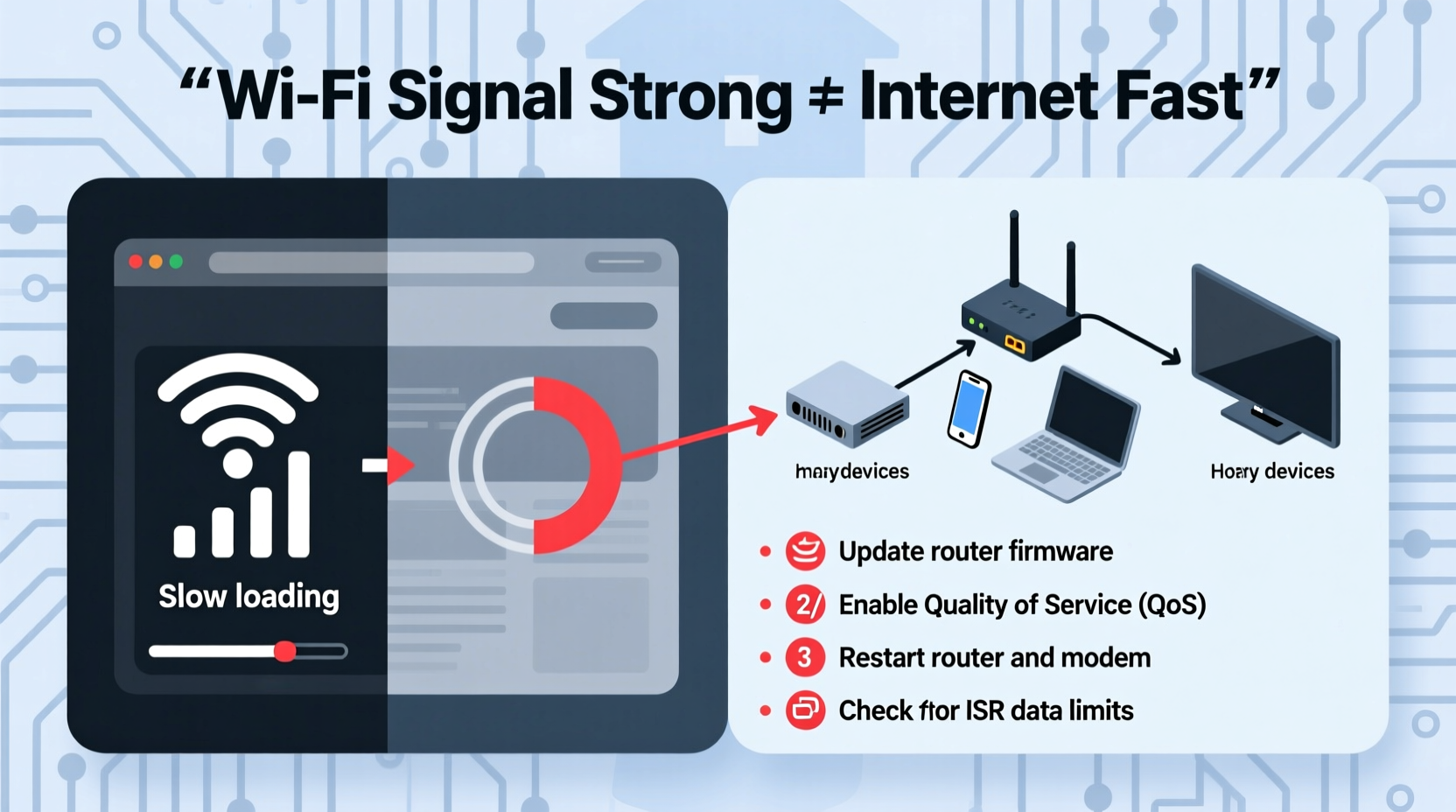
WiFi signal strength measures how well your device communicates with the router—essentially, the quality of the wireless “conversation.” But internet speed depends on multiple factors beyond radio strength: available bandwidth, network congestion, DNS resolution, routing efficiency, and internal router processing power.
Think of it like a highway. A wide, clear road (strong signal) is useless if there’s a toll booth bottlenecking all traffic (router throttling). Or imagine speaking clearly on a phone call (good signal), but the person on the other end is distracted and slow to respond (poor router handling).
Common culprits include:
- Router firmware bugs or outdated software
- Incorrect channel selection causing interference
- Poor Quality of Service (QoS) configurations
- Overloaded NAT tables or connection limits
- DNS misconfiguration slowing down site lookups
- Background services consuming bandwidth unnoticed
Router Settings That Can Slow Down Your Internet
1. Outdated Firmware
Firmware is the operating system of your router. Manufacturers release updates to patch security flaws, improve stability, and optimize performance. An outdated router may lack support for modern protocols like MU-MIMO or beamforming, leading to inefficient data handling—even with strong signal.
To check: Log into your router’s admin panel (usually via 192.168.1.1 or 192.168.0.1) and look for a “Firmware Update” section under Administration or Maintenance.
2. Suboptimal WiFi Channel Selection
Even with full signal bars, your router might be on a congested channel. In dense urban areas, dozens of nearby networks can crowd channels 1, 6, and 11 on the 2.4 GHz band. This causes packet collisions and retransmissions, reducing throughput.
Solution: Use a WiFi analyzer app (like NetSpot or WiFi Analyzer) to scan nearby networks and manually switch to the least crowded channel. For 5 GHz, choose non-DFS channels (e.g., 36, 40, 44, 48) to avoid radar interference.
3. Misconfigured Quality of Service (QoS)
QoS prioritizes certain types of traffic—like video calls or gaming—over others. But if set incorrectly, it can deprioritize critical tasks. For example, a rule favoring “streaming” might throttle file downloads or cloud backups unnecessarily.
Check your QoS settings and ensure they align with your actual usage. Disable QoS temporarily to test if speeds improve.
4. Overzealous Parental Controls or Security Features
Features like real-time malware scanning, ad blocking, or parental filters add processing overhead. While valuable, they can introduce latency and reduce throughput, especially on older or budget routers.
If you notice slowdowns after enabling such features, consider disabling them selectively or upgrading to a more powerful router.
5. Incorrect DNS Configuration
Your router uses DNS servers to translate website names (like google.com) into IP addresses. Default ISP DNS servers are often slow or unreliable. Switching to faster alternatives like Google DNS (8.8.8.8, 8.8.4.4) or Cloudflare (1.1.1.1) can significantly reduce page load times.
“DNS performance is one of the most overlooked aspects of home networking. A good public DNS can cut latency by up to 30%.” — David Lin, Network Infrastructure Engineer at OpenNet Labs
Step-by-Step Router Fix Checklist
Follow this sequence to systematically eliminate router-related causes of slow internet despite strong WiFi:
- Reboot your router and modem. Unplug both for 30 seconds, then power them back on. This clears temporary glitches.
- Log into your router’s admin interface. Use your browser to visit the gateway IP (commonly 192.168.1.1) and enter your credentials.
- Check for firmware updates. Navigate to the firmware section and install any available updates.
- Change your WiFi channel. On 2.4 GHz, use channels 1, 6, or 11; pick the least used. On 5 GHz, avoid DFS channels unless necessary.
- Set custom DNS servers. Replace ISP defaults with 1.1.1.1 (Cloudflare) or 8.8.8.8 (Google).
- Disable unused features. Turn off WPS, UPnP, or built-in firewalls if not needed.
- Adjust QoS settings. Prioritize applications you actually use—disable if unsure.
- Limit connected devices. Disconnect old or unknown devices that may be consuming bandwidth.
- Switch bands if possible. Use 5 GHz instead of 2.4 GHz for less interference and higher speeds (though shorter range).
- Save settings and reboot. Confirm changes and restart the router.
ipconfig /flushdns on Windows) to ensure immediate effect.
Real-World Example: The Home Office Bottleneck
Mark, a freelance graphic designer in Austin, upgraded his internet plan to 300 Mbps fiber. His router showed full signal on all devices, but large file uploads to clients took twice as long as expected. Video calls frequently froze, despite no issues reported by colleagues.
After testing, he discovered his aging dual-band router was using outdated firmware and default ISP DNS. More critically, its QoS settings were configured to prioritize “gaming,” which inadvertently throttled upload-heavy tasks like cloud syncing.
He updated the firmware, switched to Cloudflare DNS, disabled QoS, and moved his workstation to the 5 GHz band. Upload speeds jumped from 40 Mbps to 280 Mbps overnight. His router hadn’t failed—it had just been misconfigured.
This case highlights how subtle settings can create major bottlenecks, even in high-performance environments.
Do’s and Don’ts of Router Optimization
| Do | Don't |
|---|---|
| Update firmware regularly | Ignore firmware update notifications |
| Use 5 GHz for high-bandwidth tasks | Assume 2.4 GHz is always better for range |
| Set static DNS to trusted providers | Rely solely on ISP DNS without testing |
| Reboot your router monthly | Leave your router running for years without restart |
| Monitor connected devices | Allow unknown devices to stay on your network |
| Position router centrally and elevated | Hide router in a cabinet or basement corner |
Frequently Asked Questions
Can too many devices slow down my internet even with a strong signal?
Yes. Each connected device consumes a small portion of bandwidth and router resources. Even idle devices maintain background connections. If your router has limited RAM or CPU, managing 20+ devices can cause lag. Consider setting up a guest network for visitors or using a mesh system to distribute load.
Does my router’s age affect internet speed?
Absolutely. Routers more than 3–4 years old may lack support for modern standards like 802.11ac, MU-MIMO, or beamforming. They also tend to have weaker processors, limiting their ability to handle multiple high-speed streams. Upgrading to a Wi-Fi 6 router can dramatically improve performance, especially in multi-device homes.
Why does my internet slow down at certain times of day?
This could be due to network congestion—either on your local network (e.g., family streaming at night) or your ISP’s infrastructure (peak usage hours). However, if only your connection slows while neighbors’ remain stable, check your router’s scheduling features or potential interference from appliances like microwaves or baby monitors.
Conclusion: Take Control of Your Network Performance
A strong WiFi signal is just the beginning. True internet performance depends on how intelligently your router manages data flow. By auditing and optimizing key settings—firmware, DNS, channels, and QoS—you can eliminate hidden bottlenecks and unlock the full potential of your connection.
Most fixes require only a few minutes and no additional cost. Start with a reboot and firmware check, then move through the checklist methodically. The difference between sluggish browsing and seamless streaming often comes down to a single misconfigured setting.




 浙公网安备
33010002000092号
浙公网安备
33010002000092号 浙B2-20120091-4
Comments
No comments yet. Why don't you start the discussion?