
If you’ve ever walked into a bedroom, basement, or home office only to find your video call freezing or your streaming app buffering, you’re not alone. A weak Wi-Fi signal in one specific room is one of the most common connectivity issues in modern homes. While it might seem like a technical mystery, the causes are usually straightforward — and often fixable without calling a technician or buying new equipment.
Wi-Fi signals don’t travel through walls and floors like magic. They weaken with distance, interfere with household materials, and compete with other electronic devices. Understanding why your signal drops in certain areas empowers you to make simple, effective changes that restore reliable internet access where you need it most.
Understanding Why Wi-Fi Weakness Happens
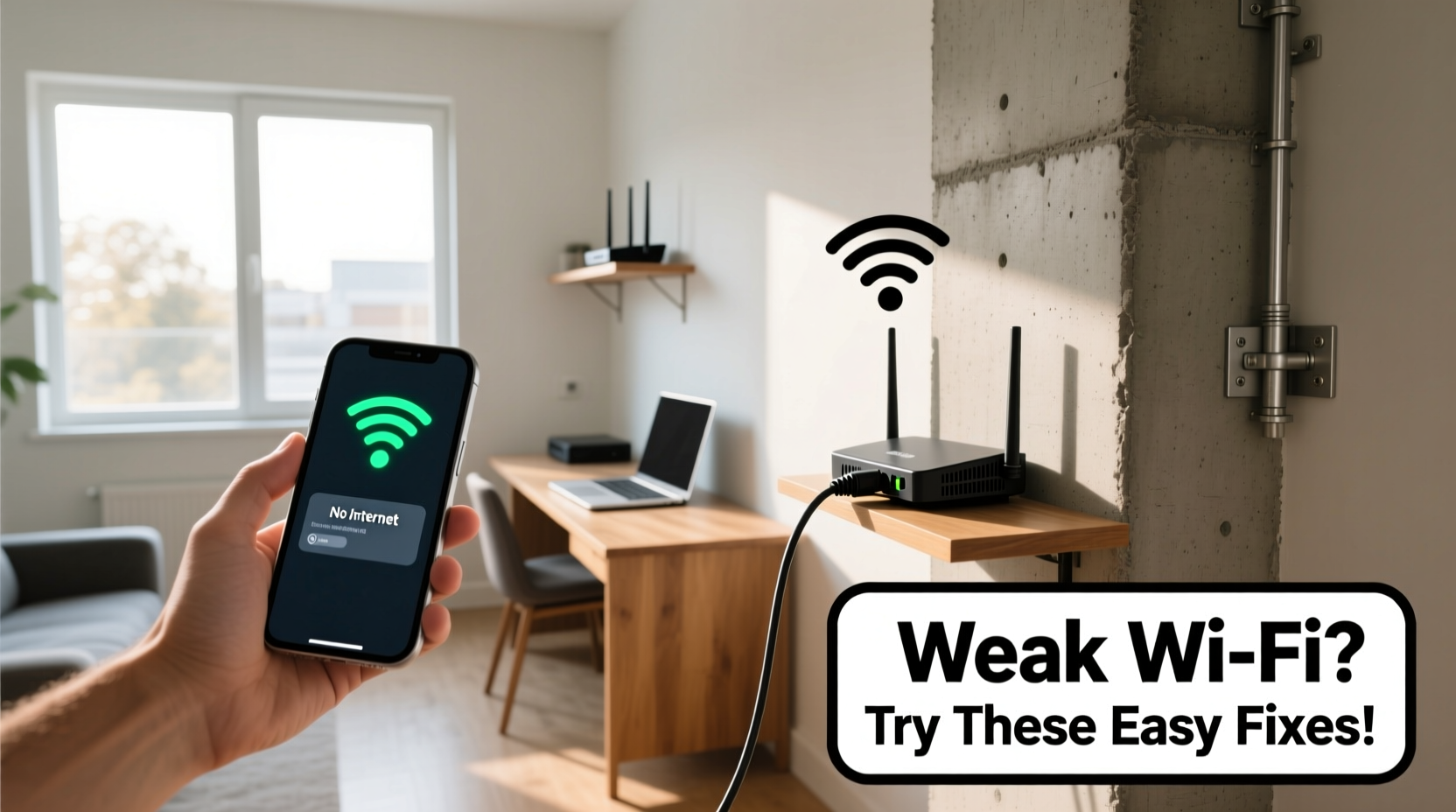
Before jumping into solutions, it helps to understand what’s behind inconsistent signal strength. Wi-Fi operates using radio waves, typically on the 2.4 GHz or 5 GHz frequency bands. These waves can be absorbed, reflected, or blocked by various materials commonly found in homes.
Thick walls made of brick, concrete, or stone significantly reduce signal penetration. Metal framing, mirrors, and even large appliances like refrigerators or washing machines act as barriers. Water, such as that found in fish tanks or plumbing pipes, also absorbs radio frequencies. Even the placement of your router—hidden in a closet or tucked behind furniture—can drastically limit its reach.
Additionally, interference from neighboring Wi-Fi networks, Bluetooth devices, baby monitors, or microwaves can degrade performance, especially on the crowded 2.4 GHz band.
“Up to 60% of indoor Wi-Fi problems stem from poor router placement rather than hardware limitations.” — Dr. Alan Torres, Network Infrastructure Engineer at Broadband Insights Group
Step-by-Step Guide: How to Diagnose the Problem
Before making changes, confirm that the issue is truly signal-related and not due to device-specific problems. Follow this sequence:
- Test multiple devices in the weak-signal room. If all show poor connectivity, the issue is likely environmental.
- Check signal strength using your smartphone or laptop. On most devices, this appears as bars or a percentage under network settings.
- Run a speed test (using sites like fast.com or speedtest.net) both near the router and in the problematic room. Compare download/upload speeds and latency.
- Walk the path between the router and the room. Note any sudden drops in signal strength, which may indicate a physical obstruction.
- Restart your router and modem. Sometimes a simple reboot resolves temporary glitches.
This diagnostic process helps rule out software bugs or temporary outages. Once confirmed, focus shifts to improving signal propagation.
Easy Fixes to Improve Wi-Fi in One Room
You don’t need advanced networking knowledge or a major investment to improve coverage. Many effective solutions involve small adjustments with big results.
1. Optimize Router Placement
The location of your router is the single most impactful factor in signal distribution. Ideal placement is central, elevated, and unobstructed.
- Avoid placing the router in basements, closets, or behind entertainment centers.
- Keep it off the floor and away from large metal objects.
- Position antennas vertically for best horizontal coverage.
If possible, reposition the router closer to the weak-signal room—even moving it a few feet toward the problem area can yield noticeable improvements.
2. Reduce Interference from Electronics
Many household electronics emit electromagnetic noise that interferes with Wi-Fi. Common culprits include cordless phones, microwave ovens, baby monitors, and fluorescent lights.
To minimize disruption:
- Keep the router at least 3–5 feet away from major appliances.
- Switch to DECT 6.0 cordless phones, which operate on non-interfering frequencies.
- Use wired peripherals when possible (e.g., Ethernet-connected printers).
3. Switch Wi-Fi Channels
In dense neighborhoods, multiple nearby networks may crowd the same Wi-Fi channel, causing slowdowns. Routers default to auto-channel selection, but they don’t always choose the best option.
Log into your router’s admin interface (usually via 192.168.1.1 or 192.168.0.1) and manually switch to a less congested channel:
| Frequency Band | Recommended Channels (Non-Overlapping) | Tips |
|---|---|---|
| 2.4 GHz | 1, 6, or 11 | Better range, more prone to interference |
| 5 GHz | 36–48 or 149–161 | Faster speeds, shorter range, less congestion |
After changing channels, test the connection in the affected room. The improvement may be subtle but consistent.
4. Upgrade Your Router’s Firmware
Manufacturers release firmware updates to improve stability, security, and performance. An outdated router may struggle with modern traffic demands.
Check your router’s admin panel for a “Firmware Update” section. Enable automatic updates if available, or download the latest version from the manufacturer’s website.
5. Use a Wi-Fi Extender (Carefully)
Range extenders repeat your existing signal to cover dead zones. While convenient, they have limitations: they cut bandwidth in half and can create duplicate network names (SSIDs), confusing devices.
If using an extender:
- Place it halfway between the router and the weak-signal room—not too close, not too far.
- Choose a model with a dedicated backhaul band (dual-band or tri-band) for better performance.
- Consider mesh systems instead for seamless coverage (discussed below).
When Simple Fixes Aren’t Enough: Advanced Solutions
If basic adjustments fail, consider scalable upgrades that provide long-term reliability.
Mesh Wi-Fi Systems
Unlike traditional extenders, mesh networks use multiple nodes that communicate seamlessly to blanket your home in Wi-Fi. They offer:
- Single network name (SSID) across all devices
- Self-healing connections and intelligent routing
- Better performance in multi-story homes
Popular options include Google Nest Wifi, Eero, and TP-Link Deco. Though more expensive upfront, they eliminate dead zones and simplify management through mobile apps.
Wired Access Points
If your home has Ethernet wiring, install a wireless access point in the weak-signal room. This provides full-speed Wi-Fi powered by a direct cable connection, bypassing wireless limitations entirely.
This solution requires running cables or using existing ports, but delivers the most stable and high-performance result—ideal for home offices or media rooms.
Powerline Adapters
These devices use your home’s electrical wiring to transmit internet signals. Plug one adapter near the router (connected via Ethernet), and another in the target room. It then broadcasts Wi-Fi or provides an Ethernet port.
Effectiveness varies based on electrical circuit quality, but many users report significant improvements in basements or detached garages.
“Powerline adapters won’t match pure Ethernet speeds, but they’re a solid middle ground when Wi-Fi fails and running cables isn’t feasible.” — Lisa Chen, Home Networking Consultant
Real Example: Fixing a Basement Office Connection
Mark, a freelance graphic designer, struggled with constant disconnections in his basement workspace. Video calls dropped every 10 minutes, and file uploads stalled. His router was upstairs in the living room, separated by two floors and a concrete foundation.
He first tried a Wi-Fi extender but saw no improvement—the basement signal was too weak to relay. Then he tested a powerline adapter kit. After plugging in the units and pairing them, he gained a stable 75 Mbps connection and enabled smooth Zoom meetings.
Later, he upgraded to a mesh system with a node placed on the main floor near the stairs, which finally delivered full-speed Wi-Fi throughout the basement. The total cost was under $200, and he avoided hiring an electrician or drilling holes.
Mark’s experience shows that diagnosing step by step leads to smarter investments—and real results.
Do’s and Don’ts: Quick Reference Table
| Action | Do | Don't |
|---|---|---|
| Router Placement | Central, elevated, open space | In a cabinet, basement, or behind metal |
| Signal Boosting | Use mesh systems or wired access points | Stack multiple extenders |
| Interference | Keep away from microwaves and cordless phones | Place next to large appliances |
| Updates | Enable automatic firmware updates | Ignore update notifications |
| Network Name | Use one SSID for consistency | Create multiple confusing network names |
Frequently Asked Questions
Can thick walls really block Wi-Fi?
Yes. Concrete, brick, stone, and metal lath drywall can block or severely weaken Wi-Fi signals. Even water in pipes or aquariums contributes to signal absorption. This is why basements and interior bathrooms often suffer from poor reception.
Is 5 GHz Wi-Fi worse at going through walls?
Generally, yes. While 5 GHz offers faster speeds and less interference, it has shorter range and poorer wall penetration than 2.4 GHz. For distant or obstructed rooms, connecting to the 2.4 GHz band (if available) may provide more stable connectivity, even at lower speeds.
Will changing my ISP fix weak Wi-Fi in one room?
No. Internet service providers deliver the connection to your modem, but internal Wi-Fi performance depends on your router, home layout, and local interference. Upgrading your plan might give you faster speeds near the router, but it won’t improve coverage in dead zones unless you also upgrade your networking hardware.
Final Checklist: What to Try First
Before spending money, go through this quick-action checklist:
- ✅ Move the router to a more central, open location
- ✅ Restart the router and modem
- ✅ Test speed and signal on multiple devices
- ✅ Switch to a less congested Wi-Fi channel
- ✅ Update router firmware
- ✅ Eliminate nearby sources of interference
- ✅ Try a Wi-Fi analyzer app to assess signal health
- ✅ Consider a mesh system if the room remains problematic
Conclusion: Take Control of Your Home Network
A weak Wi-Fi signal in one room doesn’t have to disrupt your daily life. Most issues stem from avoidable setup flaws, not faulty equipment. By repositioning your router, reducing interference, and understanding how signals travel, you can dramatically improve connectivity—often within an hour and at little to no cost.
For persistent problems, modern solutions like mesh networks and powerline adapters offer reliable alternatives without rewiring your home. Start with the simplest fixes, measure your progress, and build a network that works as hard as you do.




 浙公网安备
33010002000092号
浙公网安备
33010002000092号 浙B2-20120091-4
Comments
No comments yet. Why don't you start the discussion?