
If you’ve ever walked into a specific room—say, your basement office or upstairs bedroom—and suddenly lost your video call or had to refresh a page repeatedly, you’re not imagining things. Your Wi-Fi signal may be strong everywhere else in the house, but for some reason, it drops off dramatically in just one area. This is a frustratingly common issue, and while it might seem random, there are usually logical explanations behind it. The good news: most of these problems are fixable without replacing your entire internet setup.
Wi-Fi signals don’t travel through walls like magic. They behave like waves—specifically radio waves—and can be absorbed, reflected, or blocked by materials and objects in their path. When only one room suffers from poor connectivity, the problem often lies in localized interference, structural barriers, or router placement limitations. Understanding the root cause is the first step toward restoring reliable coverage.
Physical Barriers and Building Materials
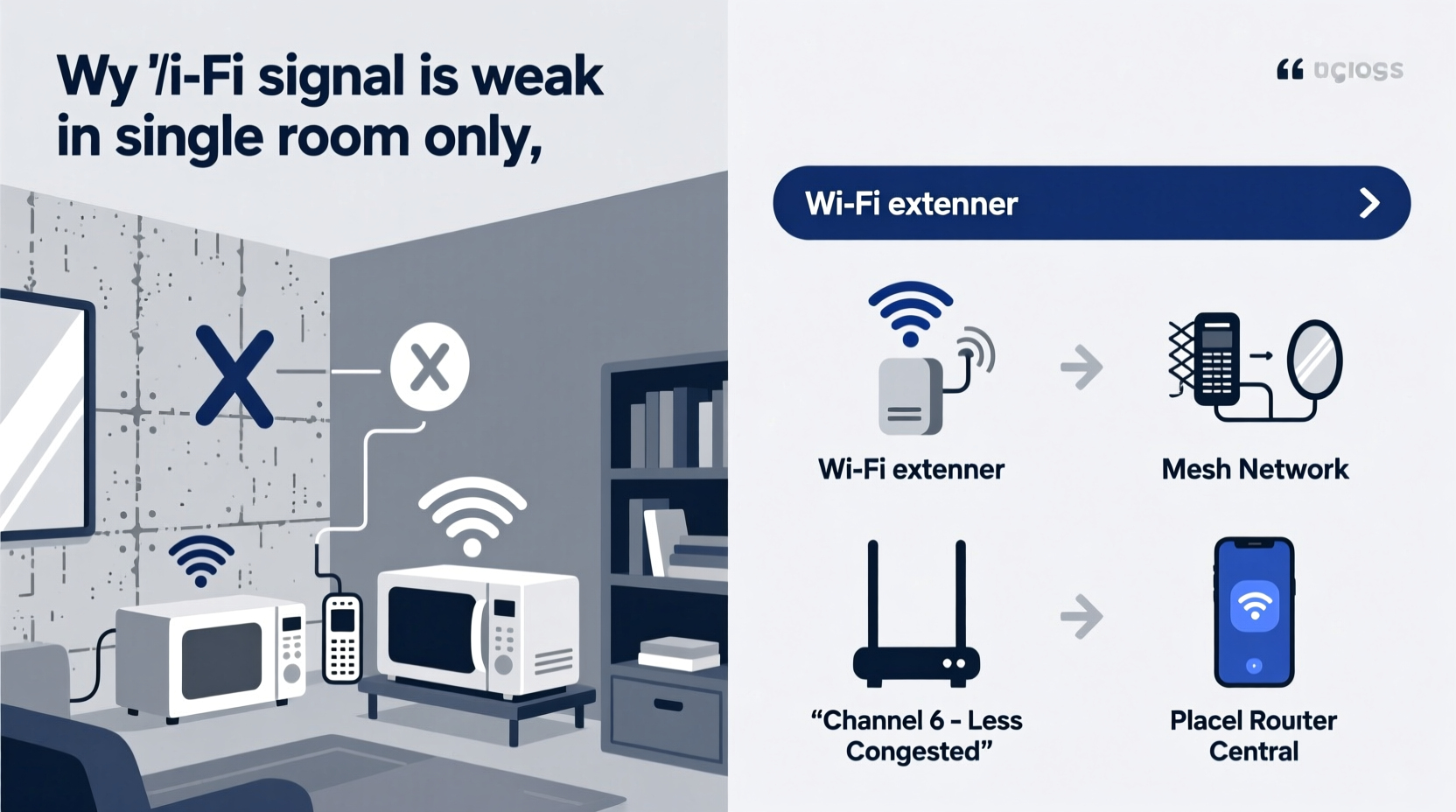
The construction of your home plays a major role in how Wi-Fi propagates. Not all walls are created equal when it comes to allowing wireless signals through. Dense materials such as concrete, brick, stone, and metal are particularly effective at blocking or weakening Wi-Fi signals.
For example, if the weak-signal room is located on the opposite side of a concrete load-bearing wall or near a metal-lined chimney, that could explain the drop-off. Even plaster walls with metal lath underneath can act as a Faraday cage, trapping or reflecting signals. Basements are especially vulnerable due to being surrounded by thick concrete and earth, both of which absorb 2.4 GHz and 5 GHz frequencies used by modern routers.
Floors and ceilings also matter. Multi-story homes often see signal degradation between levels because each floor adds another layer of obstruction. Wooden floors are relatively transparent to Wi-Fi, but if they contain ductwork, pipes, or electrical wiring, those can scatter the signal.
Interference from Electronics and Appliances
Electromagnetic interference (EMI) is a silent killer of Wi-Fi performance. Many household devices emit radio frequency noise that overlaps with the bands used by Wi-Fi—especially the crowded 2.4 GHz band. Devices like microwaves, cordless phones, baby monitors, fluorescent lights, and even poorly shielded USB 3.0 cables can degrade signal quality in nearby rooms.
Imagine this: your home office is set up next to the kitchen. Every time someone uses the microwave, your Zoom calls freeze. That’s not coincidence—it’s interference. Microwaves operate around 2.45 GHz, which sits right in the middle of the 2.4 GHz Wi-Fi spectrum. While they’re designed to be shielded, older or damaged units can leak enough energy to disrupt nearby networks.
Other electronics contribute too. Large speakers, refrigerators, washing machines, and power strips generate low-level electromagnetic fields that can interfere with wireless communication. Even aquariums—yes, fish tanks—can weaken signals due to the high water content, which absorbs RF energy.
“Wi-Fi isn’t just about distance—it’s about what’s between you and the router. A single appliance can create a shadow zone in an otherwise strong network.” — Dr. Lin Zhao, Wireless Network Engineer, IEEE Member
Router Placement and Signal Propagation
Where you place your router has a massive impact on coverage. Most people tuck theirs into a corner of the living room, behind the TV stand, or inside a cabinet—often near other electronics. But ideal placement requires open space, central positioning, and elevation.
Routers emit signals in a donut-shaped pattern (technically, a toroid), meaning the strongest horizontal coverage occurs around the midline of the device, with weaker signals directly above and below. Mounting your router vertically in a central hallway closet or on a shelf increases reach across multiple rooms.
If your router is located at one end of the house and the problematic room is at the far end—or on a different floor—you're simply asking the signal to travel too far through too many obstacles. Distance alone isn’t always the culprit; it's the combination of distance, angle, and intervening materials.
Step-by-Step Guide to Optimize Router Placement
- Evaluate current location: Is the router enclosed, near appliances, or close to exterior walls?
- Move to a central area: Choose a spot roughly equidistant from major usage areas.
- Elevate the router: Place it on a shelf or mount it on the wall, ideally waist to eye level.
- Keep it clear: Maintain at least 1–2 feet of clearance from walls, metal objects, and electronics.
- Reorient antennas: If your router has external antennas, point one vertically and one horizontally to improve multi-device coverage.
- Test after changes: Use a Wi-Fi analyzer app to measure signal strength before and after moving.
Solutions to Restore Strong Wi-Fi in Problem Rooms
Once you've identified potential causes, it’s time to implement targeted fixes. You don’t need to overhaul your entire network—sometimes a small adjustment makes all the difference.
Use a Wi-Fi Extender or Mesh System
A Wi-Fi extender repeats your existing signal to expand coverage. However, traditional extenders often cut bandwidth in half because they communicate with the router on the same channel they serve clients. For better performance, opt for a mesh Wi-Fi system like Google Nest Wifi, Eero, or TP-Link Deco. These systems use dedicated backhaul channels and intelligently route traffic for seamless roaming.
Place the secondary node halfway between your router and the weak-signal room. Avoid putting it too close to either end—this ensures both strong uplink and downlink performance.
Switch to the Less-Congested Band
Modern dual-band and tri-band routers offer both 2.4 GHz and 5 GHz frequencies. The 5 GHz band offers faster speeds and less interference but doesn’t penetrate walls as well. Conversely, 2.4 GHz travels farther but is more prone to congestion from neighboring networks and devices.
In a distant room with moderate interference, try connecting to the 2.4 GHz network instead. It may be slower, but it’s likely more stable. Alternatively, if the room is within reasonable range and free of dense obstructions, prioritize 5 GHz for better throughput.
Upgrade Firmware and Hardware
An outdated router—even if only two or three years old—may lack support for modern standards like MU-MIMO (Multi-User Multiple Input Multiple Output) or beamforming, which direct signals toward connected devices rather than broadcasting in all directions.
Check your router manufacturer’s website for firmware updates. These often include stability improvements, security patches, and enhanced signal management features. If your router is over five years old, consider upgrading to a Wi-Fi 6 (802.11ax) model, which handles interference better and supports more simultaneous connections efficiently.
Wired Backhaul for Maximum Performance
If possible, connect access points via Ethernet cable instead of relying solely on wireless extension. A wired backhaul eliminates latency and preserves full bandwidth between nodes. Run a Cat6 cable from your main router to a secondary access point in the weak-signal room. This turns the remote point into a powerful local hotspot with no signal loss.
Real Example: Fixing a Basement Home Office
Consider Sarah, who converted her basement into a quiet workspace. Her main router was upstairs in the living room, about 30 feet away with two floors and a concrete ceiling in between. Despite having gigabit internet, her video meetings frequently froze, and file uploads stalled.
She first tried a basic Wi-Fi extender, but performance remained inconsistent. After testing with a Wi-Fi analyzer app, she found that the 5 GHz signal was nearly undetectable downstairs, and the 2.4 GHz band was saturated with interference from her neighbor’s network.
Her solution? She installed a mesh system with one node upstairs and a second node halfway down the stairs, connected via Ethernet over powerline adapters. She also switched her work devices to the mesh network’s unified SSID, enabling seamless handoff. Result: stable 150 Mbps download speeds in the basement and uninterrupted calls.
Do’s and Don’ts: Quick Reference Table
| Do | Don’t |
|---|---|
| Place router centrally and elevated | Hide router in a cabinet or behind furniture |
| Use mesh systems with wired backhaul when possible | Rely on outdated extenders that halve bandwidth |
| Update router firmware regularly | Ignore software updates for years |
| Choose 2.4 GHz for long-range, 5 GHz for speed | Force all devices onto one band regardless of needs |
| Minimize nearby sources of interference | Install router next to microwave or refrigerator |
FAQ: Common Questions About Room-Specific Wi-Fi Issues
Can mirrors or glass weaken Wi-Fi signals?
Glass itself is mostly transparent to Wi-Fi, but mirrored surfaces have a thin metallic coating that reflects radio waves. Large mirrors or energy-efficient windows with metallic films can block or bounce signals, potentially creating dead zones.
Why does my phone show full bars but still stream poorly?
\"Bars\" indicate signal strength, not quality. A device might have a strong signal but suffer from high latency, packet loss, or interference. Check actual speed using a tool like Speedtest.net. Also, ensure you're not on a congested channel—your ISP or a neighbor’s network could be saturating the airwaves.
Is it worth hiring a professional to assess my home network?
If you've tried multiple solutions without success, yes. Certified professionals use heat-mapping tools to visualize coverage and identify hidden interference sources. Some ISPs offer in-home assessments, or you can hire a private network consultant for under $200.
Final Checklist: Fix Weak Wi-Fi in One Room
- ✅ Assess physical barriers (concrete, metal, water pipes)
- ✅ Identify nearby electronic interference sources
- ✅ Reposition router to a central, elevated location
- ✅ Test both 2.4 GHz and 5 GHz bands for optimal performance
- ✅ Install a mesh Wi-Fi system with a node near the problem area
- ✅ Consider wired backhaul via Ethernet or powerline adapters
- ✅ Update router firmware and replace outdated hardware if needed
- ✅ Use a Wi-Fi analyzer app to verify improvements
Conclusion: Take Control of Your Home Network
Weak Wi-Fi in one room doesn’t have to be a permanent annoyance. With a methodical approach—understanding materials, eliminating interference, optimizing placement, and leveraging modern networking tools—you can restore fast, reliable connectivity exactly where you need it. Don’t settle for buffering screens or dropped calls in your favorite space. Apply these strategies today, and transform that dead zone into a fully connected part of your digital life.




 浙公网安备
33010002000092号
浙公网安备
33010002000092号 浙B2-20120091-4
Comments
No comments yet. Why don't you start the discussion?