
If your internet crawls every evening just when you're ready to stream, game, or work from home, you're not alone. Millions of households experience the same frustrating drop in WiFi performance after dark. The issue isn’t always your internet plan—it’s often a combination of increased network demand and physical interference from everyday devices. Understanding what causes nighttime slowdowns and how to fix them can transform your digital evenings from buffering nightmares into seamless experiences.
Why WiFi Slows Down at Night: The Hidden Culprits
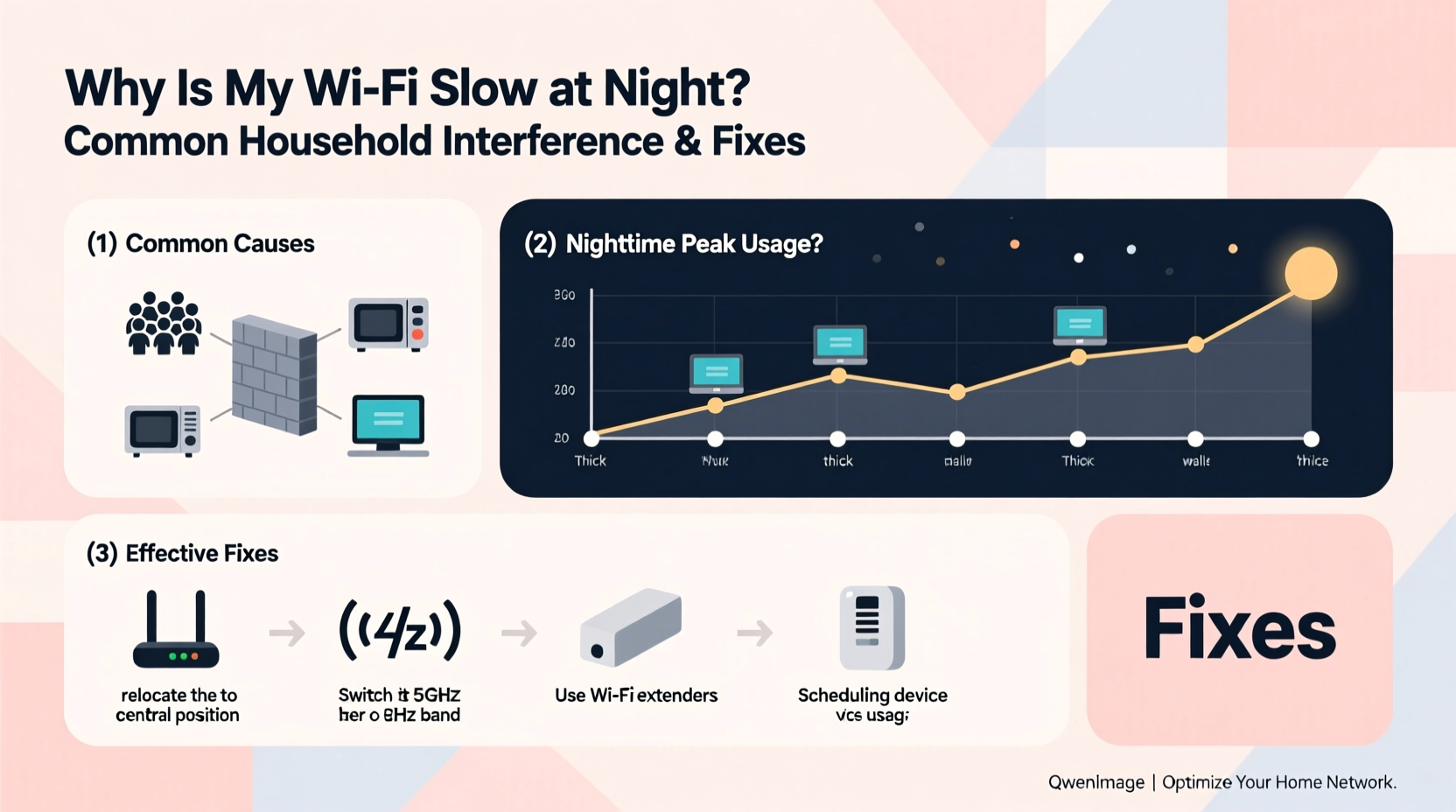
Nighttime internet slowdowns are rarely due to a single cause. Instead, they stem from a convergence of factors that peak during evening hours. When family members return home, multiple devices connect simultaneously—smartphones, laptops, tablets, smart TVs, gaming consoles, and IoT gadgets all compete for bandwidth. This surge in demand can overwhelm your router, especially if it's outdated or poorly positioned.
But congestion isn't the only issue. Wireless interference from household electronics becomes more pronounced when more devices are active. Microwaves, cordless phones, baby monitors, Bluetooth speakers, and even LED lights emit electromagnetic signals that can disrupt your WiFi’s radio frequencies. These disruptions are especially problematic on the 2.4 GHz band, which has longer range but lower capacity and higher susceptibility to interference.
Additionally, neighboring WiFi networks may contribute to signal crowding. In densely populated areas like apartment complexes, dozens of routers operating on overlapping channels create a chaotic wireless environment. At night, when most people are online, this \"WiFi pollution\" reaches its peak.
“WiFi performance at night is often a perfect storm of user demand, device interference, and channel congestion. Addressing just one factor rarely solves the problem.” — Dr. Lin Zhao, Network Optimization Engineer at Broadband Insights Group
Common Sources of Household Interference
Many everyday appliances and gadgets interfere with WiFi signals without users realizing it. Here’s a breakdown of the most frequent offenders:
- Microwave ovens: Emit strong 2.4 GHz radiation while running, directly interfering with WiFi signals.
- Cordless phones: Older DECT models operate near WiFi frequencies and can cause signal degradation.
- Bluetooth devices: Headphones, keyboards, and speakers use the same 2.4 GHz spectrum and may clash with WiFi.
- Baby monitors: Many analog models broadcast on frequencies adjacent to 2.4 GHz WiFi.
- LED lighting: Some cheaper LED bulbs generate electromagnetic noise that disrupts wireless signals.
- Wireless security cameras: Constant data streaming and poor frequency management can saturate local bands.
- Neighbor routers: Overlapping channels from nearby networks increase contention and reduce throughput.
Step-by-Step Guide to Diagnose and Fix Slow Nighttime WiFi
Resolving slow WiFi requires both investigation and action. Follow this systematic approach to identify and eliminate interference issues:
- Monitor usage patterns: Use your router’s admin interface or a network monitoring app (like NetSpot or GlassWire) to track connected devices and bandwidth consumption between 7 PM and 10 PM.
- Test speed at different times: Run speed tests (using sites like fast.com or speedtest.net) during the day and night. A significant drop at night confirms time-based performance loss.
- Identify interference sources: Turn off non-essential electronics one by one (especially microwaves, cordless phones, and Bluetooth hubs) and retest speeds.
- Change WiFi channels: Log into your router settings and switch from auto-channel to a less congested one. For 2.4 GHz, channels 1, 6, and 11 are non-overlapping. Use a WiFi analyzer app to find the least crowded option.
- Enable 5 GHz band: If your devices support it, connect them to the 5 GHz network. It’s faster and less prone to interference, though with shorter range.
- Update router firmware: Manufacturers release updates that improve stability, security, and interference handling. Check your router brand’s website for instructions.
- Reposition the router: Place it centrally, elevated, and away from walls, metal objects, and large appliances.
- Limit background activity: Schedule automatic updates, cloud backups, and DVR recordings for early morning hours.
Do’s and Don’ts: Managing Home Network Interference
| Do | Don’t |
|---|---|
| Use wired connections for stationary devices like desktop PCs and smart TVs | Place your router inside a cabinet or behind a refrigerator |
| Upgrade to a dual-band or tri-band router if still using an older model | Run microwave ovens or washing machines near the router during heavy internet use |
| Set Quality of Service (QoS) rules to prioritize video calls or gaming | Ignore firmware update notifications from your ISP or router manufacturer |
| Use mesh WiFi systems in large homes to eliminate dead zones | Assume slow internet is always the ISP’s fault—test locally first |
| Label and manage connected devices to prevent unauthorized access | Leave default router passwords and SSID names unchanged |
Real-Life Example: How One Family Fixed Their Evening Lag
The Thompson family in suburban Chicago struggled nightly with buffering YouTube videos and dropped Zoom calls. Their children couldn’t complete homework, and their remote work suffered. After ruling out ISP throttling, they used a free WiFi analyzer app and discovered that their router was stuck on Channel 6—shared by seven neighboring networks. Their microwave, located three feet from the router, was also spiking interference each evening.
They took these steps: moved the router to a shelf in the hallway, switched to Channel 1 on 2.4 GHz and connected all modern devices to 5 GHz, enabled QoS to prioritize work and school traffic, and replaced old LED bulbs in the kitchen. Within two days, their average nighttime download speed improved from 8 Mbps to 62 Mbps. “We didn’t pay for a new plan—we just optimized what we already had,” said Sarah Thompson, who now manages her home network weekly.
Expert Tips to Minimize Interference Long-Term
Sustainable WiFi performance requires ongoing attention. Consider these expert-backed strategies:
- Invest in a modern mesh system: Systems like Google Nest WiFi or Eero automatically optimize channel selection and load balance across devices.
- Segment your network: Create a separate guest network for visitors and IoT devices to reduce main network load.
- Use Ethernet where possible: Even one wired connection (e.g., for a gaming console) frees up significant wireless bandwidth.
- Disable unused features: Turn off WPS and UPnP if not needed—they can introduce instability and security risks.
- Check for electrical wiring issues: Faulty home wiring can emit radio noise. If interference persists despite fixes, consult an electrician.
WiFi Optimization Checklist
Use this checklist monthly to maintain peak performance:
- ✅ Run a speed test during peak evening hours
- ✅ Review connected devices in router settings
- ✅ Ensure firmware is up to date
- ✅ Verify optimal channel selection (use a WiFi scanner)
- ✅ Confirm critical devices are on 5 GHz or wired
- ✅ Reboot the router and modem
- ✅ Inspect physical placement and remove obstructions
- ✅ Audit and remove unknown devices from the network
- ✅ Adjust QoS settings if streaming or gaming lags
- ✅ Replace aging routers older than 3–5 years
Frequently Asked Questions
Does my internet provider throttle speeds at night?
Some ISPs implement traffic shaping during peak hours, but this is less common with unlimited plans. More often, slowdowns are due to local network congestion or interference. Test your speed via a wired connection to isolate the cause—if speeds are still low, contact your ISP. If wired speeds are fine but WiFi is slow, the issue is in your home setup.
Can thick walls really affect WiFi?
Absolutely. Materials like concrete, brick, and metal significantly block WiFi signals. Even drywall with foil-backed insulation can weaken transmission. If your router is on a different floor or behind multiple walls, consider a mesh system or WiFi extender. However, extenders can reduce speed by up to 50% if not properly configured—mesh systems are generally more reliable.
Is restarting my router enough to fix slow WiFi?
Restarting clears temporary glitches and resets connections, often providing a short-term boost. But it doesn’t solve underlying issues like interference or outdated hardware. Make rebooting part of routine maintenance—once a week—but combine it with deeper optimizations for lasting results.
Take Control of Your Home Network
Slow WiFi at night doesn’t have to be inevitable. With a clear understanding of interference sources and a few strategic adjustments, you can reclaim fast, reliable internet when you need it most. Start by auditing your current setup, eliminating obvious interference, and upgrading outdated equipment. Small changes—like switching channels, relocating your router, or enabling QoS—can yield dramatic improvements.
Remember, your home network is a shared ecosystem. Just as you maintain appliances and utilities, regular care for your WiFi ensures everyone benefits. Whether you’re working, learning, or unwinding after a long day, a smooth-connected home enhances daily life in ways both subtle and profound.




 浙公网安备
33010002000092号
浙公网安备
33010002000092号 浙B2-20120091-4
Comments
No comments yet. Why don't you start the discussion?