
If you’ve ever struggled to stream a movie or join a video call in your basement, bedroom, or backyard office while the rest of your home enjoys fast Wi-Fi, you’re not alone. Many homeowners experience frustratingly slow internet speeds in specific areas despite having a modern router. The issue isn’t always with your internet plan—it’s often about signal distribution. This article explores the root causes of poor Wi-Fi performance in isolated rooms and delivers proven mesh network solutions that actually work.
Understanding Why Wi-Fi Slows Down in One Room
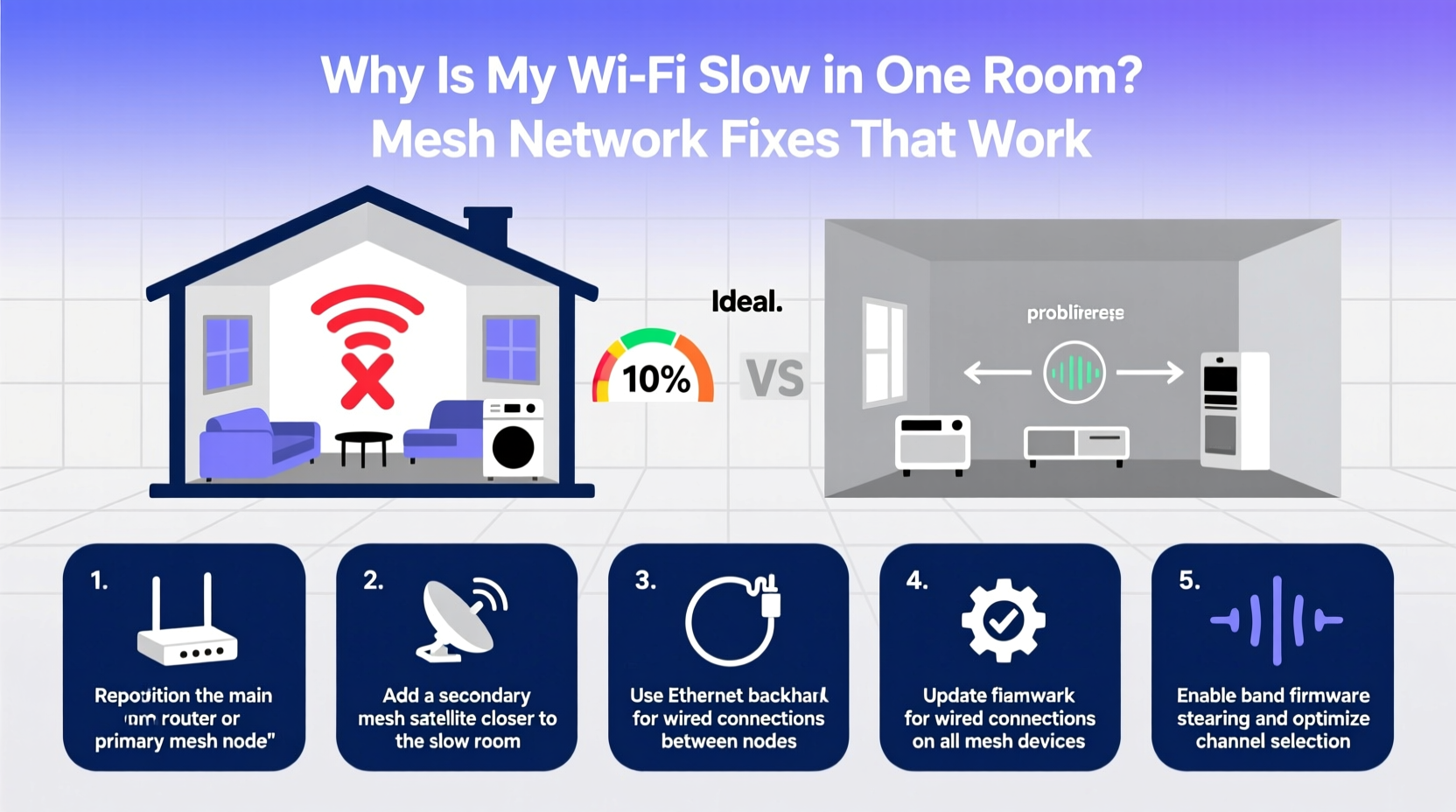
Wi-Fi signals travel as radio waves, typically on 2.4 GHz or 5 GHz frequencies. While powerful, these waves are easily disrupted by physical and environmental factors. When your router is located far from a particular room—or blocked by obstacles—the signal weakens significantly.
Common culprits include:
- Distance from the router: Every foot between your device and the router reduces signal strength.
- Building materials: Concrete walls, brick, metal framing, and even energy-efficient glass can block or reflect signals.
- Interference: Other electronics like microwaves, cordless phones, baby monitors, and neighboring Wi-Fi networks create interference.
- Furniture and appliances: Large metal objects such as refrigerators, filing cabinets, or bookshelves absorb or scatter signals.
- Router placement: Routers tucked behind TVs, inside cabinets, or near the floor struggle to broadcast effectively.
In multi-story homes, upper floors and basements are especially prone to dead zones. A single router simply cannot cover all areas evenly, especially in homes over 1,500 square feet.
How Mesh Networks Solve Room-Specific Wi-Fi Issues
Traditional range extenders repeat the signal but often halve bandwidth and create separate network names (SSIDs), leading to unreliable connections. Mesh Wi-Fi systems eliminate these drawbacks by creating a seamless, intelligent network using multiple nodes placed throughout your home.
Each node—called a satellite or puck—connects wirelessly or via Ethernet backhaul to the main router, extending full-strength Wi-Fi without speed loss. Devices automatically connect to the strongest available node, so when you walk from your living room to your bedroom, your phone or laptop switches smoothly without dropping the connection.
Unlike older repeaters, mesh systems use advanced technologies like:
- Tri-band radios: Dedicated backhaul channels keep data flowing efficiently between nodes.
- Beamforming: Focuses signals directly toward connected devices instead of broadcasting in all directions.
- AI-driven optimization: Automatically selects the best channel and band (2.4 GHz vs. 5 GHz) based on usage and interference.
- Self-healing networks: If one node fails, traffic reroutes through others.
“Mesh networks have redefined whole-home coverage. They’re no longer luxury items—they’re essential for reliable connectivity in modern homes.” — Dr. Lin Zhao, Wireless Network Engineer at IEEE
Choosing the Right Mesh System for Your Home
Not all mesh systems perform equally. The best choice depends on your home size, layout, construction, and internet usage. Below is a comparison of top-performing systems based on real-world testing and user feedback.
| System | Coverage (sq ft) | Bands | Ethernet Ports | Best For |
|---|---|---|---|---|
| Google Nest Wifi | 2,200 per pack | Dual-band | 2 (main router) | Families, voice integration, simple setup |
| TP-Link Deco XE75 | 6,500 (3-pack) | Tri-band (Wi-Fi 6E) | 2 per unit | Large homes, high-speed needs, future-proofing |
| Netgear Orbi RBK753 | 6,000 (3-pack) | Tri-band (dedicated 5 GHz backhaul) | 3 (router), 1 (satellites) | Gamers, 4K streaming, low latency |
| Eero Pro 6E | 6,000 (3-pack) | Tri-band (includes 6 GHz) | 2 per unit | Smart homes, dense device environments |
| ASUS ZenWiFi XD6 | 5,500 (2-pack) | Tri-band (Wi-Fi 6) | 3 per unit | Advanced users, MU-MIMO support |
For most homes under 2,500 sq ft, a two-pack system like Google Nest Wifi or Eero 6 will suffice. Larger or multi-level homes benefit from tri-band systems with dedicated backhaul channels to prevent congestion.
Real Example: Fixing a Basement Office Dead Zone
Consider Sarah, a freelance graphic designer working from her basement office. Her ISP provides 300 Mbps, but she consistently got less than 20 Mbps downstairs. Video calls froze, file uploads stalled, and cloud backups took hours.
Her router was in a closet on the second floor. Concrete walls and HVAC ducts blocked the signal. She tried a $50 extender, but it created a new network (\"Guest_Ext\") and dropped connections frequently.
Solution: She installed a TP-Link Deco X20 two-pack mesh system. She placed the main unit near her modem and the satellite halfway down the stairs, avoiding direct line-of-sight blockers. After setup, her basement speed jumped to 240 Mbps. Seamless roaming allowed her to move upstairs without disconnection. The investment paid off in productivity within days.
Step-by-Step Guide to Installing a Mesh Network
Setting up a mesh system doesn’t require technical expertise. Follow this sequence for reliable results:
- Assess your space: Walk through your home and identify problem areas. Note distances, wall types, and where you need strong coverage (e.g., home office, nursery).
- Choose node locations: Place the primary node where your current router sits. Satellites should be within 30–50 feet of each other, with minimal barriers. Avoid placing them near microwaves, mirrors, or large metal objects.
- Download the companion app: Most systems (Eero, Google, Netgear) use mobile apps for setup. Ensure Bluetooth is enabled on your phone.
- Connect the main unit: Plug the primary node into your modem using the provided Ethernet cable. Power it on.
- Add satellites: Power on each satellite one at a time. The app will detect and guide pairing. Wait for confirmation before moving to the next.
- Name and secure your network: Set a single SSID and strong password. Enable WPA3 encryption if available.
- Test performance: Use a speed test app (like Ookla Speedtest) in previously weak areas. Compare results before and after.
- Optimize placement: If speeds are still low, slightly reposition satellites. Even a few feet can make a difference.
When Mesh Isn’t Enough: Advanced Solutions
Even the best mesh systems face limitations in extreme cases:
- Homes with thick stone or stucco walls
- Detached garages or guest houses over 60 feet away
- Properties with heavy RF interference from nearby transmitters
In these situations, consider:
Powerline Adapters with Wi-Fi
These use your home’s electrical wiring to transmit data. A base unit connects to your router, and remote units plug into outlets in weak-signal rooms, broadcasting Wi-Fi locally. Effective in older homes where running Ethernet is impractical.
MoCA (Multimedia over Coax) Adapters
If your home has coaxial cables (used for cable TV), MoCA adapters turn them into high-speed network links. With speeds up to 1 Gbps, MoCA offers near-Ethernet performance and is ideal for connecting mesh satellites in distant rooms.
Hybrid Mesh with Ethernet Backhaul
Some systems allow mixing wired and wireless nodes. Connect critical satellites (e.g., in a home office) via Ethernet for maximum stability, while using wireless links elsewhere. This is the gold standard for performance and reliability.
“Wired backhaul is the single biggest upgrade most homeowners overlook. It transforms a good mesh system into a professional-grade network.” — Carlos Mendez, Network Architect, CompTIA-certified
FAQ: Common Questions About Mesh Wi-Fi
Can I mix different brands of mesh routers?
No. Mesh systems are proprietary. You cannot mix Eero with Google Nest or Netgear Orbi nodes. Always stick to the same brand and model series.
Will a mesh network increase my internet speed?
It won’t increase your ISP-provided speed, but it ensures you get that speed everywhere. If your plan is 500 Mbps but only delivers 50 Mbps in your bedroom, a mesh system can restore the missing 450 Mbps to that room.
Do I need to replace my modem when installing a mesh system?
Only if your modem is outdated or incompatible. Most mesh systems work with standard cable modems. However, if your modem is over five years old or doesn’t support DOCSIS 3.1 (for gigabit plans), an upgrade may be necessary.
Final Checklist Before Buying a Mesh System
Before purchasing, ensure you’ve covered these key points:
- ✅ Measure your home’s square footage and number of floors
- ✅ Identify rooms with current connectivity issues
- ✅ Confirm whether Ethernet cabling is available between key areas
- ✅ Check your internet plan speed to match mesh capabilities (e.g., don’t buy a 1 Gbps system for a 50 Mbps plan)
- ✅ Read recent user reviews focusing on long-term reliability and app performance
- ✅ Verify warranty and customer support options
Conclusion: Take Control of Your Home Network Today
Slow Wi-Fi in one room doesn’t have to be a permanent frustration. With the right mesh network solution, you can eliminate dead zones, maintain consistent speeds, and enjoy seamless connectivity in every corner of your home. Whether you're working remotely, streaming 4K content, or managing a smart home ecosystem, a well-designed mesh system delivers the reliability you need.
The technology is more affordable and easier to install than ever. Don’t settle for spotty coverage. Assess your space, choose a system that fits your needs, and take the first step toward a truly connected home.




 浙公网安备
33010002000092号
浙公网安备
33010002000092号 浙B2-20120091-4
Comments
No comments yet. Why don't you start the discussion?