
If you've ever found yourself frustrated because your phone crawls online while your laptop breezes through videos and downloads on the same network, you're not alone. This common discrepancy often leaves users questioning their router, internet plan, or even their device's lifespan. The truth is, multiple technical and environmental factors can cause your phone to experience slower Wi-Fi than your laptop—even when both are connected to the same network.
Understanding why this happens requires a closer look at hardware capabilities, software behavior, network settings, and physical positioning. Unlike laptops, smartphones operate under tighter constraints: smaller antennas, power-saving modes, and background app activity all influence performance. By systematically diagnosing these variables, you can restore your phone’s Wi-Fi speed and enjoy consistent connectivity across devices.
Understanding the Core Differences Between Phones and Laptops
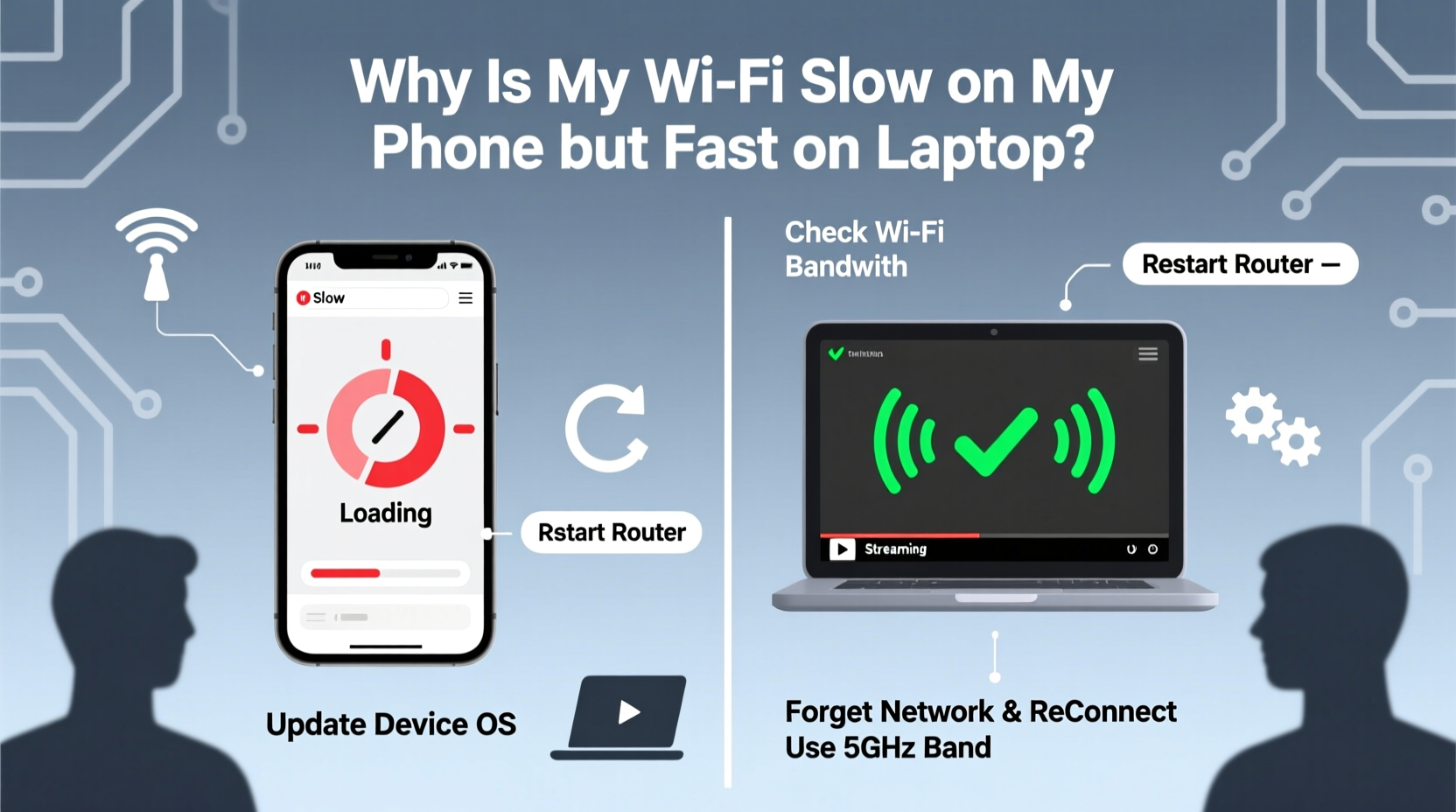
At first glance, it might seem unfair that two devices on the same network perform so differently. However, phones and laptops are built with distinct priorities in mind. Laptops typically prioritize performance and multitasking, featuring larger batteries, more powerful processors, and stronger Wi-Fi antennas. Phones, on the other hand, emphasize portability, battery efficiency, and cellular integration—often at the expense of peak wireless throughput.
For example, most modern laptops support dual-band (2.4 GHz and 5 GHz) and even tri-band Wi-Fi 6 routers with MIMO (Multiple Input Multiple Output) technology, enabling faster data transfer. Many mid-range or older smartphones may only support single-band connections or lack advanced antenna configurations. Additionally, laptops often have better heat dissipation, allowing sustained high-speed performance without throttling.
Common Causes of Slower Wi-Fi on Mobile Devices
The disparity in speed isn’t always due to hardware limitations. Several dynamic factors contribute to sluggish performance on phones:
- Band steering failure: Some routers automatically assign devices to the best available band, but phones may stubbornly stick to the crowded 2.4 GHz band instead of switching to the faster 5 GHz.
- Background app activity: Social media apps, cloud backups, email sync, and OS updates run constantly, consuming bandwidth unnoticed.
- Signal interference: Walls, appliances, mirrors, and even human bodies can weaken Wi-Fi signals—especially problematic for small phone antennas.
- Power-saving modes: Aggressive battery optimization can throttle network performance to conserve energy.
- DNS or IP conflicts: Incorrect network configuration can delay connection establishment and reduce effective throughput.
“Mobile devices are engineered for mobility, not maximum throughput. Their Wi-Fi stacks are tuned for low latency and intermittent use, not sustained high-speed streaming.” — Dr. Lena Torres, Network Systems Engineer at NetFlow Labs
Step-by-Step Guide to Diagnose and Fix Slow Phone Wi-Fi
Follow this structured approach to isolate and resolve the root cause of your phone’s slow Wi-Fi:
- Reboot both your phone and router. A simple restart clears temporary glitches and resets network stacks on both ends.
- Test speed on both devices using the same app (e.g., Speedtest by Ookla). Ensure tests occur simultaneously and from the same location.
- Forget and rejoin the Wi-Fi network on your phone. This forces a fresh DHCP lease and clears outdated DNS entries.
- Check which Wi-Fi band your phone is using. If possible, manually connect to the 5 GHz network (if your phone supports it).
- Disable battery saver or adaptive battery mode. These features often limit CPU and network usage during idle periods.
- Turn off Wi-Fi Assist (iOS) or Switch to Mobile Data (Android). These settings can interfere with perceived performance by switching networks mid-session.
- Update your phone’s operating system and router firmware. Outdated software may contain bugs affecting Wi-Fi stability.
- Inspect for signal strength differences. Move closer to the router and observe if speed improves significantly.
When to Suspect Router Configuration Issues
If multiple phones exhibit similar slowdowns while laptops remain fast, the issue may lie in how your router manages client devices. Older routers may not handle mixed-device environments well, especially when newer standards like Wi-Fi 6 coexist with legacy clients.
| Issue | Symptom | Solution |
|---|---|---|
| Mixed-mode operation | Router slows down for compatibility with older devices | Upgrade to a dual-band router with separate SSIDs for 2.4 GHz and 5 GHz |
| Channel congestion | Poor performance in dense apartment buildings | Use a Wi-Fi analyzer app to find less crowded channels |
| QoS misconfiguration | Laptop prioritized over phone in traffic shaping | Adjust Quality of Service settings or disable if unnecessary |
| Firmware bugs | Inconsistent speeds after updates | Reset router and install latest stable firmware |
Optimizing Your Phone’s Network Settings
Beyond external fixes, fine-tuning your phone’s internal settings can yield noticeable improvements.
Start by reviewing active apps that consume data. On Android, go to Settings > Network & Internet > Data Usage. On iOS, navigate to Settings > Cellular and scroll down to see per-app usage. Disable background refresh for non-essential apps like social media or weather services.
Next, ensure your DNS settings aren’t holding you back. While most phones use automatic DNS, switching to a public resolver like Google DNS (8.8.8.8) or Cloudflare (1.1.1.1) can improve response times. On Android, this can be done per-network under advanced Wi-Fi settings. On iOS, you’ll need to install a configuration profile or use third-party apps.
Real-World Example: Apartment Complex Connectivity
Consider Maria, a remote worker living in a densely populated urban apartment building. She noticed her iPhone struggled to load video calls while her MacBook Pro worked flawlessly. After testing, she discovered her phone was locked onto the 2.4 GHz band, congested by neighboring networks. Her laptop, however, automatically connected to the 5 GHz band.
Maria changed her router settings to broadcast separate SSIDs for each band (“HomeNetwork_2G” and “HomeNetwork_5G”). She then manually connected her phone to the 5 GHz network. Instantly, her download speeds jumped from 12 Mbps to 87 Mbps. She also disabled iCloud Photos upload during work hours, reducing background strain. These changes transformed her mobile experience without upgrading any hardware.
Preventive Checklist for Sustained Performance
To avoid recurring Wi-Fi issues, follow this monthly maintenance checklist:
- ✅ Reboot your router and modem
- ✅ Clear cached data on your phone
- ✅ Review and restrict high-data-use apps
- ✅ Verify your phone connects to the 5 GHz band when available
- ✅ Run a side-by-side speed test between devices
- ✅ Update router firmware and security patches
- ✅ Physically inspect router placement and eliminate obstructions
Frequently Asked Questions
Can a factory reset fix slow Wi-Fi on my phone?
A factory reset can help if software corruption or misconfigured settings are to blame. However, it should be a last resort. Before resetting, try clearing network settings specifically (under General Management or System Settings), which removes saved networks and resets Wi-Fi, Bluetooth, and mobile data configurations without deleting personal files.
Does case thickness affect Wi-Fi signal on phones?
While most modern cases don’t block signals significantly, metal-reinforced, thick magnetic, or poorly designed cases can interfere with antenna performance. Cases with built-in battery packs or credit card holders may also disrupt radio frequencies. If you suspect interference, test Wi-Fi speed with and without the case.
Why does my phone show full bars but still have slow internet?
Full signal bars indicate strong signal *strength*, not necessarily high *speed*. Bandwidth availability, network congestion, router limitations, or throttling due to background processes can result in poor performance despite good reception. Signal quality (measured in dBm and SNR) matters more than bar count.
Final Thoughts and Next Steps
Slow Wi-Fi on your phone while your laptop thrives isn't a mystery—it's a solvable mismatch between device capabilities, network behavior, and environmental conditions. By methodically evaluating hardware limits, adjusting settings, and optimizing your home network, you can close the performance gap and enjoy seamless browsing, streaming, and calling on your mobile device.
Don’t accept subpar speeds as inevitable. Start with one change today—reboot your router, switch to the 5 GHz band, or disable background sync—and measure the difference. Small adjustments often lead to dramatic improvements. Share your results or challenges in the comments; your experience could help others facing the same frustration.




 浙公网安备
33010002000092号
浙公网安备
33010002000092号 浙B2-20120091-4
Comments
No comments yet. Why don't you start the discussion?