
If your internet flies during the day but crawls after sunset, you're not alone. Millions of households experience the same frustrating phenomenon: fast speeds in the morning, sluggish performance by 7 PM. The culprit? Bandwidth congestion—often caused by a combination of network demand, ISP throttling, and device overload. Understanding the root causes and implementing targeted fixes can restore your evening browsing, streaming, and gaming experience.
Why Does My WiFi Slow Down Only at Night?
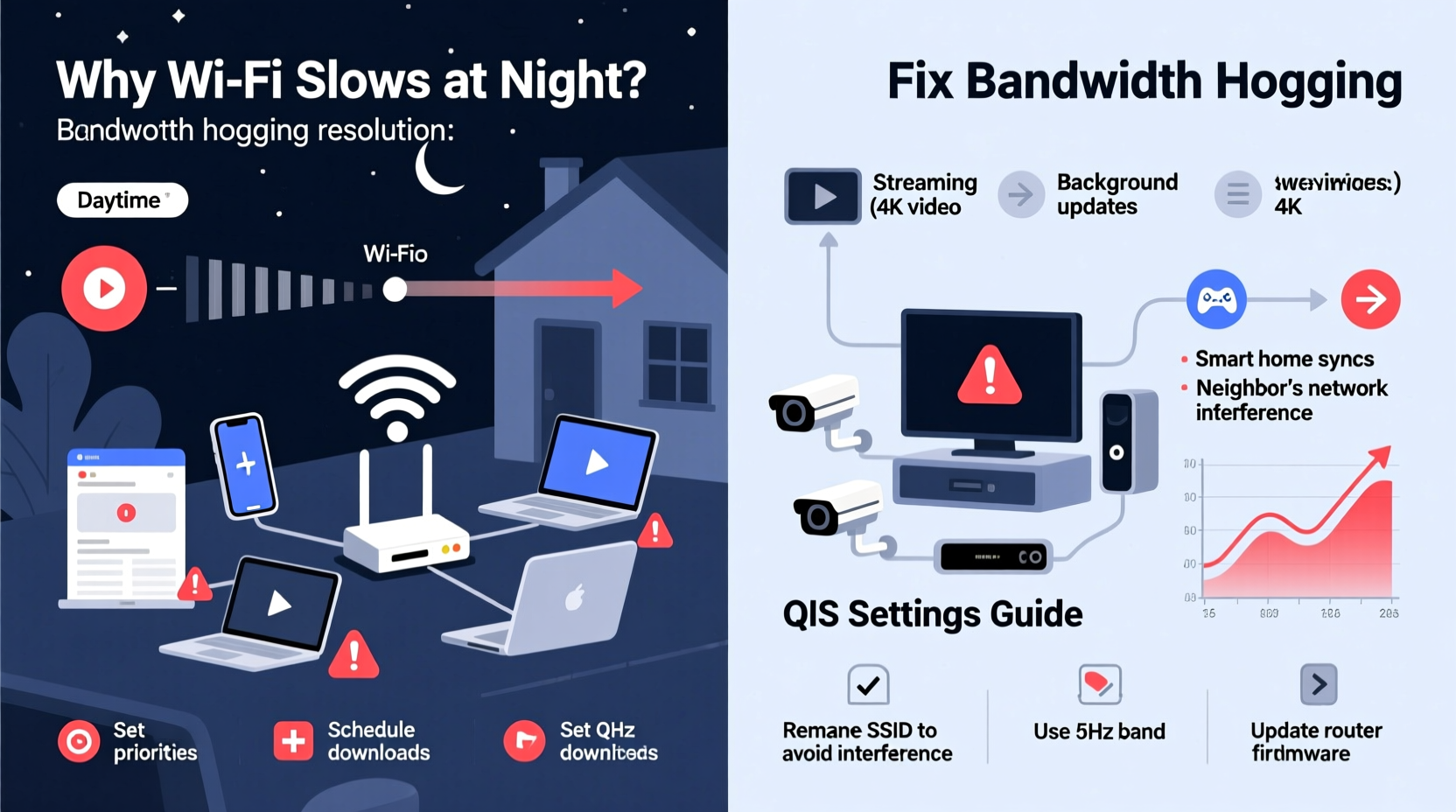
Nighttime internet slowdowns aren’t random. They stem from predictable patterns in usage, infrastructure limitations, and household behavior. When multiple devices go online simultaneously—especially for high-bandwidth activities like 4K streaming or video calls—the available bandwidth gets divided. This becomes especially noticeable when external factors compound the strain.
Peak Network Congestion (The \"Prime Time\" Effect)
Between 6 PM and 10 PM, most people return home and begin using the internet heavily. This period, known as peak hours, creates what’s called “network congestion” on both your local network and your Internet Service Provider’s (ISP) infrastructure. In densely populated areas, such as apartment complexes or suburban neighborhoods, this shared upstream capacity can become saturated.
“During evening hours, ISPs often see up to 70% higher traffic loads. That congestion directly impacts last-mile delivery speed.” — Dr. Lena Patel, Network Engineer at Broadband Insights Group
This isn’t just about your router. Even if your equipment is top-tier, your ISP may be delivering data through a bottlenecked node serving hundreds of homes—all trying to stream Netflix, game online, or join Zoom calls at once.
Bandwidth-Hogging Devices in Your Home
Within your own network, certain devices silently consume disproportionate bandwidth. Common offenders include:
- Smart TVs automatically downloading updates overnight
- Cloud backup services syncing large files
- Gaming consoles updating games in the background
- Security cameras uploading footage to the cloud
- Mobile phones refreshing apps and media libraries
Many of these processes run on timers or activate when devices are idle—typically at night. Without proper management, they can monopolize your connection without your knowledge.
How to Diagnose Nighttime Bandwidth Issues
Before applying fixes, confirm that the issue is truly related to bandwidth and not hardware failure or signal interference. Follow this diagnostic sequence:
- Run speed tests at different times. Use tools like Speedtest.net or Fast.com to compare daytime vs. nighttime results. Consistent drops after 6 PM point to congestion.
- Check connected devices. Log into your router’s admin interface (usually via 192.168.1.1 or similar) and review active connections. Look for unfamiliar or high-usage devices.
- Monitor real-time bandwidth usage. Some routers display live upload/download rates per device. Identify which ones spike at night.
- Test wired vs. wireless performance. Connect a laptop directly to your modem with an Ethernet cable. If speeds improve significantly, the issue may be Wi-Fi interference rather than bandwidth.
- Isolate external vs. internal causes. If wired speed also drops at night, the problem likely lies with your ISP or neighborhood congestion.
Mini Case Study: The Johnson Family's Streaming Woes
The Johnsons in Austin, Texas, complained of constant buffering on their living room TV every evening. Their kids couldn’t finish YouTube videos, and video calls froze mid-sentence. After testing, they discovered their smart doorbell was uploading HD clips to the cloud between 7–9 PM. Simultaneously, their son’s PS5 downloaded a 45GB game update. These two devices consumed nearly 80% of their 100 Mbps plan. By rescheduling updates and adjusting camera settings, they restored smooth performance within 48 hours.
Solutions to Stop Bandwidth Hogging
Once you’ve identified the sources of congestion, apply these proven strategies to regain control over your network.
1. Enable Quality of Service (QoS) on Your Router
QoS allows you to prioritize certain types of traffic or specific devices. For example, you can give higher priority to video calls or gaming consoles while limiting background tasks like cloud syncs.
To set up QoS:
- Access your router’s settings page.
- Navigate to Advanced Settings > QoS or Traffic Control.
- Select devices or applications to prioritize (e.g., work laptop, smart TV).
- Set lower priority for non-critical devices (e.g., IoT gadgets, secondary phones).
- Save and reboot the router.
2. Limit Background Data Usage on Devices
Most modern devices update automatically, often consuming large amounts of data. Disable or reschedule these functions:
- iOS/Android: Turn off automatic app updates over Wi-Fi or restrict them to off-peak hours.
- Windows/Mac: Pause system updates or schedule them for weekends or early mornings.
- Smart TVs & Consoles: Set updates to manual mode and run them during the day.
- Cloud Services: Adjust Dropbox, Google Drive, or iCloud sync schedules to avoid evenings.
3. Upgrade Your Internet Plan or Hardware
If your household regularly uses more than 3–4 devices simultaneously for streaming or gaming, a 50–100 Mbps plan may no longer suffice. Consider upgrading to a gigabit (1000 Mbps) plan, especially if it’s affordably available.
Also evaluate your router:
| Router Type | Max Speed (Ideal Conditions) | Suitable For | Upgrade If… |
|---|---|---|---|
| 802.11n (Wi-Fi 4) | 150–300 Mbps | Light browsing, single HD stream | You have more than 2 devices or use 4K streaming |
| 802.11ac (Wi-Fi 5) | 433–1300 Mbps | Families with multiple devices | You notice lag despite good speed test results |
| 802.11ax (Wi-Fi 6/6E) | 600–9600 Mbps | Heavy usage, smart homes, gamers | You want future-proof performance and better efficiency |
Upgrading to Wi-Fi 6 improves not just speed but also device handling efficiency, reducing slowdowns when many gadgets are connected.
4. Segment Your Network with Guest or IoT Networks
Create separate networks for less critical devices. Most modern routers allow you to set up guest networks or dedicated bands for smart home gadgets. This isolates bandwidth hogs like security cameras or voice assistants from your primary devices.
Steps to implement:
- Log into your router.
- Enable Guest Network or create a second SSID.
- Name it something like “IoT_Devices” or “Guest_WiFi”.
- Assign lower bandwidth limits if supported.
- Connect non-essential devices to this network.
Proactive Maintenance Checklist
Use this checklist monthly to prevent recurring slowdowns:
- ✅ Run a speed test at peak time (8 PM) and compare to daytime baseline
- ✅ Review connected devices in router settings
- ✅ Update router firmware to latest version
- ✅ Reboot modem and router to clear temporary glitches
- ✅ Check for unauthorized users accessing your network
- ✅ Adjust QoS settings based on current usage patterns
- ✅ Audit device-level auto-update settings
- ✅ Confirm parental controls or bandwidth caps are properly configured
FAQ: Common Questions About Nighttime WiFi Slowness
Can neighbors really affect my WiFi speed?
Yes. In crowded environments like apartments, nearby routers operating on the same channel can cause interference. Use a Wi-Fi analyzer app to find the least congested channel and manually set it in your router settings. Switching to the 5 GHz band can also reduce interference since fewer devices use it.
Should I contact my ISP if my speed drops at night?
Absolutely. If diagnostics show consistent speed degradation during peak hours and your plan promises stable performance, contact your provider. Ask if they throttle bandwidth during high-demand periods or if there are known node issues in your area. You may qualify for a service upgrade or relocation to a less congested network segment.
Does turning off devices help improve WiFi speed?
Yes. Every connected device consumes a small amount of overhead bandwidth, even when idle. Turning off unused smartphones, tablets, or smart speakers reduces network chatter. More importantly, disabling devices that perform background syncing (like laptops backing up to OneDrive) can free up significant bandwidth.
Conclusion: Take Control of Your Evening Internet Experience
Nighttime WiFi slowdowns don’t have to be inevitable. With a clear understanding of bandwidth dynamics and a few strategic adjustments, you can reclaim fast, reliable internet when you need it most. Start by diagnosing whether the issue is internal (device-based) or external (ISP-related), then apply targeted solutions—from enabling QoS to upgrading your hardware. Small changes add up to dramatic improvements in daily digital life.




 浙公网安备
33010002000092号
浙公网安备
33010002000092号 浙B2-20120091-4
Comments
No comments yet. Why don't you start the discussion?