
If your internet flies during the day but crawls every evening, you're not imagining it. Millions of households experience the same frustrating pattern: strong WiFi signals in the morning, sluggish streaming by dinner, and unplayable online games by bedtime. This isn’t random—it’s a symptom of network congestion, interference, and usage patterns that peak after work and school hours. The good news? You can diagnose and fix most causes without upgrading your plan or buying new equipment immediately.
This guide breaks down the real reasons behind nighttime WiFi slowdowns and gives you actionable strategies to reclaim your bandwidth—no tech degree required.
Why Nighttime WiFi Slows Down: The Core Causes
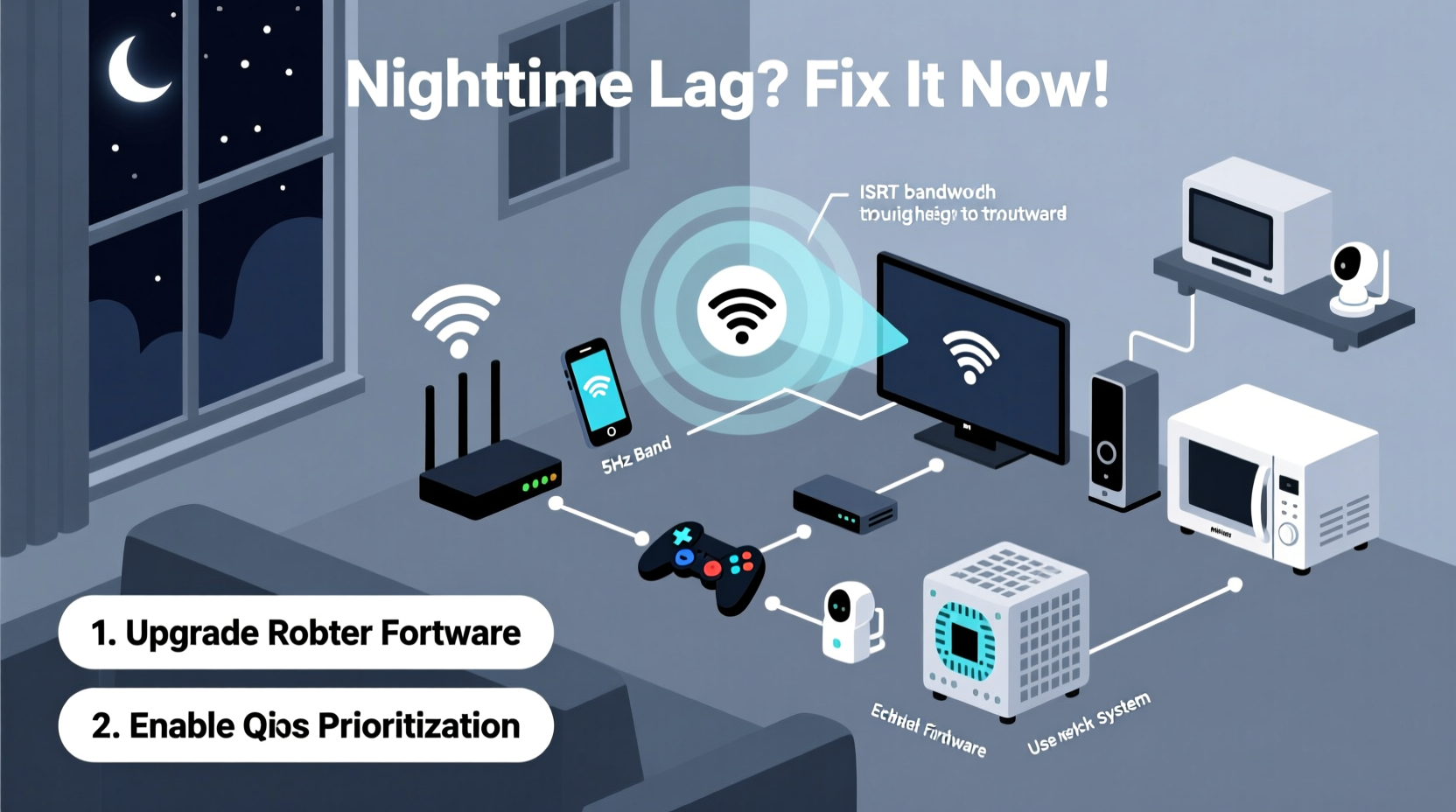
Nighttime internet lag doesn't happen in a vacuum. It's usually the result of overlapping factors that strain your home network when demand is highest. Understanding these triggers is the first step toward solving them.
- Peak Network Congestion: Between 7 PM and 11 PM, most people are home, streaming video, gaming, or browsing. Internet service providers (ISPs) often oversell bandwidth on shared lines, so when everyone uses more data simultaneously, speeds drop for all.
- Neighborhood Interference: In dense areas like apartments or suburban neighborhoods, dozens of WiFi networks operate on the same radio channels. At night, as more neighbors turn on routers, interference increases, degrading signal quality.
- Increased Device Usage at Home: Smart TVs, phones, tablets, security cameras, and voice assistants all compete for bandwidth. A single 4K stream uses about 15 Mbps; multiple devices add up quickly.
- Rogue Devices or Background Updates: Smart home gadgets or computers may run automatic updates late at night, silently consuming large chunks of bandwidth.
- Router Overheating or Aging Hardware: Routers left on 24/7 can overheat during extended use, especially in poorly ventilated spaces. Older models also struggle with modern traffic loads.
How to Diagnose Your Nighttime WiFi Problem
Before making changes, confirm what’s actually causing the slowdown. Jumping to conclusions can lead to wasted time and money.
- Test Speeds at Different Times: Use tools like Speedtest.net or Fast.com to record upload and download speeds during low-usage (e.g., midday) and high-usage (e.g., 8–10 PM) periods. Consistent drops point to external congestion.
- Check Connected Devices: Log into your router’s admin panel (usually via 192.168.1.1 or 192.168.0.1) and review active devices. Look for unknown or suspicious connections.
- Monitor Bandwidth Usage: Some routers show real-time bandwidth per device. Identify which gadgets are hogging data—especially if they’re running backups or updates.
- Scan for WiFi Interference: Use free apps like WiFi Analyzer (Android) or NetSpot (Windows/Mac) to see which WiFi channels nearby networks are using. Overcrowded channels (like 6 or 11 on 2.4 GHz) cause interference.
- Restart Your Router: A simple reboot clears memory leaks and resets unstable connections. If speeds improve temporarily, your router may need an upgrade or better placement.
Real-World Example: The Martinez Family’s Fix
The Martinez family in Austin, Texas, struggled nightly with buffering Netflix and dropped Zoom calls from their home office. Their ISP promised 100 Mbps, but tests showed only 12 Mbps after 7 PM. After investigation, they discovered three issues: their router was tucked behind a TV cabinet, their neighbor’s WiFi used the same channel, and their smart thermostat downloaded firmware updates at midnight.
They moved the router to a central shelf, switched to a less crowded WiFi channel, and scheduled updates for daytime. Within days, nighttime speeds stabilized near 85 Mbps—more than enough for their needs.
Proven Solutions to Stop Nighttime WiFi Lag
Once you’ve diagnosed the issue, apply targeted fixes. Start with the simplest and cheapest before investing in hardware.
1. Optimize Router Placement and Environment
Where your router sits dramatically affects performance. Avoid basements, metal cabinets, thick walls, and proximity to microwaves or cordless phones.
2. Switch to Less Crowded WiFi Channels
The 2.4 GHz band has only three non-overlapping channels: 1, 6, and 11. If your neighbors all use channel 6, switching to 1 or 11 reduces interference. For even better results, use the 5 GHz band, which offers more channels and less congestion—but shorter range.
In your router settings, look for “Wireless Channel” under WiFi settings. Set 2.4 GHz to Auto or manually choose the least used channel based on your scan.
3. Enable Quality of Service (QoS)
QoS lets you prioritize certain devices or activities. For example, you can give gaming consoles or video calls higher priority than background downloads.
To enable QoS:
- Access your router’s admin interface.
- Look for “QoS,” “Bandwidth Control,” or “Traffic Prioritization.”
- Select key devices (e.g., laptop, Xbox) and assign high priority.
- Set limits on non-critical devices if needed.
4. Limit or Schedule Heavy Downloads
Automatic cloud backups, game patches, and OS updates often run overnight. While convenient, they can saturate your connection. Reschedule them for off-peak hours or weekdays.
For Windows: Settings > Update & Security > Change active hours. For PlayStation/Xbox: Go to system settings and disable auto-updates or set them to download only during specific times.
5. Upgrade Firmware and Hardware
An outdated router firmware can cause instability and poor performance. Check your manufacturer’s website for updates. If your router is more than 3–4 years old, consider upgrading to a Wi-Fi 6 (802.11ax) model, which handles multiple devices more efficiently and resists interference better.
“Modern homes with 20+ connected devices need Wi-Fi 6 to maintain consistent speeds, especially during peak usage.” — Dr. Alan Reyes, Senior Network Engineer at NetVelocity Labs
Checklist: 7 Steps to Eliminate Nighttime WiFi Lag
Follow this action plan to systematically address and resolve slow nighttime internet:
- ✅ Run speed tests at different times to confirm the issue.
- ✅ Reboot your router and modem.
- ✅ Move your router to a central, elevated location away from obstructions.
- ✅ Use a WiFi analyzer app to find the least congested channel.
- ✅ Switch 2.4 GHz to a clear channel and use 5 GHz for high-bandwidth devices.
- ✅ Enable QoS and prioritize critical devices like work laptops or gaming consoles.
- ✅ Disable or reschedule automatic updates and cloud backups.
When to Consider Hardware Upgrades
Sometimes, the solution isn’t configuration—it’s capacity. If you've optimized everything and still face lag, evaluate your hardware.
| Issue | Solution | Estimated Cost |
|---|---|---|
| Old router (Wi-Fi 4 or earlier) | Upgrade to Wi-Fi 6 or Wi-Fi 6E router | $100–$250 |
| Poor coverage in large homes | Add mesh WiFi system (e.g., Eero, TP-Link Deco) | $150–$400 |
| ISP throttling or low base speed | Upgrade internet plan (e.g., from 100 Mbps to 300 Mbps) | $10–$30/month extra |
| Interference in apartment buildings | Use 5 GHz or 6 GHz bands; install directional antennas | $0–$80 |
Moving to a mesh system can eliminate dead zones and balance load across access points. These systems automatically steer devices to the strongest signal and reduce interference through intelligent channel selection.
Frequently Asked Questions
Can my neighbors really slow down my WiFi?
Yes. In densely populated areas, multiple WiFi networks on the same channel interfere with each other, especially on the 2.4 GHz band. This is called co-channel interference. Using a WiFi analyzer and switching to a less crowded channel—or moving to 5 GHz—can resolve this.
Should I leave my WiFi on all the time?
Most modern routers are designed to run continuously. However, restarting them weekly can prevent memory leaks and maintain stability. If your router overheats or becomes unresponsive at night, a scheduled reboot (via app or smart plug) can help.
Does turning off devices improve WiFi speed?
Yes. Every connected device consumes a small amount of bandwidth for background communication. Disconnecting unused phones, tablets, or IoT gadgets frees up resources, especially on older routers with limited processing power.
Take Control of Your Nightly Connection
Slow WiFi at night is a common but solvable problem. It rarely stems from one single flaw but rather a combination of congestion, interference, and suboptimal settings. By methodically testing, adjusting, and upgrading where necessary, you can enjoy smooth streaming, lag-free gaming, and reliable video calls—even during peak hours.
Start tonight: run a speed test, check your router’s location, and scan for interference. Small changes often deliver dramatic improvements. Don’t accept poor performance as inevitable. With the right knowledge, you have full control over your home network’s health and speed.




 浙公网安备
33010002000092号
浙公网安备
33010002000092号 浙B2-20120091-4
Comments
No comments yet. Why don't you start the discussion?