
If your internet crawls every evening while streaming, gaming, or video calling, you're not alone. Millions of households experience the same frustrating drop in Wi-Fi performance after sunset. The issue isn't magic or coincidence—it's rooted in real network dynamics. While your router may work flawlessly during the day, nighttime brings increased demand, interference, and usage patterns that expose its limitations. Understanding the underlying causes is the first step toward a permanent fix.
This guide breaks down the most common reasons for nightly Wi-Fi slowdowns, explains how home networks behave under peak load, and provides actionable steps to restore fast, reliable connectivity—no matter the time of day.
Why Nighttime Triggers Wi-Fi Slowdowns
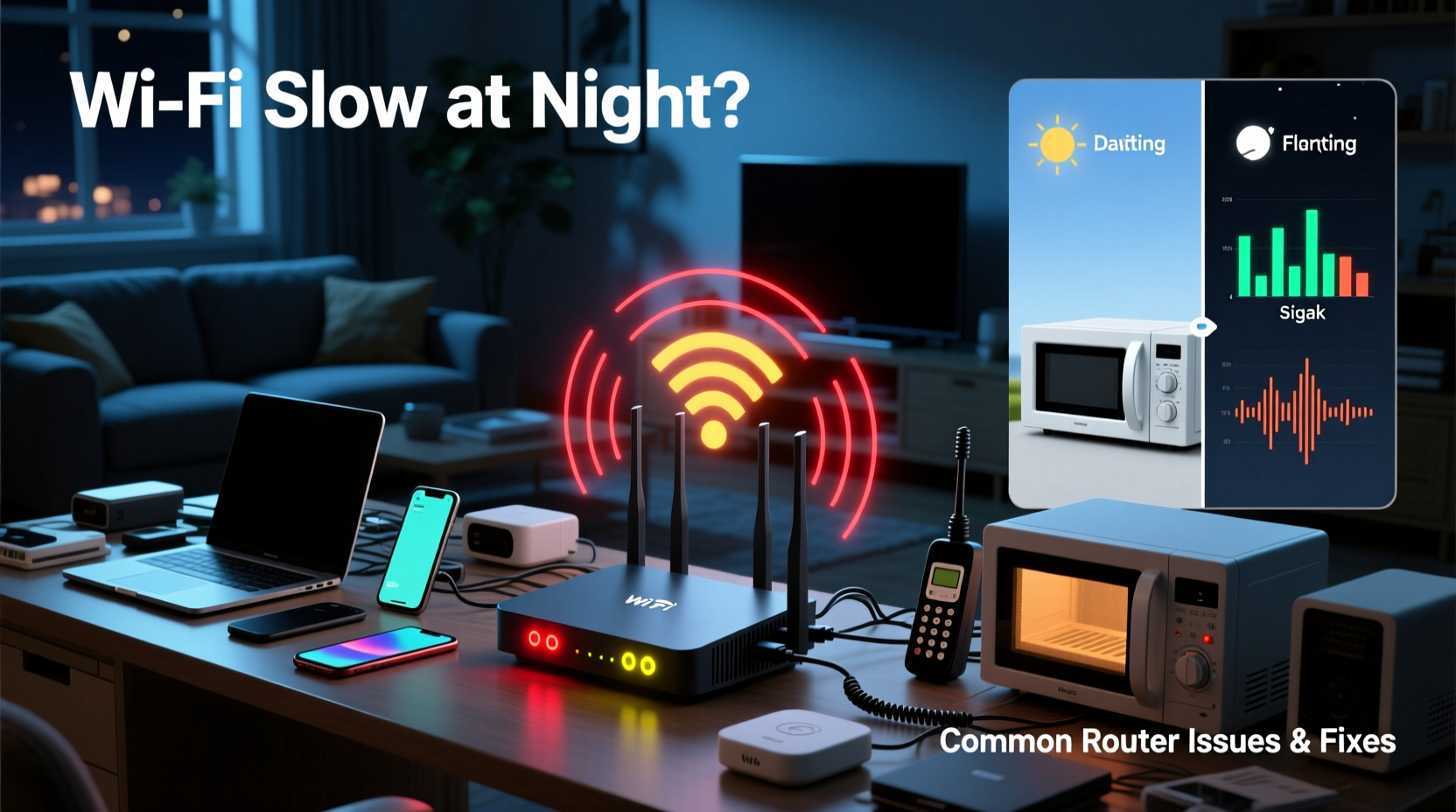
During daylight hours, your household likely uses fewer devices simultaneously. Kids are at school, adults may be at work, and smart appliances run intermittently. But once evening arrives, multiple users come online at once. Streaming services, online gaming, video calls, and background updates all compete for bandwidth. This surge in traffic can overwhelm even a capable router.
Beyond internal demand, external factors play a role. Neighboring networks on the same Wi-Fi channel create congestion, especially in apartment complexes or densely populated areas. This interference peaks at night when more households are online. Additionally, some internet service providers (ISPs) implement traffic shaping or throttling during high-usage periods, reducing speeds across their network.
Common Router Issues That Worsen at Night
Your router is the central hub of your home network. If it’s outdated, poorly configured, or physically compromised, performance will degrade—especially under pressure. Below are the most frequent hardware and configuration problems contributing to slow nighttime Wi-Fi.
1. Overloaded Bandwidth Capacity
Routers have finite processing power and bandwidth limits. A mid-tier router might handle 5–7 active devices comfortably but struggle with 10 or more. When everyone streams Netflix, plays online games, and scrolls social media simultaneously, the router becomes a bottleneck.
2. Outdated Firmware
Many users never update their router firmware, missing critical performance improvements, security patches, and stability fixes. An unpatched router may crash or throttle connections under stress.
3. Poor Channel Selection
Wi-Fi operates on shared radio channels. In crowded environments, multiple routers using the same channel interfere with each other. Most default routers stick to auto-selected channels that may be congested, especially at night.
4. Signal Interference from Appliances
Household electronics like microwaves, cordless phones, and baby monitors emit signals near the 2.4 GHz band used by older Wi-Fi standards. These devices often operate more frequently in the evening, disrupting your signal.
5. Heat Build-Up and Hardware Fatigue
Routers generate heat. After running continuously for hours, especially in enclosed spaces or poor ventilation, they can overheat. Thermal throttling reduces performance to prevent damage, leading to slower speeds.
“Routers are like any computer—they need maintenance, cooling, and occasional reboots to perform reliably.” — David Lin, Network Infrastructure Engineer at NetSecure Labs
Step-by-Step Guide to Diagnose and Fix Nighttime Wi-Fi Issues
Follow this systematic approach to identify and resolve the root cause of your slow evening internet.
- Monitor Device Usage: Use your router’s admin interface or a network monitoring app (like Fing or GlassWire) to see how many devices are connected at peak times. Disconnect unused or unauthorized devices.
- Test Speed at Different Times: Run speed tests (via speedtest.net or fast.com) at noon, 6 PM, and 9 PM. Compare results to determine if slowdowns are consistent or isolated to evening hours.
- Reboot Your Router Daily: Power cycle your router every 24 hours. Unplug it for 30 seconds, then restart. This clears memory leaks and resets unstable connections.
- Update Firmware: Log into your router’s admin panel (usually via 192.168.1.1 or 192.168.0.1). Check for firmware updates under “Administration” or “Maintenance.” Enable automatic updates if available.
- Switch Wi-Fi Channels: Use a tool like Wi-Fi Analyzer (Android) or NetSpot (Windows/Mac) to scan nearby networks. Choose the least congested 2.4 GHz and 5 GHz channels. Manually set them in your router settings.
- Enable Quality of Service (QoS): QoS prioritizes bandwidth for critical tasks like video calls or gaming. Set priority rules in your router settings to ensure key devices get sufficient speed.
- Optimize Router Placement: Move your router away from walls, metal objects, and appliances. Elevate it centrally in your home for better coverage.
- Upgrade Hardware if Necessary: If your router is more than 3–4 years old, consider upgrading to a dual- or tri-band mesh system for better handling of multiple devices.
Do’s and Don’ts: Managing Home Network Performance
| Action | Do | Don’t |
|---|---|---|
| Router Location | Place centrally, elevated, away from obstructions | Hide in a cabinet or basement corner |
| Firmware Updates | Check monthly; enable auto-updates | Ignore update notifications |
| Wi-Fi Bands | Use 5 GHz for streaming/gaming, 2.4 GHz for IoT devices | Force all devices onto 2.4 GHz |
| Device Management | Limit background apps and auto-updates at night | Allow unlimited device access without oversight |
| Congestion Control | Use QoS to prioritize important traffic | Assume all devices have equal priority |
Real-World Example: The Johnson Family’s Wi-Fi Fix
The Johnsons in suburban Chicago had been struggling with unbearable Wi-Fi lag every evening. Their two kids couldn’t finish homework videos, and movie nights were interrupted by buffering. During the day, speeds averaged 85 Mbps, but by 8 PM, it dropped to 8 Mbps.
After testing, they discovered 14 devices connected to their three-year-old router—including a forgotten smart TV and a guest phone. Using their ISP-provided gateway, they found it was stuck on a heavily congested 2.4 GHz channel. They also realized the router was tucked behind a bookshelf next to a microwave.
They moved the router to a central shelf, updated its firmware, switched to a less crowded Wi-Fi channel, and enabled QoS to prioritize laptops and tablets. They also set up a guest network to reduce main network load. Within two days, their nighttime speeds stabilized at 65+ Mbps—more than enough for smooth streaming and browsing.
When to Upgrade Your Equipment
Not all problems can be fixed with software tweaks. If your router is outdated or underpowered, replacement may be the best long-term solution. Consider upgrading if:
- You own a single-band router (only 2.4 GHz).
- Your router is more than four years old.
- It lacks QoS, parental controls, or guest network features.
- You frequently experience disconnections or overheating.
- Your internet plan exceeds 200 Mbps, but your router supports only 802.11n.
Modern dual-band or tri-band mesh systems (like Google Nest Wifi, ASUS ZenWiFi, or TP-Link Deco) distribute load efficiently and provide seamless roaming. They’re ideal for homes with multiple users and high data demands.
Preventative Maintenance Checklist
Stay ahead of Wi-Fi issues with this monthly checklist:
- ✅ Reboot the router and modem
- ✅ Run a speed test and compare results
- ✅ Review connected devices and remove unknowns
- ✅ Check for firmware updates
- ✅ Verify QoS settings are active
- ✅ Inspect router placement and ventilation
- ✅ Scan for Wi-Fi interference and adjust channels if needed
Frequently Asked Questions
Can my neighbors really slow down my Wi-Fi?
Yes. If multiple nearby routers use the same Wi-Fi channel—especially on the 2.4 GHz band—they create signal interference. This is common in apartments or townhouses. Switching to a less crowded channel or using the 5 GHz band reduces this effect.
Does turning off Wi-Fi at night help?
Turning off Wi-Fi overnight can give your router a thermal reset and reduce wear, but it disables smart home devices, updates, and background syncing. A better approach is scheduling reboots or using a smart plug to automate short power cycles during low-usage hours.
Why does my speed test vary so much?
Speed fluctuations are normal due to network congestion, device load, server distance, and wireless interference. For accurate readings, test wired (via Ethernet), close background apps, and run multiple tests at different times. Consistent drops at night point to local or ISP-related congestion.
Conclusion: Take Control of Your Home Network
Nighttime Wi-Fi slowdowns aren’t inevitable. With a clear understanding of how networks behave under load and the right troubleshooting steps, you can maintain strong, stable speeds after dark. From optimizing router settings to upgrading aging hardware, every action adds up to a smoother digital experience.
Start tonight: reboot your router, check your connected devices, and run a speed test. Small changes often yield dramatic improvements. Once you’ve implemented these fixes, share your success story—help others escape the nightly buffering loop.




 浙公网安备
33010002000092号
浙公网安备
33010002000092号 浙B2-20120091-4
Comments
No comments yet. Why don't you start the discussion?