
If your internet speeds are fast during the day but crawl to a halt every evening, you're not imagining things. This pattern is surprisingly common — and yes, your neighbors could very well be part of the problem. As more people return home, stream movies, play games, and connect devices, wireless congestion spikes in residential areas. The result? Your once-reliable Wi-Fi becomes sluggish just when you need it most.
Understanding the root causes behind nighttime slowdowns requires looking beyond your router settings. It involves examining network interference, bandwidth demand, signal physics, and even local infrastructure. The good news: most of these issues can be diagnosed and improved with simple adjustments.
Why Nighttime Wi-Fi Slows Down: The Big Picture
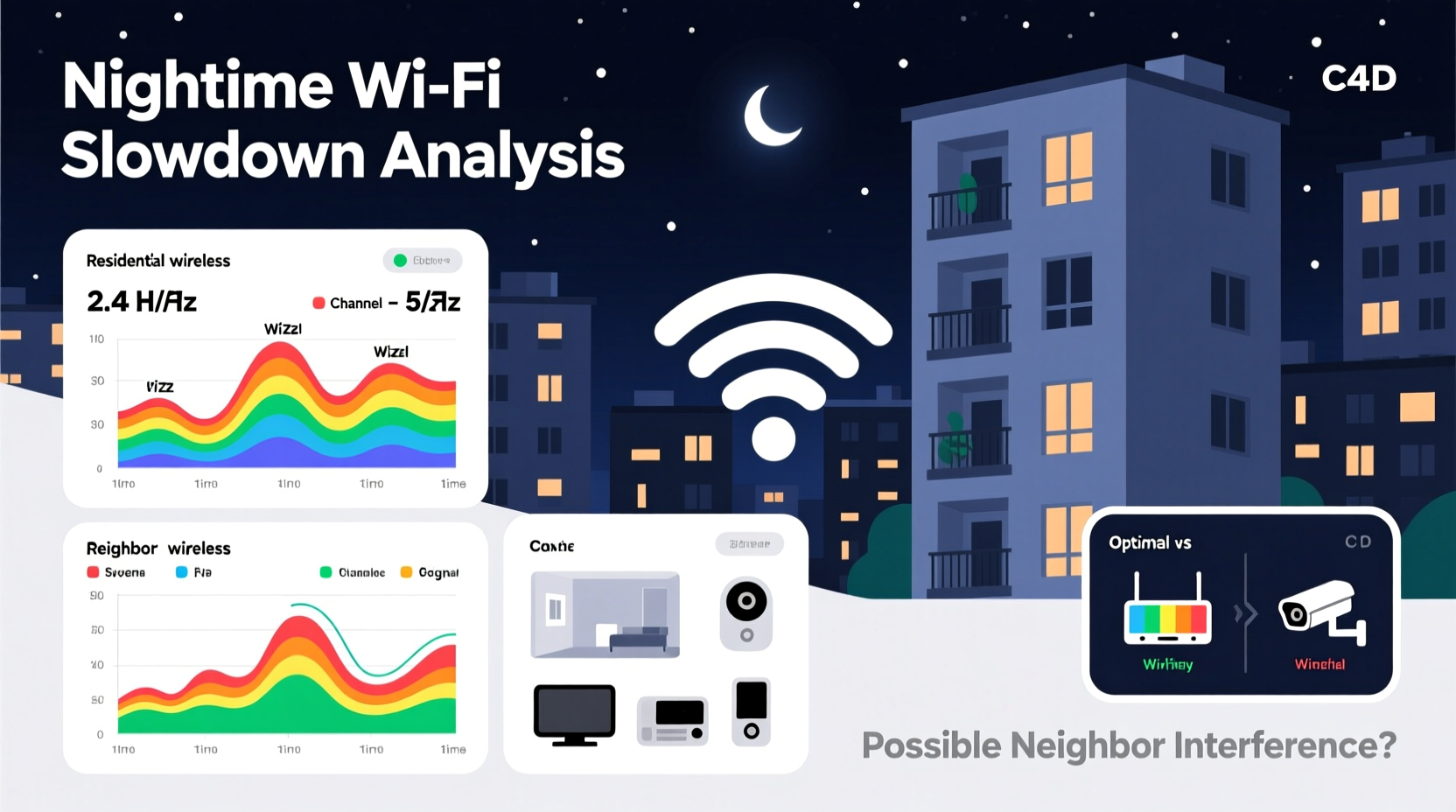
Wi-Fi operates on shared radio frequencies — primarily 2.4 GHz and 5 GHz bands. Unlike wired connections, these signals travel through the air and walls, making them vulnerable to interference from nearby networks and electronic devices. During peak hours (typically 6 PM to 10 PM), household internet usage surges. Multiple users across a neighborhood may be simultaneously streaming 4K video, downloading large files, or participating in online gaming sessions.
This collective demand creates what’s known as “network congestion.” Think of it like rush hour traffic: the same roads (frequency channels) are being used by too many vehicles (data packets). When everyone tries to move at once, bottlenecks form.
The 2.4 GHz band is especially prone to this issue because it has fewer non-overlapping channels (only three: 1, 6, and 11) and longer range, meaning signals from several blocks away can interfere. In contrast, the 5 GHz band offers more channels and faster speeds but doesn't penetrate walls as effectively.
“Wireless performance in dense urban environments often degrades predictably in the evenings due to spectrum saturation.” — Dr. Alan Reyes, RF Engineer & Network Consultant
How Neighboring Networks Affect Your Signal
Your Wi-Fi doesn’t exist in isolation. Every nearby router broadcasts its own signal, and if multiple routers use the same channel, they compete for airspace. This competition forces devices to wait their turn to transmit data, increasing latency and reducing throughput.
In apartment complexes, townhouses, or closely packed suburban neighborhoods, it's not unusual to detect 20–30 Wi-Fi networks within range. Many default to Channel 6 on the 2.4 GHz band, creating a hotspot of interference. Even if your password is secure, you’re still affected by signal overlap.
Beyond direct channel conflict, there’s also “co-channel interference” and “adjacent-channel interference.” Co-channel happens when two networks use the exact same channel; adjacent occurs when overlapping channels bleed into each other (e.g., Channel 4 interfering with Channels 3 and 5).
Other Common Causes of Evening Slowdowns
While neighbor interference is a major factor, it’s rarely the only one. Several internal and external elements contribute to degraded performance at night:
- Increased household usage: More family members using phones, tablets, smart TVs, and game consoles simultaneously.
- ISP throttling or network management: Some Internet Service Providers reduce speeds during peak times to manage overall load.
- Outdated or overloaded router: Older models may struggle with modern demands, especially when handling multiple high-bandwidth tasks.
- Background updates: Smart devices often schedule software downloads overnight, consuming bandwidth without user awareness.
- Physical obstructions or poor placement: Routers tucked in cabinets or near metal objects lose efficiency, which becomes more noticeable under stress.
A single cause might not cripple your network, but combined, they create a perfect storm of slowness precisely when usage peaks.
Step-by-Step Guide to Diagnose and Fix Nighttime Wi-Fi Issues
Follow this structured approach to pinpoint and resolve the source of your slowdowns:
- Test speed consistency: Run internet speed tests at different times of day using tools like Speedtest.net or Fast.com. Compare results between morning and evening to confirm the pattern.
- Scan surrounding networks: Use a mobile Wi-Fi scanner app to see which channels nearby routers are using. Identify whether your network overlaps heavily with others.
- Change your Wi-Fi channel: Log into your router’s admin panel (usually via 192.168.1.1 or similar) and switch to the least congested 2.4 GHz channel (ideally 1, 6, or 11). For 5 GHz, choose a DFS-free channel unless your router supports dynamic frequency selection.
- Enable dual-band routing: If your router supports both 2.4 GHz and 5 GHz, encourage devices that support it (laptops, newer phones) to connect to the less-congested 5 GHz band.
- Update firmware: Check your router manufacturer’s website for firmware updates that improve stability and security.
- Limit background activity: Schedule automatic updates for off-peak hours or disable auto-updates on non-critical devices.
- Upgrade hardware if needed: Consider replacing outdated routers with modern mesh systems or Wi-Fi 6 (802.11ax) models designed for high-density environments.
Do’s and Don’ts of Managing Neighborhood Wi-Fi Interference
| Do | Don’t |
|---|---|
| Use a Wi-Fi analyzer to pick optimal channels | Leave your router on default factory settings |
| Separate 2.4 GHz and 5 GHz networks with unique SSIDs | Mix both bands under one network name if devices misconnect frequently |
| Position your router centrally and elevated | Place it near microwaves, cordless phones, or thick walls |
| Reboot your router weekly to clear memory leaks | Ignore repeated disconnections or overheating signs |
| Invest in quality equipment suited to your space | Assume all routers perform equally regardless of age or standard |
Real-World Example: How One Family Fixed Their Evening Lag
The Thompsons lived in a mid-rise condo in downtown Seattle. Every night around 7 PM, their Netflix streams would buffer, Zoom calls froze, and online homework stalled. Speed tests showed daytime downloads at 85 Mbps but dropped to 12 Mbps after dinner.
They began troubleshooting by scanning nearby networks and found 27 visible Wi-Fi signals — 19 using Channel 6. Their router was also set to Channel 6. After switching to Channel 1 and renaming their 5 GHz network separately (“Home-Fast”), they noticed immediate improvement. They then updated the router firmware and moved it from a closet shelf to an open bookcase.
Within a week, evening speeds stabilized at 65+ Mbps. The change wasn’t magic — just methodical optimization based on real interference data.
Checklist: Optimize Your Wi-Fi for Peak Hours
- ☐ Run speed tests at various times to document slowdown patterns
- ☐ Download a Wi-Fi analyzer app and assess channel congestion
- ☐ Change your 2.4 GHz channel to the least crowded option
- ☐ Enable and label your 5 GHz network distinctly
- ☐ Update router firmware to the latest version
- ☐ Relocate the router to a central, unobstructed area
- ☐ Reboot the router monthly or use a smart plug timer
- ☐ Disable automatic updates on secondary devices during peak hours
- ☐ Consider upgrading to a Wi-Fi 6 router or mesh system if problems persist
- ☐ Contact your ISP to rule out throttling or service degradation
Frequently Asked Questions
Can I legally stop my neighbors from affecting my Wi-Fi?
No, you cannot control or block neighboring Wi-Fi signals, nor should you attempt to interfere with them. However, you can optimize your own network to minimize impact. Using less congested channels, upgrading equipment, and improving placement are legal and effective strategies.
Does Wi-Fi strength really drop because of other networks?
Yes — not because of signal blocking, but due to data contention. When multiple networks share the same frequency space, devices must take turns transmitting. This increases latency and reduces usable bandwidth, even if your signal bars appear full.
Is upgrading to a mesh system worth it for dealing with interference?
It depends on your environment. Mesh systems offer better coverage and intelligent band steering, automatically connecting devices to the best available frequency. In densely populated areas, models supporting Wi-Fi 6 or 6E (which includes the less-crowded 6 GHz band) provide significant advantages over older single-router setups.
When to Suspect Your ISP Instead of Neighbor Interference
Sometimes, the bottleneck isn't wireless at all. Your ISP may impose bandwidth caps, throttle certain types of traffic (like video streaming), or experience backbone congestion during peak hours. To test this:
- Connect a device directly to your modem via Ethernet cable.
- Run a speed test during peak slowdown periods.
- If wired speeds are also low, the issue lies upstream — likely with your ISP.
Contact your provider with evidence from multiple tests. Ask specifically about network management policies and whether your plan includes deprioritization during high-traffic times.
Conclusion: Take Control of Your Home Network
Nighttime Wi-Fi slowdowns aren't inevitable. While neighbor interference plays a real role in urban and suburban settings, it’s just one piece of a larger puzzle. By understanding how wireless networks interact, monitoring your environment, and applying targeted improvements, you can reclaim reliable performance when you need it most.
Start with simple steps: analyze your signal landscape, adjust your router settings, and reposition your hardware. If those don’t suffice, consider future-proof upgrades like Wi-Fi 6 or professional network assessment. The goal isn’t perfection — it’s consistent, usable connectivity throughout the day and night.




 浙公网安备
33010002000092号
浙公网安备
33010002000092号 浙B2-20120091-4
Comments
No comments yet. Why don't you start the discussion?