
If your internet runs smoothly during the day but crawls to a halt every evening, you're not alone. Millions of households experience this frustrating pattern. The issue isn’t imaginary—there are real, identifiable reasons why your WiFi slows down specifically at night. Understanding these causes is the first step toward restoring reliable speeds when you need them most: during streaming, video calls, or online gaming after work or school.
This article breaks down the most common culprits behind nighttime WiFi slowdowns and provides actionable, easy-to-implement solutions. Whether it’s network congestion, outdated hardware, or interference from household devices, we’ll help you diagnose and fix the problem for good.
Peak Usage Hours and Network Congestion
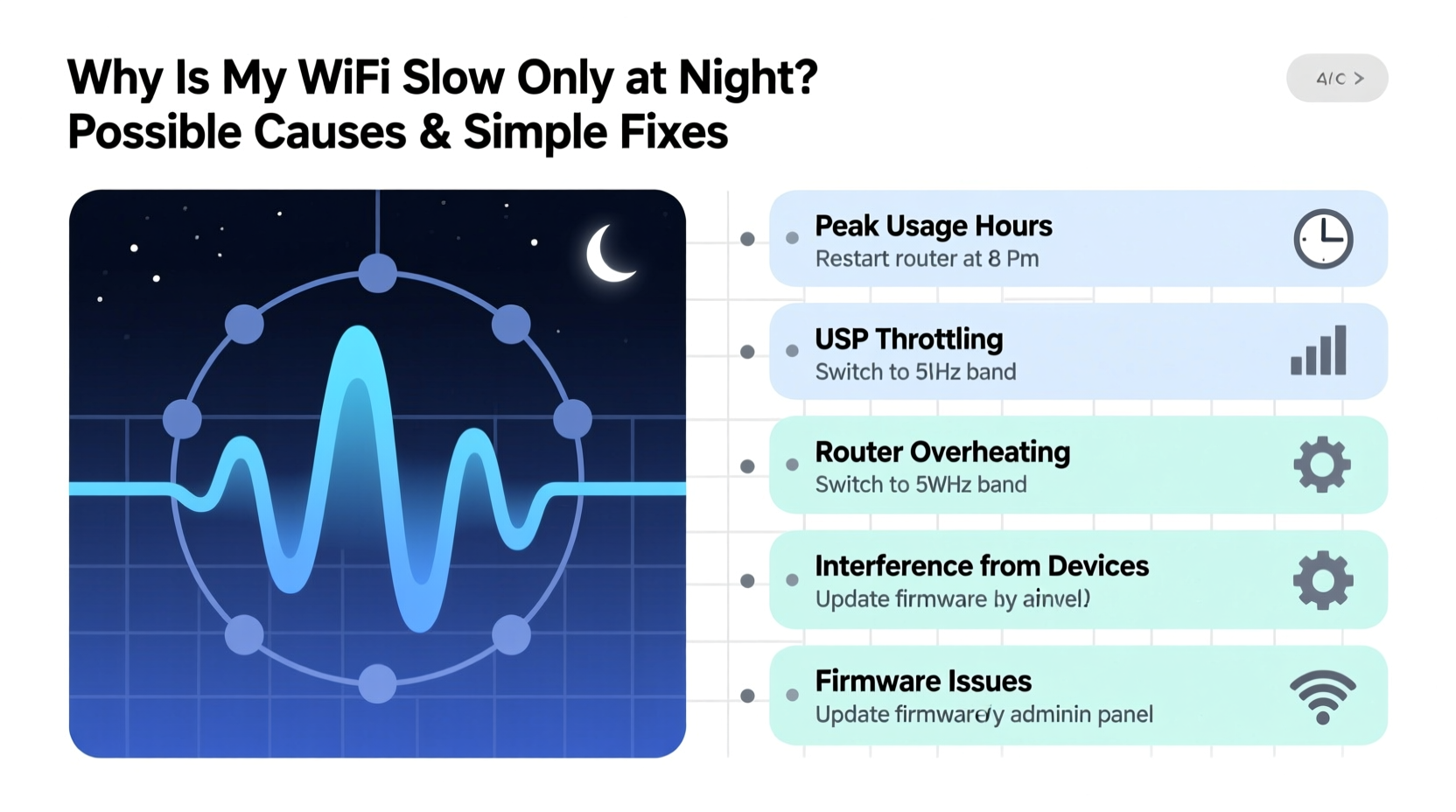
The most frequent reason for slow WiFi at night is increased demand on both your home network and your Internet Service Provider’s (ISP) infrastructure. During the day, family members are at work or school, devices are idle, and bandwidth use is low. But once everyone returns home, multiple users start streaming, browsing, gaming, and downloading—all at once.
This surge in activity can overwhelm your router, especially if it wasn’t designed for heavy concurrent usage. Additionally, your ISP may experience what’s known as “local network congestion.” When many homes in your neighborhood go online simultaneously, the shared connection node can become overloaded, leading to slower speeds for everyone—even if your plan promises high bandwidth.
Think of your internet like a highway. During off-peak hours, traffic flows freely. But between 7 PM and 10 PM, it's rush hour—lanes fill up, speeds drop, and delays happen. This effect is especially noticeable with cable internet providers that share bandwidth among neighborhoods.
How to Determine If Congestion Is the Issue
Run a speed test using tools like Speedtest.net or Fast.com at different times of the day. Compare results from midday (e.g., 2 PM) with those from prime time (e.g., 8 PM). If your speeds drop significantly at night despite no changes in your setup, external congestion is likely a factor.
“Even with a robust home network, users on shared broadband infrastructures will feel the impact of neighborhood-level congestion during peak hours.” — Raj Patel, Senior Network Engineer at NetVision Solutions
Interference from Household Devices
Many common household electronics emit electromagnetic signals that interfere with WiFi, particularly on the crowded 2.4 GHz band. At night, people tend to use more appliances—microwaves, cordless phones, baby monitors, Bluetooth speakers, and even LED lights—which can disrupt wireless signals.
Microwaves, for instance, operate around 2.45 GHz, nearly identical to the 2.4 GHz WiFi frequency. When running, they can cause temporary but severe signal degradation. Similarly, older cordless phones and poorly shielded electronics leak radio noise that degrades performance.
WiFi Channels and Overlap
Most routers automatically select a channel, but in dense environments (apartments, townhouses), neighboring networks may be using the same or overlapping channels. This creates co-channel interference, reducing effective bandwidth.
Using a WiFi analyzer app (like NetSpot or WiFi Analyzer on Android), you can scan nearby networks and identify which channels are least congested. Switching to a less crowded channel—especially on the 5 GHz band—can dramatically improve performance.
| Frequency Band | Range | Speed | Vulnerability to Interference |
|---|---|---|---|
| 2.4 GHz | Longer range | Slower (up to 150 Mbps) | High (shared with appliances) |
| 5 GHz | Shorter range | Faster (up to 1 Gbps) | Low (fewer interfering devices) |
Outdated or Underpowered Equipment
Your router might simply be too old to handle modern demands. Routers from five or more years ago often support outdated standards like 802.11n, which max out at much lower speeds compared to current Wi-Fi 5 (802.11ac) or Wi-Fi 6 (802.11ax) models.
Older routers also typically have weaker processors, limited RAM, and fewer antennas, making them prone to lag when handling multiple devices. If your household has more than four connected devices—phones, laptops, tablets, smart TVs, security cameras—your aging router may struggle to keep up.
When to Upgrade Your Router
- You’re still using a router provided by your ISP from over three years ago.
- Only supports up to 802.11n or earlier standards.
- Frequently needs to be restarted to restore connectivity.
- Lacks Quality of Service (QoS) settings to prioritize traffic.
- Doesn’t support dual-band or beamforming technology.
Upgrading to a modern Wi-Fi 6 router improves efficiency, supports more simultaneous connections, and better manages network traffic. Mesh systems are ideal for larger homes where signal dead zones contribute to perceived slowness.
Bandwidth-Hungry Devices and Background Activity
Some devices silently consume bandwidth without your knowledge. Smart TVs updating apps, cloud backups syncing, security cameras uploading footage, or smartphones downloading system updates can all eat into available bandwidth—especially at night when these processes are scheduled to run.
For example, a single 4K security camera can use 2–6 Mbps continuously. With multiple cameras, automatic game patches on consoles, or iCloud/Google Drive backups, your network can quickly reach capacity.
Step-by-Step: Audit Your Network Devices
- Log into your router’s admin interface (usually via
192.168.1.1or192.168.0.1). - Navigate to the “Connected Devices” section.
- List all active devices and identify unknown or unnecessary ones.
- Check data usage statistics if available.
- Disable auto-updates on non-critical devices or schedule them for off-peak hours.
- Consider setting up a guest network for IoT devices to isolate traffic.
Additionally, enable QoS (Quality of Service) settings on your router to prioritize critical activities like video calls or streaming over background tasks.
“In today’s connected homes, invisible background processes can consume more bandwidth than user-driven activities. Monitoring device behavior is essential for consistent performance.” — Lila Chen, Home Networking Consultant
Real-Life Example: The Martinez Family’s Nighttime Lag
The Martinez family in suburban Austin upgraded their internet plan to 300 Mbps but still experienced buffering every evening. Their two kids streamed YouTube, the parents watched Netflix, and their smart home devices ran constantly. Despite having a decent plan, video quality dropped after 7 PM.
A technician discovered several issues: an outdated ISP-provided router from 2018, all devices connected to the 2.4 GHz band, and automatic updates running on two tablets and a gaming console at night.
They replaced the router with a dual-band Wi-Fi 5 model, switched streaming devices to the 5 GHz network, and rescheduled updates for 2 AM. They also enabled QoS to prioritize the living room TV. Within a week, nighttime speeds stabilized, and buffering stopped completely.
This case illustrates how a combination of outdated hardware, poor band management, and uncontrolled background usage can create avoidable slowdowns.
Simple Fixes You Can Try Tonight
You don’t need to buy new gear immediately. Start with these practical steps to improve your nighttime WiFi performance:
WiFi Optimization Checklist
- ✅ Restart your router and modem.
- ✅ Switch high-bandwidth devices to the 5 GHz network.
- ✅ Run a speed test at peak and off-peak times.
- ✅ Check for firmware updates for your router.
- ✅ Disable automatic updates on non-essential devices.
- ✅ Position your router centrally, away from walls and metal objects.
- ✅ Limit the number of active devices during peak usage.
- ✅ Change your WiFi channel to a less congested one using a scanner app.
Do’s and Don’ts of Nighttime WiFi Management
| Do | Don't |
|---|---|
| Use wired connections for stationary devices like desktops and smart TVs. | Place your router next to a microwave or refrigerator. |
| Enable QoS to prioritize streaming or video calls. | Leave old firmware unupdated—security and performance patches matter. |
| Monitor data-heavy devices and manage their schedules. | Assume a higher-speed plan will fix everything without optimizing your setup. |
Frequently Asked Questions
Will upgrading my internet plan fix nighttime slowness?
Not necessarily. While a faster plan helps, it won’t resolve issues caused by network congestion, interference, or outdated equipment. First optimize your current setup; upgrade only if bottlenecks persist after troubleshooting.
Can neighbors really affect my WiFi speed?
Yes, especially in apartments or densely populated areas. Multiple nearby networks on the same channel cause interference. Use a WiFi analyzer to find the clearest channel, or switch to 5 GHz, which has more available channels and less overlap.
Is it safe to leave my router on all the time?
Yes, routers are designed for continuous operation. However, rebooting once a week can prevent memory buildup and maintain stability. If your router overheats, ensure it has proper ventilation.
Take Control of Your Home Network
Slow WiFi at night doesn’t have to be a daily frustration. By identifying whether the cause is internal—like device overload or outdated hardware—or external—such as ISP congestion—you can take targeted steps to reclaim your bandwidth. Small adjustments, from switching WiFi bands to managing update schedules, often yield dramatic improvements.
Start tonight: reboot your router, run a speed test, and check what devices are consuming your bandwidth. With a bit of attention and minimal cost, you can enjoy smooth, reliable internet long after the sun goes down.




 浙公网安备
33010002000092号
浙公网安备
33010002000092号 浙B2-20120091-4
Comments
No comments yet. Why don't you start the discussion?