
If your internet speeds are solid during the day but crawl after sunset, you're not imagining things. Millions of households experience this nightly slowdown, often without understanding why. The good news: it’s usually not a hardware failure or ISP outage. Instead, nighttime Wi-Fi slowdowns are typically caused by predictable patterns in network usage, interference, or router behavior. Understanding the root causes—and knowing how to respond—can restore smooth streaming, gaming, and browsing when you need it most.
Why Nighttime Wi-Fi Slows Down: The Core Causes
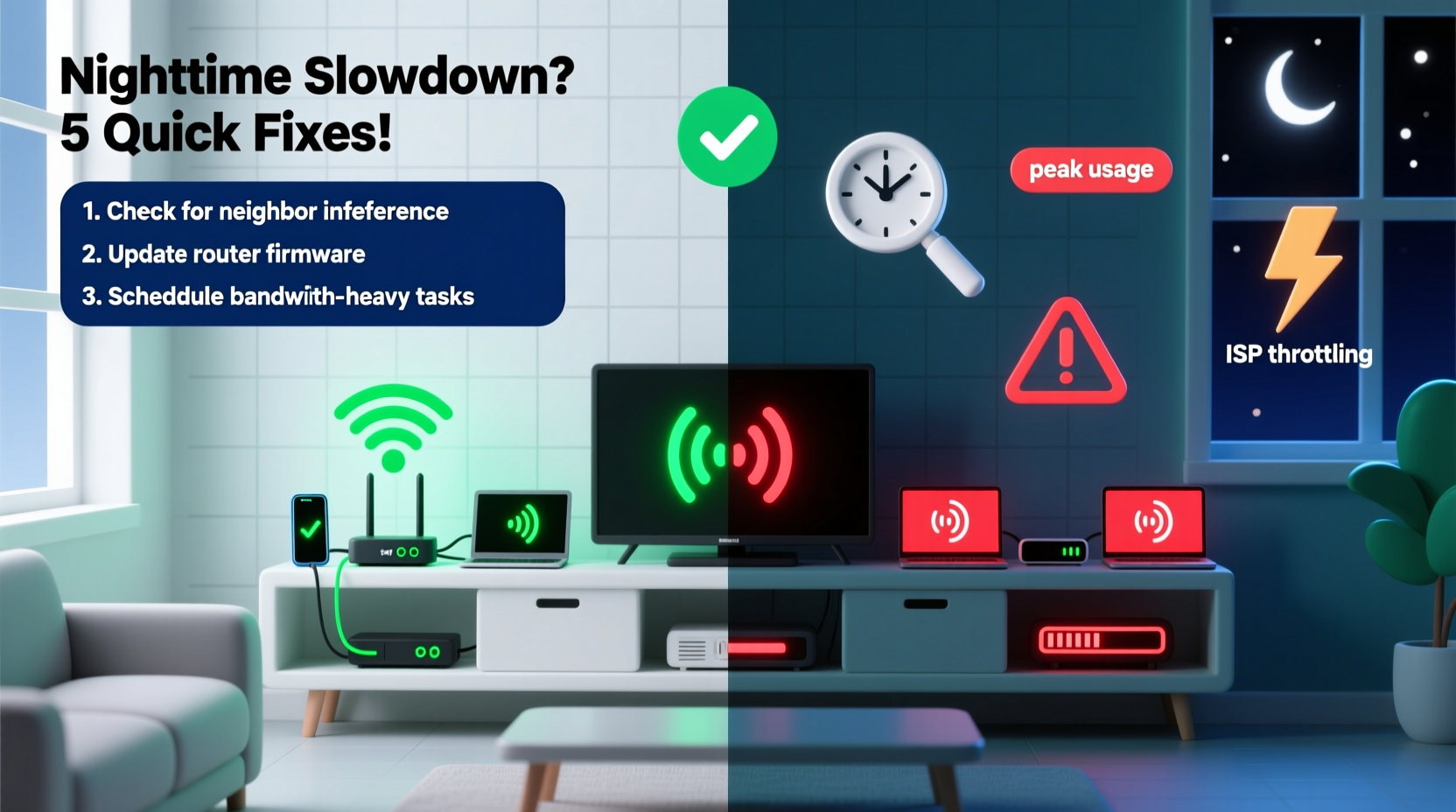
The digital world wakes up again each evening. People return home, fire up smart TVs, join Zoom calls, stream 4K videos, and download updates. This surge in demand affects both your private network and the broader infrastructure your ISP relies on.
Here are the primary reasons your Wi-Fi slows down specifically at night:
- Increased household device usage: Multiple users streaming, gaming, or video calling simultaneously can overwhelm your router’s bandwidth capacity.
- Neighborhood congestion: In densely populated areas, nearby networks operating on the same Wi-Fi channel create signal interference, especially on the crowded 2.4 GHz band.
- ISP throttling or network congestion: Internet Service Providers sometimes throttle bandwidth during peak hours or experience backbone congestion due to high regional demand.
- Scheduled router processes: Some routers run automatic maintenance tasks (like firmware updates or log syncing) at night, which consume processing power and bandwidth.
- Smart home devices syncing: Security cameras, thermostats, and cloud backups often sync data overnight, silently eating up bandwidth.
“Peak-hour congestion is the most common cause of evening Wi-Fi issues. It’s not just your home—it’s the entire neighborhood going online at once.” — David Lin, Network Engineer at MetroNet Solutions
Quick Diagnosis: Is It Your Network or the Outside World?
Before making changes, determine whether the problem lies within your control. A structured diagnostic approach saves time and prevents unnecessary upgrades.
Step-by-Step Diagnosis Timeline
- Test wired vs. wireless speed: Connect a laptop directly to your modem with an Ethernet cable and run a speed test (use speedtest.net). If wired speeds are also slow, the issue is likely with your ISP or external network congestion.
- Compare Wi-Fi performance across rooms: Check signal strength in different areas. Poor coverage may indicate dead zones exacerbated by nighttime traffic.
- Reboot your router and modem: Power them down for 60 seconds, then restart. Many temporary glitches resolve after a reboot.
- Check connected devices: Log into your router’s admin panel (usually via 192.168.1.1 or 192.168.0.1) and see how many devices are active. Look for unknown or bandwidth-heavy devices.
- Run off-peak tests: Repeat speed tests at 10 AM and 10 PM. A significant difference confirms time-based congestion.
- Monitor for QoS settings: Some routers prioritize certain traffic. Ensure video calls or gaming aren’t being deprioritized after 7 PM.
Mini Case Study: The Johnson Family’s Streaming Woes
The Johnsons in suburban Chicago noticed their Netflix streams buffering every night around 8 PM. Their kids couldn’t finish homework videos, and Zoom meetings froze. Daytime speeds were excellent—over 150 Mbps. But evenings dropped to 12 Mbps.
After testing, they found their wired connection remained strong, ruling out ISP issues. They checked their router and discovered five smart home devices (including two security cameras) uploading footage between 7–10 PM. By adjusting camera backup schedules to early morning and enabling Quality of Service (QoS) to prioritize laptops and tablets, their evening speeds jumped back to 90+ Mbps. No hardware upgrade needed.
Proven Fixes to Restore Nighttime Speed
Once you’ve diagnosed the cause, apply targeted solutions. Not all fixes require technical expertise—many take less than 10 minutes.
Optimize Your Router Settings
Your router is the brain of your network. Fine-tuning its settings can dramatically improve performance under load.
- Enable Quality of Service (QoS): This feature lets you prioritize critical devices (e.g., work laptop, gaming console) over others. Access your router settings and assign higher priority to essential gadgets.
- Switch to 5 GHz band: The 5 GHz frequency offers faster speeds and less interference than 2.4 GHz. Connect compatible devices (smartphones, laptops) to this band, reserving 2.4 GHz for smart plugs and older gadgets.
- Update firmware: Outdated firmware can cause instability. Check your router manufacturer’s website or admin panel for updates.
Reduce Interference from Neighboring Networks
In apartments or dense neighborhoods, overlapping Wi-Fi channels cause interference. Use a free tool like Wi-Fi Analyzer (Android) or NetSpot (Windows/Mac) to scan nearby networks.
Look for the least crowded channel and manually set your router to use it. On 2.4 GHz, stick to channels 1, 6, or 11—they don’t overlap. On 5 GHz, choose non-DFS channels (like 36, 40, 44, 48) for better stability.
Manage Bandwidth-Hungry Devices
Some devices consume disproportionate bandwidth without obvious signs. Identify and manage them:
- Cloud backup tools (Backblaze, Google Drive)
- Security camera uploads
- Automatic game updates (Steam, Xbox, PlayStation)
- Firmware updates for smart TVs and speakers
Schedule these activities for off-peak hours (e.g., 2–5 AM) or limit their upload/download rates in settings.
Hardware Upgrades: When to Invest
If software tweaks don’t solve the issue, consider hardware improvements. Not all homes need a new router—but some do.
| Solution | Best For | Cost Range | Expected Improvement |
|---|---|---|---|
| Mesh Wi-Fi System | Homes over 2,000 sq ft or with thick walls | $200–$600 | Eliminates dead zones, balances load |
| Wi-Fi 6 Router | Multiple users/devices, 4K streaming | $120–$300 | 30–50% faster under heavy use |
| Ethernet Over Power (Powerline Adapters) | Hard-to-reach rooms without cables | $80–$150 | Stable wired-like connection |
| Access Point Upgrade | Large offices or multi-story homes | $100–$250 | Better device handling and range |
For example, upgrading from a 3-year-old AC1200 router to a Wi-Fi 6 model (AX1800 or higher) allows more efficient data handling through OFDMA and beamforming—technologies that reduce lag when multiple devices are active.
Expert Insight: When More Bandwidth Isn’t the Answer
“Many customers call us asking for ‘faster internet,’ but their plan already has 300 Mbps. The real issue is network management. A $250 mesh system often works better than doubling your bandwidth.” — Maria Tran, Customer Support Lead at FiberLink Communications
Before upgrading your internet plan, ensure your current speed meets household needs. A single 4K stream uses ~25 Mbps. Five simultaneous streams plus gaming and browsing might need 150 Mbps. If your plan is below that, consider a tier increase. But if you already have 200+ Mbps, focus on optimization instead.
Preventive Checklist: Maintain Fast Wi-Fi Every Night
Use this actionable checklist weekly to keep your network running smoothly:
- ✅ Reboot router and modem once per week
- ✅ Review connected devices list for intruders or unknown gadgets
- ✅ Schedule large downloads/updates for early morning
- ✅ Confirm QoS settings prioritize key devices
- ✅ Check for firmware updates monthly
- ✅ Test speed at peak and off-peak times
- ✅ Position router centrally, away from microwaves and cordless phones
FAQ: Common Nighttime Wi-Fi Questions
Can my neighbors really slow down my Wi-Fi?
Yes. If multiple nearby networks use the same Wi-Fi channel—especially on 2.4 GHz—interference occurs. This is common in apartments and urban areas. Switching to a less congested channel or using 5 GHz reduces this effect.
Should I contact my ISP if my Wi-Fi is slow at night?
Only after eliminating internal causes. First, test with a wired connection. If speeds are low even via Ethernet during peak hours, contact your ISP. Mention “network congestion during peak times” and ask if they offer business-grade plans with consistent throughput.
Does turning off Wi-Fi at night help?
It doesn’t improve speed, but it can reduce interference if you’re in a dense area. However, this disables smart home functions and updates. A better alternative is scheduling device-specific downtimes or using parental controls to limit non-essential usage after 9 PM.
Conclusion: Take Control of Your Evening Internet
Nighttime Wi-Fi slowdowns are frustrating but rarely inevitable. With a clear diagnosis and strategic adjustments, most households can regain fast, reliable internet after dark. Start with simple steps: reboot your gear, check connected devices, and switch to the 5 GHz band. Then progress to QoS settings, channel optimization, and—if needed—hardware upgrades. The goal isn’t just faster speeds, but a smarter, more resilient network that handles evening demands effortlessly.




 浙公网安备
33010002000092号
浙公网安备
33010002000092号 浙B2-20120091-4
Comments
No comments yet. Why don't you start the discussion?