
If your internet speeds plummet every evening—right when you're trying to stream a movie or join a video call—you're not imagining things. Many users experience degraded Wi-Fi performance specifically during nighttime hours. The root causes are often predictable, but diagnosing them requires more than just rebooting the router. Understanding why your Wi-Fi slows down at night means looking beyond the device itself and into network behavior, environmental factors, and household usage patterns.
This guide breaks down the science behind evening slowdowns, walks through professional-grade diagnostics, and gives you actionable strategies to reclaim fast, reliable connectivity—no matter the time of day.
The Nighttime Network: Why Speed Drops After Dark
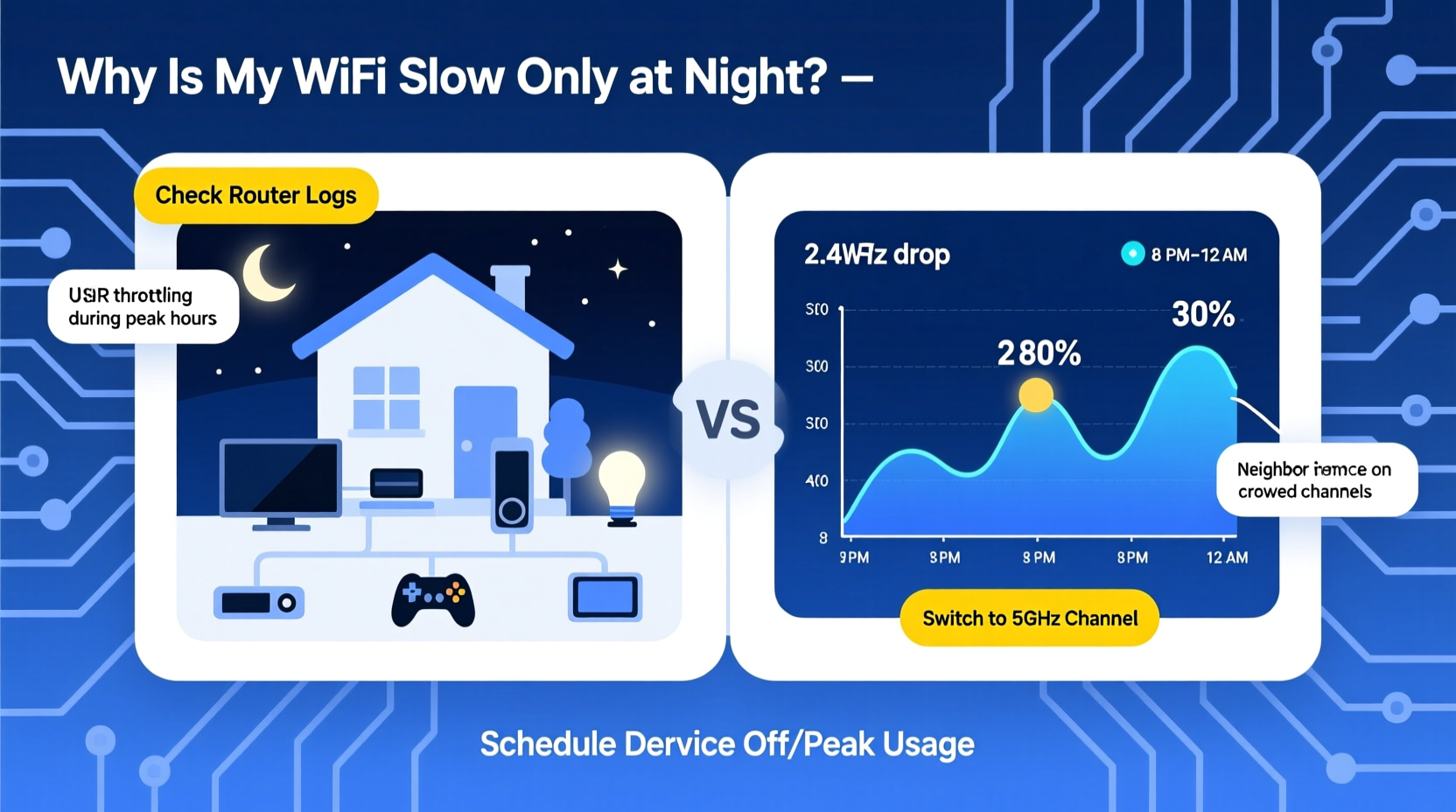
Wi-Fi doesn’t inherently degrade at night due to darkness or time alone. Instead, what changes is how heavily your network—and your neighborhood’s networks—are being used. In most households, evenings bring peak activity: family members streaming, gaming, video calling, and downloading. This surge in demand can overwhelm both your home setup and your internet service provider’s infrastructure.
One key concept is network congestion. During the day, many people are at work or school, reducing local wireless traffic. But by 7 PM, dozens of nearby routers may be active simultaneously, competing for limited radio spectrum on the 2.4 GHz band. This creates interference that weakens signal quality and reduces throughput.
Additionally, ISPs sometimes manage bandwidth across their networks using a practice called traffic shaping, where heavy data users are throttled during high-demand periods. While not always disclosed, this can result in slower speeds between 6 PM and 11 PM, even if your plan promises consistent performance.
Step-by-Step Guide: Diagnose Your Router Like a Pro
Before replacing equipment or upgrading plans, conduct a systematic evaluation. Professionals don’t guess—they test, isolate, and verify. Follow these steps to identify the true source of your slowdowns.
- Test wired vs. wireless speeds: Connect a laptop directly to your router via Ethernet. Run a speed test. If wired speeds are normal but Wi-Fi is slow, the issue lies in your wireless configuration—not your ISP connection.
- Check connected devices: Log into your router’s admin panel (usually accessible via 192.168.1.1 or 192.168.0.1). Review the list of connected devices. Are there unknown gadgets consuming bandwidth? A smart TV updating overnight or a neighbor piggybacking could be draining resources.
- Monitor channel congestion: Use a Wi-Fi analyzer app (like NetSpot or Wireshark) to scan surrounding networks. On the 2.4 GHz band, channels 1, 6, and 11 are non-overlapping. If most nearby networks use channel 6, switch yours to 1 or 11 to reduce interference.
- Evaluate signal strength: Move closer to the router and retest. If speed improves dramatically with proximity, poor placement or outdated hardware may be limiting range.
- Update firmware: Manufacturers release updates to fix bugs and improve stability. Check your router’s interface for available firmware upgrades. Never skip these—even minor patches can resolve latency spikes.
Repeat each step during peak hours (8–10 PM) and off-peak (midday) for comparative analysis. Consistency in testing conditions ensures accurate results.
Common Culprits Behind Evening Wi-Fi Lag
Not all slowdowns stem from user behavior. Several technical and environmental factors contribute to nightly degradation:
- Dense device environments: Homes with multiple smartphones, tablets, smart speakers, security cameras, and TVs create constant background chatter. Even idle devices send keep-alive signals that consume airtime.
- Interference from appliances: Microwaves, cordless phones, and baby monitors emit electromagnetic noise on the 2.4 GHz frequency. When activated at dinner or bedtime, they can disrupt Wi-Fi signals.
- Router overheating: Routers enclosed in cabinets or stacked with other electronics may overheat after prolonged use. Thermal throttling reduces processing power, leading to packet loss and lag.
- Outdated hardware: Routers older than three years likely lack modern standards like MU-MIMO (Multi-User Multiple Input, Multiple Output), which allows simultaneous communication with multiple devices without slowing down.
- ISP network saturation: Your provider may oversubscribe neighborhoods, meaning too many homes share a single node. At night, this shared line becomes a bottleneck.
“We’ve seen cases where a single unsecured IoT camera was uploading terabytes nightly, dragging down an entire subnet.” — Rafael Nguyen, Senior Network Engineer at MetroNet Solutions
Troubleshooting Checklist: Fix Nighttime Wi-Fi Issues
Use this checklist as a routine diagnostic tool whenever performance dips occur:
- ✅ Reboot the router and modem
- ✅ Test speed on a wired connection
- ✅ Identify bandwidth-heavy devices (e.g., downloads, streams)
- ✅ Switch Wi-Fi channel to less congested option
- ✅ Upgrade router firmware
- ✅ Position router centrally, away from walls and metal objects
- ✅ Disable unused features (WPS, guest networks if inactive)
- ✅ Enable Quality of Service (QoS) settings to prioritize critical apps
- ✅ Consider upgrading to dual-band or tri-band router
- ✅ Contact ISP to verify line health and potential throttling
Completing this list eliminates guesswork and ensures no stone is left unturned. Most persistent issues resolve within two to three cycles of this process.
Optimizing Router Settings for Peak Performance
Most consumers never touch their router’s advanced settings—but doing so unlocks significant improvements. Here are key configurations to adjust:
Enable Quality of Service (QoS)
QoS lets you assign priority to specific devices or applications. For example, you can ensure your Zoom call gets higher bandwidth than a background software update. Access your router’s QoS menu and set priorities based on need—video conferencing, gaming, or streaming should typically rank highest.
Switch to 5 GHz Band
If your devices support it, connect them to the 5 GHz network instead of 2.4 GHz. Though shorter in range, 5 GHz offers faster speeds and far less interference because fewer household devices operate on this frequency. Reserve 2.4 GHz for legacy gadgets like older printers or smart plugs.
Change DNS Servers
Your ISP’s default DNS may be slow or unreliable. Switching to public options like Google DNS (8.8.8.8 / 8.8.4.4) or Cloudflare (1.1.1.1) can improve page load times and reduce latency. These services are optimized for speed and privacy.
| Setting | Recommended Value | Why It Matters |
|---|---|---|
| Wi-Fi Channel (2.4 GHz) | 1, 6, or 11 | Avoids overlap with neighboring networks |
| Broadcast Mode | 802.11ac/n (5 GHz), 802.11g/n (2.4 GHz) | Balances compatibility and speed |
| Transmit Power | High (or Maximum) | Improves coverage in large homes |
| Security Protocol | WPA3 (or WPA2 if WPA3 unavailable) | Prevents unauthorized access and eavesdropping |
| DNS Server | 1.1.1.1 (Cloudflare) or 8.8.8.8 (Google) | Faster domain resolution and improved reliability |
Real-World Example: Solving a Family’s Streaming Struggles
The Thompson family in suburban Chicago complained of constant buffering on Netflix every evening. Their 100 Mbps plan should have been sufficient for two streams, yet playback stuttered nightly between 7:30 and 9:30 PM.
A technician performed a full audit. The wired speed test showed 98 Mbps—excellent. But Wi-Fi speeds dropped to 18 Mbps in the living room. Further investigation revealed:
- Their router was tucked behind a bookshelf near the kitchen.
- All devices were connected to the crowded 2.4 GHz band.
- A Ring doorbell was performing nightly backups at 8 PM.
- Their ISP used dynamic DNS servers known for latency spikes.
The solution involved relocating the router to a central hallway shelf, enabling 5 GHz for all capable devices, scheduling the Ring backup for midday, and switching to Cloudflare DNS. Within 48 hours, streaming stabilized—even during peak hours.
This case underscores a vital truth: symptoms point to one problem, but multiple small inefficiencies often combine to create major disruptions.
When to Upgrade Hardware or Service
Sometimes, optimization isn’t enough. Technology has limits. Consider upgrading under these circumstances:
- Your router is more than four years old and lacks AC or AX (Wi-Fi 5/6) support.
- You live in a multi-story home larger than 2,000 sq ft and struggle with dead zones.
- More than five devices regularly connect simultaneously.
- Your current plan delivers significantly less than advertised speeds during peak hours.
In such cases, investing in a mesh Wi-Fi system (like Eero, Nest Wifi, or TP-Link Deco) provides seamless coverage and intelligent load balancing. Alternatively, upgrading to a gigabit plan—if available—can future-proof your connection, especially if multiple users engage in bandwidth-intensive tasks.
However, avoid unnecessary spending until diagnostics are complete. Many users assume they need faster internet when what they really need is better management of existing resources.
Frequently Asked Questions
Can other people's Wi-Fi affect mine?
Yes. Especially on the 2.4 GHz band, nearby networks operating on overlapping channels cause co-channel interference. This forces your router to wait its turn to transmit, increasing latency. Using a Wi-Fi analyzer helps detect and avoid crowded channels.
Should I leave my router on all the time?
Modern routers are designed for continuous operation. However, restarting once every few weeks clears memory leaks and resets connections. Some ISPs also rotate IP addresses periodically, which a reboot can trigger manually.
Does turning off Wi-Fi at night help?
It may reduce EMF exposure and save minimal power, but it won’t solve congestion-related slowdowns unless you’re the sole user. Devices like smart thermostats or security systems require constant connectivity. A better approach is optimizing rather than disabling.
Take Control of Your Home Network
Nighttime Wi-Fi slowdowns aren’t inevitable. They’re signals—indicators of strain within your digital ecosystem. By applying methodical troubleshooting, adjusting key settings, and understanding usage patterns, you shift from passive frustration to proactive control.
Start tonight: run a speed test, log into your router, and review connected devices. One small change—a firmware update, a channel switch, or repositioning the unit—could restore smooth performance across your household.




 浙公网安备
33010002000092号
浙公网安备
33010002000092号 浙B2-20120091-4
Comments
No comments yet. Why don't you start the discussion?