
If your internet flies everywhere in the house except for one frustrating room, you're not alone. Many homeowners experience strong WiFi in most areas but face sluggish speeds or dead zones in specific rooms. The good news? This issue rarely requires a technician. Most of the time, the culprit lies in signal interference, router placement, or outdated hardware—all of which you can diagnose and resolve on your own.
WiFi signals are electromagnetic waves that behave much like light: they travel in straight lines, weaken over distance, and can be blocked or reflected by walls, furniture, and appliances. A single room with poor performance usually indicates a localized problem rather than a network-wide failure. By understanding the physics behind wireless signals and applying practical fixes, you can restore full-speed connectivity without spending a dime on support calls.
Why One Room Suffers While Others Don’t
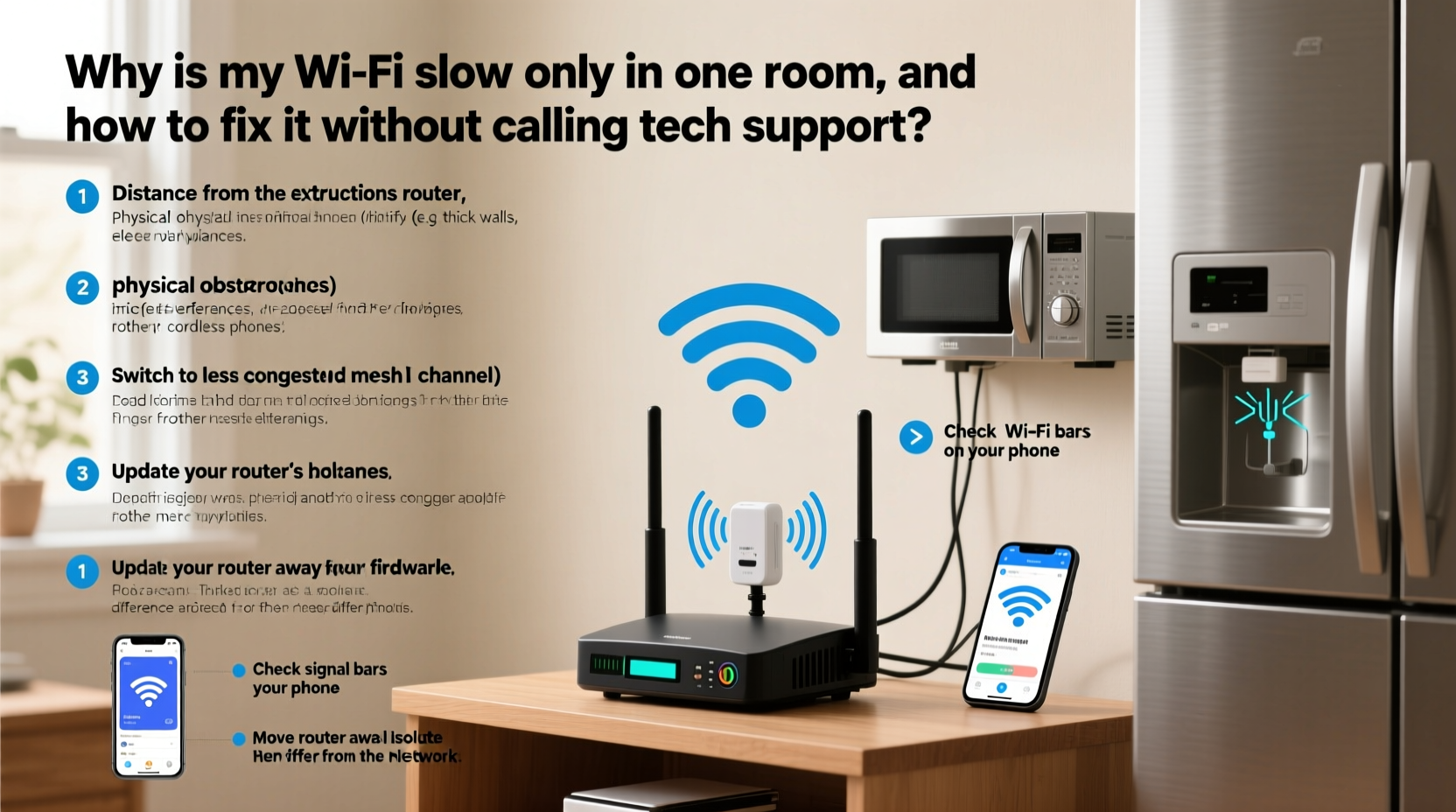
WiFi doesn’t blanket your home uniformly. Signal strength degrades based on proximity to the router, construction materials, and environmental interference. A room at the far end of the house, upstairs, or behind thick walls will naturally receive a weaker signal. But why does this happen so selectively?
- Distance from the router: The farther you are from the source, the weaker the signal becomes. Every wall or floor adds resistance.
- Building materials: Concrete, brick, metal studs, and even energy-efficient windows can block or reflect WiFi signals.
- Interference from appliances: Microwaves, cordless phones, baby monitors, and Bluetooth devices operate on the same 2.4 GHz frequency as many routers.
- Signal congestion: If multiple devices are connected nearby, bandwidth may be saturated, especially during peak usage times.
- Furniture and layout: Large metal bookshelves, mirrors, fish tanks, and filing cabinets can disrupt signal paths.
Unlike wired connections, WiFi quality depends heavily on physical environment. That’s why your basement office might crawl while the kitchen enjoys seamless streaming.
“WiFi isn’t magic—it follows the laws of physics. Obstacles matter more than people think.” — Dr. Alan Reyes, Network Engineer & IEEE Member
Step-by-Step Guide to Diagnose and Fix the Problem
Before buying new gear, follow this logical sequence to identify and resolve the root cause. Most issues can be fixed in under an hour using tools you already have.
- Test speed in multiple locations
Use a speed test app (like Speedtest by Ookla) on your phone or laptop. Test near the router first, then move to the problem room. Compare download/upload speeds and ping. A drastic drop confirms a coverage issue. - Check signal strength
On Windows: Click the WiFi icon and view signal bars. Hover for dBm reading (e.g., -50 dBm = excellent, -70 dBm = weak).
On macOS: Hold Option and click the WiFi icon to see RSSI (Received Signal Strength Indicator). Below -70 dBm is problematic.
On mobile: Look for “WiFi Analyzer” apps that show real-time signal strength and channel congestion. - Identify potential obstructions
Walk the path between router and the slow room. Note walls, large appliances, or metallic objects directly in line. Even a refrigerator or washer/dryer can absorb signals. - Reboot your router and modem
Unplug both for 30 seconds, then plug the modem in first, wait two minutes, then power on the router. This clears temporary glitches and resets IP assignments. - Change WiFi channels manually
Log into your router’s admin panel (usually via 192.168.1.1 or 192.168.0.1). Navigate to Wireless Settings. If using 2.4 GHz, switch from Auto to Channel 1, 6, or 11—these don’t overlap. For 5 GHz, choose a less congested channel (36–48 or 149–161). - Update router firmware
In the same admin interface, check for firmware updates. Outdated software can cause instability and poor performance. - Optimize device settings
Ensure the affected device isn’t set to power-saving mode, which throttles WiFi. Also forget and rejoin the network to clear cached errors.
Practical Fixes You Can Try Today
Once you’ve diagnosed the issue, apply these targeted solutions based on your findings.
Reposition Your Router
Most people place routers in closets, basements, or behind TVs—locations that kill signal strength. Move your router to a central, elevated position. Avoid placing it on the floor or near large metal objects.
- Elevate it on a shelf or desk.
- Keep it away from microwaves, cordless phones, and aquariums.
- Ensure antennas are vertical (if external) for optimal horizontal coverage.
Use a WiFi Extender or Mesh System
If relocation isn’t possible, consider extending coverage:
- WiFi extenders: Repeat the signal to hard-to-reach areas. Best for small gaps. Place halfway between router and problem room.
- Mesh systems: Multiple nodes create a seamless network. Ideal for larger homes. Brands like Eero, Google Nest WiFi, and TP-Link Deco offer easy setup.
Avoid cheap repeaters that cut bandwidth in half. Instead, opt for mesh systems with tri-band technology for dedicated backhaul.
Switch Between 2.4 GHz and 5 GHz Bands
Your router likely broadcasts two networks:
| Band | Speed | Range | Best For |
|---|---|---|---|
| 2.4 GHz | Slower (up to 150 Mbps) | Longer range, better through walls | Smart home devices, basic browsing |
| 5 GHz | Faster (up to 1 Gbps) | Shorter range, easily blocked | Streaming, gaming, video calls |
If the slow room uses 5 GHz, try switching to 2.4 GHz for better penetration. Conversely, if interference is high on 2.4 GHz, use 5 GHz if signal strength allows.
Reduce Interference from Nearby Electronics
Turn off or relocate devices that emit radio noise. Common offenders include:
- Microwaves (especially when running)
- Cordless phones (DECT 6.0 models are better)
- Bluetooth speakers and headphones
- Wireless security cameras
Even LED lights and poorly shielded USB cables can introduce noise. Temporarily unplug non-essential electronics to test improvement.
Mini Case Study: The Home Office Struggle
Sarah, a freelance graphic designer in Portland, noticed her video calls kept freezing in her upstairs office—while her living room streamed 4K Netflix without issue. Her router was in the basement, directly below the office, separated by a concrete floor and wooden ceiling.
She ran a speed test: 120 Mbps downstairs, 18 Mbps upstairs. Using a WiFi analyzer app, she found her router was on Channel 6, crowded with neighboring networks. She logged in, switched to Channel 1, and moved her router to the main floor hallway. Signal improved slightly, but not enough.
Next, she purchased a budget mesh system with one satellite node placed outside her office door. Speed jumped to 95 Mbps, and Zoom calls stabilized. Total cost: $89. Time invested: 45 minutes. No technician required.
Sarah’s case illustrates how layered obstacles compound signal loss—and how simple interventions can yield dramatic results.
WiFi Optimization Checklist
Follow this checklist to systematically improve performance in the affected room:
- ✅ Run a speed test in the slow room and compare to other areas
- ✅ Check WiFi signal strength (dBm) on your device
- ✅ Reboot router and modem
- ✅ Move router to a central, elevated location
- ✅ Switch to a less congested WiFi channel
- ✅ Update router firmware
- ✅ Connect the device to 2.4 GHz instead of 5 GHz (or vice versa)
- ✅ Turn off or relocate interfering electronics
- ✅ Install a WiFi extender or mesh node near the problem area
- ✅ Test again after each change to measure impact
Frequently Asked Questions
Can walls really block WiFi?
Yes. Drywall causes minor signal loss, but concrete, brick, plaster with metal lath, and foil-backed insulation can severely weaken or block WiFi. Mirrors and large glass panels also reflect signals unpredictably.
Will upgrading my internet plan fix a slow room?
No. A faster plan increases bandwidth at the modem, but won’t improve signal reach. If your router can’t deliver the signal to the room, more speed won’t help. Focus on coverage first.
Is it safe to leave a mesh node plugged in all the time?
Yes. Mesh nodes are designed for continuous operation, consume little power, and run cool. They automatically adjust output and sleep when inactive, making them efficient and safe for long-term use.
Final Thoughts: Take Control of Your Connection
Slow WiFi in one room isn’t a mystery—it’s a solvable engineering challenge. With a methodical approach, you can pinpoint the cause and implement effective fixes without relying on external help. Most solutions require no technical background, just observation, patience, and a few smart adjustments.
Start with the basics: reposition your router, eliminate interference, and test different bands. If needed, invest in a mesh system—it’s the most reliable long-term fix for persistent dead zones. Remember, every home has unique architectural quirks, so what works for others might need tweaking for your space.




 浙公网安备
33010002000092号
浙公网安备
33010002000092号 浙B2-20120091-4
Comments
No comments yet. Why don't you start the discussion?