
If your internet flies in the kitchen but crawls in the bedroom, you're not alone. Many homeowners experience frustratingly slow Wi-Fi in a single room while the rest of the house enjoys strong connectivity. This inconsistency often points to localized issues rather than a problem with your overall internet plan. The good news: most causes are fixable without calling a technician or upgrading your service.
Wi-Fi signals don’t travel through walls and furniture like magic—they degrade based on distance, interference, and physical obstructions. A single weak spot can stem from something as simple as router placement or as subtle as interference from household appliances. Understanding the root cause empowers you to take practical steps that deliver real results.
Common Causes of Room-Specific Wi-Fi Slowness
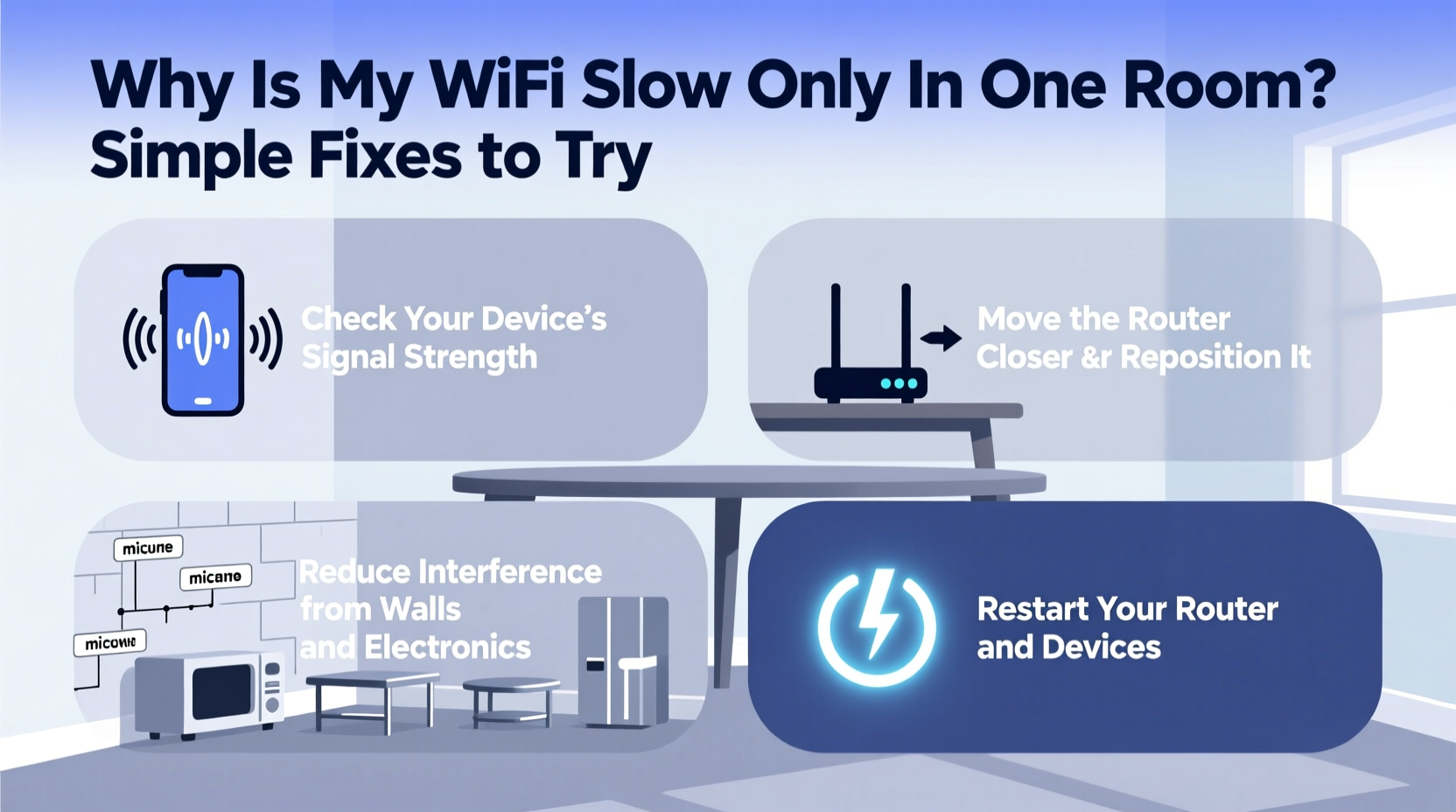
Before jumping into solutions, it helps to know what might be behind the slowdown. Unlike whole-home connectivity issues, a problem isolated to one room usually involves environmental or structural factors unique to that space.
- Distance from the router: The farther a device is from the router, the weaker the signal becomes. If the affected room is on the opposite side of the house, especially through multiple floors, signal degradation is expected.
- Physical obstructions: Thick walls, concrete, metal beams, mirrors, and even large furniture (like bookshelves or refrigerators) can block or reflect Wi-Fi signals.
- Interference from electronics: Devices like cordless phones, baby monitors, microwaves, and Bluetooth gadgets operate on the same 2.4 GHz frequency band and can disrupt your Wi-Fi.
- Router antenna orientation: If your router has external antennas, their direction affects coverage. Misaligned antennas may leave certain areas underserved.
- Network congestion in the room: Multiple devices streaming or downloading simultaneously in one room can overwhelm bandwidth allocation, especially if using older Wi-Fi standards.
“Wi-Fi isn’t supposed to be perfect everywhere—but it should be functional. Most dead zones stem from avoidable setup flaws.” — David Lin, Network Infrastructure Consultant
Step-by-Step Guide to Diagnose and Fix the Issue
Follow this structured approach to identify and resolve the source of your slow connection.
- Test speed in multiple locations. Use a speed test app (like Speedtest by Ookla) on the same device in different rooms. Compare download/upload speeds and ping times. This confirms whether the issue is truly isolated.
- Check for signal strength. On your phone or laptop, look at the Wi-Fi bars or use a network analyzer app to see signal strength (measured in dBm). Below -70 dBm is weak; below -80 dBm is poor.
- Restart your router and modem. Unplug both for 30 seconds, then power them back on. This clears temporary glitches and resets connections.
- Inspect nearby electronics. Turn off or unplug devices near the affected room—especially microwaves, cordless phones, or smart speakers—and retest speed.
- Move a device closer to the router temporarily. If performance improves significantly when close, the issue is likely signal reach or obstruction.
- Update router firmware. Log into your router’s admin panel (usually via 192.168.1.1 or similar) and check for updates under settings.
Practical Fixes to Improve Wi-Fi in One Room
Once you’ve diagnosed the likely culprit, apply targeted solutions. These fixes range from free adjustments to small investments with big returns.
Reposition Your Router
Central placement is ideal. Avoid corners, basements, or enclosed cabinets. Elevate the router on a shelf and keep it away from metal objects. Even a few feet can make a noticeable difference.
Adjust Antenna Orientation
If your router has external antennas, position one vertically and one horizontally. This optimizes signal dispersion for both horizontal and vertical device usage (e.g., laptops vs. phones).
Switch Wi-Fi Bands
Modern routers broadcast on both 2.4 GHz and 5 GHz bands. The 5 GHz band is faster but shorter-range; 2.4 GHz travels farther but is more prone to interference. In distant rooms, 2.4 GHz may perform better despite lower peak speeds.
Reduce Interference
Microwaves, baby monitors, and wireless cameras often use the 2.4 GHz band. Run these only when needed. Also, avoid placing the router near cordless phone bases or refrigerators.
Use a Wi-Fi Extender or Mesh Node
For rooms consistently out of range, a Wi-Fi extender can rebroadcast the signal. However, mesh systems (like Google Nest Wi-Fi or Eero) offer smoother roaming and better performance. Place a mesh node halfway between the router and the problem room.
Try Powerline Adapters
These devices use your home’s electrical wiring to transmit internet. Plug one adapter near the router (connected via Ethernet), and another in the slow room. Connect your device via Ethernet or use a built-in Wi-Fi hotspot on the second adapter.
Do’s and Don’ts: Quick Reference Table
| Do | Don’t |
|---|---|
| Place the router centrally and elevated | Hide the router in a cabinet or basement |
| Use 2.4 GHz for long-range rooms | Assume 5 GHz is always better |
| Update router firmware regularly | Ignore firmware update notifications |
| Use a mesh system for large homes | Rely solely on a single extender in multi-floor homes |
| Test speed before and after changes | Make multiple changes at once without testing |
Mini Case Study: Restoring Speed in a Home Office
Sarah, a freelance graphic designer in Portland, struggled with lag during client video calls in her upstairs office. Her living room, just two rooms away, had full bars and fast speeds. She followed a systematic approach:
First, she used a Wi-Fi analyzer app and found her signal was -78 dBm in the office—very weak. Her router was in the basement, directly below, but surrounded by concrete walls and a utility fridge. She moved the router to the main floor hallway, centralizing it. Signal improved slightly to -72 dBm.
Next, she switched her laptop to the 2.4 GHz network instead of 5 GHz. Though max speed dropped, stability increased. Video calls stopped freezing.
Still wanting better performance, she invested in a two-node mesh system. She placed the secondary node outside her office door. Signal jumped to -58 dBm, and upload speeds doubled. “It cost less than a week of lost productivity,” she said. “Now I never worry about dropping a call.”
Checklist: Fix Slow Wi-Fi in One Room
- ✅ Test internet speed in the slow room and compare to other areas
- ✅ Restart your router and modem
- ✅ Check Wi-Fi signal strength using a mobile app
- ✅ Reposition the router to a central, elevated location
- ✅ Adjust router antenna angles (if applicable)
- ✅ Switch to 2.4 GHz band for better wall penetration
- ✅ Turn off nearby electronics that may cause interference
- ✅ Update router firmware through admin interface
- ✅ Install a Wi-Fi mesh node or extender near the problem area
- ✅ Consider powerline adapters for a wired solution
- ✅ Connect critical devices via Ethernet when possible
Frequently Asked Questions
Can thick walls really block Wi-Fi?
Yes. Materials like concrete, brick, plaster with metal lath, and insulated glass significantly weaken Wi-Fi signals. Even dense wood or drywall with foil-backed insulation can reduce signal strength by up to 50% per wall.
Is a Wi-Fi extender as good as a mesh system?
Not quite. Extenders repeat the existing signal but often halve available bandwidth and create a separate network name (SSID). Mesh systems provide seamless roaming, intelligent path selection, and consistent performance, making them better for whole-home coverage.
Why does my phone show full bars but still stream slowly?
Bars indicate signal strength, not speed. You can have a strong connection with high latency or low throughput due to network congestion, interference, or outdated router hardware. Always run a speed test to assess actual performance.
Final Thoughts and Next Steps
Slow Wi-Fi in one room doesn’t mean you need a new internet plan. More often than not, it’s a matter of signal physics and setup optimization. By methodically testing, adjusting, and upgrading where necessary, you can eliminate frustrating dead zones and enjoy reliable internet throughout your home.
Start with the simplest fixes—router placement and band selection. If those don’t suffice, consider investing in a mesh system, which pays for itself in reduced frustration and improved productivity. Remember, every home has unique challenges, so tailor your solution to your layout and usage.




 浙公网安备
33010002000092号
浙公网安备
33010002000092号 浙B2-20120091-4
Comments
No comments yet. Why don't you start the discussion?