
If your phone buffers when streaming in bed or your video calls freeze during remote work from the bedroom, you're not alone. Many homeowners experience frustratingly slow Wi-Fi speeds in just one room—especially the bedroom—while the rest of the house enjoys smooth connectivity. The issue isn't magic or mystery; it's physics, placement, and interference. The good news? You don’t need a technician or expensive upgrades to fix it. With a few smart adjustments tonight, you can significantly improve your bedroom’s Wi-Fi performance.
Understanding Why Your Bedroom Gets Poor Wi-Fi
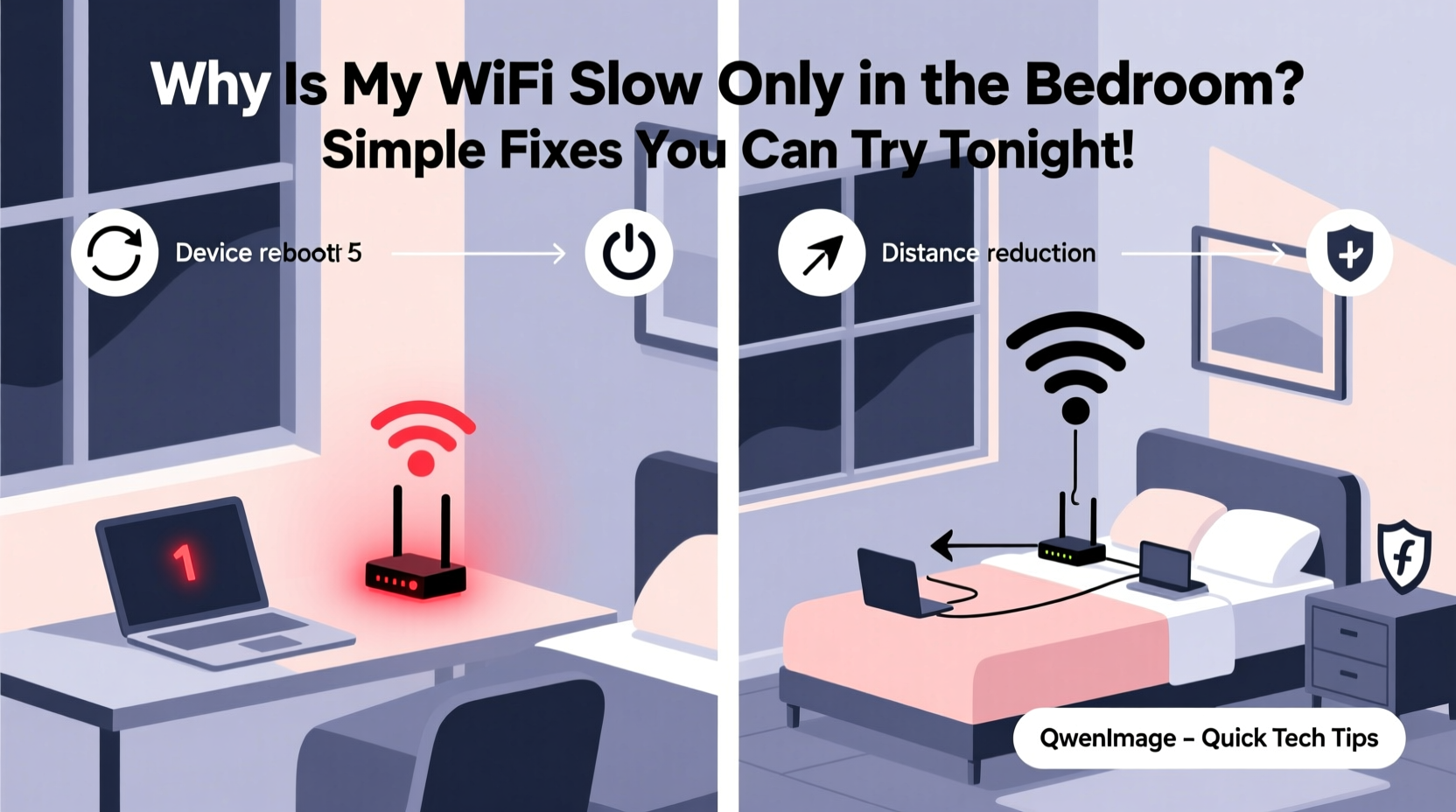
Wi-Fi signals are radio waves that travel through the air like sound, but they weaken when blocked by walls, furniture, or electronic devices. The bedroom often becomes a weak spot due to its location, construction materials, and surrounding electronics. Common culprits include:
- Distance from the router: If your router is in the basement or far corner of the house, signal strength drops significantly by the time it reaches the bedroom.
- Thick walls and insulation: Concrete, brick, and even energy-efficient drywall with foil backing can block or reflect Wi-Fi signals.
- Metal objects: Bed frames, mirrors, filing cabinets, or HVAC ducts interfere with signal propagation.
- Electronic interference: Cordless phones, baby monitors, microwaves, and Bluetooth devices operate on the same 2.4 GHz band as many routers.
- Router placement: Routers tucked behind TVs, inside cabinets, or near appliances lose efficiency.
“Signal degradation isn’t random—it follows predictable patterns based on environment and frequency. Even small changes in router position can yield dramatic improvements.” — Dr. Alan Reyes, Network Engineer & IEEE Member
Step-by-Step Guide: Fix Your Bedroom Wi-Fi Tonight
You don’t need technical expertise to resolve this. Follow this realistic, actionable sequence before bedtime:
- Test your current speed. Use a free app like Speedtest by Ookla on your phone or laptop while lying in bed. Note the download/upload speeds and ping.
- Relocate your router (if possible). Move it closer to the center of your home, ideally elevated and away from walls and metal. Even shifting it six feet can make a difference.
- Switch Wi-Fi bands. If your router supports dual-band (2.4 GHz and 5 GHz), connect your bedroom device to 5 GHz for faster speeds—if the signal is strong enough. Use 2.4 GHz if distance is an issue, as it travels farther.
- Reboot your router. Unplug it for 30 seconds, then plug it back in. This clears congestion and resets connections.
- Check for interference sources. Turn off nearby electronics like cordless phones, smart speakers, or microwave ovens temporarily to test if speeds improve.
- Change your Wi-Fi channel. Use a tool like Wi-Fi Analyzer (Android) or AirPort Utility (iOS) to see which channels are crowded. Log into your router settings and switch to a less congested channel, especially on 2.4 GHz.
- Update firmware. Check your router manufacturer’s website or admin panel for updates. Outdated firmware can cause instability and poor performance.
Do’s and Don’ts: Wi-Fi Optimization Table
| Do’s | Don’ts |
|---|---|
| Elevate your router (on a shelf or stand) | Place it on the floor or behind furniture |
| Use the 5 GHz band for high-speed tasks (gaming, 4K streaming) | Assume 5 GHz is always better over long distances |
| Reboot your router weekly | Leave it running for months without restarts |
| Position router antennas vertically | Lay antennas flat or point them randomly |
| Use a mesh extender or Wi-Fi booster if needed | Place extenders too close or too far from the main router |
Real-Life Example: How Sarah Fixed Her Bedroom Buffering
Sarah, a freelance graphic designer, worked from her bedroom three days a week. She constantly dealt with lag during Zoom calls and slow file uploads. Her living room had excellent Wi-Fi, but her bedroom struggled—even though it was only two rooms away from the router.
She followed a simple process: first, she tested her speed and got just 8 Mbps down in bed. Then, she moved her router from a closet in the hallway to a bookshelf near the center of the apartment. She switched her laptop to the 5 GHz network and rebooted the system. After these changes, her speed jumped to 62 Mbps. She also turned off her old cordless phone base, which was sitting next to the router and emitting interference.
The entire fix took 20 minutes and cost nothing. “I didn’t realize how much a few inches and a reboot could do,” she said. “Now I get full bars and stable video calls every time.”
When to Consider Hardware Upgrades
If basic tweaks don’t solve the issue, your hardware may be the bottleneck. Modern homes with thick walls or multiple floors often require more than a single router can deliver. Consider these affordable solutions:
- Wi-Fi Range Extenders: These repeat the signal from your main router. Best for small gaps, but can halve bandwidth if poorly placed.
- Mesh Wi-Fi Systems: Units like Eero, Google Nest Wi-Fi, or TP-Link Deco create a seamless network across large areas. One node stays near the modem; others go where coverage is weak.
- Powerline Adapters: Use your home’s electrical wiring to transmit data. Plug one adapter near the router (connected via Ethernet), and another in the bedroom. Works well in older homes where Wi-Fi struggles.
- Access Points: For permanent solutions, install a wired access point in the bedroom connected via Ethernet. Offers the fastest, most reliable connection.
Troubleshooting Checklist
Before calling your ISP or buying new gear, run through this checklist:
- ✅ Test Wi-Fi speed in the bedroom using a smartphone or laptop.
- ✅ Confirm you’re connected to the correct network (e.g., 5 GHz vs. 2.4 GHz).
- ✅ Restart your router and modem.
- ✅ Move the router to a central, elevated location.
- ✅ Eliminate nearby sources of interference (microwaves, cordless phones).
- ✅ Change Wi-Fi channel to a less crowded one (use Wi-Fi scanning app).
- ✅ Update router firmware.
- ✅ Try a temporary Wi-Fi extender or mesh puck in the bedroom.
- ✅ Test a wired connection (via Ethernet and powerline adapter) to isolate the issue.
- ✅ Contact your internet provider to rule out service throttling or line issues.
Frequently Asked Questions
Can walls really block Wi-Fi?
Yes. Materials like concrete, brick, plaster with metal lath, and insulated drywall significantly weaken Wi-Fi signals. Even water in fish tanks or plumbing pipes can absorb radio waves. The more walls between your router and bedroom—and the denser they are—the weaker the signal will be.
Is it better to use 2.4 GHz or 5 GHz in the bedroom?
It depends on distance and obstacles. 2.4 GHz travels farther and penetrates walls better, making it ideal for bedrooms far from the router. 5 GHz is faster but has shorter range and struggles with barriers. If you're close enough to get a strong 5 GHz signal, use it for HD streaming or gaming. Otherwise, stick with 2.4 GHz for reliability.
Will a Wi-Fi extender slow down my internet?
Poorly configured extenders can reduce speed because they repeat the signal and share bandwidth. However, modern mesh systems and dual-band extenders minimize this effect. For best performance, place the extender halfway between the router and the bedroom, where it receives a strong signal.
Final Tips for Long-Term Wi-Fi Health
Improving bedroom Wi-Fi isn’t just about fixing tonight’s problem—it’s about creating a smarter home network. Adopt these habits to maintain consistent performance:
- Schedule monthly reboots: Set a reminder to restart your router once a month to clear memory and refresh connections.
- Monitor connected devices: Too many gadgets (smart lights, cameras, phones) can saturate your network. Disconnect unused ones.
- Label your networks: Name your 2.4 GHz and 5 GHz bands differently (e.g., “Home-WiFi-2G” and “Home-WiFi-5G”) so you can manually choose the best one.
- Use Quality of Service (QoS) settings: In your router’s admin panel, prioritize bandwidth for critical activities like video calls or streaming.
“Wi-Fi optimization is 20% equipment and 80% placement and environment. Most people overlook the simplest fixes that cost nothing.” — Lena Patel, Home Networking Consultant
Conclusion: Take Control of Your Connection
Slow Wi-Fi in the bedroom doesn’t have to be a nightly frustration. By understanding how signals behave and applying practical, low-cost fixes, you can transform a dead zone into a high-speed haven. Whether it’s relocating your router, switching bands, eliminating interference, or investing in a mesh system, the solution is within reach. Don’t accept buffering and dropped calls as normal. Try these steps tonight—many take less than 15 minutes—and feel the difference tomorrow morning. A faster, more reliable connection is not just possible; it’s overdue.




 浙公网安备
33010002000092号
浙公网安备
33010002000092号 浙B2-20120091-4
Comments
No comments yet. Why don't you start the discussion?