
If your Wi-Fi feels like it's crawling—but only on your laptop—while other devices stream, browse, and download without a hitch, you're not imagining things. This kind of selective slowdown is more common than you think, and in most cases, the root cause isn't your internet provider or router. It’s something local to your device: outdated drivers, background processes, hardware limitations, or wireless interference. The good news? You don’t need a tech degree to diagnose or fix it. With a few systematic checks, you can pinpoint what’s dragging down your connection and restore performance.
Step 1: Confirm It’s Really Just Your Laptop
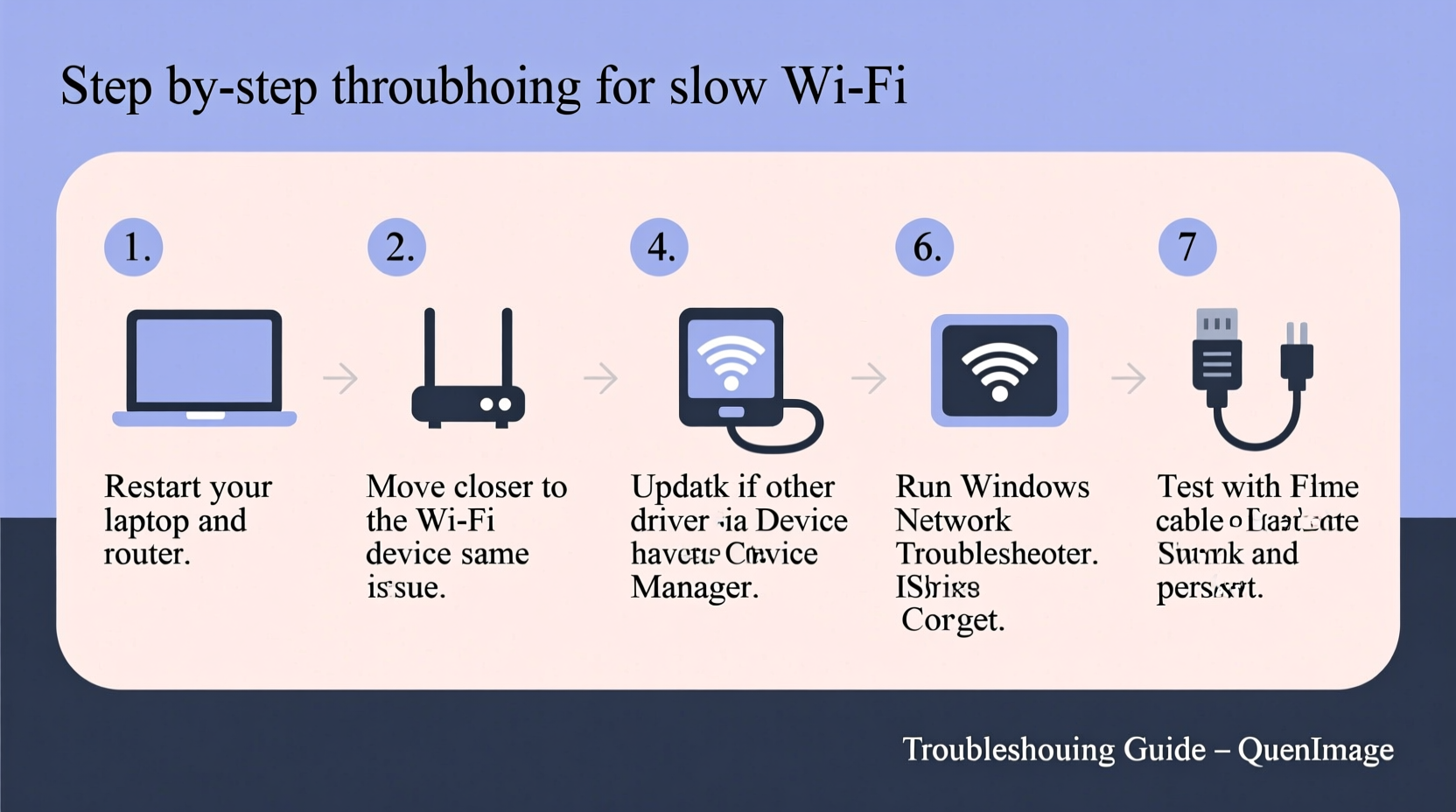
Before diving into fixes, rule out false assumptions. Is your laptop truly the only device affected?
- Test speed on at least two other devices (phone, tablet, desktop) using the same network.
- Use a reliable speed test tool like speedtest.net or fast.com.
- Compare results: if others show full speeds but your laptop lags significantly, the issue is isolated.
If all devices are slow, the problem likely lies with your router, modem, or ISP. But if only your laptop suffers, continue troubleshooting locally.
Step 2: Check for Background Applications and Bandwidth Hogs
Modern operating systems run dozens of background tasks—updates, cloud syncs, antivirus scans—that silently consume bandwidth. Even if your browser seems light, another app might be downloading quietly.
How to Identify Bandwidth Users
On Windows:
- Press
Ctrl + Shift + Escto open Task Manager. - Click the “Network” column to sort by usage.
- Look for apps with sustained high activity (e.g., OneDrive, Dropbox, Windows Update).
On macOS:
- Open Activity Monitor (Applications → Utilities).
- Select the “Network” tab.
- Check “Sent Bytes” and “Received Bytes” per process.
Close or pause unnecessary apps. If Windows Update is downloading a major patch, consider pausing it temporarily to test real-world browsing speed.
Common Silent Culprits
| Application | Purpose | Can It Slow Wi-Fi? |
|---|---|---|
| Dropbox/OneDrive | Cloud file syncing | Yes — during large uploads/downloads |
| Steam/Epic Games | Game updates | Yes — often runs in background |
| Antivirus Software | Real-time scanning | Rarely, but some scan cloud files over network |
| Zoom/Teams | Background updates | Yes — especially after new releases |
“Over 60% of ‘slow Wi-Fi’ complaints I see are due to unnoticed background syncs. The laptop thinks it’s being helpful—it’s just hogging bandwidth.” — Raj Patel, IT Support Specialist with 12 years in enterprise networking
Step 3: Evaluate Your Wireless Adapter and Drivers
Your laptop’s Wi-Fi adapter is the bridge between your device and the router. If it’s outdated, malfunctioning, or poorly configured, no amount of router rebooting will help.
Check Your Wi-Fi Adapter Health
On Windows:
- Press
Win + X, then select “Device Manager”. - Expand “Network adapters”.
- Look for your wireless adapter (often labeled “Wi-Fi”, “Wireless”, or includes brands like Intel, Realtek, or Qualcomm).
- Right-click it and select “Properties”.
- Check the “Device status” section. If it says “This device is working properly,” the hardware is recognized.
If you see a yellow exclamation mark or error code, the driver may be corrupted.
Update or Reinstall Wi-Fi Drivers
- Visit your laptop manufacturer’s support site (e.g., Dell, HP, Lenovo).
- Enter your model number and download the latest Wi-Fi driver.
- Install it manually, even if Windows says it’s up to date—manufacturer versions are often newer.
Alternatively, right-click the adapter in Device Manager and choose “Update driver” → “Search automatically.”
Step 4: Analyze Signal Strength and Interference
Even if your laptop shows “full bars,” that doesn’t guarantee strong throughput. Signal quality matters as much as strength.
Check Your Signal Quality
Windows Command Line Method:
- Open Command Prompt as administrator.
- Type:
netsh wlan show interfaces - Look for:
- Signal: Should be above 80% for optimal performance.
- Radio type: Prefer 802.11ac or 802.11ax (Wi-Fi 5/6). Older types (802.11n) limit speed.
- Channel: Crowded channels cause interference.
If signal is below 60%, distance or physical obstructions (walls, metal furniture, microwaves) may be degrading performance.
Minimize Interference
- Move closer to the router temporarily to test if speed improves.
- Avoid placing laptops near cordless phones, baby monitors, or microwave ovens.
- Switch your router to the 5 GHz band if available—less crowded and faster, though shorter range.
Note: Some older laptops only support 2.4 GHz, which is slower and more prone to interference from household electronics.
Mini Case Study: The Dorm Room Dilemma
Sophia, a college student, noticed her laptop struggled to load lecture videos while her roommate’s phone streamed Netflix fine. Both used the same Wi-Fi. After testing, she discovered her laptop was connecting to the 2.4 GHz band, congested by nearby dorm routers. Her roommate’s phone, however, supported 5 GHz and connected cleanly. Sophia updated her laptop’s Wi-Fi driver—which enabled 5 GHz support previously disabled—and immediately saw speeds jump from 8 Mbps to 72 Mbps. A forgotten driver update had been the bottleneck all along.
Step 5: Reset Network Settings and Test with Ethernet
Sometimes, accumulated network configurations corrupt connectivity. A reset clears DNS caches, IP conflicts, and misconfigured settings.
Reset Network on Windows
- Go to Settings → Network & Internet → Status.
- Scroll down and click “Network reset”.
- Confirm. This removes saved Wi-Fi passwords and resets adapters.
- Restart your laptop after completion.
Reset on macOS
- Delete network preferences: Go to
/Library/Preferences/SystemConfiguration/ - Remove files:
com.apple.network.eapolclient.configuration.plist,NetworkInterfaces.plist,preferences.plist - Restart. macOS regenerates them with defaults.
Important: You’ll need to re-enter Wi-Fi passwords after this step.
Test with Ethernet (If Possible)
If your laptop has an Ethernet port or you use a USB-to-Ethernet adapter:
- Connect directly to the router via cable.
- Run a speed test.
If speeds are normal over Ethernet but slow over Wi-Fi, the issue is confirmed: wireless communication is failing, not your internet service or laptop processing power.
Comprehensive Diagnostic Checklist
- ✅ Confirm other devices have good Wi-Fi; isolate the issue to your laptop.
- ✅ Close background apps (cloud sync, updates, streaming).
- ✅ Check Task Manager / Activity Monitor for bandwidth hogs.
- ✅ Update Wi-Fi drivers from manufacturer’s website.
- ✅ Run
netsh wlan show interfacesto check signal and radio type. - ✅ Move closer to router or switch to 5 GHz network.
- ✅ Reset network settings on your OS.
- ✅ Test with Ethernet to rule out broader issues.
- ✅ Restart router and modem if problems persist across multiple devices later.
Frequently Asked Questions
Why is my Wi-Fi slow on my laptop but fast on my phone?
This usually points to hardware or software differences. Your phone may support newer Wi-Fi standards (like Wi-Fi 6), have better antennas, or lack background processes slowing down your laptop. Also, phones often prefer 5 GHz networks automatically, while older laptops stick to congested 2.4 GHz bands.
Can a virus slow down my Wi-Fi?
Not directly—but malware can turn your laptop into a bot that sends data in the background, consuming bandwidth. Use trusted antivirus software to scan regularly. Unusual network activity in Task Manager when idle is a red flag.
Does Bluetooth affect Wi-Fi speed?
Yes, slightly. Both Bluetooth and 2.4 GHz Wi-Fi operate on the same frequency band. Heavy Bluetooth use (e.g., audio streaming to multiple devices) can cause minor interference. Switching to 5 GHz Wi-Fi eliminates this conflict.
Final Thoughts and Next Steps
Slow Wi-Fi on just one device is frustrating because it defies logic—everything else works, so why not your laptop? But this specificity is actually helpful: it narrows the field. By methodically checking applications, drivers, signal quality, and network configuration, you’re not guessing—you’re diagnosing. Most fixes take under 20 minutes and cost nothing. And once resolved, you gain more than speed: you gain control. You learn how your devices communicate, what hidden processes run behind the scenes, and how to maintain peak performance.
Don’t settle for buffering icons or endless loading spinners. Your laptop deserves better—and now you know how to deliver it.




 浙公网安备
33010002000092号
浙公网安备
33010002000092号 浙B2-20120091-4
Comments
No comments yet. Why don't you start the discussion?