
If your phone and tablet breeze through videos and downloads while your laptop crawls, you’re not imagining it. The frustration of having a fast internet plan but sluggish performance on one device—especially your primary work or study machine—is real. The good news: this isn’t necessarily a sign of hardware failure or a broken router. More often than not, the issue lies in overlooked settings, outdated drivers, interference, or simple configuration quirks unique to your laptop.
This guide cuts through the noise to deliver practical, tested solutions. Whether you're working from home, streaming movies, or attending virtual meetings, restoring your laptop’s WiFi speed can make a dramatic difference in productivity and peace of mind.
Why Your Laptop Might Be the Only Slow Device
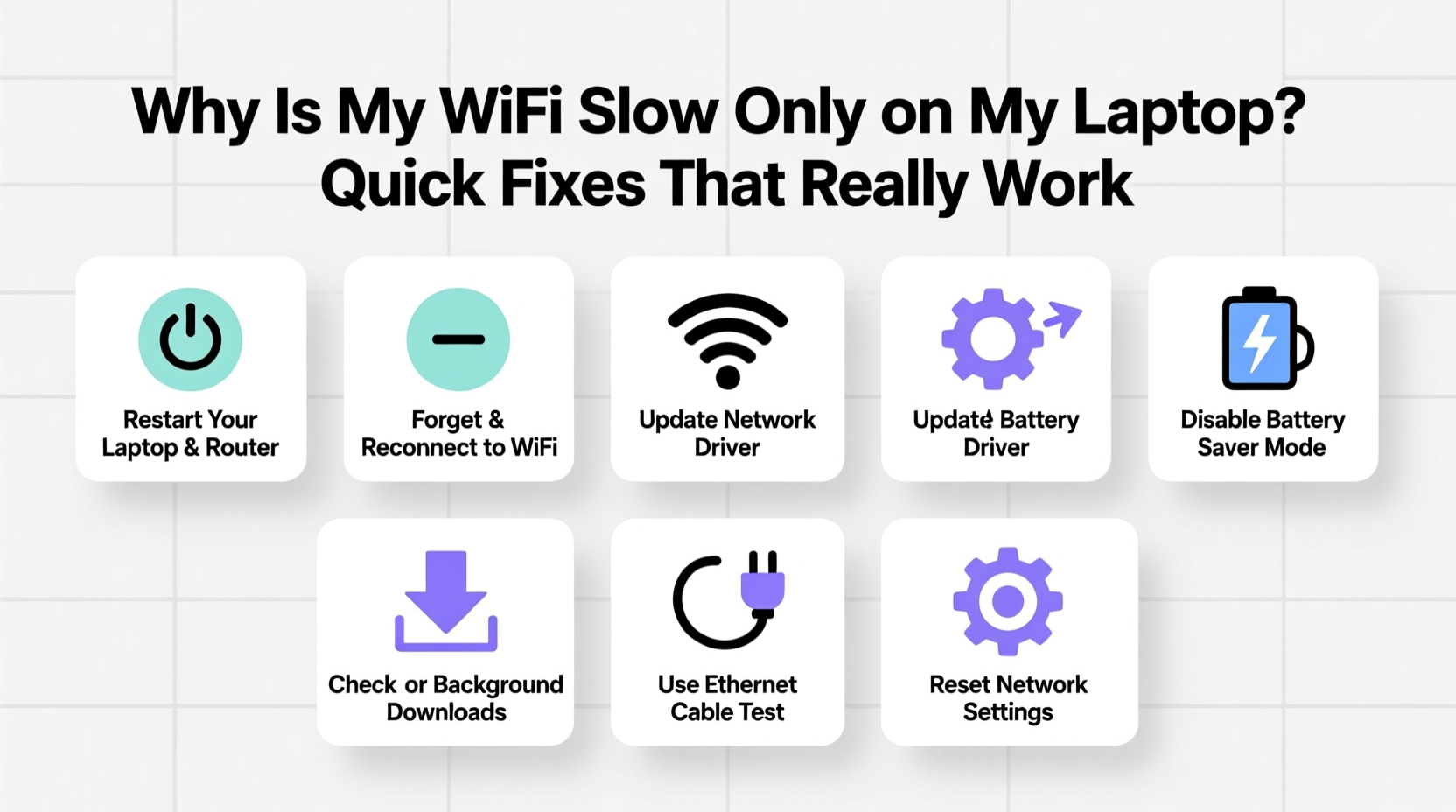
WiFi issues that affect only one device point to localized problems rather than network-wide failures. While other devices connect smoothly, your laptop may suffer due to:
- Outdated or corrupted WiFi drivers – Laptops rely on specific software to communicate with routers. If those drivers are old or damaged, connection quality drops.
- Hardware limitations – Older laptops may support only 2.4 GHz bands, which are slower and more congested than modern 5 GHz networks.
- Power-saving settings – Many laptops throttle WiFi performance to save battery, unknowingly crippling speed.
- Interference from nearby electronics – Microwaves, cordless phones, or even USB 3.0 devices can disrupt WiFi signals when placed too close.
- Background processes consuming bandwidth – Automatic updates, cloud syncs, or malware might be hogging your connection silently.
Unlike smartphones, which are optimized for seamless connectivity, laptops have more complex configurations and greater variability in hardware and software. That complexity means more potential points of failure—but also more opportunities for targeted fixes.
Step-by-Step Fixes to Restore Laptop WiFi Speed
Follow this sequence to methodically eliminate common causes. Start with the simplest solutions and move toward deeper diagnostics.
- Reboot your router and laptop
Unplug your router for 30 seconds, then plug it back in. Restart your laptop. This clears temporary glitches in both devices. - Check if you're connected to 2.4 GHz instead of 5 GHz
Many dual-band routers broadcast two networks (e.g., “HomeWiFi” and “HomeWiFi_5G”). Ensure your laptop is connected to the 5 GHz version for faster speeds (though shorter range). - Disable power-saving mode for WiFi
Windows and macOS sometimes reduce wireless adapter performance to extend battery life. Disable this feature to maintain full speed. - Update your WiFi driver
Outdated drivers are a leading cause of poor performance. Visit your laptop manufacturer’s support site or use Device Manager (Windows) to install the latest version. - Forget and re-add the network
Corrupted network profiles can degrade connections. Remove the WiFi network from your saved list and reconnect by entering the password again. - Run built-in network troubleshooters
Both Windows and macOS include diagnostic tools that can detect and fix common connection issues automatically. - Check for bandwidth-hogging apps
Open Task Manager (Windows) or Activity Monitor (macOS) and sort by network usage. Close unnecessary apps using large amounts of data.
Real Example: Sarah’s Remote Work Struggles
Sarah, a freelance graphic designer, noticed her Zoom calls kept freezing—even though her phone streamed Netflix without issue. Her husband’s gaming console had no lag either. After trying multiple restarts, she checked her WiFi band and realized her laptop was stuck on the 2.4 GHz network due to a weak signal near her office.
She moved her router closer, switched to the 5 GHz band, and disabled her laptop’s WiFi power-saving mode. Within minutes, her upload speed tripled, and video calls stabilized. The fix took less than 20 minutes and cost nothing.
“More than half of ‘slow WiFi’ complaints I see are actually device-specific issues—often resolved with driver updates or band switching.” — Raj Patel, Network Support Specialist at ConnectSure IT
Do’s and Don’ts: Common Mistakes That Worsen the Problem
| Do | Don't |
|---|---|
| Use the 5 GHz band when within range of the router | Place your laptop behind thick walls or metal objects |
| Keep WiFi drivers updated monthly | Ignore firmware updates for your router |
| Position your laptop so the antenna (usually near screen hinges) faces the router | Run torrent clients or cloud backups during video calls |
| Test speed using wired Ethernet to isolate the issue | Assume slow speed means you need a new internet plan |
| Use a WiFi analyzer app to find less congested channels | Place your router next to microwaves or cordless phones |
Advanced Solutions When Basic Fixes Fail
If standard steps don’t help, dig deeper into system-level settings and hardware diagnostics.
Reset Network Settings
Over time, network configurations accumulate errors. Resetting them restores defaults.
On Windows:
Go to Settings > Network & Internet > Status > Network reset.
This reinstalls adapters and clears saved networks.
On macOS:
Delete network plist files via Terminal or reinstall network preferences from System Settings.
Change DNS Servers
Your ISP’s default DNS may be slow or unreliable. Switching to public options like Google DNS or Cloudflare can improve responsiveness.
To change DNS on Windows:
1. Open Network and Sharing Center
2. Click your WiFi connection > Properties
3. Select \"Internet Protocol Version 4\" > Properties
4. Choose \"Use the following DNS server addresses\"
5. Enter:
- Preferred DNS: 8.8.8.8
- Alternate DNS: 8.8.4.4
6. Click OK and restart your browser.
Test with Ethernet
Connect your laptop directly to the router using an Ethernet cable. Run a speed test. If speeds are normal, the issue is definitely wireless—not your internet plan or laptop processing power.
Scan for Interference
Use a free tool like Wi-Fi Analyzer (Windows) or NetSpot (macOS) to visualize nearby networks and channel congestion. If many neighbors use channel 6 on 2.4 GHz, switch your router to channel 1 or 11 for cleaner transmission.
Check Antivirus and Firewall Settings
Some security suites aggressively filter traffic, slowing down connections. Temporarily disable your antivirus firewall and test speed. If performance improves, adjust settings or switch to a lighter alternative.
Quick Fix Checklist
Print or bookmark this checklist for fast reference when your laptop slows down:
- ✅ Reboot router and laptop
- ✅ Confirm connection to 5 GHz network (if available)
- ✅ Disable WiFi power-saving mode
- ✅ Update wireless network adapter driver
- ✅ Forget and rejoin the WiFi network
- ✅ Close high-bandwidth background apps
- ✅ Run OS network troubleshooter
- ✅ Test with Ethernet cable
- ✅ Change DNS to 8.8.8.8 / 1.1.1.1
- ✅ Reset network settings if all else fails
Frequently Asked Questions
Why is my WiFi slow on my laptop but not my phone?
This usually happens because your laptop is connected to the 2.4 GHz band (slower, longer range), while your phone automatically connects to 5 GHz (faster, shorter range). It could also stem from outdated drivers, power-saving settings, or internal interference from USB devices.
Can a virus slow down my WiFi?
Yes. Malware such as crypto miners or botnet clients can consume significant bandwidth in the background. Run a full system scan with trusted antivirus software to rule this out.
Should I buy a new router if my laptop has slow WiFi?
Not necessarily. Before upgrading hardware, verify that the issue is isolated to your laptop. Try connecting other devices to the same network. If they perform well, focus on fixing the laptop first—often a $20 USB WiFi adapter works better than a costly router replacement.
Conclusion: Take Control of Your Connection
Slow WiFi on your laptop doesn’t have to be a permanent annoyance. Most cases stem from correctable settings, outdated components, or environmental factors—not irreversible hardware flaws. By systematically addressing drivers, bands, power modes, and interference, you can reclaim fast, reliable internet where you need it most.
The fixes outlined here require minimal technical knowledge and zero cost in most cases. Implement one step at a time, testing after each change. You’ll likely identify the culprit quickly—and enjoy smoother browsing, clearer calls, and faster downloads in under an hour.




 浙公网安备
33010002000092号
浙公网安备
33010002000092号 浙B2-20120091-4
Comments
No comments yet. Why don't you start the discussion?