
If your laptop, tablet, or smart TV can stream in 4K without buffering while your phone struggles to load a simple webpage, you’re not imagining things. Many users experience frustratingly slow Wi-Fi speeds exclusively on their mobile devices—even when connected to the same network as faster-performing gadgets. This inconsistency often points to device-specific or configuration-related problems rather than general internet outages. Understanding the root causes and applying targeted fixes can restore your phone’s connectivity and eliminate unnecessary frustration.
Mobile phones are particularly sensitive to wireless signal fluctuations due to their compact antennas, power-saving features, and frequent background processes. Unlike stationary devices that maintain stable connections, smartphones move between rooms, switch networks, and manage dozens of apps simultaneously—all of which impact performance. The good news is that most Wi-Fi slowness on phones is fixable with methodical troubleshooting.
Common Causes of Slow Wi-Fi on Phones
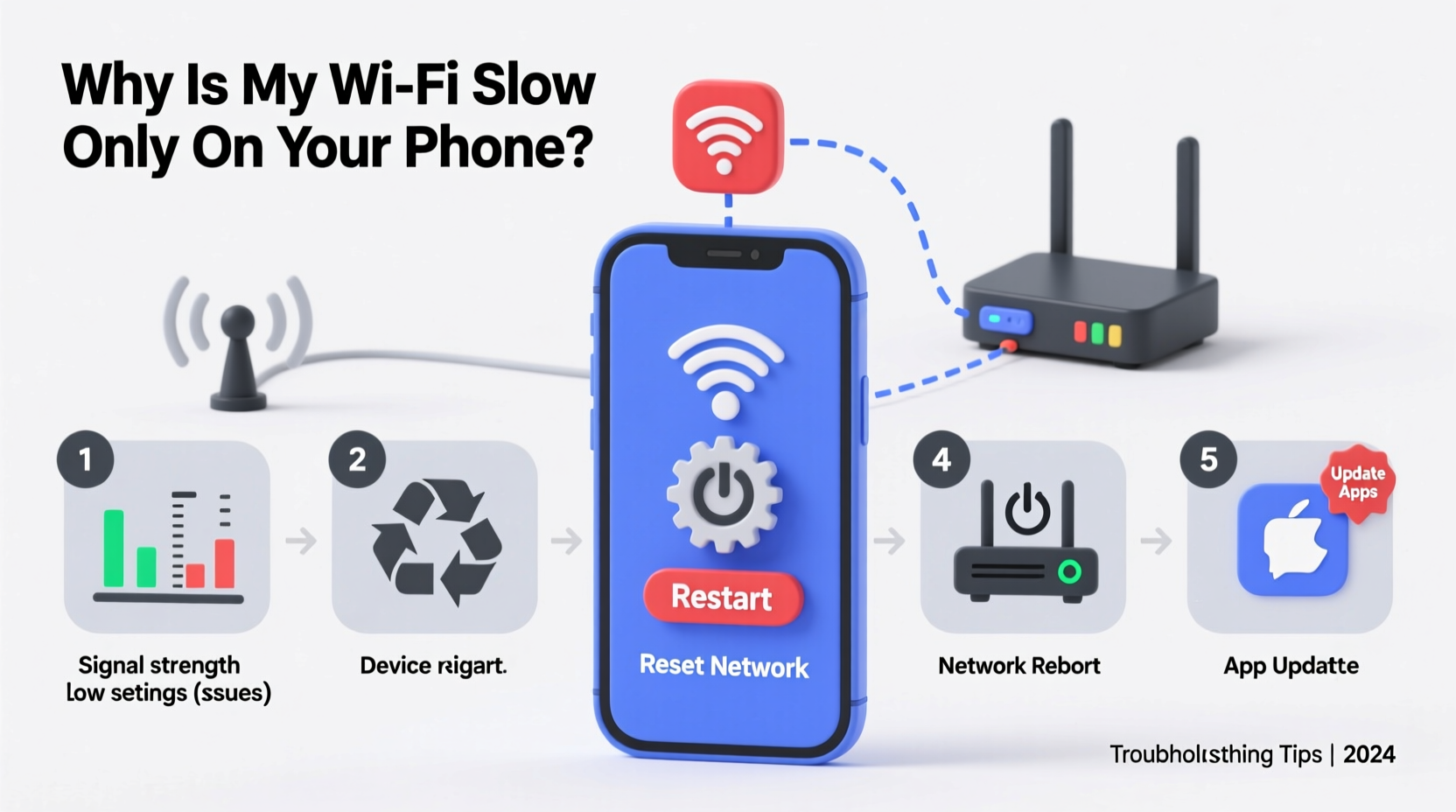
Before jumping into solutions, it's essential to understand what might be causing the disparity. Several factors unique to smartphones contribute to sluggish Wi-Fi performance:
- Outdated Wi-Fi drivers or firmware: Unlike computers, phones don’t always update networking components transparently. Older Android versions or iOS builds may lack optimizations for newer routers.
- Background app activity: Social media, email sync, cloud backups, and location services consume bandwidth even when you're not actively using the phone.
- Signal interference: Walls, appliances, and neighboring networks create congestion, especially on the crowded 2.4 GHz band—where many phones default.
- Power-saving modes: Battery optimization settings can throttle CPU and network performance to extend usage time, directly affecting Wi-Fi speed.
- DNS misconfiguration: Incorrect or slow DNS servers can delay page loading, even if download speeds appear normal.
- Router limitations: Some older routers struggle with handling multiple modern devices efficiently, especially when one device uses outdated protocols.
Step-by-Step Troubleshooting Guide
Follow this logical sequence to isolate and resolve the issue. Begin with the simplest checks and progress toward deeper diagnostics.
- Verify other devices: Confirm that laptops, tablets, or smart TVs on the same network perform well. If all devices are slow, the issue is likely with your internet service or router—not your phone.
- Test cellular vs. Wi-Fi: Turn off Wi-Fi and use mobile data for a few minutes. If web pages load faster on LTE/5G, the problem is isolated to your Wi-Fi setup.
- Forget and rejoin the network: Go to Settings > Wi-Fi, tap the network name, and select “Forget.” Then reconnect by entering the password again. This resets stored credentials and forces a fresh handshake with the router.
- Check for software updates: Ensure your phone’s OS is up to date. Manufacturers often release patches that improve network stability and security.
- Disable battery saver mode: On both iOS and Android, go to Battery settings and turn off any power-saving options temporarily to test performance.
- Reset network settings: As a last resort, reset all network configurations (Wi-Fi, Bluetooth, cellular). Note: You’ll need to re-enter Wi-Fi passwords afterward.
Advanced Network Diagnostics
If basic steps fail, dig deeper using built-in tools or third-party apps:
- Use a Wi-Fi analyzer app (like NetAnalyzer on iOS or WiFi Analyzer on Android) to check signal strength (RSSI), channel congestion, and frequency band usage.
- Run a speed test directly from your phone (e.g., Speedtest by Ookla) while standing near the router. Compare results with those from another device.
- Check if your phone connects to 2.4 GHz instead of 5 GHz. While 2.4 GHz has better range, it’s slower and more prone to interference.
“We see cases daily where a simple network reset or router reboot resolves persistent mobile slowdowns. Phones are more vulnerable to stale IP leases and DNS timeouts than desktops.” — David Lin, Senior Network Technician at ConnectSure ISP
Do’s and Don’ts When Fixing Mobile Wi-Fi Issues
| Do | Don't |
|---|---|
| Reboot your router weekly | Assume the issue is with your ISP immediately |
| Update your phone’s operating system regularly | Leave unused apps running in the background |
| Switch to 5 GHz Wi-Fi when close to the router | Place your router behind metal objects or inside cabinets |
| Use public DNS like Google (8.8.8.8) or Cloudflare (1.1.1.1) | Ignore firmware updates for your router |
| Limit automatic cloud backups during peak hours | Keep Bluetooth and Wi-Fi scanning enabled constantly |
Real-World Example: Sarah’s Spotty Connection
Sarah, a remote worker in Austin, noticed her iPhone was consistently lagging during video calls—even though her MacBook worked flawlessly on the same home network. She could send emails and browse lightly, but Zoom meetings froze every few minutes. After testing cellular data (which worked fine), she suspected Wi-Fi.
She followed the troubleshooting steps: restarted her phone and router, forgot the network, and rejoined. No improvement. Then she used the Apple Network Diagnostic tool and discovered her phone was stuck on the 2.4 GHz band despite being just 10 feet from the router. Her dual-band router wasn’t properly broadcasting a unified SSID, so her phone defaulted to the slower frequency.
After logging into her router settings and enabling band steering, her iPhone automatically connected to the 5 GHz network. Video call quality improved instantly, and web browsing felt snappier. The fix took less than 15 minutes and cost nothing.
Optimize Your Phone’s Wi-Fi Settings
Beyond basic fixes, proactive configuration ensures long-term performance:
- Change DNS manually: In Wi-Fi settings, switch from automatic to manual DNS and enter
1.1.1.1(Cloudflare) or8.8.8.8(Google). These are faster and more secure than default ISP DNS. - Turn off Wi-Fi Assist (iOS): Found under Settings > Cellular, this feature switches to cellular when Wi-Fi is weak—but can mask underlying issues and increase data usage.
- Disable auto-join for unreliable networks: Prevent your phone from connecting to weak or malicious hotspots automatically.
- Enable High Performance mode (Android): Under Developer Options or network settings, ensure Wi-Fi is set to maximum performance, not battery saving.
When Hardware Might Be the Issue
While rare, hardware degradation can affect Wi-Fi reception. Dropping your phone, water exposure, or prolonged heat stress may damage internal antennas. Signs include:
- Consistently poor signal bars even near the router
- Frequent disconnections without cause
- Inability to connect to known networks others access easily
If software fixes fail and the issue persists across multiple networks (home, office, café), consider professional repair or replacement. Modern phones rely heavily on MIMO (Multiple Input, Multiple Output) antenna systems; a single damaged element can reduce throughput significantly.
Comprehensive Wi-Fi Optimization Checklist
Use this checklist to systematically address potential bottlenecks:
- ✅ Reboot your phone and router
- ✅ Test speed on multiple devices
- ✅ Forget and rejoin the Wi-Fi network
- ✅ Check for OS and router firmware updates
- ✅ Disable battery saver/power optimization modes
- ✅ Switch to 5 GHz band if available and within range
- ✅ Change DNS to 1.1.1.1 or 8.8.8.8
- ✅ Close bandwidth-heavy background apps
- ✅ Use a Wi-Fi analyzer to assess channel congestion
- ✅ Reset network settings as a final step
- ✅ Contact your ISP or router manufacturer if issues persist
Frequently Asked Questions
Why is my Wi-Fi slow on my phone but fast on other devices?
This usually indicates a device-specific issue such as outdated software, poor antenna reception, excessive background app usage, or incorrect network settings. It can also result from your phone connecting to the 2.4 GHz band while other devices use 5 GHz.
Can a virus or malware slow down my phone’s Wi-Fi?
Yes. Malicious apps can run hidden downloads, crypto-mining scripts, or adware that consume bandwidth. Install reputable security software and review recently installed apps. Uninstall anything suspicious or unknown.
Does clearing cache improve Wi-Fi speed?
Not directly. Clearing app cache removes stored data within individual apps but doesn’t affect network performance. However, if an app is malfunctioning and consuming excess data due to corrupted files, clearing its cache might indirectly help.
Conclusion: Take Control of Your Mobile Connectivity
Slow Wi-Fi on your phone doesn’t have to be a permanent annoyance. With a structured approach—starting with simple restarts and progressing through settings adjustments—you can identify and resolve the underlying cause. Most issues stem from manageable software or configuration problems, not hardware failure or inadequate internet plans.
By understanding how your phone interacts with wireless networks, optimizing settings proactively, and maintaining regular maintenance habits, you ensure consistent, reliable performance. Don’t accept subpar speeds when a few minutes of troubleshooting can make a dramatic difference.




 浙公网安备
33010002000092号
浙公网安备
33010002000092号 浙B2-20120091-4
Comments
No comments yet. Why don't you start the discussion?