
If your tablet crawls online while every other device zips through streaming, browsing, and downloads, you’re not imagining things. This frustrating scenario—where one device suffers sluggish speeds despite a strong network—is more common than you think. The issue often isn’t the tablet alone or your internet plan, but how your router communicates with that specific device. Understanding the root causes and applying targeted fixes can restore smooth performance without expensive upgrades.
Why Your Tablet Might Be the Only Slow Device
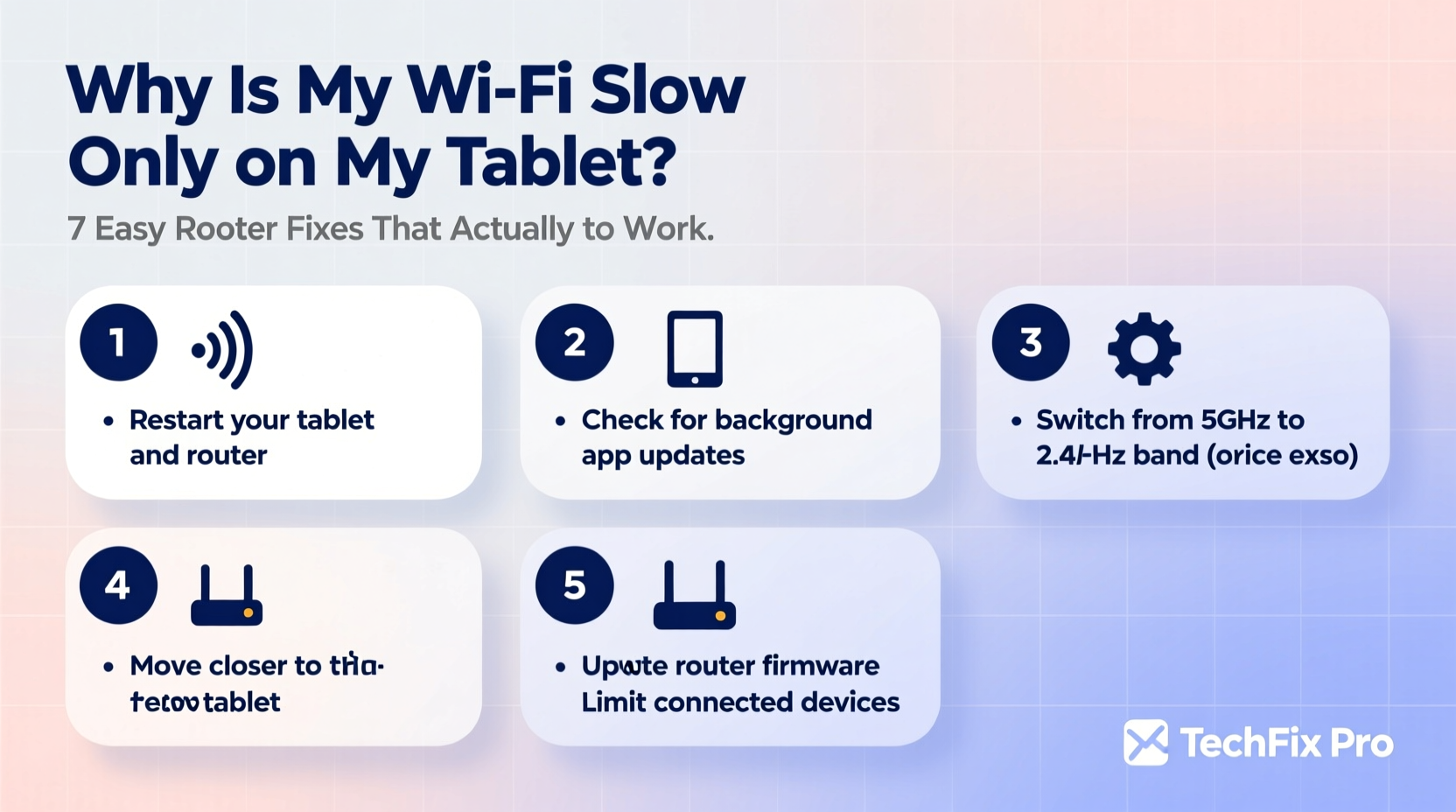
When most of your devices perform well but your tablet lags behind, the problem likely lies in compatibility, positioning, or configuration. Unlike phones or laptops, tablets often sit idle for long periods, use older Wi-Fi standards, or lack updated firmware. These factors create bottlenecks even when your router and internet connection are healthy.
Wi-Fi operates on two main frequency bands: 2.4 GHz and 5 GHz. The 2.4 GHz band travels farther but is slower and more prone to interference from microwaves, baby monitors, and neighboring networks. The 5 GHz band offers faster speeds and less congestion but has shorter range and struggles with walls and floors. Many tablets, especially older models, either don’t support 5 GHz or default to 2.4 GHz even when a stronger signal is available.
Additionally, some tablets have weaker Wi-Fi antennas or outdated chipsets that can't fully utilize modern router capabilities. Power-saving settings may also reduce radio strength to preserve battery, further degrading connectivity.
Router Settings That Affect Tablet Performance
Your router manages traffic across all connected devices, but default configurations aren’t always optimized for mixed-device households. Small adjustments can dramatically improve how your tablet interacts with the network.
1. Separate SSIDs for 2.4 GHz and 5 GHz Bands
Many routers broadcast a single network name (SSID) for both bands, letting devices choose which to connect to. In practice, this “smart” switching often fails, especially with tablets that may stick to the overcrowded 2.4 GHz band.
To regain control, log into your router’s admin panel (usually via 192.168.1.1 or 192.168.0.1) and assign different names to each band—e.g., “HomeNetwork_2G” and “HomeNetwork_5G”. Then, manually connect your tablet to the 5G network when near the router.
2. Adjust Channel Width and Band Steering
On the 5 GHz band, channel width affects speed and stability. Wider channels (80 MHz) offer higher throughput but are more susceptible to interference. If your home has many networks nearby, reducing the width to 40 MHz may improve reliability.
Band steering is a feature meant to push capable devices to 5 GHz. However, it doesn’t work consistently with tablets. Disabling band steering and managing connections manually gives you better control.
3. Update Router Firmware
Manufacturers release firmware updates to fix bugs, patch security flaws, and improve device compatibility. An outdated router might struggle to communicate efficiently with newer tablets—or fail to support legacy ones properly.
Check your router brand’s website or admin interface for firmware updates. Most modern routers notify you automatically, but it’s worth verifying monthly.
“Firmware updates are like oil changes for your router—they keep everything running smoothly and prevent avoidable issues.” — David Lin, Network Infrastructure Engineer at NetSecure Labs
Step-by-Step Guide: Optimizing Your Router for Tablet Use
Follow this sequence to diagnose and resolve tablet-specific slowdowns. Each step builds on the last, ensuring no stone is left unturned.
- Reboot your router and tablet. Start simple. Unplug the router for 30 seconds, then restart. Also restart your tablet to clear any temporary glitches.
- Log into your router’s admin panel. Use a computer or phone connected to the same network. Enter the IP address (found on the router label or manual), then input the username and password.
- Enable dual-band separation. Navigate to Wireless Settings and give distinct names to your 2.4 GHz and 5 GHz networks. Save the settings.
- Connect your tablet to the 5 GHz network. Go to Wi-Fi settings on your tablet, select the new 5G network, and enter the password.
- Test speed immediately. Use a tool like Speedtest.net or Fast.com to compare download/upload rates before and after.
- Adjust channel settings if needed. In the 5 GHz section, change channel width from 80 MHz to 40 MHz if interference is suspected. Choose a less crowded channel using a Wi-Fi analyzer app.
- Disable power-saving features on the tablet. On Android, go to Settings > Network & Internet > Wi-Fi > Advanced > Keep Wi-Fi on during sleep. Set to “Always.” On iPad, ensure Auto-Lock is not set too aggressively under Display & Brightness.
Common Mistakes That Worsen the Problem
Even with good intentions, users often make configuration choices that hurt performance. Avoid these pitfalls:
- Using outdated router hardware. Routers over three years old may not support modern Wi-Fi standards (like 802.11ac or Wi-Fi 5/6), limiting what your tablet can achieve.
- Placing the router poorly. Basements, cabinets, or behind TVs block signals. Central, elevated placement improves coverage for tablets used in different rooms.
- Ignoring device-specific settings. Tablets often have aggressive battery optimization that throttles background data and disconnects Wi-Fi unnecessarily.
- Assuming all devices behave the same. Just because your laptop gets 100 Mbps doesn’t mean your tablet should. Hardware differences matter.
| Action | Do | Avoid |
|---|---|---|
| Wi-Fi Naming | Use separate SSIDs for 2.4G and 5G | One unified network name |
| Firmware | Update quarterly | Never check for updates |
| Tablet Settings | Disable Wi-Fi sleep mode | Allow auto-disconnect to save battery |
| Router Location | Central, elevated spot | Near metal objects or thick walls |
Real Example: Fixing a Lagging iPad in a Busy Household
Sarah, a freelance graphic designer in Portland, noticed her iPad Pro struggled to load design tools while her husband’s laptop streamed 4K video without issue. Her home uses an ISP-provided gateway router with combined 2.4G/5G SSID. After testing, she found her iPad was stuck on the 2.4 GHz band despite being 10 feet from the router.
She followed the steps above: splitting the SSIDs, connecting the iPad to the 5G network, and disabling Auto-Lock during work sessions. She also moved the router from a closet shelf to a bookshelf in the living room. Speed tests jumped from 12 Mbps to 78 Mbps on the iPad, transforming her workflow.
The fix took less than 20 minutes and cost nothing. “I assumed the iPad was just aging,” Sarah said. “But it was really about giving it the right path to the internet.”
Troubleshooting Checklist
Use this checklist to quickly identify and resolve tablet-specific Wi-Fi issues:
- ✅ Reboot both router and tablet
- ✅ Confirm tablet supports 5 GHz Wi-Fi
- ✅ Split 2.4 GHz and 5 GHz network names
- ✅ Connect tablet manually to 5 GHz network
- ✅ Run a speed test before and after changes
- ✅ Disable Wi-Fi power-saving mode on tablet
- ✅ Check for router firmware updates
- ✅ Reposition router for better line-of-sight
- ✅ Forget and re-add Wi-Fi network on tablet
- ✅ Test with another tablet or device to isolate the issue
Frequently Asked Questions
Why does my tablet show full bars but still have slow internet?
Signal strength (bars) measures connection quality, not speed. A strong signal on a congested 2.4 GHz band or a distant 5 GHz network can still result in poor throughput. Interference, router limitations, or background processes on the tablet may also be culprits.
Can a router upgrade solve my tablet’s slow Wi-Fi?
Possibly. If your router is more than four years old or only supports Wi-Fi 4 (802.11n), upgrading to a Wi-Fi 5 or Wi-Fi 6 model can provide faster speeds, better band management, and improved device handling. Mesh systems also help if you frequently use the tablet far from the router.
Does clearing Wi-Fi cache on my tablet help?
Yes. Over time, tablets store outdated network data that can cause connection issues. On Android, go to Settings > System > Reset Options > Reset Wi-Fi, mobile & Bluetooth. On iPad, go to Settings > General > Transfer or Reset [Device] > Reset > Reset Network Settings. Note: You’ll need to re-enter Wi-Fi passwords.
Final Thoughts and Next Steps
Slow Wi-Fi on just one device doesn’t mean you need a new tablet or internet plan. More often, it’s a solvable mismatch between your router’s setup and your tablet’s capabilities. By separating Wi-Fi bands, updating firmware, adjusting power settings, and optimizing placement, you can unlock dramatically better performance—often within minutes.
Don’t accept sluggish browsing or buffering as normal. Take control of your network with these practical tweaks. If one change doesn’t work, try the next. Most fixes are free and reversible. Once your tablet runs smoothly, you’ll wonder why you waited so long.




 浙公网安备
33010002000092号
浙公网安备
33010002000092号 浙B2-20120091-4
Comments
No comments yet. Why don't you start the discussion?