
If your tablet struggles with sluggish internet while other devices breeze through streaming and browsing, you're not imagining things. This frustrating issue affects millions of users every year. The problem isn't always your internet plan or router—it's often a combination of device-specific settings, hardware limitations, and environmental factors. Unlike phones or laptops, tablets are frequently overlooked when troubleshooting network performance. Yet they rely heavily on stable Wi-Fi for media consumption, remote learning, and productivity. The good news: most causes are fixable without technical expertise. By understanding why your tablet lags behind and applying targeted solutions, you can restore fast, reliable connectivity.
Understanding Why Your Tablet Is the Only Slow Device
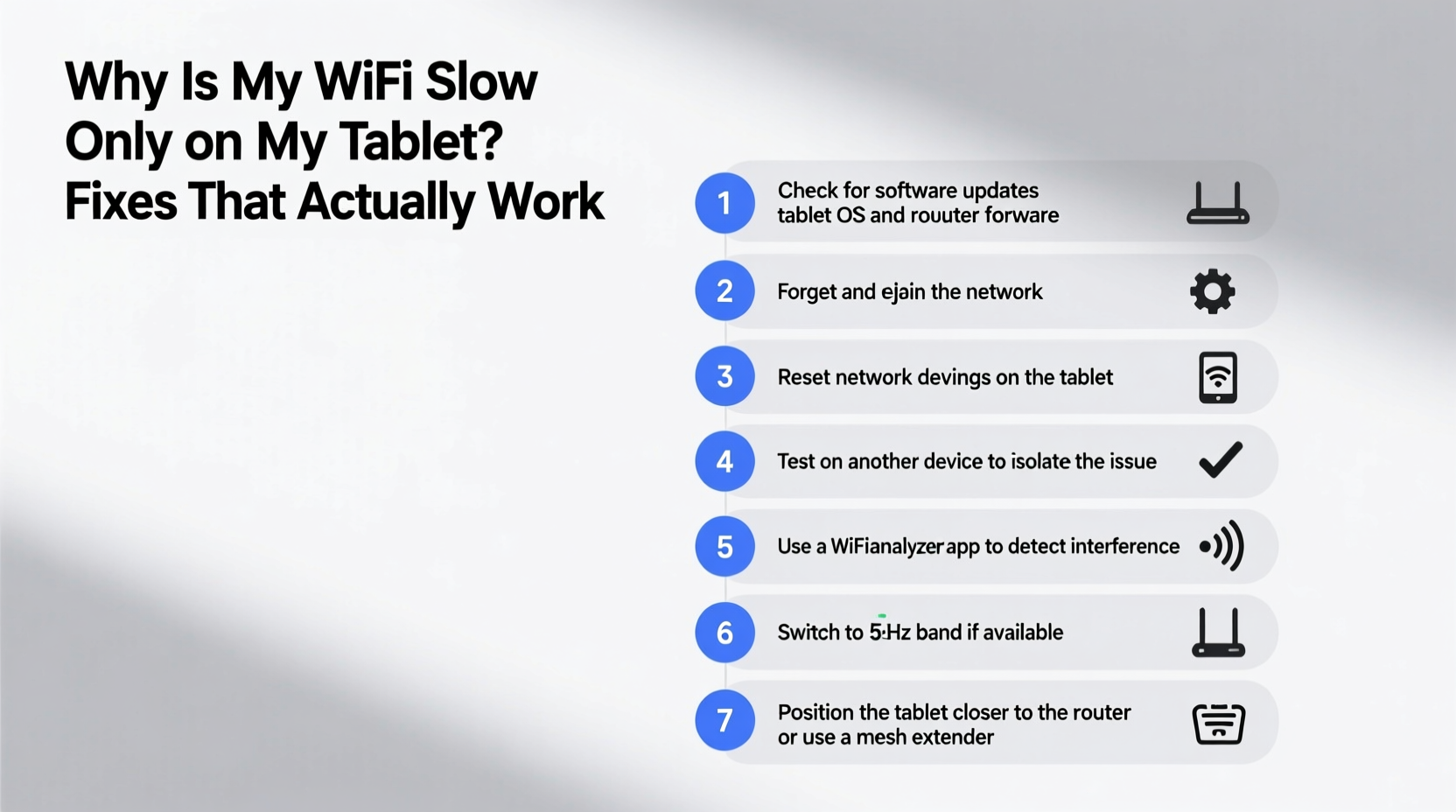
When only one device experiences poor Wi-Fi performance, the root cause typically lies in device-specific behavior rather than your overall internet connection. Tablets, especially older models or budget variants, may lack modern Wi-Fi standards like 802.11ac or Wi-Fi 6. They might also be limited to the 2.4 GHz band, which is more crowded and slower than the 5 GHz band. Additionally, background apps, outdated firmware, or power-saving modes can throttle network performance without your knowledge.
Another common culprit is proximity and interference. Tablets are often used in living rooms, bedrooms, or outdoor spaces—areas farther from the router or blocked by walls and appliances. While your phone might briefly suffer under these conditions, tablets tend to stay in one location longer, exposing persistent weak signal zones.
“Single-device slowdowns are rarely about the ISP. It’s usually a mismatch between the device’s capabilities and the network environment.” — Rajiv Mehta, Network Engineer at NetSignal Labs
Step-by-Step Guide to Diagnose and Fix the Issue
Follow this systematic approach to identify and resolve the source of your tablet’s slow Wi-Fi. Each step builds on the previous one, ensuring no stone is left unturned.
- Test speed on multiple devices: Use a speed test app (like Speedtest by Ookla) on your tablet, smartphone, laptop, and smart TV. Compare download/upload speeds and latency. If only the tablet shows poor results, proceed.
- Restart both the tablet and router: Power cycle your tablet and unplug your router for 30 seconds. This clears temporary glitches and resets IP assignments.
- Check Wi-Fi signal strength: On your tablet, go to Settings > Wi-Fi and look at the signal bars. If it’s below half-strength, distance or obstacles are likely culprits.
- Forget and rejoin the network: In Wi-Fi settings, select your network, tap “Forget,” then reconnect by entering the password again. This refreshes the connection handshake.
- Compare bands if dual-band available: If your router supports 2.4 GHz and 5 GHz, check which band your tablet is using. Older tablets may not support 5 GHz, limiting them to slower, congested frequencies.
- Monitor background activity: Close unused apps, disable automatic updates temporarily, and check for cloud sync processes consuming bandwidth.
- Update software and firmware: Ensure your tablet’s OS and router firmware are up to date. Outdated software can cause compatibility issues with newer security protocols.
Hardware and Network Optimization Tips
Your tablet’s hardware and your home network setup play critical roles in sustained performance. Consider these upgrades and adjustments to eliminate bottlenecks.
Upgrade Router Placement and Configuration
Place your router centrally, elevated, and away from metal objects, microwaves, and cordless phones. Avoid enclosing it in cabinets. For large homes, consider mesh Wi-Fi systems like Google Nest Wifi or Eero, which extend coverage seamlessly.
Enable Band Steering and QoS
If your router supports Quality of Service (QoS), prioritize your tablet during video calls or streaming sessions. Band steering automatically directs capable devices to the faster 5 GHz band, reducing congestion on 2.4 GHz.
Use a Wi-Fi Analyzer App
Download a free Wi-Fi analyzer (such as Wi-Fi Analyzer for Android or Network Analyzer for iOS) to visualize nearby networks and channel overlap. Switch your router to a less crowded channel (e.g., Channel 1, 6, or 11 on 2.4 GHz) via your admin interface.
Replace Aging Equipment
Tablets over five years old may only support Wi-Fi 4 (802.11n). Similarly, routers older than 2015 likely lack MU-MIMO or beamforming—technologies that boost multi-device efficiency. Upgrading either can yield dramatic improvements.
| Wi-Fi Standard | Max Speed (Theoretical) | Typical Tablet Support? | Recommended For |
|---|---|---|---|
| 802.11n (Wi-Fi 4) | 150–600 Mbps | Yes (older models) | Basic browsing, SD video |
| 802.11ac (Wi-Fi 5) | Up to 1.3 Gbps | Mixed (mid-range & newer) | HD/4K streaming, gaming |
| 802.11ax (Wi-Fi 6) | Up to 9.6 Gbps | Limited (premium models) | Futuristic-proofing, dense networks |
Real Example: How Sarah Fixed Her Daughter’s Learning Tablet
Sarah noticed her daughter’s tablet kept buffering during online classes while her laptop worked flawlessly. She first tested speeds: 85 Mbps on her MacBook, but only 6 Mbps on the tablet. After restarting both devices, she checked the Wi-Fi settings and saw the tablet was connected to the 2.4 GHz network. Her router supported 5 GHz, but the tablet wasn’t switching automatically.
She accessed her router’s admin page (via 192.168.1.1), enabled band steering, and renamed the 5 GHz network to match the 2.4 GHz SSID. Then, she forgot the network on the tablet and rejoined. The tablet now connected to 5 GHz, and speed jumped to 72 Mbps. She also disabled battery saver mode, which had been throttling CPU and network performance. The fix took 20 minutes and cost nothing.
Common Mistakes That Make the Problem Worse
While trying to fix slow Wi-Fi, users often unknowingly create new issues. Avoid these pitfalls:
- Using third-party DNS without reason: Switching to Google DNS (8.8.8.8) can help in rare cases, but misconfiguration can introduce delays. Stick to your ISP’s default unless testing confirms improvement.
- Ignoring physical barriers: Thick walls, mirrors, and water tanks (like fishbowls or plumbing) absorb Wi-Fi signals. Even a refrigerator can disrupt connectivity.
- Overloading the tablet with apps: Too many running apps consume RAM and CPU, indirectly affecting network responsiveness.
- Assuming all Wi-Fi extenders are equal: Cheap repeaters can halve your bandwidth. Opt for mesh systems or wired access points instead.
Comprehensive Checklist: Fixes That Actually Work
Use this checklist to methodically resolve your tablet’s slow Wi-Fi. Complete each item before moving to the next.
- ✅ Restart your tablet and router
- ✅ Run a speed test on the tablet and compare with other devices
- ✅ Forget and rejoin the Wi-Fi network
- ✅ Check for OS and router firmware updates
- ✅ Disable battery/power-saving mode temporarily
- ✅ Move closer to the router or eliminate obstructions
- ✅ Verify which Wi-Fi band (2.4 GHz vs. 5 GHz) is being used
- ✅ Change router channel to reduce interference
- ✅ Limit background downloads and auto-sync apps
- ✅ Upgrade to a mesh Wi-Fi system if signal is consistently weak
Frequently Asked Questions
Can a factory reset fix slow Wi-Fi on a tablet?
Yes, but only if the issue stems from corrupted network settings or bloatware. Always back up data first. A reset removes saved networks, so you’ll need to reconnect to Wi-Fi afterward. It won’t help if the problem is hardware-related or due to poor signal.
Why does my tablet disconnect from Wi-Fi randomly?
This often occurs due to aggressive power-saving settings that turn off Wi-Fi during sleep. On Android, go to Wi-Fi settings > Advanced > Keep Wi-Fi on during sleep. On iPad, ensure “Ask to Join Networks” is on and avoid enabling Low Data Mode unnecessarily.
Does using a VPN slow down my tablet’s Wi-Fi?
Yes. A VPN encrypts traffic and routes it through a remote server, adding latency and reducing throughput. If you don’t need the VPN active, disable it. Choose servers geographically closer to minimize speed loss.
Conclusion: Take Control of Your Tablet’s Performance
Slow Wi-Fi on just one device doesn’t mean you need a new plan or gadget. More often, it’s a solvable mismatch between your tablet’s capabilities and your network environment. From simple restarts to strategic router changes, the fixes outlined here address real-world causes—not guesswork. You’ve already taken the first step by identifying the issue. Now, apply the checklist, test each solution, and document what works. Most improvements require no technical skill and cost nothing. Once resolved, your tablet can deliver smooth streaming, responsive browsing, and seamless video calls. Don’t let outdated assumptions or overlooked settings hold you back.




 浙公网安备
33010002000092号
浙公网安备
33010002000092号 浙B2-20120091-4
Comments
No comments yet. Why don't you start the discussion?