
If your tablet struggles with sluggish Wi-Fi while other devices stream, browse, and download without issue, you're not imagining things — and you're definitely not alone. This frustrating scenario is more common than most users realize. The root cause isn’t always the router or internet plan; often, the problem lies in device-specific settings, hardware limitations, or overlooked environmental factors. Understanding why your tablet behaves differently from your phone, laptop, or smart TV is the first step toward restoring fast, reliable connectivity.
Unlike smartphones or laptops, tablets are frequently treated as secondary devices, receiving less attention when performance drops. But a slow tablet can disrupt work, learning, and entertainment, especially when used for video calls, online classes, or streaming services. The good news? Most causes of tablet-specific Wi-Fi slowness are diagnosable and fixable without technical expertise. With a methodical approach, you can identify whether the issue stems from software glitches, outdated firmware, interference, or device limitations.
Understanding Why Tablets Are More Vulnerable to Wi-Fi Issues
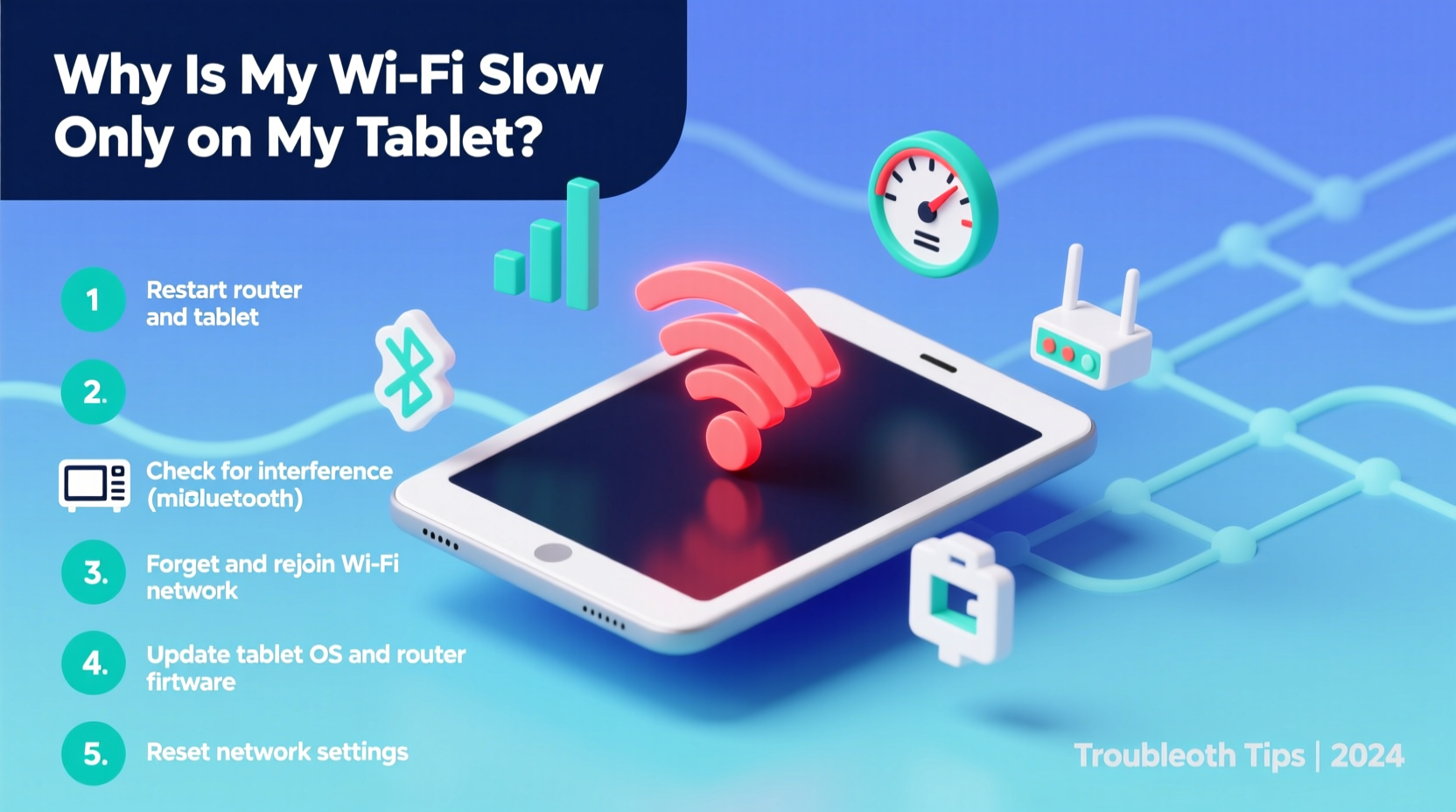
Tablets occupy a unique space in the digital ecosystem. They’re designed for portability and battery efficiency, which sometimes comes at the expense of robust networking hardware. Many budget and mid-range tablets use older Wi-Fi chipsets that support only 2.4 GHz bands, lack MIMO (Multiple Input, Multiple Output) technology, or don’t support modern standards like Wi-Fi 5 (802.11ac) or Wi-Fi 6 (802.11ax). These limitations become glaring when compared to newer smartphones or laptops equipped with dual-band radios and beamforming capabilities.
Additionally, tablets are often used farther from the router — on couches, beds, or outdoor patios — increasing signal degradation. Walls, appliances, and even mirrors can reflect or absorb Wi-Fi signals, disproportionately affecting devices with weaker antennas. Because tablets typically have fewer background processes than phones, users expect them to perform smoothly on Wi-Fi, making slowdowns more noticeable.
“Many tablets, especially those released before 2018, were built with cost-effective Wi-Fi modules that struggle under moderate network load.” — Dr. Lin Zhao, Network Hardware Analyst at TechSignal Labs
Step-by-Step Guide: Diagnose and Fix Slow Tablet Wi-Fi
Before assuming your internet plan is insufficient or blaming the router, follow this structured troubleshooting process to isolate and resolve the issue.
- Test Speed on Other Devices
Open a browser or speed test app (like Speedtest by Ookla) on your phone, laptop, and tablet using the same Wi-Fi network. If only the tablet shows poor results, the issue is device-specific. - Restart Your Tablet and Router
Power cycle both devices. Hold the power button on the tablet for 10 seconds to force a restart. Unplug the router for 30 seconds, then plug it back in. This clears temporary glitches in memory and re-establishes the connection handshake. - Forget and Reconnect to Wi-Fi
Go to Settings > Wi-Fi, tap the network name, and select “Forget.” Then reconnect by entering the password again. This resets the saved profile and forces a fresh IP assignment. - Check Signal Strength
Move closer to the router. If speed improves significantly, distance or physical obstructions are likely culprits. Use a Wi-Fi analyzer app to check signal strength (measured in dBm). Anything below -70 dBm indicates a weak signal. - Update Software and Firmware
Ensure your tablet’s OS is up to date. Outdated software may contain bugs affecting Wi-Fi drivers. Also, check if your router has pending firmware updates via its admin interface (usually accessible at 192.168.1.1). - Disable Battery Saver Mode
Battery-saving features often throttle background data and reduce Wi-Fi performance. Turn it off temporarily to test if speeds improve. - Clear Cache and Background Apps
Some apps consume bandwidth silently. Close unused apps and clear cached data through Settings > Storage > Cached Data.
Common Causes and Their Solutions
The following table outlines frequent reasons for tablet-specific Wi-Fi slowdowns, along with actionable fixes.
| Cause | Symptoms | Solution |
|---|---|---|
| 2.4 GHz Only Support | Slow speeds, high latency, especially near other wireless devices | Upgrade to a dual-band tablet or limit interference by switching nearby devices to 5 GHz |
| Outdated Operating System | Intermittent disconnects, inability to maintain stable connection | Install latest OS update; enable auto-updates |
| Router Band Steering Disabled | Stuck on crowded 2.4 GHz band despite 5 GHz availability | Enable band steering in router settings or manually connect to 5 GHz network |
| Aggressive Power Management | Wi-Fi drops when screen turns off, slow wake-up times | Adjust Wi-Fi sleep settings or disable “Turn off Wi-Fi automatically” |
| DNS or IP Conflict | Can connect but no internet access, slow page loading | Switch to Google DNS (8.8.8.8) or renew IP address via router |
Mini Case Study: Sarah’s Streaming Struggles
Sarah, a remote teacher, relied on her 2017 Android tablet for daily Zoom classes. While her husband’s laptop had no issues, her tablet consistently froze during video calls. Initial tests showed 1.2 Mbps download speed on the tablet versus 45 Mbps on other devices. She followed standard restart procedures with no improvement.
After reviewing her router’s connected devices list, she noticed her tablet was connected to the 2.4 GHz network, while her laptop used 5 GHz. Her tablet didn’t support automatic band switching. By renaming her 5 GHz network (e.g., “HomeNet_5G”) and manually connecting the tablet, her speeds jumped to 38 Mbps. The call quality improved instantly. The fix took less than five minutes and required no hardware changes.
Do’s and Don’ts When Troubleshooting Tablet Wi-Fi
- Do test speed at different times of day to rule out network congestion.
- Do position the tablet flat and away from metal surfaces during testing.
- Do use Ethernet adapters with OTG cables for critical tasks if Wi-Fi remains unreliable.
- Don’t assume the router is faulty without isolating the device variable.
- Don’t ignore firmware updates — they often include Wi-Fi stability patches.
- Don’t place the tablet in a case with metallic lining, which can block signals.
Advanced Fixes for Persistent Problems
If basic troubleshooting fails, consider these deeper interventions:
- Factory Reset (Last Resort): Back up your data and reset network settings. On iOS, go to Settings > General > Transfer or Reset [Device] > Reset > Reset Network Settings. On Android, navigate to Settings > System > Reset options > Reset Wi-Fi, mobile & Bluetooth. This clears corrupted profiles and resets radio configurations.
- Use a Wi-Fi Extender Strategically: If the tablet is used far from the router, place a Wi-Fi extender halfway between. Choose a model with a dedicated Ethernet port and set it to bridge mode to avoid double NAT issues.
- Check MAC Address Filtering: Some routers restrict access based on device MAC addresses. Verify your tablet’s MAC isn’t accidentally blocked. It can be found in Wi-Fi settings under “About device” or “Network details.”
- Switch DNS Providers: Default ISP DNS servers can be slow. Change to Cloudflare (1.1.1.1) or Google (8.8.8.8) in advanced Wi-Fi settings. This often reduces latency and improves browsing speed.
Checklist: Fast-Track Your Tablet Wi-Fi Fix
Follow this concise checklist to systematically eliminate common issues:
- ✅ Test speed on tablet vs. other devices
- ✅ Restart tablet and router
- ✅ Forget and rejoin Wi-Fi network
- ✅ Move closer to the router for testing
- ✅ Disable battery saver or power-saving modes
- ✅ Update tablet OS and router firmware
- ✅ Switch to 5 GHz network if available
- ✅ Change DNS to 8.8.8.8 or 1.1.1.1
- ✅ Clear app cache and close background apps
- ✅ Reset network settings if all else fails
Frequently Asked Questions
Why is my tablet slow on Wi-Fi but fine on cellular data?
This usually indicates a Wi-Fi configuration or compatibility issue. Cellular networks bypass local network problems, so if the tablet performs well on LTE or 5G, the issue is likely related to router settings, signal interference, or outdated Wi-Fi drivers on the tablet.
Can a virus or malware slow down my tablet’s Wi-Fi?
While rare, malicious apps can run background downloads or ad scripts that consume bandwidth. Install a reputable security app, scan for threats, and uninstall any suspicious applications. Always download apps from official stores.
Does screen brightness affect Wi-Fi speed?
No, screen brightness doesn’t directly impact Wi-Fi performance. However, lowering brightness can reduce overall system load and prevent thermal throttling, which may indirectly help maintain consistent network performance on lower-end devices.
Conclusion: Take Control of Your Tablet’s Performance
A slow tablet doesn’t have to be a permanent limitation. By understanding the interplay between device capabilities, network environment, and software settings, you can restore smooth, responsive Wi-Fi performance. Most fixes require no special tools or technical knowledge — just patience and a logical approach. Whether you’re using your tablet for work, education, or relaxation, reliable connectivity should be a given, not a gamble.




 浙公网安备
33010002000092号
浙公网安备
33010002000092号 浙B2-20120091-4
Comments
No comments yet. Why don't you start the discussion?