
If you've noticed your internet slowing to a crawl every evening—right when you want to stream a show, join a video call, or play an online game—you're not imagining things. This frustrating phenomenon affects millions of households. The good news: it's usually fixable without upgrading your plan or buying new equipment. Understanding the root causes and applying targeted solutions can restore fast, reliable connectivity within minutes.
Why Does WiFi Slow Down at Night?
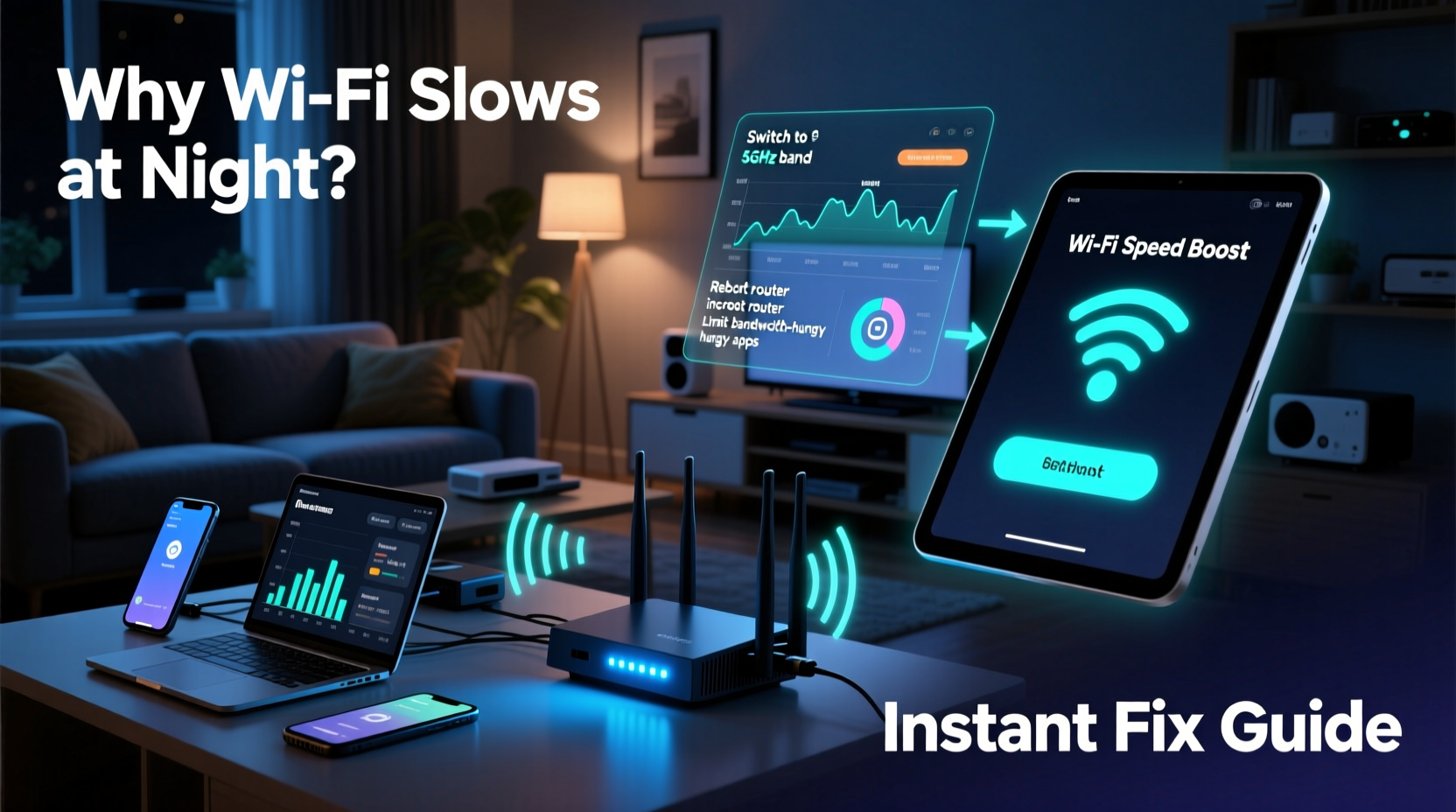
The drop in speed during evening hours isn’t random. It’s typically the result of network congestion, both inside and outside your home. As people return from work and school, multiple devices connect simultaneously, increasing demand on your router and your internet service provider’s (ISP) infrastructure.
Inside your home, smart TVs, phones, tablets, gaming consoles, and even IoT devices like smart speakers all compete for bandwidth. Outside, your neighbors’ increased usage contributes to interference, especially in densely populated areas where many routers operate on overlapping channels.
According to FCC data, average broadband speeds in urban areas can dip by 25–40% between 7 PM and 11 PM due to peak-time congestion. In apartment complexes or neighborhoods with older wiring, the effect is often more pronounced.
“Even if your plan promises 300 Mbps, real-world performance during peak hours depends heavily on local network load and signal quality.” — Dr. Alan Reyes, Network Engineer at Broadband Insights Group
Common Causes of Evening WiFi Slowdowns
- Peak-time ISP congestion: Your provider may experience traffic spikes that limit throughput.
- Increased household device usage: Multiple users streaming, gaming, or downloading strain your router.
- Wi-Fi channel interference: Nearby networks using the same frequency create signal overlap.
- Rogue devices: Forgotten smart gadgets or guest devices consuming bandwidth in the background.
- Router overheating or outdated firmware: Prolonged use without rebooting degrades performance.
- Signal obstructions: Walls, appliances, and furniture weaken signal strength, especially at range.
Step-by-Step Guide to Instantly Boost WiFi Speed at Night
You don’t need technical expertise to improve your connection. Follow this sequence of actions to see measurable improvements in under 15 minutes.
- Reboot your router and modem. Unplug both devices, wait 30 seconds, then power them back on. This clears memory leaks and resets connections.
- Switch to the 5 GHz band. If your router supports dual-band, connect devices to the 5 GHz network for faster speeds and less interference (though shorter range).
- Change your Wi-Fi channel manually. Use a free app like WiFi Analyzer (Android) or NetSpot (Windows/Mac) to find the least congested channel and adjust settings in your router’s admin panel.
- Limit active devices. Temporarily disconnect unused devices through your router’s dashboard or via parental controls.
- Move your router to a central location. Place it elevated and away from microwaves, cordless phones, and thick walls.
- Enable Quality of Service (QoS). Prioritize bandwidth for critical activities like video calls or gaming in your router settings.
- Update router firmware. Check the manufacturer’s website or admin interface for updates that improve stability and security.
Do’s and Don’ts: Optimizing Your Home Network
| Do | Don't |
|---|---|
| Use wired Ethernet for stationary devices like desktops and smart TVs | Place your router next to a refrigerator or microwave |
| Set up a guest network for visitors to reduce main network load | Leave default router login credentials unchanged |
| Run a speed test before and after changes to measure impact | Ignore firmware update notifications |
| Turn off auto-updates on devices during peak hours | Assume higher-priced routers always perform better without research |
| Use a mesh system if you have dead zones in large homes | Overload a single power strip with modem, router, and amplifier |
Real-World Example: How One Family Regained Their Streaming Nights
The Thompson family in Austin, Texas, struggled nightly with buffering Netflix streams and laggy Zoom homework sessions. Their 200 Mbps plan seemed sufficient, but speeds dropped below 10 Mbps after 7 PM. A quick investigation revealed three issues: their router was tucked behind the TV cabinet, five devices were syncing photos in the background, and they were on a crowded 2.4 GHz channel shared by 14 nearby networks.
They followed the step-by-step guide: moved the router to a shelf in the hallway, switched to the 5 GHz band, changed to channel 36 (least used), and paused iCloud backups until midnight. Within 20 minutes, their speed test jumped to 148 Mbps—more than enough for simultaneous 4K streaming and online gaming.
No hardware upgrade was needed. Just smart adjustments made all the difference.
Advanced Tactics for Long-Term Improvement
While immediate fixes help, long-term optimization ensures consistent performance. Consider these upgrades if slowdowns persist despite basic troubleshooting.
- Upgrade to a Wi-Fi 6 router: Newer models handle multiple devices more efficiently and offer better beamforming for stronger signals.
- Install a mesh network: For homes over 2,000 sq ft or with multiple floors, systems like Eero or TP-Link Deco eliminate dead zones.
- Use access points over extenders: Unlike basic repeaters that halve bandwidth, access points connected via Ethernet maintain full speed.
- Implement DNS optimization: Switch to faster DNS servers like Google (8.8.8.8) or Cloudflare (1.1.1.1) for quicker website resolution.
- Monitor bandwidth hogs: Use tools like GlassWire or your router’s built-in analytics to spot apps or devices consuming excessive data.
“Wi-Fi 6 routers can improve efficiency by up to 4x in high-density environments, making them ideal for modern households with 20+ connected devices.” — Lisa Park, Senior Product Manager at NetVelocity Networks
Quick Checklist: Restore Fast WiFi Tonight
Keep this checklist handy for instant action when your internet slows down:
- ✅ Reboot modem and router
- ✅ Connect devices to 5 GHz band
- ✅ Run a speed test (use speedtest.net or fast.com)
- ✅ Disconnect unused devices
- ✅ Adjust Wi-Fi channel to a less crowded option
- ✅ Enable QoS and prioritize key devices
- ✅ Move router to a central, unobstructed location
- ✅ Pause automatic updates and cloud syncs
- ✅ Check for firmware updates
- ✅ Consider switching DNS to 1.1.1.1
Frequently Asked Questions
Can my neighbors really slow down my WiFi?
Yes. If multiple nearby routers operate on the same or overlapping channels—especially on the 2.4 GHz band—they cause interference that degrades performance. Using a Wi-Fi analyzer app helps identify and avoid congested channels.
Is it better to use 2.4 GHz or 5 GHz at night?
The 5 GHz band is faster and less prone to interference, making it ideal for streaming and gaming. However, it has shorter range. Use 5 GHz for devices near the router and 2.4 GHz for distant ones needing coverage over distance, not speed.
Should I contact my ISP if my WiFi is slow at night?
If troubleshooting doesn’t help and speed tests consistently show results far below your subscribed rate during off-peak hours (e.g., mornings), contact your ISP. They may detect line issues, oversubscribed nodes, or offer a plan upgrade if your household needs exceed current capacity.
Conclusion: Take Control of Your Home Network
Slow WiFi at night doesn’t have to be a daily frustration. With a clear understanding of congestion sources and a few strategic tweaks, you can reclaim fast, responsive internet when you need it most. Most fixes take less than 10 minutes and cost nothing. The key is consistency: once you optimize your setup, maintain it with regular reboots, monitoring, and smart device management.
Don’t accept buffering as inevitable. Your internet plan likely delivers enough speed—you just need to ensure it’s being used efficiently. Apply these steps tonight, and enjoy smooth streaming, lag-free gaming, and uninterrupted video calls from now on.




 浙公网安备
33010002000092号
浙公网安备
33010002000092号 浙B2-20120091-4
Comments
No comments yet. Why don't you start the discussion?