
If your internet crawls every evening just as you're settling in to stream a show or join a remote meeting, you're not alone. Millions of households experience the same frustrating drop in Wi-Fi performance after dark. While it may feel like a mystery, the causes are often predictable—and fixable. Bandwidth congestion, network interference, outdated hardware, and usage patterns all play a role. Understanding these factors is the first step toward reclaiming fast, stable internet when you need it most.
Why Does My Internet Slow Down at Night?
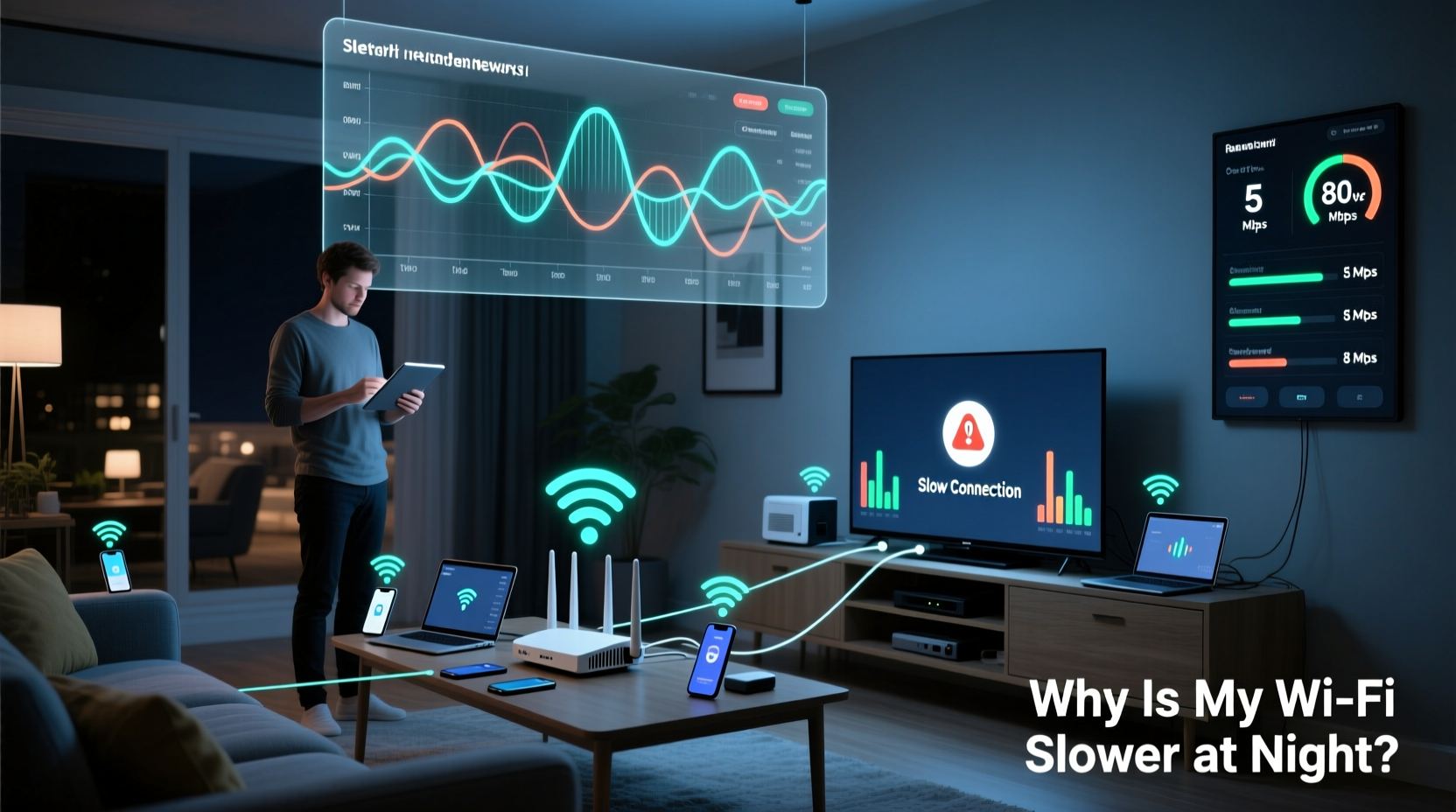
The root cause of nighttime slowdowns lies in increased demand on both your home network and the broader internet infrastructure. During the day, many people are at work or school, using public networks or consuming less data at home. But once evening arrives, households converge online—streaming video, gaming, browsing, and video calling—all at once.
This surge creates two types of strain:
- Local network congestion: Multiple devices competing for bandwidth within your own home.
- ISP-level congestion: Your internet service provider’s local node becomes overloaded as neighbors go online simultaneously.
Data-heavy activities like 4K streaming or cloud gaming can consume 15–25 Mbps per device. With three or more devices active, even a 100 Mbps plan can feel sluggish. Add in background updates from phones, smart TVs, and tablets, and your network quickly reaches capacity.
“Peak-time slowdowns are often not about your connection speed but how that bandwidth is shared across devices and neighboring networks.” — Dr. Lena Torres, Network Performance Analyst at Broadband Insights Group
Common Causes of Inconsistent Wi-Fi Speeds
Inconsistent speeds aren’t random. They stem from identifiable technical and behavioral factors. Below are the top contributors:
1. Network Congestion (Home & Neighborhood)
When everyone in your household—and nearby homes—goes online, your router struggles to keep up. The same radio frequencies used by your Wi-Fi are also used by neighbors’ routers. If multiple networks operate on overlapping channels, interference occurs, degrading signal quality.
2. Outdated or Overloaded Router
Routers degrade over time. Older models may support only 802.11n (Wi-Fi 4), which maxes out at around 150 Mbps under ideal conditions. Even if your ISP delivers 200 Mbps, your router caps usable speed. Additionally, routers have limited processing power; too many connected devices can overwhelm them.
3. Interference from Household Devices
Many common appliances emit electromagnetic noise that interferes with Wi-Fi signals. Microwaves, cordless phones, baby monitors, and Bluetooth speakers often operate on the 2.4 GHz band—the same as most older Wi-Fi networks. This interference spikes during evening use, worsening performance.
4. Poor Router Placement
A router tucked in a basement, closet, or behind furniture suffers from signal obstruction. Walls, metal objects, and large appliances block or reflect Wi-Fi waves. At night, when more people are home, devices are used farther from the router, compounding the issue.
5. ISP Throttling or Network Management
Some internet providers implement “traffic shaping” during peak hours to manage load. Though less common today due to net neutrality regulations, certain ISPs still throttle high-bandwidth applications like video streaming or peer-to-peer file sharing after 7 PM.
Step-by-Step Guide to Fix Nighttime Wi-Fi Slowness
Restoring consistent speeds requires a systematic approach. Follow this sequence to identify and eliminate bottlenecks.
- Test Your Actual Speeds
Use tools like Fast.com (Netflix) or Speedtest.net to measure download, upload, and ping. Test at different times and locations in your home. Compare results to your subscribed plan. - Restart Your Router and Modem
Power cycle both devices. Unplug for 30 seconds, then reboot. This clears memory leaks and resets connections. Do this weekly, especially before peak hours. - Check for Firmware Updates
Log into your router’s admin panel (usually via 192.168.1.1 or similar). Look for firmware updates. Updated firmware improves stability, security, and performance. - Switch to the 5 GHz Band
If your router is dual-band, connect devices that support 5 GHz. It offers faster speeds and less interference than 2.4 GHz, though with shorter range. Reserve 2.4 GHz for smart home gadgets. - Change Your Wi-Fi Channel
Use a free app like Wi-Fi Analyzer (Android) or NetSpot (Windows/Mac) to see which channels nearby networks use. Switch your router to the least crowded channel—ideally 1, 6, or 11 on 2.4 GHz; any non-overlapping channel on 5 GHz. - Limit Bandwidth-Hungry Devices
Identify devices consuming excessive data. Many routers allow you to set Quality of Service (QoS) rules, prioritizing traffic for video calls or gaming over background downloads. - Upgrade Hardware if Necessary
If your router is more than 3–4 years old, consider upgrading to Wi-Fi 6 (802.11ax). These routers handle multiple devices better and offer improved efficiency.
Solutions Comparison: What Works Best?
| Solution | Effectiveness | Cost | Effort Required |
|---|---|---|---|
| Move router to central location | High | Free | Low |
| Switch to 5 GHz band | High | Free (if supported) | Low |
| Update router firmware | Moderate | Free | Medium |
| Use QoS settings | High | Free | Medium |
| Install a mesh Wi-Fi system | Very High | $$$ | High |
| Upgrade internet plan | Moderate to High | $$ | Low |
Note: Effectiveness depends on your specific setup. For example, mesh systems excel in large homes but may be overkill for apartments.
Real-World Example: How the Chen Family Fixed Their Evening Lag
The Chen family in suburban Austin had been struggling with nightly buffering on their smart TVs and dropped Zoom calls. Their 150 Mbps plan should have been sufficient for four users, but speeds dropped below 20 Mbps after 7 PM.
They began by testing speeds on each floor of their two-story home. The basement office showed 120 Mbps during the day but only 18 Mbps at night. Using a Wi-Fi analyzer, they discovered their router was on channel 6—overlapping with five neighboring networks.
They changed to channel 1, enabled 5 GHz for laptops and tablets, and set QoS rules to prioritize video conferencing. They also moved the router from a cabinet to an open shelf near the center of the house. After these changes, evening speeds stabilized at 90+ Mbps. No hardware upgrade was needed.
Their total investment: zero dollars and three evenings of troubleshooting.
Expert Tips for Sustained Performance
When to Consider a Mesh Network or Extender
If dead zones persist despite optimization, consider expanding coverage. Traditional Wi-Fi extenders often halve bandwidth because they rebroadcast the signal. Mesh systems, however, use dedicated backhaul channels and provide seamless roaming.
Mesh is ideal for:
- Homes larger than 2,000 sq ft
- Multi-story buildings with thick walls
- Families with 10+ connected devices
Popular systems like Google Nest Wifi, Eero, or TP-Link Deco offer easy setup and app-based management. While costing $200–$400, they eliminate frustration and deliver consistent speeds throughout the home.
Checklist: Fix Your Nighttime Wi-Fi in 7 Steps
- ✅ Run speed tests at peak and off-peak times
- ✅ Restart modem and router
- ✅ Update router firmware
- ✅ Switch compatible devices to 5 GHz
- ✅ Change Wi-Fi channel to reduce interference
- ✅ Enable QoS to prioritize critical tasks
- ✅ Reposition router for optimal coverage
Complete this checklist over one weekend. Most steps take less than 10 minutes. The payoff? Reliable internet when you need it most.
Frequently Asked Questions
Can my neighbors really slow down my Wi-Fi?
Yes. If multiple nearby routers operate on the same or overlapping channels, especially on the 2.4 GHz band, interference occurs. This doesn’t mean they’re using your internet, but their signals compete with yours, reducing performance. Changing your channel or switching to 5 GHz minimizes this effect.
Should I upgrade my internet plan?
Only after optimizing your current setup. If you’ve applied all fixes and still face slowdowns during peak use, a higher-tier plan (e.g., 300 Mbps or 500 Mbps) may help. However, if your router or wiring limits performance, more bandwidth won’t solve the problem.
Is Wi-Fi 6 worth the upgrade?
For homes with many smart devices, gamers, or 4K streamers, yes. Wi-Fi 6 improves efficiency, reduces latency, and handles congestion better than older standards. It’s particularly effective in dense environments like apartment buildings. If your router is more than four years old, an upgrade likely pays for itself in improved reliability.
Take Control of Your Home Network
Nighttime Wi-Fi slowdowns don’t have to be inevitable. With a few strategic adjustments, you can maintain strong, consistent speeds regardless of when you go online. Start with simple, no-cost fixes like repositioning your router and changing Wi-Fi channels. Then progress to advanced options like QoS settings or mesh networking if needed.
Remember, the goal isn’t just faster speeds—it’s a more reliable, frustration-free digital experience for everyone in your household. You don’t need a tech degree to make meaningful improvements. Just a little knowledge and proactive maintenance.




 浙公网安备
33010002000092号
浙公网安备
33010002000092号 浙B2-20120091-4
Comments
No comments yet. Why don't you start the discussion?