
If your internet speeds plummet every evening despite working fine during the day, you're not imagining things. Millions of households experience the same frustrating drop in WiFi performance after sunset. Streaming buffers, video calls freeze, and downloads stall—just when everyone’s home and online. The root causes are often a mix of network congestion, hardware limitations, and environmental interference. Understanding why this happens—and how to fix it—is key to reclaiming a smooth digital experience.
Network Congestion: The Prime Suspect
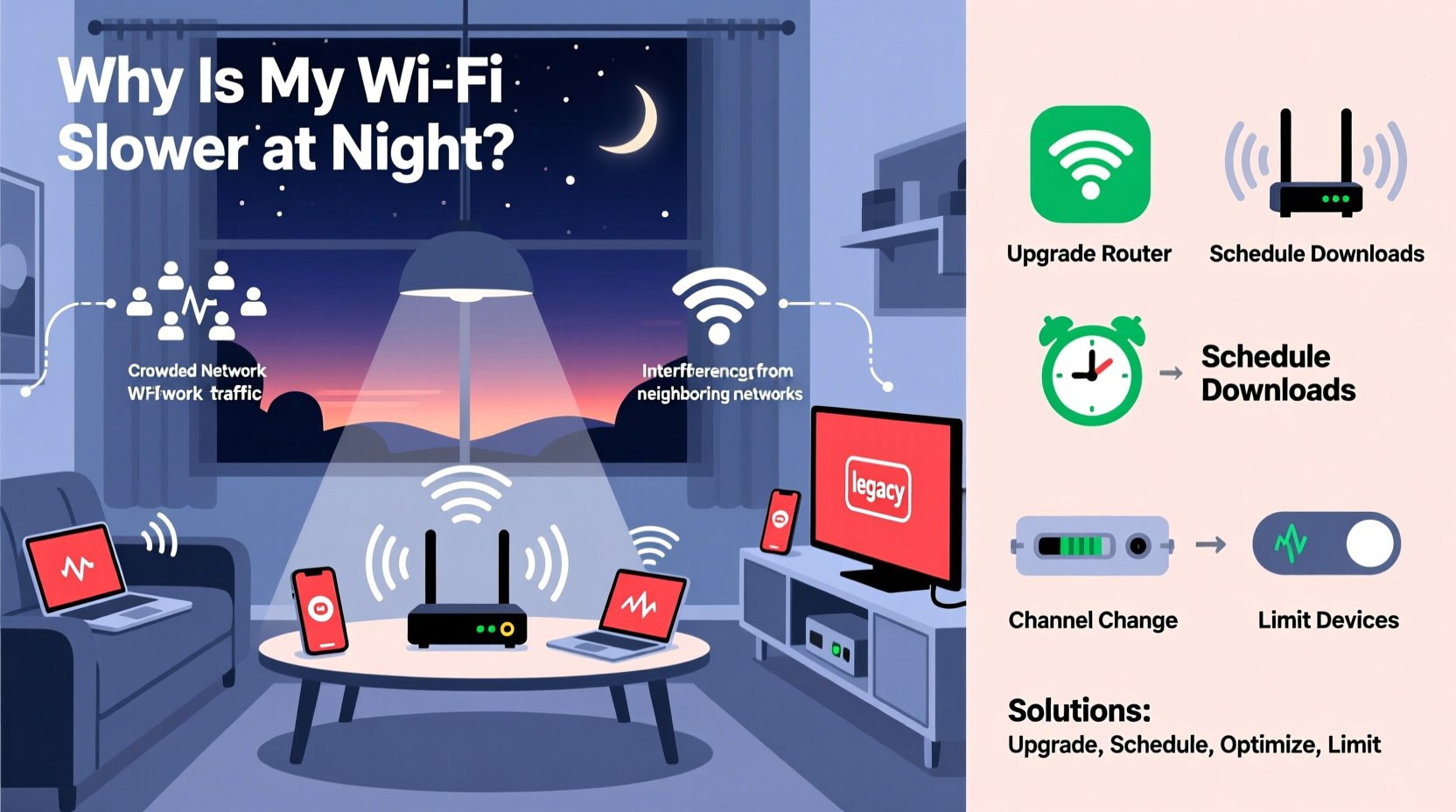
The most common reason for slow nighttime WiFi is increased demand on both your local network and your internet service provider's (ISP) infrastructure. During the day, many people are at work or school, reducing household usage. But once 6 PM hits, families return home, devices power on, and simultaneous streaming, gaming, and browsing begin.
This surge creates two types of congestion:
- Local network congestion: Too many devices competing for bandwidth within your home.
- ISP-level congestion: Your neighborhood’s shared connection becomes overloaded as more users go online.
Many ISPs use a model called “oversubscription,” where they sell more bandwidth than their infrastructure can fully support at peak times. This works because not everyone uses maximum speed simultaneously—but that balance collapses at night.
“Peak-time slowdowns are often due to upstream congestion. Even if you have a 300 Mbps plan, if your node serves 50 homes all streaming 4K, performance will degrade.” — Raj Patel, Network Engineer at Midwest Broadband Solutions
In-Home Device Overload: How Many Devices Are Too Many?
The average U.S. household now has over 10 connected devices—from smartphones and laptops to smart TVs, thermostats, and security cameras. Each device consumes bandwidth even when idle, constantly syncing data or checking for updates.
At night, multiple devices actively stream, game, or browse, overwhelming your router’s ability to manage traffic efficiently. Older routers, in particular, struggle with modern demands due to limited processing power and outdated wireless standards.
Consider this scenario:
Mini Case Study: The Thompson Family
The Thompsons upgraded to a 400 Mbps internet plan but still faced nightly lag on Zoom calls and Netflix buffering. After investigation, they discovered their five-year-old router couldn’t handle the load of six people using seven devices simultaneously—two streaming 4K, one gaming online, and three on video calls. Upgrading to a dual-band Wi-Fi 6 router immediately improved stability, especially during peak hours.
| Wi-Fi Standard | Max Theoretical Speed | Suitable For Night Use? |
|---|---|---|
| Wi-Fi 4 (802.11n) | 600 Mbps | Limited – struggles with multiple HD streams |
| Wi-Fi 5 (802.11ac) | 3.5 Gbps | Good for most households |
| Wi-Fi 6 (802.11ax) | 9.6 Gbps | Excellent – handles congestion better |
Routers with beamforming and MU-MIMO (Multi-User Multiple Input, Multiple Output) technology can serve multiple devices more efficiently by directing signals precisely and communicating with several devices at once—critical during high-traffic evenings.
Interference from Neighboring Networks
As more homes adopt smart devices and high-speed internet, wireless spectrum crowding becomes a serious issue—especially in apartments and dense neighborhoods. At night, neighboring networks also reach peak usage, increasing signal interference on shared Wi-Fi channels.
Most home routers operate on the 2.4 GHz band, which only has 11 channels (in the U.S.), and many overlap. If nearby routers use the same or adjacent channels, interference degrades performance. The 5 GHz band offers more non-overlapping channels and less interference, but has shorter range and poorer wall penetration.
To reduce interference:
- Switch your router to the 5 GHz band for high-speed, short-range tasks like streaming.
- Manually set your 2.4 GHz channel to 1, 6, or 11—these don’t overlap.
- Enable automatic channel selection if your router supports it.
Additionally, avoid placing your router near microwaves, cordless phones, baby monitors, or Bluetooth speakers—all of which emit signals in the 2.4 GHz range and can disrupt WiFi.
Bandwidth-Hogging Applications and Background Processes
Some applications consume disproportionate bandwidth without your knowledge. Common offenders include:
- Cloud backup services (e.g., iCloud, Google Drive, Dropbox)
- Automatic software updates (Windows, macOS, gaming platforms)
- Smart home device syncing (security camera footage uploads)
- Peer-to-peer (P2P) file sharing or torrent clients
These processes often run on schedules or trigger during idle times—frequently in the evening. A single device backing up hundreds of gigabytes can saturate your upload bandwidth, causing latency spikes across the network.
Step-by-Step: Audit and Control Bandwidth Usage
- Log into your router’s admin panel (usually via 192.168.1.1 or 192.168.0.1).
- Navigate to the attached devices section to see all connected devices and their current bandwidth usage.
- Identify unknown or high-usage devices—a sudden spike might indicate unauthorized access or a misbehaving app.
- Set Quality of Service (QoS) rules to prioritize critical activities like video calls or gaming over background tasks.
- Schedule updates and backups to occur during off-peak hours (e.g., 2–5 AM).
Many modern routers allow you to assign priority levels to specific devices or applications. For example, you can ensure your work laptop gets top priority during a meeting while limiting bandwidth for a secondary phone downloading updates.
Outdated Equipment and ISP Throttling
Your internet performance is only as strong as its weakest link. That could be an aging modem, a low-end router, damaged cables, or even throttling by your ISP.
Modems have lifespans—typically 3 to 5 years. An old DOCSIS 2.0 or 3.0 modem may not support the speeds you’re paying for, especially if your ISP has upgraded their network to DOCSIS 3.1 standards. Similarly, renting outdated equipment from your ISP can silently cap your performance.
Some ISPs also engage in “traffic shaping” or throttling during peak hours, intentionally slowing down certain types of data (like video streaming or P2P) to manage network load. While legal in many regions, it contributes to the perception of slower WiFi at night.
If throttling is suspected, consider:
- Using a reputable VPN to encrypt traffic and bypass selective throttling.
- Contacting your ISP to confirm whether traffic management policies are in place.
- Switching providers if slowdowns persist and alternatives exist in your area.
Practical Checklist to Restore Nighttime Speed
Follow this actionable checklist to diagnose and resolve slow WiFi at night:
- ✅ Run a speed test during the day and again at night to confirm the slowdown.
- ✅ Reboot your router and modem to clear temporary glitches.
- ✅ Update your router’s firmware to the latest version.
- ✅ Switch to the 5 GHz band for high-bandwidth devices near the router.
- ✅ Enable QoS settings to prioritize important devices or apps.
- ✅ Disconnect unused or suspicious devices from your network.
- ✅ Replace outdated modems or routers (consider Wi-Fi 6 or mesh systems).
- ✅ Position your router centrally, away from walls and interference sources.
- ✅ Contact your ISP to verify no throttling or line issues exist.
- ✅ Consider upgrading your internet plan if household demand exceeds capacity.
Frequently Asked Questions
Can too many devices really slow down my WiFi?
Yes. While modern routers can handle dozens of connections, performance degrades when multiple devices simultaneously stream, game, or download large files. Routers with older hardware or outdated standards are especially vulnerable.
Is my ISP responsible for nighttime slowdowns?
Possibly. Many ISPs experience network congestion during peak hours (7–11 PM), leading to reduced speeds for customers. If speed tests show significantly lower results at night—and your in-home setup checks out—it may be ISP-related. Contact them with your test data for verification.
Should I upgrade to a mesh WiFi system?
If you have a large home or dead zones, a mesh system can improve coverage and reduce strain on a single router. Mesh networks also distribute load more efficiently and support modern features like band steering and seamless roaming—ideal for high-demand households.
Final Thoughts: Take Back Control of Your Connection
Slow WiFi at night isn’t inevitable. With a methodical approach, you can identify whether the issue stems from your equipment, household habits, neighbor interference, or ISP limitations. Start with simple fixes—restarting your router, switching bands, or adjusting placement—then progress to firmware updates, QoS settings, and hardware upgrades as needed.
Consistent performance doesn’t require the most expensive gear, but rather smart configuration and awareness of what’s happening on your network. By taking control of your home internet ecosystem, you ensure that evenings are spent enjoying content—not waiting for it.




 浙公网安备
33010002000092号
浙公网安备
33010002000092号 浙B2-20120091-4
Comments
No comments yet. Why don't you start the discussion?