
If your internet crawls every evening just when you want to stream a show or join a video call, you're not imagining things. Many households experience a noticeable drop in WiFi performance after sunset. The issue isn’t magic—it’s physics, network design, and human behavior converging into a nightly bottleneck. But the good news is that most causes are fixable with practical adjustments. Understanding why your WiFi slows at night—and knowing how to respond—can restore fast, reliable connectivity when you need it most.
Why Evening Internet Slows Down: The Core Reasons
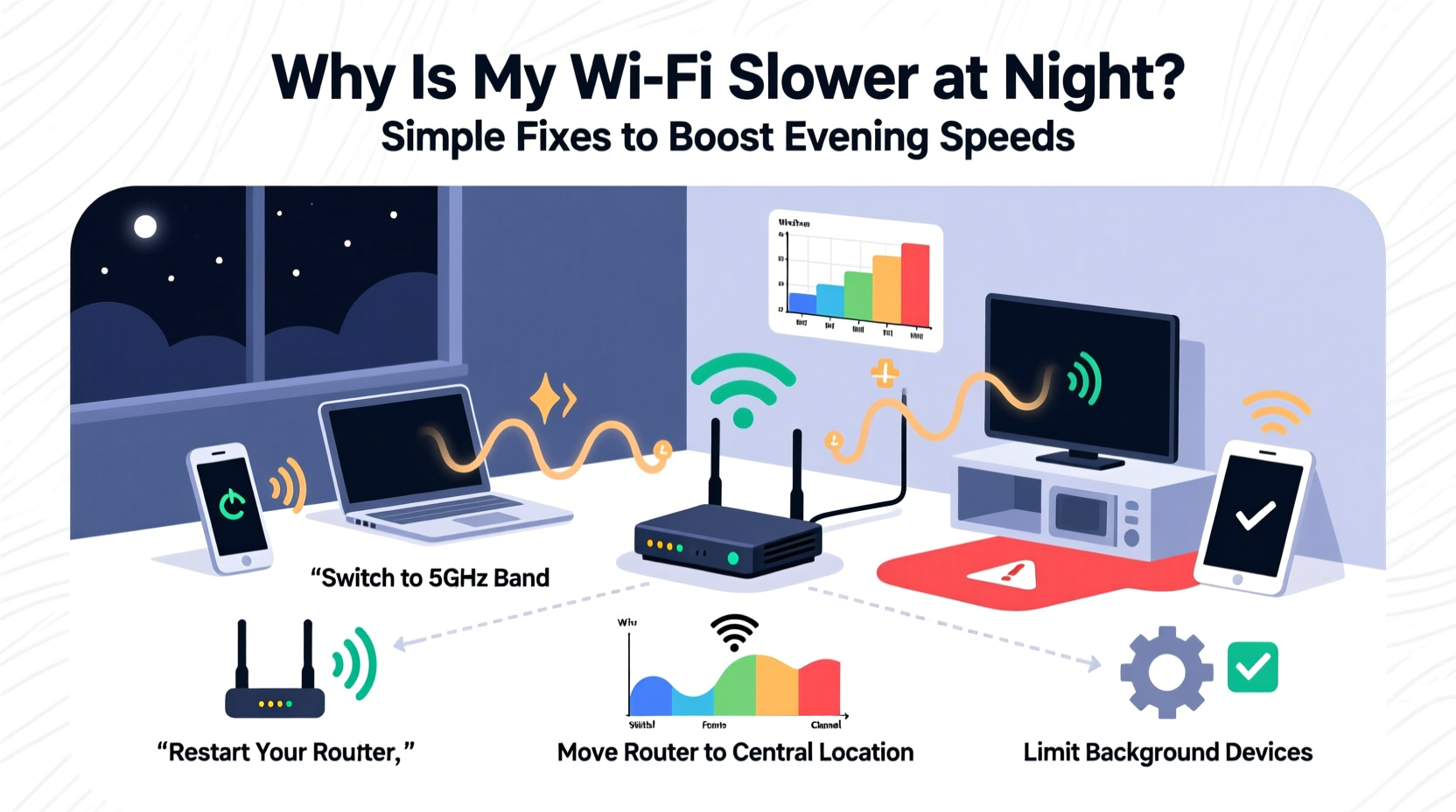
WiFi slowdowns at night aren’t random. They stem from predictable patterns tied to network congestion, device usage, and signal interference. As people return home, turn on smart devices, and begin streaming, gaming, or video conferencing, bandwidth demand spikes across entire neighborhoods.
Network Congestion: Your internet service provider (ISP) shares bandwidth across a local node—often serving 50 to 200 homes. When everyone streams Netflix, uploads videos, or downloads large files simultaneously, the shared connection becomes overloaded. Think of it like rush-hour traffic on a highway: more cars mean slower travel.
Increased Device Load: Modern homes average 10–15 connected devices. At night, many activate at once: phones, tablets, smart TVs, security cameras, voice assistants, and game consoles. Each device consumes bandwidth, even in standby mode, and multiple high-demand activities compound the strain.
Signal Interference: Wireless signals face more competition in the evening. Neighboring WiFi networks, Bluetooth speakers, baby monitors, and microwave ovens all operate in the 2.4 GHz band. As activity increases, so does electromagnetic “noise,” weakening your signal strength and stability.
“Peak usage between 7 PM and 10 PM can reduce per-user bandwidth by up to 60% in densely populated areas.” — Dr. Alan Reyes, Network Performance Analyst at Broadband Insights Group
Simple Fixes to Restore Fast Evening Internet
You don’t need a new ISP or expensive hardware to see improvement. Start with these low-cost, high-impact solutions that target the root causes of nighttime slowdowns.
1. Reboot Your Router Regularly
Routers accumulate memory leaks and connection errors over time. A simple reboot clears cached data, resets connections, and often restores speed. Set a routine to restart your router daily before peak hours—say, at 6 PM.
2. Upgrade to a Dual-Band or Tri-Band Router
Older routers use only the crowded 2.4 GHz band. Modern dual-band (2.4 GHz + 5 GHz) or tri-band (one 2.4 GHz, two 5 GHz) routers allow you to offload devices to less congested frequencies. The 5 GHz band offers faster speeds and less interference, though with slightly shorter range.
3. Optimize Router Placement
A router tucked in a basement closet or behind a TV struggles to deliver consistent coverage. For best results:
- Place the router centrally in your home.
- Elevate it on a shelf—avoid floors or cabinets.
- Keep it away from metal objects, mirrors, and thick walls.
- Separate it from cordless phones and microwaves.
4. Limit Bandwidth-Hungry Devices
Not all devices need full-speed access. Use Quality of Service (QoS) settings in your router’s admin panel to prioritize critical tasks like video calls or online gaming over background updates or cloud backups.
5. Switch to Ethernet Where Possible
Wired connections bypass WiFi interference entirely. Connect stationary devices like desktop PCs, smart TVs, and game consoles directly via Ethernet cables. This reduces wireless load and improves reliability.
| Fix | Difficulty | Cost | Expected Speed Gain |
|---|---|---|---|
| Reboot Router | Easy | Free | 10–20% |
| Use 5 GHz Band | Easy | Free (if supported) | 30–50% |
| Optimize Placement | Moderate | Free | 20–40% |
| Enable QoS | Moderate | Free | 15–30% |
| Add Mesh System | Advanced | $150+ | 50–80% |
Step-by-Step Guide: Diagnose and Fix Nighttime WiFi Issues
Follow this timeline each evening to identify and resolve slowdowns systematically.
- 6:00 PM – Run a Baseline Speed Test
Use a tool like speedtest.net or fast.com on a wired connection to check your actual download/upload speeds. Compare with your ISP plan. - 6:15 PM – Reboot the Router
Unplug the router and modem for 30 seconds, then power them back on. Wait 2 minutes for full restart. - 6:20 PM – Log Into Router Settings
Type your router’s IP (e.g., 192.168.1.1) into a browser. Log in using admin credentials (check manual or underside of device). - 6:25 PM – Check Connected Devices
Look for unknown or inactive devices consuming bandwidth. Disconnect or block them if necessary. - 6:30 PM – Enable QoS and Assign Priorities
Navigate to QoS settings. Prioritize devices used for work, education, or streaming. - 6:35 PM – Switch Key Devices to 5 GHz
On smartphones, laptops, and TVs, manually connect to the 5 GHz network (usually named “YourNetwork_5G”). - 6:40 PM – Retest Speed Wirelessly
Run another speed test on a mobile device. Note improvements in latency and throughput.
Real Example: How One Family Fixed Their Evening Lag
The Thompsons in suburban Chicago struggled nightly with buffering YouTube Kids and dropped Zoom homework calls. Their 3-year-old router sat in a utility closet, and all devices used the 2.4 GHz band. After testing speeds at 8 PM, they recorded just 8 Mbps download—down from their 100 Mbps plan.
They followed the step-by-step guide: moved the router to a central hallway shelf, updated firmware, enabled QoS to prioritize the kids’ tablets, and connected their living room TV via Ethernet. They also purchased a $90 dual-band extender for the backyard office.
Within a week, evening speeds stabilized at 65–75 Mbps. Video calls no longer froze, and 4K streaming resumed without interruption. “We didn’t change ISPs or pay more,” said Mark Thompson. “We just optimized what we already had.”
When to Consider Hardware Upgrades
Sometimes, fixes require investment. If your router is over three years old or lacks modern standards like Wi-Fi 5 (802.11ac) or Wi-Fi 6 (802.11ax), upgrading may be necessary.
Mesh WiFi Systems: Ideal for larger homes, mesh networks use multiple nodes to eliminate dead zones. Unlike basic extenders, they provide seamless roaming and intelligent band steering.
Wi-Fi 6 Routers: These support OFDMA and MU-MIMO technologies, allowing simultaneous communication with many devices without lag. They’re especially effective in high-density environments.
Modem-Router Combos vs. Separate Units: If your ISP-provided equipment is outdated, consider buying your own DOCSIS 3.1 modem and high-performance router. You’ll save on monthly rental fees and gain better control.
“Upgrading to Wi-Fi 6 can improve network efficiency by 4x in homes with 20+ connected devices.” — TechRadar Networking Report, 2023
Checklist: Boost Your Evening WiFi in 7 Steps
Print or bookmark this checklist to follow weekly:
- ✅ Reboot router and modem before 7 PM
- ✅ Confirm devices are on 5 GHz where possible
- ✅ Run a speed test and compare to plan
- ✅ Review connected devices; remove unknowns
- ✅ Enable QoS and prioritize key users
- ✅ Check for firmware updates
- ✅ Consider Ethernet for stationary devices
Frequently Asked Questions
Can my neighbors really slow down my WiFi?
Yes. In apartment complexes or dense suburbs, overlapping WiFi channels cause interference. Use a WiFi analyzer app (like NetSpot or WiFi Analyzer) to find the least crowded channel and manually set it in your router settings.
Does turning off devices help improve speed?
Absolutely. Every connected device reserves a small amount of bandwidth and contributes to network overhead. Turning off unused phones, tablets, and smart speakers reduces congestion. Also disable auto-updates on apps and cloud backups during peak hours.
Is my internet plan the problem?
Possibly. If you have more than four heavy users (streamers, gamers, remote workers), a 100 Mbps plan may be insufficient. Consider upgrading to 200–400 Mbps, especially if your neighborhood experiences high contention ratios during peak times.
Take Control of Your Evening Internet Experience
Slow WiFi at night doesn’t have to be inevitable. By understanding the causes—network congestion, device overload, and signal interference—you can implement targeted, cost-effective solutions. From strategic router placement to leveraging QoS settings and upgrading hardware when needed, the tools are within reach. Most improvements require no technical expertise, just awareness and consistency.
Start tonight. Reboot your router, run a speed test, and take one action from the checklist. Small changes compound into dramatically better performance. Share your progress, experiment with settings, and empower your household with faster, more reliable internet when it matters most.




 浙公网安备
33010002000092号
浙公网安备
33010002000092号 浙B2-20120091-4
Comments
No comments yet. Why don't you start the discussion?