
It’s a common frustration: your internet works perfectly in the living room but crawls to a halt in the bedroom or basement. You’re not imagining it—WiFi signals degrade across space and through obstacles, creating frustrating dead zones. The good news? You don’t need a full network overhaul to fix this. Understanding the root causes of weak signals and applying smart, budget-friendly solutions can dramatically improve coverage throughout your home.
Why WiFi Slows Down in Certain Rooms
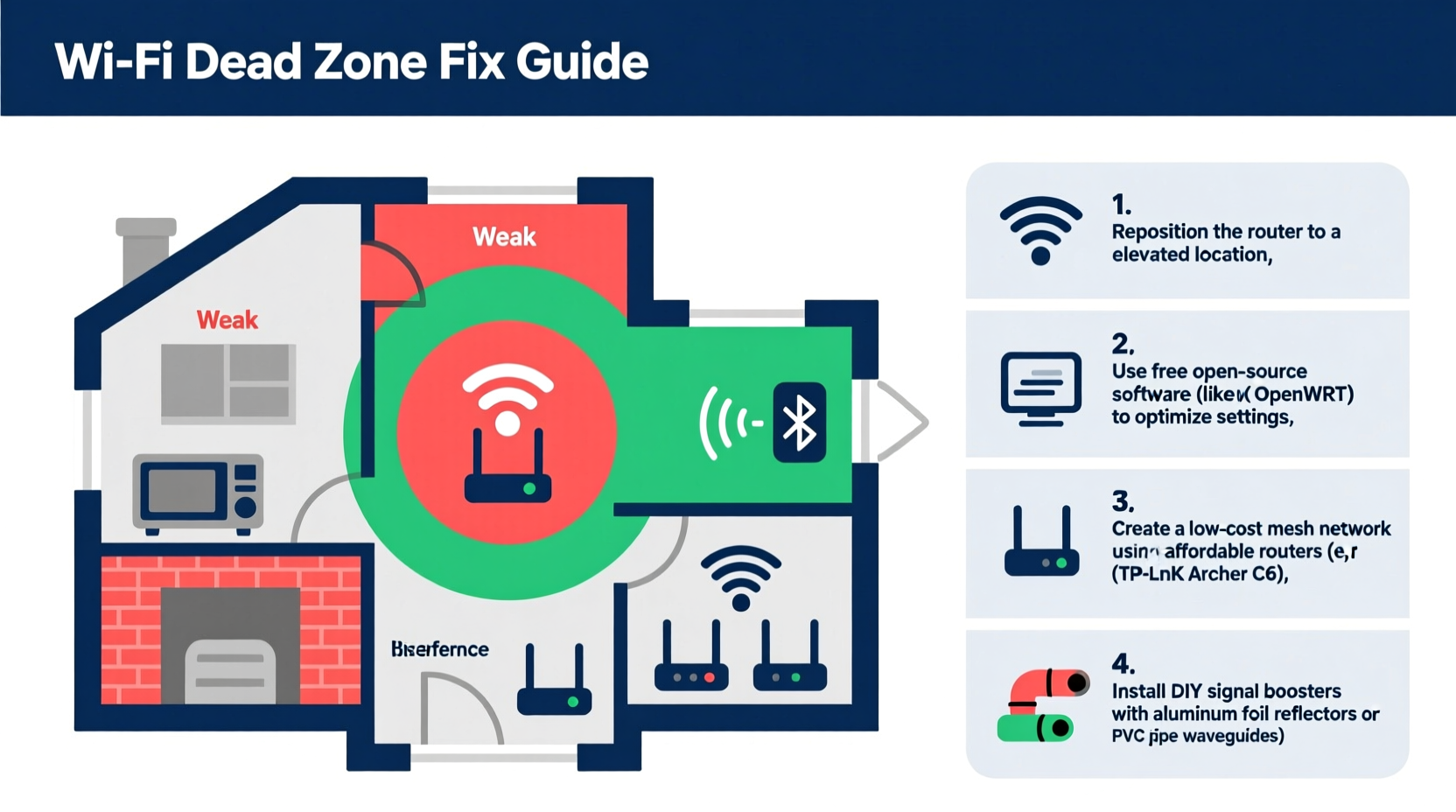
WiFi isn’t magic—it’s radio waves traveling at high frequencies, typically 2.4 GHz or 5 GHz. These signals behave like light: they can be blocked, reflected, or absorbed by physical materials. As you move away from your router or pass through walls, floors, and furniture, signal strength drops. This degradation leads to slow speeds, buffering, and disconnections.
Several factors contribute to inconsistent WiFi performance:
- Distance from the router: The farther you are, the weaker the signal.
- Building materials: Concrete, brick, metal, and even plaster with metal lath block signals more than drywall.
- Interference from appliances: Microwaves, cordless phones, baby monitors, and Bluetooth devices operate on similar frequencies and can disrupt WiFi.
- Router placement: A router tucked behind a TV cabinet or in a closet struggles to broadcast effectively.
- Network congestion: Too many connected devices can overwhelm older routers, especially during peak usage times.
“WiFi signals weaken significantly when passing through dense materials. Even a single concrete wall can reduce signal strength by up to 70%.” — Dr. Alan Reyes, Network Engineer and RF Specialist
How to Identify Dead Zones in Your Home
Before fixing the problem, you need to map where it exists. A dead zone isn’t always total signal loss; it might just mean unusably slow speeds. Here’s how to test your coverage:
- Walk-test with a mobile device: Use your phone or tablet to check signal bars and actual speed in each room using free apps like Speedtest by Ookla or WiFi Analyzer.
- Test real-world performance: Try streaming HD video or loading large web pages in suspected weak areas. If it buffers or loads slowly, you’ve found a dead zone.
- Note environmental barriers: Mark locations with thick walls, mirrors, or metal structures that could interfere.
- Check multiple floors: Signals often struggle to penetrate ceilings and floors, especially if there’s ductwork or insulation between levels.
For accuracy, conduct tests at different times of day. Network congestion peaks in the evening, which may exaggerate problems.
Budget-Friendly Fixes for WiFi Dead Zones
You don’t need to spend hundreds on mesh systems to solve coverage issues. Many low-cost strategies can restore strong signals where you need them most.
1. Optimize Router Placement
The simplest fix is often the most effective. Most people place their router wherever the cable enters the house—often a corner or closet. But optimal placement can double effective range.
Ideally, position your router:
- In a central location of your home
- Away from walls and large furniture
- With antennas oriented vertically (for horizontal coverage)
- At least 3–5 feet from other electronics
2. Reboot and Update Your Router
Over time, routers accumulate memory leaks and outdated firmware. A simple reboot clears temporary glitches. Check your manufacturer’s website for firmware updates—these often include performance improvements and security patches.
3. Use a DIY Reflective Booster
A parabolic reflector made from aluminum foil or a soda can can focus your router’s signal in a specific direction. This won’t boost power, but it redirects wasted rearward radiation toward your target area.
To make one:
- Cut the top and bottom off a soda can.
- Flatten and shape it into a curved half-cylinder.
- Place it behind the router’s antenna, curving forward to direct the beam.
This hack is especially useful if your router faces away from the area needing better coverage.
4. Switch Between 2.4 GHz and 5 GHz Bands
If your router is dual-band, use both bands strategically:
| Band | Best For | Range | Speed |
|---|---|---|---|
| 2.4 GHz | Longer distances, through walls | Up to 150 feet | Slower (up to 150 Mbps) |
| 5 GHz | Short-range, high-speed tasks | Up to 50 feet | Faster (up to 1 Gbps) |
Use 2.4 GHz for devices in distant rooms or through multiple walls. Reserve 5 GHz for nearby devices like laptops and smart TVs where speed matters most.
5. Reposition Devices and Reduce Interference
Sometimes the issue isn’t the router—it’s the device. Phones and laptops have small antennas. Simply rotating your device or moving it away from metal surfaces can improve reception.
Also, minimize competing signals:
- Turn off unused Bluetooth devices.
- Keep microwaves and cordless phones away from workspaces.
- Limit the number of active devices during critical tasks like video calls.
When to Consider Low-Cost Hardware Upgrades
If software and positioning tweaks aren’t enough, consider affordable hardware options under $50.
WiFi Range Extenders (Repeaters)
A repeater picks up your existing signal and rebroadcasts it. They’re inexpensive ($20–$40) and easy to set up. However, they cut bandwidth in half because they use the same channel to receive and transmit.
Best practices:
- Place the extender halfway between your router and the dead zone.
- Avoid placing it too far from the router—otherwise, it amplifies a weak signal.
- Choose models with Ethernet ports for wired backhaul (if possible).
Powerline Adapters with WiFi
These devices use your home’s electrical wiring to extend the network. One adapter plugs near the router and connects via Ethernet. A second unit in a distant room emits WiFi or provides wired connections.
They work well in homes with consistent electrical circuits and avoid wireless interference entirely. Prices start around $40 for a basic kit.
Upgrade Antennas (If Applicable)
Some routers have removable antennas. Replacing stock antennas with high-gain models ($15–$25) can improve signal projection. Look for 7dBi or 9dBi antennas for broader coverage.
Mini Case Study: Fixing Dead Zones in a Two-Story Home
Mark lives in a 1,400-square-foot two-story house. His router was in the basement near the modem. While the basement had strong signal, the upstairs bedrooms had none—especially the back bedroom used as a home office.
He tried several fixes:
- Moved the router to the main floor hallway—improved first-floor coverage but little change upstairs.
- Installed a $30 WiFi extender on the stairs landing—reduced lag but caused intermittent disconnects.
- Switched to a $45 powerline adapter with built-in WiFi placed in the upstairs hallway.
The final solution provided stable, fast WiFi throughout the upper level. He kept his existing router and avoided spending $200+ on a mesh system. Total cost: $45. Total time: 20 minutes.
Mark now uses the basement router for local devices and the powerline unit for upstairs needs—a hybrid approach that balanced performance and cost.
Step-by-Step Guide to Eliminate Dead Zones on a Budget
Follow this sequence to diagnose and resolve weak WiFi without overspending:
- Assess your current setup: Note router location, device positions, and known problem areas.
- Conduct a signal test: Use a speed test app to measure download/upload speeds in every room.
- Reposition the router: Move it to a central, elevated, unobstructed location.
- Update firmware and reboot: Ensure your router runs the latest software.
- Optimize band usage: Connect distant devices to 2.4 GHz; close ones to 5 GHz.
- Add a reflector (optional): Redirect signal toward weak zones.
- Try a WiFi extender: If needed, install one within strong signal range.
- Consider powerline adapters: For multi-floor homes with poor wireless reach.
- Monitor results: Retest speeds and adjust placement as needed.
This process takes less than an hour and costs nothing in the first six steps. Only steps 7 and 8 involve potential purchases—and even then, under $50.
FAQ
Can I fix dead zones without buying anything?
Yes. In many cases, simply relocating your router to a more central, open area and switching to the 2.4 GHz band for distant devices can eliminate dead zones. Rebooting and updating firmware also help at no cost.
Are mesh WiFi systems worth the extra cost?
Mesh systems provide seamless coverage and easy management but typically cost $150+. They’re ideal for large homes (over 2,000 sq ft) or those with complex layouts. For smaller spaces, cheaper alternatives often suffice.
Will turning off WiFi at night help signal strength?
No. Turning off WiFi doesn’t improve strength. However, rebooting your router nightly via a timer plug can prevent slowdowns caused by memory buildup.
Conclusion
Slow WiFi in certain rooms isn’t inevitable—it’s a solvable engineering challenge. By understanding how signals travel and applying practical, low-cost fixes, you can enjoy reliable internet in every corner of your home. Start with free optimizations like repositioning your router and testing bands. Then, if needed, invest in affordable tools like extenders or powerline adapters. The key is working with your home’s layout, not against it.




 浙公网安备
33010002000092号
浙公网安备
33010002000092号 浙B2-20120091-4
Comments
No comments yet. Why don't you start the discussion?