
It’s a familiar frustration: you’re trying to stream, work, or download something on your laptop, but the connection feels sluggish. Meanwhile, your phone—sitting right next to it—loads pages instantly. Despite being in the same room and connected to the same network, your laptop seems to be getting the short end of the bandwidth stick. This isn’t just in your head. There are real, technical reasons behind this disparity, ranging from hardware limitations to software settings and environmental interference.
Understanding why this happens—and how to fix it—is essential for anyone relying on their laptop for productivity, entertainment, or remote work. The good news? Most causes are fixable with simple adjustments or low-cost upgrades. Let’s explore the root causes and walk through actionable solutions to bring your laptop’s Wi-Fi performance up to par.
Hardware Differences Between Laptops and Phones
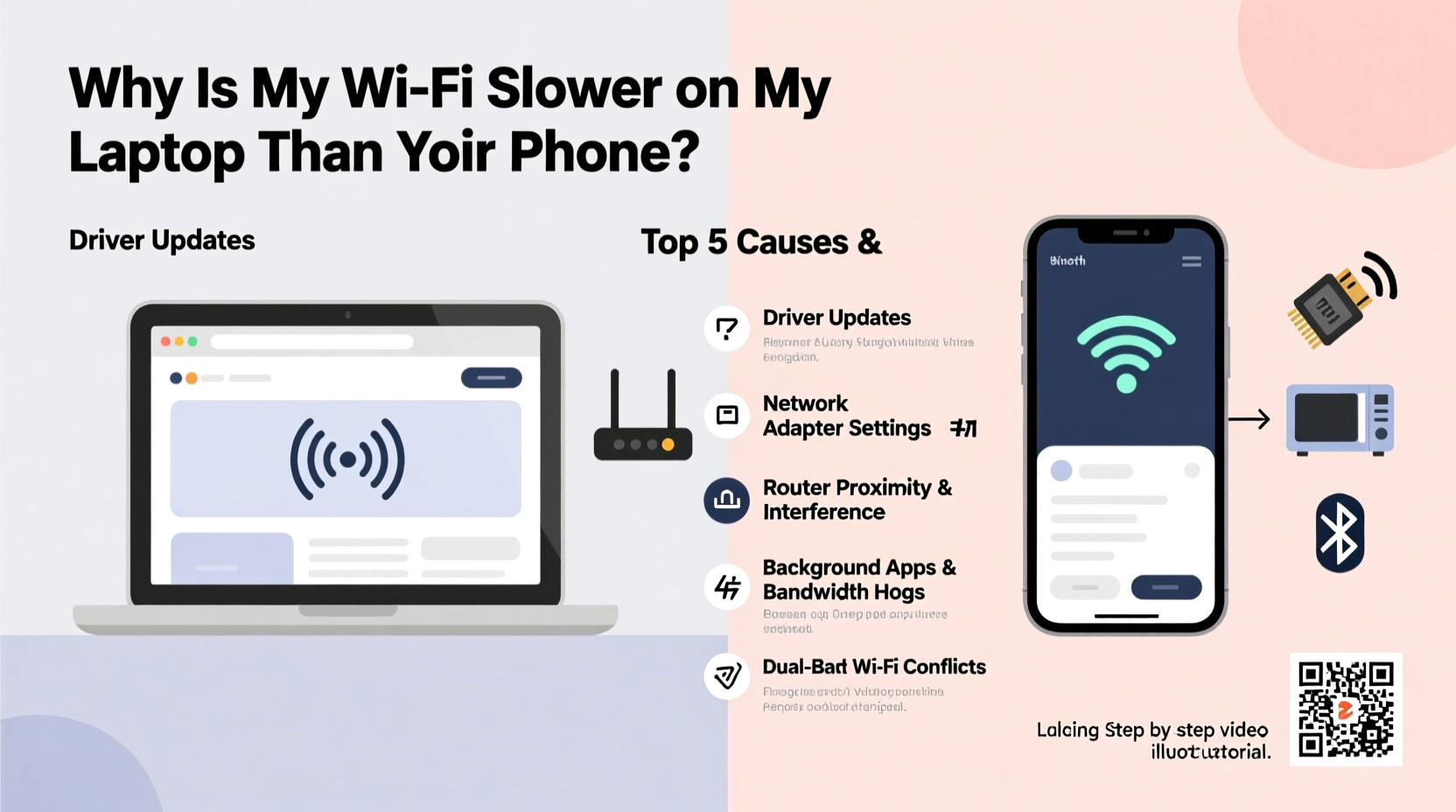
One of the most overlooked factors is the difference in wireless hardware. Modern smartphones often come equipped with advanced Wi-Fi chipsets supporting the latest standards like Wi-Fi 6 (802.11ax), even in mid-range models. These chips are optimized for power efficiency and signal reception in compact form factors.
Laptops, especially older or budget models, may still use outdated Wi-Fi adapters limited to Wi-Fi 4 (802.11n) or early Wi-Fi 5 (802.11ac). These older standards support lower maximum speeds and fewer simultaneous data streams. Additionally, internal antennas in laptops can be poorly positioned or shielded by metal casings, reducing signal strength compared to the strategically placed antennas in phones.
Another consideration is MIMO (Multiple Input, Multiple Output) capability. High-end phones and newer laptops support 2x2 or 3x3 MIMO, allowing them to receive more data simultaneously. Many budget laptops only support 1x1 MIMO, effectively halving their potential throughput.
Environmental and Signal Interference Factors
Even with identical hardware, placement and surroundings dramatically affect Wi-Fi performance. Laptops are often used on desks, laps, or near large metal objects—like monitors or filing cabinets—that block or reflect signals. Phones, by contrast, are typically held in hand or placed on non-metallic surfaces, giving them clearer line-of-sight to the router.
Interference from other electronic devices also plays a role. Microwaves, cordless phones, Bluetooth peripherals, and even fluorescent lights operate in the 2.4 GHz band, which many older laptops default to. While modern phones seamlessly switch between 2.4 GHz and 5 GHz bands, some laptop Wi-Fi drivers don’t handle band steering well, leaving them stuck on a congested frequency.
Walls, floors, and building materials further degrade signal quality. Concrete and brick are particularly hostile to Wi-Fi. If your laptop is across the house from the router while your phone is closer, that alone could explain the speed gap—even if both devices are technically “connected.”
“Signal attenuation varies significantly based on device orientation and surrounding materials. A laptop lying flat may have its antenna partially blocked, whereas a phone held upright maintains better reception.” — Dr. Alan Reyes, Wireless Network Engineer at NetMetrics Lab
Troubleshooting Steps to Improve Laptop Wi-Fi Speed
Before assuming your laptop is defective, follow this step-by-step guide to diagnose and resolve common issues.
- Test speed on both devices simultaneously. Use a tool like Speedtest.net on both your laptop and phone while they’re side by side. This eliminates location bias and confirms whether the issue is consistent.
- Reboot your router and modem. A simple restart clears temporary glitches and resets connection tables. Unplug for 30 seconds before powering back on.
- Move closer to the router. Eliminate distance and obstacles as variables. If speed improves drastically when near the router, signal range is likely the culprit.
- Switch Wi-Fi bands manually. In your laptop’s network settings, disconnect and reconnect to the 5 GHz network if available. It’s faster and less crowded than 2.4 GHz.
- Update your Wi-Fi driver. Outdated drivers can cause poor performance. Visit your laptop manufacturer’s support site, enter your model number, and download the latest wireless adapter driver.
- Disable power-saving mode for Wi-Fi. Some laptops throttle wireless performance to save battery. In Windows, go to Device Manager > Network Adapters > [Your Wi-Fi Adapter] > Properties > Power Management, and uncheck \"Allow the computer to turn off this device.\"
- Check for background processes. Large downloads, cloud sync services, or malware can consume bandwidth unnoticed. Open Task Manager (Ctrl+Shift+Esc) and sort by “Network” usage.
Comparison: Common Causes and Solutions
| Issue | Symptoms | Solution |
|---|---|---|
| Outdated Wi-Fi adapter | Slow speeds even near router; supports only 2.4 GHz | Upgrade to USB Wi-Fi 6 adapter (~$20–30) |
| Poor antenna placement | Speed drops when laptop is closed or on metal surface | Use external USB Wi-Fi dongle with external antenna |
| Driver or OS issues | Intermittent disconnects, high latency | Update drivers; reset network stack via command prompt |
| Band congestion | Slower in evenings; phone unaffected | Switch to 5 GHz; change router channel |
| Background applications | High upload/download usage when idle | Scan for malware; manage startup apps |
When Software Settings Are Holding You Back
Beyond hardware, operating system configurations can silently degrade performance. Windows, for example, includes a feature called “Wi-Fi Sense” (now deprecated but settings may linger) that could prioritize networks based on social connections rather than speed. More commonly, power plans set to “Battery Saver” or “Power Saver” reduce CPU and network activity to extend battery life—often at the cost of responsiveness.
To optimize:
- Set your power plan to “High Performance” when plugged in.
- Disable “Auto-select” for networks if you notice frequent switching between SSIDs.
- Turn off metered connection settings, which limit background updates and can throttle perceived speed.
- Flush DNS and reset TCP/IP: Run Command Prompt as admin and type:
ipconfig /flushdns
netsh int ip reset
netsh winsock reset
On macOS, ensure “Ask to join new networks” is off to prevent scanning interruptions, and verify that your Mac isn’t using a legacy Wi-Fi standard by checking the Wi-Fi menu while holding Option—look for PHY Mode (e.g., 802.11n, ac, or ax).
Real-World Example: Fixing a Home Office Bottleneck
Consider Sarah, a freelance graphic designer working from her apartment. She noticed her MacBook Pro loaded client files quickly, but her Windows laptop—used for video calls—frequently lagged despite being on the same desk. Initial tests showed her phone had double the download speed of the laptop.
After investigation, she discovered her laptop was connecting to the 2.4 GHz band due to a weak 5 GHz signal. Her router was in the living room, separated by two walls. She updated her laptop’s Wi-Fi driver, which had not been refreshed in over two years, and disabled the power-saving mode on the wireless adapter. Still, speeds plateaued at 45 Mbps.
The breakthrough came when she purchased a USB 3.0 Wi-Fi 6 adapter with an external antenna. Placing it vertically on her desk improved signal reception dramatically. Post-upgrade, her laptop matched her phone’s speeds at 180 Mbps. The total cost: $28. For Sarah, it was a small investment that restored reliability to her workflow.
Expert Upgrade Options for Persistent Issues
If basic troubleshooting doesn’t close the speed gap, consider these strategic upgrades:
- USB Wi-Fi 6 Adapter: Plug-and-play solution that bypasses outdated internal hardware. Look for models with external antennas for better gain.
- Moving the Router: Centralize placement, away from appliances and metal objects. Elevate it on a shelf for broader coverage.
- Mesh Wi-Fi System: If your home is large or multi-story, a mesh network eliminates dead zones and ensures seamless roaming.
- Ethernet over Powerline: Use existing electrical wiring to extend wired connectivity to your laptop’s location, then connect via Ethernet for full-speed stability.
For users with fiber or gigabit internet, remember that Wi-Fi is often the bottleneck—not your ISP. Even Wi-Fi 5 caps out around 800 Mbps under ideal conditions, and real-world performance is usually much lower. Upgrading to Wi-Fi 6 or using wired connections unlocks true high-speed potential.
Frequently Asked Questions
Can a virus slow down my laptop’s Wi-Fi?
Yes. Malware such as crypto miners or botnets can consume significant bandwidth in the background. Run a full system scan with reputable antivirus software and monitor network usage in Task Manager to detect unusual activity.
Why does my phone show full bars but my laptop shows only two?
Different devices have varying sensitivity and antenna designs. Bars are relative and not standardized. Your phone might display full bars with a weaker signal than your laptop requires for stable performance. Always rely on actual speed tests over signal bars.
Is it worth upgrading my laptop’s internal Wi-Fi card?
If your laptop allows it, yes. Replacing an old 802.11n card with a Wi-Fi 6 M.2 card (e.g., Intel AX200) can dramatically improve speed and reliability. However, ensure your laptop has the physical space and BIOS support before purchasing.
Final Recommendations and Action Plan
The disparity between your laptop and phone Wi-Fi speeds isn’t inevitable—it’s diagnosable and solvable. Start with free fixes: reboot your router, update drivers, and test both devices side by side. Then move to configuration changes like disabling power-saving modes and switching to the 5 GHz band. If those don’t suffice, invest in a modern USB Wi-Fi adapter or consider improving your home network layout.
Don’t accept slow Wi-Fi as a limitation of your device. With targeted troubleshooting, most laptops can achieve speeds comparable to smartphones. The key is understanding the interplay between hardware, environment, and software—and adjusting accordingly.




 浙公网安备
33010002000092号
浙公网安备
33010002000092号 浙B2-20120091-4
Comments
No comments yet. Why don't you start the discussion?