
It’s a common frustration: you’ve just upgraded to a sleek, powerful new laptop—only to find that your Wi-Fi feels sluggish compared to your older, seemingly outdated machine. This defies logic. After all, newer devices should perform better, right? Yet, many users report experiencing slower internet speeds on their new laptops despite being connected to the same network. The issue isn’t always with your router or ISP. Often, it stems from subtle hardware, software, or configuration differences between your old and new devices. Understanding these hidden factors is key to restoring optimal performance.
Outdated or Incompatible Wi-Fi Drivers
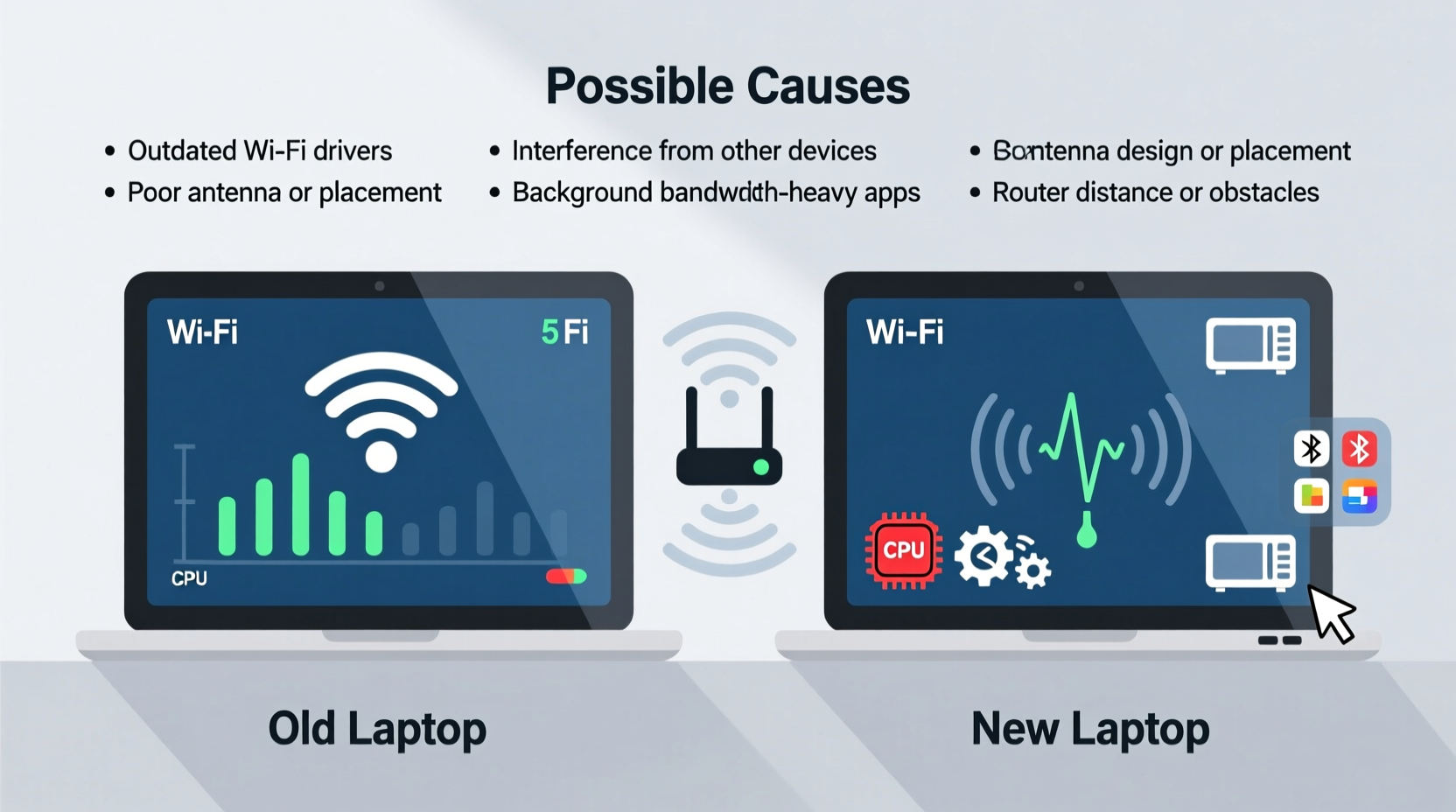
One of the most frequent culprits behind poor Wi-Fi performance on new laptops is outdated or improperly configured wireless drivers. While manufacturers pre-install drivers, they aren’t always the latest versions. A driver mismatch can prevent your laptop from fully utilizing modern Wi-Fi standards like 802.11ac or 802.11ax (Wi-Fi 6), even if the hardware supports them.
For example, some OEMs use generic Microsoft drivers instead of optimized versions from chipset makers like Intel or Realtek. These generic drivers may lack power-saving tweaks, advanced beamforming support, or proper MIMO (Multiple Input Multiple Output) implementation, leading to lower throughput and unstable connections.
To update your driver manually:
- Press Win + X and select “Device Manager.”
- Expand “Network adapters” and locate your Wi-Fi device (e.g., Intel(R) Wi-Fi 6 AX201).
- Right-click and choose “Update driver,” then select “Search automatically for updated driver software.”
- If no updates are found, visit the manufacturer’s site directly and install the latest compatible driver.
Differences in Wi-Fi Hardware Standards
Your new laptop might technically support newer Wi-Fi standards, but real-world performance depends on compatibility with your router. Not all “new” laptops have superior wireless hardware. Some budget models ship with entry-level Wi-Fi chips that only support older protocols like 802.11n, which maxes out at around 150 Mbps under ideal conditions—far below what modern dual-band routers offer.
In contrast, your older laptop may have had a high-quality 802.11ac (Wi-Fi 5) card capable of multi-stream operation and higher transmit power. If your new device lacks similar capabilities, it will naturally perform worse—even on the same network.
| Wi-Fi Standard | Theoretical Max Speed | Common Real-World Speed | Likely Found In |
|---|---|---|---|
| 802.11n (Wi-Fi 4) | 600 Mbps | 50–150 Mbps | Budget laptops, older devices |
| 802.11ac (Wi-Fi 5) | 1.3 Gbps | 200–600 Mbps | Mid-range to high-end 2015–2020 laptops |
| 802.11ax (Wi-Fi 6) | 9.6 Gbps | 600 Mbps–1.5 Gbps | Newer premium laptops (2020+) |
Check your laptop’s specifications to confirm its Wi-Fi standard. You can usually find this in the product manual, manufacturer’s website, or via system information tools like CPU-Z or Device Manager.
“We’ve seen cases where users upgraded to new laptops with weaker antennas or lower-tier Wi-Fi modules. Just because it’s new doesn’t mean it’s better for wireless performance.” — David Lin, Network Infrastructure Engineer at NetSignal Labs
Interference and Signal Reception Issues
Even with identical network conditions, two laptops can experience vastly different signal strengths due to antenna design and placement. Newer ultra-thin laptops often sacrifice internal antenna size and positioning to save space. Smaller antennas and suboptimal locations (such as near metal casings or USB-C ports) can degrade reception, especially at range or through walls.
In contrast, older laptops frequently had larger internal antennas and more generous spacing between components, reducing electromagnetic interference. This allowed them to maintain stronger, more consistent signals—even when farther from the router.
Additionally, materials matter. Aluminum-bodied laptops can partially block radio waves, whereas plastic chassis tend to be more transparent to Wi-Fi signals. So while your new laptop looks sleeker, its build material could be contributing to weaker connectivity.
How to Test Signal Strength
You don’t need special tools to compare signal quality. Use built-in Windows features:
- Open Command Prompt and type:
netsh wlan show interfaces - Look for the “Signal” percentage and “Radio type” fields.
- Note the values on both your old and new laptops while in the same location.
A difference of 20% or more in signal strength indicates a hardware or positioning issue. For instance, 80% signal on the old laptop vs. 55% on the new one suggests inferior antenna performance.
Power Management Settings Throttling Performance
Modern laptops prioritize battery life over peak performance. By default, Windows may allow the operating system to turn off the Wi-Fi adapter to save power when idle. While helpful for extending battery, this setting can disrupt active connections and reduce throughput during sustained downloads or streaming.
This feature, called “Allow the computer to turn off this device to save power,” is enabled by default in many systems. On older laptops, either the setting was disabled, or the hardware didn’t aggressively enforce power saving—resulting in smoother, uninterrupted connectivity.
How to Disable Wi-Fi Power Saving
- Go to Device Manager > Network adapters.
- Right-click your Wi-Fi adapter and select “Properties.”
- Navigate to the “Power Management” tab.
- Uncheck “Allow the computer to turn off this device to save power.”
- Click “OK” to apply changes.
Also consider adjusting your power plan:
- Open Control Panel > Hardware and Sound > Power Options.
- Select “High performance” or customize your current plan.
- Set “Wireless Adapter Settings” to “Maximum Performance” for both battery and plugged-in modes.
Background Processes and Software Conflicts
New laptops often come loaded with pre-installed software—sometimes referred to as bloatware—that runs in the background and consumes bandwidth. Cloud sync services (OneDrive, Dropbox), automatic update checks, telemetry reporting, and antivirus scans can all hog your connection without obvious signs.
Meanwhile, your old laptop likely had a leaner setup after years of use, with unnecessary apps uninstalled and settings fine-tuned over time. The result? Fewer background tasks competing for bandwidth.
Another potential conflict arises from third-party security suites. Some antivirus programs include network filtering or firewall layers that add latency and reduce throughput. Norton, McAfee, and certain trial versions are known to interfere with network stack performance.
Mini Case Study: Sarah’s Sluggish Upgrade
Sarah upgraded from a five-year-old Dell Inspiron to a new HP Spectre x360. Despite the spec boost, her Netflix streams kept buffering. She tested multiple times—same room, same router—but speeds never exceeded 30 Mbps on the new device, while her old laptop consistently delivered 120 Mbps.
After ruling out driver issues and confirming Wi-Fi 6 support, she opened Task Manager and noticed a background process labeled “McAfee Security Scan” consuming significant network resources. She uninstalled the suite and switched to Windows Defender. Her speeds immediately jumped to 115 Mbps. The culprit wasn’t hardware—it was silent software overhead.
Troubleshooting Checklist: Regain Your Wi-Fi Speed
Use this checklist to systematically identify and resolve slow Wi-Fi on your new laptop:
- ✅ Update Wi-Fi drivers from the manufacturer’s official site
- ✅ Verify Wi-Fi standard (802.11ac/ax) matches your router’s capabilities
- ✅ Disable “Allow computer to turn off device” in Device Manager
- ✅ Switch power plan to “High Performance”
- ✅ Run a clean boot to disable startup apps and identify bandwidth hogs
- ✅ Check signal strength using
netsh wlan show interfaces - ✅ Temporarily disable antivirus/firewall to test for interference
- ✅ Reset network settings: Settings > Network & Internet > Network Reset
- ✅ Test with an Ethernet cable to isolate whether the issue is wireless-specific
- ✅ Compare results with another device on the same network
Frequently Asked Questions
Can a new laptop have worse Wi-Fi than an old one?
Yes. Despite advancements, some new laptops use cost-reduced Wi-Fi modules, smaller antennas, or aggressive power-saving settings that hurt real-world performance. Older models with robust 802.11ac cards may outperform newer budget systems.
Does Wi-Fi 6 guarantee faster speeds?
Not necessarily. Wi-Fi 6 offers improved efficiency, lower latency, and better handling of multiple devices—but only if your router also supports Wi-Fi 6 and you're within close range. If your internet plan is under 200 Mbps, the difference may not be noticeable.
Should I buy a USB Wi-Fi adapter if my laptop is slow?
If troubleshooting fails, yes. A high-gain USB 3.0 Wi-Fi 5 or Wi-Fi 6 adapter (like those from TP-Link or ASUS) can bypass weak internal hardware. Place it at desk level, away from obstructions, for best results.
Conclusion: Take Control of Your Connection
Slow Wi-Fi on a new laptop doesn’t have to be permanent. More often than not, the cause lies in fixable settings, outdated drivers, or overlooked hardware limitations—not your internet service. By methodically evaluating drivers, power settings, signal strength, and background usage, you can reclaim the speed you expected from your upgrade.
Don’t assume newer means better. Sometimes, legacy hardware outperforms modern compromises. But with the right adjustments, your new laptop can meet—and even exceed—the performance of your old one. Start with the checklist, monitor changes, and don’t hesitate to upgrade external components if needed.




 浙公网安备
33010002000092号
浙公网安备
33010002000092号 浙B2-20120091-4
Comments
No comments yet. Why don't you start the discussion?