
Even with a modern mesh Wi-Fi system designed to eliminate dead zones, many homeowners still experience frustratingly slow internet speeds upstairs. It’s a common issue that defies expectations—after all, mesh networks are marketed as the ultimate solution for whole-home coverage. Yet, physics, materials, and setup nuances often interfere with ideal performance. Understanding the real reasons behind weak upstairs signals—and knowing how to address them—is key to unlocking consistent, high-speed connectivity on every floor.
How Mesh Wi-Fi Systems Work (And Where They Fall Short)
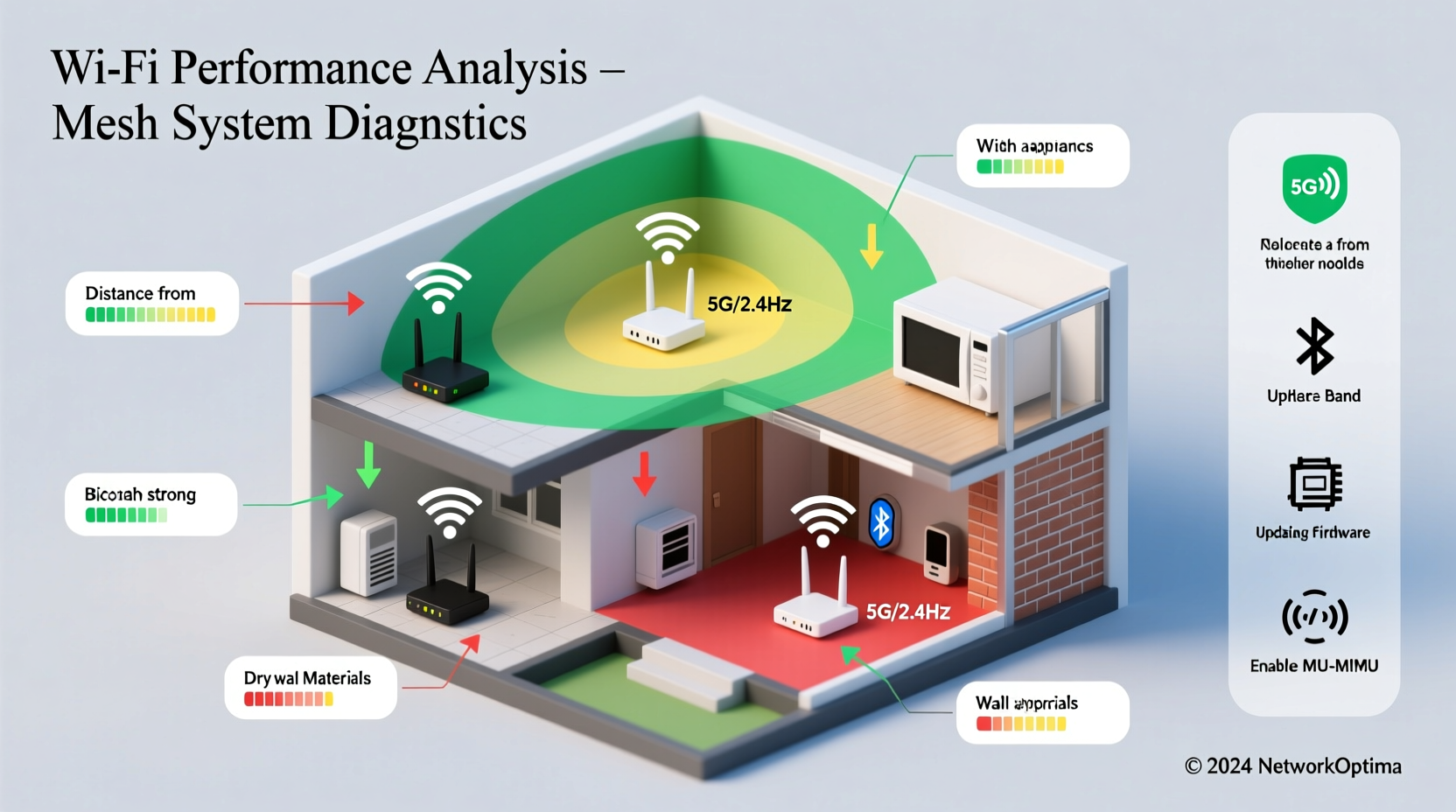
Mechanically, mesh Wi-Fi systems use multiple nodes—typically one main router connected to your modem and several satellite units placed around the house—to create a seamless network. These nodes communicate with each other wirelessly or via Ethernet backhaul, relaying data so devices can stay connected no matter their location.
The promise is full coverage. But while mesh systems significantly improve over traditional routers, they aren’t immune to environmental limitations. Signal degradation occurs naturally over distance and through obstacles. When the primary node is located downstairs and the upstairs area relies on a secondary or tertiary satellite, each hop between nodes reduces available bandwidth—especially if the connection is wireless.
Backhaul efficiency is critical. Wireless backhaul (node-to-node communication over radio waves) consumes part of your total bandwidth. If your system uses a single radio band for both client connections and internal communication, performance takes a hit. High-end tri-band systems dedicate one entire band to backhaul, preserving speed—but not all homes have these models installed.
Physical and Structural Barriers Affecting Signal Strength
Floors and walls are more than just architectural features—they’re signal obstacles. The materials used in construction play a major role in how well Wi-Fi penetrates from one level to another.
- Concrete and brick: Extremely dense, these materials absorb and reflect Wi-Fi signals, especially at 5 GHz frequencies.
- Metal reinforcement: Steel beams or foil-backed insulation act like Faraday cages, blocking signals entirely.
- Plaster with wire lath: Common in older homes, this combination is notorious for killing Wi-Fi penetration.
- Water pipes and HVAC ducts: Water absorbs 2.4 GHz and 5 GHz signals; large metal ductwork reflects them.
Even modern open-concept designs can mislead users into thinking placement doesn’t matter. While fewer walls help, vertical separation introduces additional challenges. Radio waves spread outward horizontally but weaken rapidly when traveling upward against gravity and through flooring joists, subfloors, and finished surfaces.
“Wi-Fi doesn’t travel through floors like elevators—it radiates outward and diminishes quickly with each physical layer it must penetrate.” — Dr. Lin Zhao, RF Engineer at the Institute of Electrical and Electronics Engineers (IEEE)
Optimal Node Placement: Why Location Matters More Than You Think
One of the most overlooked aspects of mesh performance is node positioning. Many users place satellites directly opposite problem areas, assuming proximity equals better speed. However, improper placement can worsen congestion and reduce effective range.
The first satellite should never be placed too far from the main router, nor too close. Ideally, position it within line-of-sight, about halfway toward the target zone (e.g., upstairs hallway), but elevated—not tucked behind furniture or inside cabinets. Avoid placing nodes near appliances like microwaves, cordless phones, or refrigerators, which emit electromagnetic interference.
For multi-story homes, consider a vertical alignment strategy. Place the second node at the top of the stairs or on the landing between floors, where it has clear downward visibility to the main unit and upward reach to upper bedrooms. This creates a stronger relay path than placing a node deep in an upstairs corner.
Do’s and Don’ts of Mesh Node Placement
| Do’s | Don’ts |
|---|---|
| Place nodes off the floor, ideally on shelves or mounted | Hide nodes in closets or behind TVs |
| Ensure moderate overlap between node coverage zones | Space nodes too far apart, creating weak handoff zones |
| Use central locations near stairwells or hallways | Install near large metal objects or mirrors |
| Elevate nodes slightly above head height | Place next to thick concrete walls or fireplaces |
Step-by-Step Guide to Diagnose and Fix Upstairs Wi-Fi Slowness
Follow this structured approach to identify and resolve the root cause of poor upstairs performance—even with a mesh system.
- Run a baseline speed test downstairs. Connect a device via Wi-Fi near the main router and run a speed test using tools like Speedtest.net or Fast.com. Note your download, upload, and ping values.
- Repeat the test upstairs. Use the same device and app, moving to the slowest-performing room. Compare results. A drop of more than 30% suggests signal loss or interference.
- Check node connection quality. Open your mesh system’s app (e.g., Google Home, eero, TP-Link Deco). Look for metrics like “Node Link Quality” or “Backhaul Speed.” If the upstairs node shows poor link strength (below 70%), reposition it closer to the parent node.
- Switch to 5 GHz selectively. While 5 GHz offers faster speeds, it doesn’t penetrate floors well. Devices that support band steering should automatically choose the best frequency. Disable forced 5 GHz mode on clients if stability is poor.
- Enable Ethernet backhaul (if available). Run an Ethernet cable from your main router to the upstairs node. This bypasses wireless interference and ensures maximum bandwidth delivery.
- Update firmware. Manufacturers release updates that improve roaming behavior, interference handling, and node coordination. Check the app for pending updates.
- Reduce channel congestion. In dense neighborhoods, neighboring networks may crowd the same channels. Use a Wi-Fi analyzer app (like Wi-Fi Analyzer for Android) to check for overlapping signals and adjust your mesh settings accordingly, or let automatic optimization run overnight.
Real-World Example: Solving Slow Upstairs Wi-Fi in a Two-Story Home
Consider Sarah, who lives in a 2,000 sq ft two-story colonial built in the 1980s. She installed a popular dual-band mesh system with three units: one in the basement near the modem, one on the main floor, and one upstairs in a spare bedroom. Despite this, her streaming frequently buffers in the master bedroom.
After testing, she found her downstairs speed was 180 Mbps, but upstairs dropped to 45 Mbps. The mesh app showed the upstairs node had only a “fair” link quality to its parent. Upon inspection, she realized the main node was enclosed in a media cabinet, and the upstairs satellite was placed in a closet.
She moved the main router to an open shelf, relocated the upstairs node to the hallway near the top of the stairs, and connected it via Ethernet using a cable run through the attic. Post-adjustment, her upstairs speeds jumped to 160 Mbps—nearly matching the downstairs rate. The fix wasn’t buying new hardware; it was optimizing placement and enabling wired backhaul.
When Hardware Limits Are the Real Culprit
Sometimes, the issue isn’t environment or setup—it’s the equipment itself. Budget-friendly mesh systems often use dual-band radios, forcing them to share airtime between client devices and node-to-node communication. This halves potential throughput with each wireless hop.
For example, a theoretical 1 Gbps connection might deliver 500 Mbps to the first satellite, then 250 Mbps to a second-level node upstairs. By the time data reaches a laptop in an upstairs bedroom, actual usable bandwidth could be under 200 Mbps—even if your ISP plan promises more.
Tri-band systems solve this by adding a dedicated 5 GHz (or 6 GHz in Wi-Fi 6E models) backhaul channel. This keeps internal traffic separate from user data, preserving speed across hops. If you consistently experience slowdowns beyond what placement adjustments fix, upgrading to a tri-band or Wi-Fi 6/6E mesh system may be necessary.
Mesh System Comparison: Dual-Band vs. Tri-Band Performance
| Feature | Dual-Band Mesh | Tri-Band Mesh |
|---|---|---|
| Number of Radios | 2 (2.4 GHz + 5 GHz shared) | 3 (2.4 GHz + 5 GHz client + 5 GHz backhaul) |
| Backhaul Type | Wireless (shared) | Dedicated wireless or Ethernet |
| Typical Throughput After One Hop | ~50% reduction | ~20–30% reduction |
| Best For | Small to medium homes, light usage | Larger homes, multi-floor setups, heavy streaming/gaming |
FAQ: Common Questions About Upstairs Wi-Fi Performance
Can I use powerline adapters with a mesh system?
Yes, but cautiously. Powerline adapters can extend connectivity to hard-to-reach areas, but their performance depends heavily on your home’s electrical circuitry. Older wiring or circuits split across phases may result in poor speeds. They work best as a last resort when Ethernet isn’t feasible.
Should I turn off my old router when using a mesh system?
Absolutely. Running multiple routers without proper configuration creates signal conflicts and SSID confusion. Connect the mesh system to your modem, disable the ISP router’s Wi-Fi (or put it in bridge mode), and let the mesh system manage the network.
Does Wi-Fi 6 make a difference upstairs?
Yes. Wi-Fi 6 improves efficiency, supports more simultaneous devices, and includes better beamforming—where the router directs signals toward specific devices rather than broadcasting uniformly. In multi-story homes, this focused transmission helps maintain stronger links upstairs, especially when combined with mesh nodes on each floor.
Final Recommendations and Action Plan
Slow Wi-Fi upstairs despite having a mesh system is rarely due to a single factor. It’s usually a combination of suboptimal placement, structural barriers, outdated hardware, or inefficient backhaul. The good news? Most of these issues are fixable without spending hundreds on new gear.
Start by auditing your current setup: check node positions, ensure firmware is current, and test speeds room by room. Prioritize wired backhaul for any upstairs satellite—it’s the single most effective upgrade for multi-level homes. If performance still lags, consider investing in a tri-band or Wi-Fi 6E mesh system designed for larger, vertical spaces.
Remember, a mesh network is only as strong as its weakest link. Optimizing each component ensures every floor gets the fast, reliable internet it deserves.




 浙公网安备
33010002000092号
浙公网安备
33010002000092号 浙B2-20120091-4
Comments
No comments yet. Why don't you start the discussion?