
If you've ever struggled to stream a video or join a Zoom call on the second floor while your router hums happily downstairs, you're not alone. WiFi signal degradation between floors is one of the most common household tech frustrations. The good news? You don’t need a technician or an expensive upgrade to fix it. Most upstairs signal issues stem from physical obstructions, router placement, and interference—all of which are within your control.
WiFi signals travel via radio waves, and like light, they weaken when blocked or absorbed. Materials like concrete, metal, and even water (yes, fish tanks count) can significantly dampen performance. Add multiple walls and floors into the mix, and it’s no surprise that upper levels suffer. But before you schedule a service call or shell out for a new plan, try these proven, low-cost solutions.
Understanding Why WiFi Weakens Upstairs
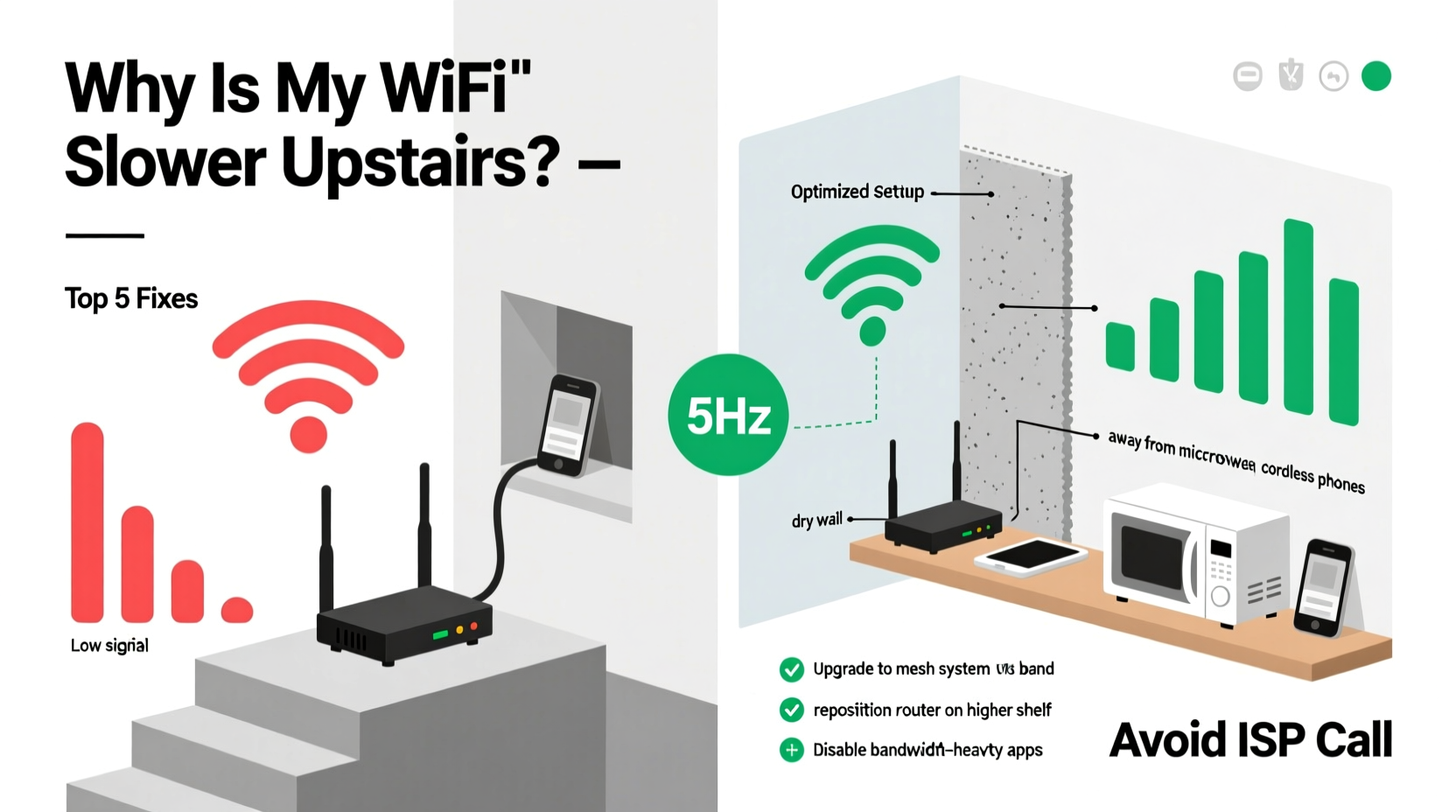
WiFi operates on two primary frequency bands: 2.4 GHz and 5 GHz. Each has trade-offs. The 2.4 GHz band travels farther and penetrates walls better but is more prone to interference from microwaves, cordless phones, and neighboring networks. The 5 GHz band offers faster speeds but has a shorter range and struggles with obstacles—making it particularly vulnerable across floors.
When your router is placed in the basement or on the ground floor, the signal must pass through at least one ceiling and possibly multiple interior walls to reach upstairs bedrooms or offices. Drywall may seem harmless, but each layer reduces signal strength. Floors with wooden joists and insulation absorb energy. Concrete or plaster walls? Even worse. Over time, these losses add up, resulting in buffering, lag, or complete disconnection.
“WiFi doesn’t fail—it gets blocked. Most ‘slow internet’ complaints are actually coverage issues.” — Dr. Lena Patel, Network Engineer at Broadband Insights Group
Step-by-Step Guide to Improve Upstairs WiFi
Follow this sequence of actions to systematically improve your upstairs connection. Start with free fixes before considering hardware upgrades.
- Relocate Your Router Centrally
Move your router away from corners, basements, or utility closets. Ideally, place it on the main floor near the center of your home, elevated on a shelf. Avoid placing it on the floor or behind furniture. - Adjust Antenna Orientation
If your router has external antennas, position one vertically and one horizontally. This helps transmit both vertically and horizontally polarized signals, improving coverage across different device orientations. - Switch Between 2.4 GHz and 5 GHz Bands
Connect devices upstairs to the 2.4 GHz network for better wall penetration, especially if speed demands aren’t high (e.g., smart home devices, email). Reserve 5 GHz for devices used close to the router. - Reboot Your Router Weekly
Routers accumulate memory leaks and connection errors over time. A simple reboot clears temporary data and refreshes the signal. Set a reminder every Sunday morning. - Update Firmware
Log into your router’s admin page (usually via 192.168.1.1 or similar) and check for firmware updates. Updated firmware often includes performance improvements and security patches.
Do’s and Don’ts of Router Placement
| Do | Don’t |
|---|---|
| Place router centrally and elevated | Hide it in a cabinet or closet |
| Keep it away from thick walls and appliances | Put it next to a microwave or washing machine |
| Use open space with minimal obstructions | Install behind books, mirrors, or aquariums |
| Ensure vents are unblocked for cooling | Stack devices on top of the router |
DIY Signal Boosting Methods That Actually Work
You don’t always need new hardware. Some clever, low-cost tricks can redirect or amplify existing signals.
- Aluminum Foil Reflector: Shape foil into a parabolic curve and place it behind the router’s antenna to focus the signal toward upstairs. It sounds gimmicky, but directional reflection works. Just don’t let foil touch any ports.
- Upgrade to a High-Gain Antenna: If your router supports removable antennas, consider buying a high-gain model (~$15–25). These extend range by focusing transmission in specific directions.
- Use Ethernet Backhaul for Access Points: If you have a spare access point or old router, connect it upstairs via Ethernet cable. This creates a strong local signal without relying on wireless repeater loss.
Another overlooked factor is channel congestion. In dense neighborhoods, multiple routers compete on the same WiFi channels, causing slowdowns. Use a free app like WiFi Analyzer (Android) or NetSpot (Mac/Windows) to scan nearby networks and switch your router to the least crowded channel—especially on 2.4 GHz.
Real Example: How Sarah Fixed Her Home Office Connection
Sarah, a freelance graphic designer in Chicago, couldn’t rely on her upstairs office WiFi. Video calls froze, and large file uploads stalled. Her router was tucked behind the TV in the basement. After testing signal strength with her phone, she found the upstairs measured only -78 dBm (considered poor).
She moved the router to a central shelf on the first floor, adjusted the antennas, and switched her laptop to the 2.4 GHz network during heavy upload times. She also disabled her neighbor’s rogue guest network that was piggybacking on her SSID. Within a day, her upstairs signal improved to -58 dBm—well within the “excellent” range—and her workday interruptions vanished.
No new equipment. No ISP call. Just strategic adjustments.
When to Consider Hardware Upgrades
If basic fixes don’t resolve the issue, it may be time to invest in better hardware. But choose wisely—some products promise more than they deliver.
Mesh WiFi systems like Eero, Google Nest, or TP-Link Deco are ideal for multi-floor homes. Unlike traditional extenders, which halve bandwidth, mesh nodes communicate seamlessly and maintain a single network name (SSID). Place one node near the router and another upstairs for full coverage.
Alternatively, a WiFi 6 router improves efficiency and handles more devices simultaneously. While not a magic bullet for range, its improved beamforming technology directs signals toward connected devices—helpful for upstairs usage.
Frequently Asked Questions
Can thick flooring really block WiFi?
Yes. Floors with plywood subfloors, insulation, and radiant heating contain materials that absorb radio waves. Joists made of wood or metal further scatter the signal. Solid-core doors and HVAC ducts add to the problem. Multiple layers between floors can reduce signal strength by up to 75%.
Will restarting my router make a difference?
Often, yes. Routers run continuously and can develop memory leaks or IP conflicts over time. A restart clears cached data, resets connections, and forces the router to re-negotiate optimal channels. Try rebooting weekly as part of routine maintenance.
Is it safe to use aluminum foil near my router?
Yes, as long as it doesn’t touch electrical components. Aluminum reflects radio waves, so shaping it into a curved reflector behind the antenna can help direct the signal upward. Just ensure proper ventilation and avoid fire hazards.
Checklist: Fix Slow Upstairs WiFi in One Weekend
- ☐ Move router to a central, elevated location
- ☐ Reposition antennas for optimal spread
- ☐ Switch upstairs devices to 2.4 GHz network
- ☐ Reboot the router and modem
- ☐ Check for firmware updates
- ☐ Scan for WiFi channel congestion and change if needed
- ☐ Test signal strength using a smartphone app
- ☐ Try a DIY reflector or reposition nearby electronics
- ☐ Consider a mesh system if problems persist
Conclusion: Take Control of Your Home Network
Your internet speed isn’t just about what your ISP provides—it’s about how well that signal reaches you. Slow WiFi upstairs is rarely a service issue; it’s a placement, interference, or configuration challenge. With a few thoughtful adjustments, you can reclaim reliable connectivity in every room.
You don’t need technical expertise or a technician’s visit. Start with router placement, experiment with settings, and use tools already at your disposal. Small changes yield big results. Once you’ve optimized your setup, test it across devices and times of day. When your upstairs finally streams smoothly, you’ll realize the fix was in your hands all along.




 浙公网安备
33010002000092号
浙公网安备
33010002000092号 浙B2-20120091-4
Comments
No comments yet. Why don't you start the discussion?