
As holiday seasons approach, more households are embracing smart Christmas lights—color-changing, app-controlled, voice-enabled decorations that add flair and convenience. But many users report a frustrating side effect: sudden drops in WiFi speed or intermittent connectivity. If your streaming buffers, video calls freeze, or devices disconnect when the lights go on, you're not imagining things. Smart Christmas lights can indeed interfere with your wireless network. This guide explains the technical reasons behind this issue, offers real-world troubleshooting strategies, and provides long-term solutions to keep your holiday spirit—and internet connection—bright.
How Smart Lights Interact with Your WiFi Network
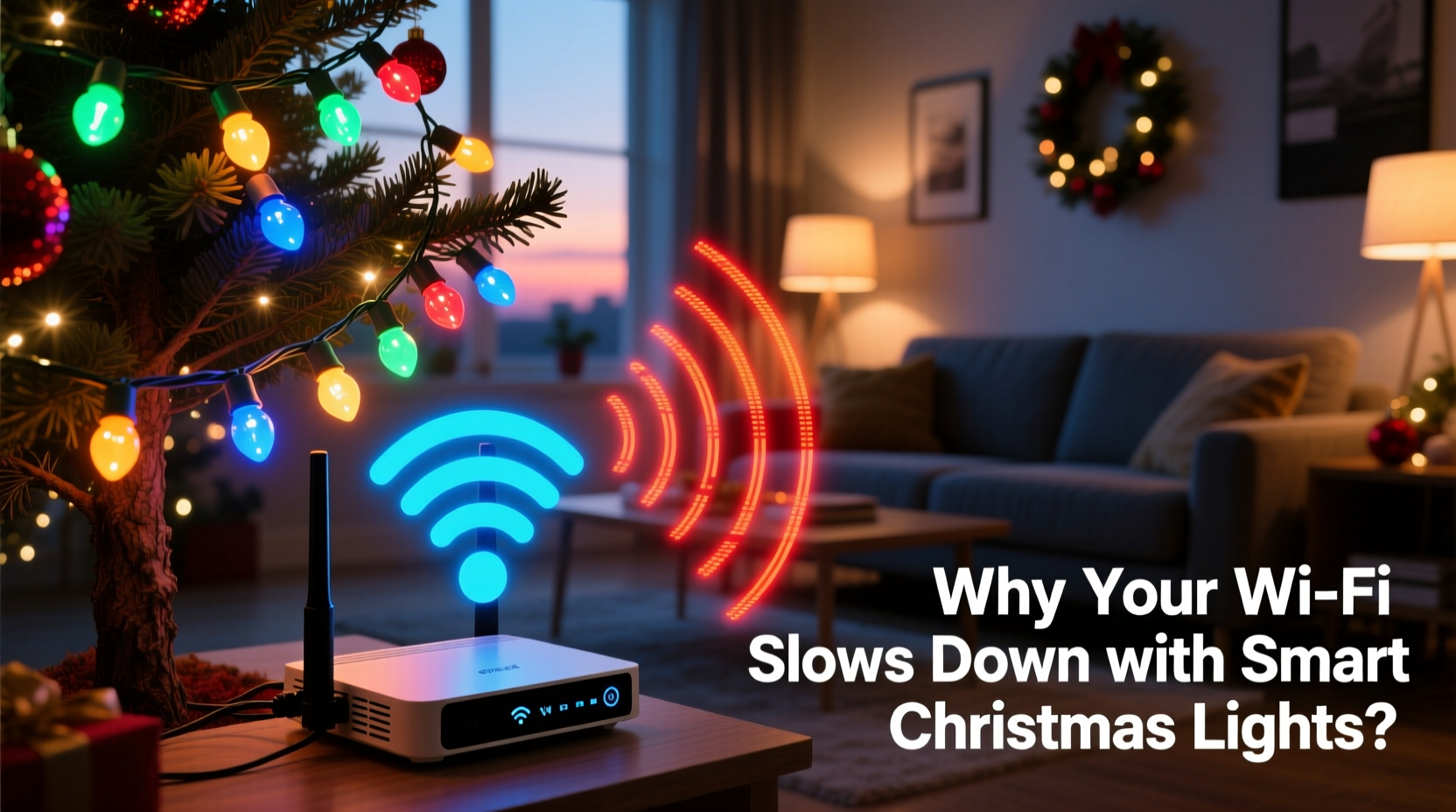
Smart Christmas lights connect to your home network using either WiFi or Bluetooth, though most plug-in string lights rely on 2.4 GHz WiFi bands. These lights contain small microcontrollers that communicate with a central hub or directly with your router via standard wireless protocols like IEEE 802.11n or MQTT over TCP/IP. Each light—or more accurately, each controller unit in a strand—acts as an IoT (Internet of Things) device, constantly sending and receiving data for synchronization, color changes, and scheduling.
The problem arises because the 2.4 GHz band is already crowded. It supports not only WiFi but also microwaves, cordless phones, baby monitors, Bluetooth devices, and now, multiple strands of smart lights. Unlike traditional lights, which draw power passively, smart versions transmit signals frequently—even when idle—to maintain connection status. This constant chatter increases network congestion, especially if you have several strands or other smart home devices active.
Understanding Signal Interference from Holiday Decorations
Interference doesn't always come from direct bandwidth consumption. Physical placement matters just as much. Many smart light controllers are housed in plastic boxes attached to the power adapter or integrated into the first bulb. When strung along gutters, window frames, or metal railings, these units can experience electromagnetic interference (EMI) or physical obstruction that degrades both their own signal and nearby wireless performance.
Metallic tinsel, aluminum foil backings on curtains, or even dense evergreen garlands act as partial Faraday cages, reflecting or absorbing radio waves. Additionally, cheaply shielded electronics in budget smart lights may emit low-level EMI, disrupting clean signal transmission across the 2.4 GHz spectrum. While one strand might not cause noticeable issues, stacking five or six together—common during festive decorating—can create cumulative noise.
“Any electronic device emitting radio frequency energy has the potential to interfere with wireless communications, especially when poorly designed or improperly filtered.” — Dr. Alan Reeves, RF Engineer at the Institute of Electrical and Electronics Engineers (IEEE)
Step-by-Step Guide to Diagnose and Fix WiFi Slowdowns
Follow this timeline to isolate whether your smart lights are truly the culprit and restore optimal network performance.
- Baseline Speed Test (Before Lights On): Run a speed test using a trusted service like Fast.com or Speedtest.net. Record download/upload speeds and ping times. Perform this near your main usage area (e.g., living room).
- Activate Smart Lights: Turn on all smart Christmas lights and allow them to fully boot (usually 30–60 seconds). Ensure they’re connected to the app and responding to commands.
- Second Speed Test (After Lights On): Re-run the same speed test under identical conditions. Compare results. A drop of 30% or more suggests significant interference.
- Isolate the Device: Temporarily disconnect the smart lights from WiFi (via app or power cycle). Wait two minutes, then retest. If speeds return to baseline, the lights are contributing to congestion.
- Channel Scan: Log into your router’s admin panel and check which WiFi channel your 2.4 GHz band is using. Switch to channels 1, 6, or 11—the least overlapping options. Avoid auto-selection if your environment is static.
- Relocate Devices: Move light controllers away from the router, ideally by at least 10 feet. Also avoid placing them near cordless phones or microwaves.
- Final Verification: Repeat the speed test after adjustments. Document improvements for future reference.
Do’s and Don’ts: Managing Smart Lights Without Sacrificing Connectivity
| Do | Don’t |
|---|---|
| Use a separate SSID for IoT devices | Connect all smart lights to your main household network |
| Limit the number of active light strands per access point | Daisy-chain more than three smart light sets on one circuit |
| Update firmware on smart lighting hubs regularly | Ignore software updates—they often include RF optimization patches |
| Place routers centrally and elevated, away from metal objects | Install routers in cabinets or near decorated fireplaces with metallic trim |
| Consider Zigbee or Z-Wave based systems with a bridge | Rely solely on WiFi-dependent models without backup controls |
Real Example: How One Family Regained Their Streaming Nights
The Thompson family in Portland, Oregon, installed 12 strands of RGB smart Christmas lights across their front porch, roofline, and indoor staircase. Within days, their nightly Netflix routine became unwatchable—constant buffering, audio desync, and dropped connections. They initially blamed their ISP but noticed the issue disappeared every time they powered off the lights.
Using the step-by-step guide above, they discovered their router was operating on channel 9—a congested middle ground shared by neighbors and their own lights. After switching to channel 1 and creating a guest network labeled “Holiday_Lights,” they reassigned all decorative devices to the isolated SSID. They also replaced one malfunctioning strand whose controller emitted persistent blinking and heat, likely due to internal shorting.
Post-adjustment, their average download speed rose from 18 Mbps to 87 Mbps during peak decoration hours. The fix cost nothing and took under an hour. “We didn’t want to give up the magic of animated light shows,” said Mark Thompson, “but we also weren’t willing to lose our weekend movies. Now we get both.”
Checklist: Prevent WiFi Issues Before Hanging Lights
- ☐ Audit current network load: Count existing WiFi devices (phones, cameras, speakers, etc.)
- ☐ Confirm smart lights use 2.4 GHz (most do); verify compatibility with your router
- ☐ Set up a dedicated IoT or guest network for holiday devices
- ☐ Update router firmware before holiday setup
- ☐ Choose smart lights with mesh networking or hub-based control (e.g., Philips Hue, LIFX)
- ☐ Plan physical layout: Keep light controllers at least 6 feet from router and modem
- ☐ Test one strand at a time before full installation
- ☐ Schedule automatic shutdowns (e.g., midnight) to reduce overnight traffic
Advanced Solutions for Heavy Smart Home Users
If you run a dense smart home ecosystem—security cameras, thermostats, voice assistants, and extensive lighting—you may need structural upgrades beyond basic tweaks.
A dual-band or tri-band mesh WiFi system (e.g., Google Nest Wifi Pro, ASUS ZenWiFi) allows you to dedicate one entire 5 GHz band exclusively to high-performance tasks while reserving the 2.4 GHz band for IoT devices. Some advanced routers even let you assign specific devices to bands manually.
Another option is migrating to non-WiFi protocols. Systems like Zigbee or Z-Wave require a central hub (such as Samsung SmartThings or Hubitat) but operate on different frequencies entirely, eliminating competition with your internet-connected devices. For example, a Zigbee-powered smart light communicates only with its hub, which then relays minimal data over WiFi to your phone. This drastically reduces packet load.
Finally, consider segmenting your network using VLANs (Virtual Local Area Networks), especially if you're technically inclined. This isolates smart lights into a separate broadcast domain, improving security and reducing broadcast storms that degrade performance.
Frequently Asked Questions
Can smart Christmas lights really slow down my internet?
Yes. While each light uses minimal bandwidth individually, multiple devices increase overhead traffic such as beacon signals, keep-alive packets, and synchronization data. In aggregate, this can saturate the 2.4 GHz band, particularly on older routers with limited processing capacity.
Are LED Christmas lights safer for WiFi than incandescent ones?
The type of bulb (LED vs. incandescent) isn’t the issue—it's the \"smart\" component. Basic LED strings without wireless controls pose no risk. However, smart LEDs with built-in transmitters are the source of interference, regardless of energy efficiency.
Will turning off smart lights stop the slowdown?
Often, yes. Powering down the lights removes them from the network, freeing up bandwidth and reducing electromagnetic noise. However, some lights remain partially active even when \"off\" if still plugged in. For complete relief, unplug the strand or use a smart plug to cut power entirely.
Conclusion: Enjoy the Glow Without the Lag
Smart Christmas lights bring joy, creativity, and automation to the holidays—but they shouldn’t come at the cost of your digital life. Understanding how these devices interact with your WiFi empowers you to decorate thoughtfully and troubleshoot wisely. From simple fixes like changing channels to strategic investments in mesh networks or alternative communication protocols, there are scalable solutions for every household.
This season, don’t choose between dazzling displays and reliable internet. With a few informed decisions, you can have both. Apply the steps outlined here, monitor your network health, and share what works—because better-connected holidays start with smarter choices.




 浙公网安备
33010002000092号
浙公网安备
33010002000092号 浙B2-20120091-4
Comments
No comments yet. Why don't you start the discussion?