
It’s December. Your tree glows with synchronized color shifts. Your porch lights pulse to holiday music. You tap your phone—and suddenly, your video call freezes, your streaming buffer spins endlessly, and your smart thermostat stops responding. You reboot the router. You restart your phone. Nothing changes—until you power off the lights. Then, miraculously, your Wi-Fi springs back to life.
This isn’t coincidence. It’s physics, protocol design, and network hygiene converging in your living room. Smart Christmas lights—especially those using Wi-Fi (not Bluetooth or proprietary hubs)—don’t just blink. They talk. Constantly. Hundreds of them, all shouting on the same crowded 2.4 GHz band your router uses for most legacy devices. And unlike a smart speaker that checks in every few seconds, many light strings poll their controller dozens of times per minute—even when idle—to maintain synchronization, report status, or await commands.
Understanding *why* this happens isn’t about blaming the lights. It’s about recognizing how consumer-grade networking infrastructure interacts with the rapid, unregulated proliferation of low-cost IoT devices. This article breaks down the technical causes—not with jargon for its own sake, but with clear explanations and proven, hardware-agnostic solutions you can implement tonight.
How Smart Lights Actually Use Your Wi-Fi Network
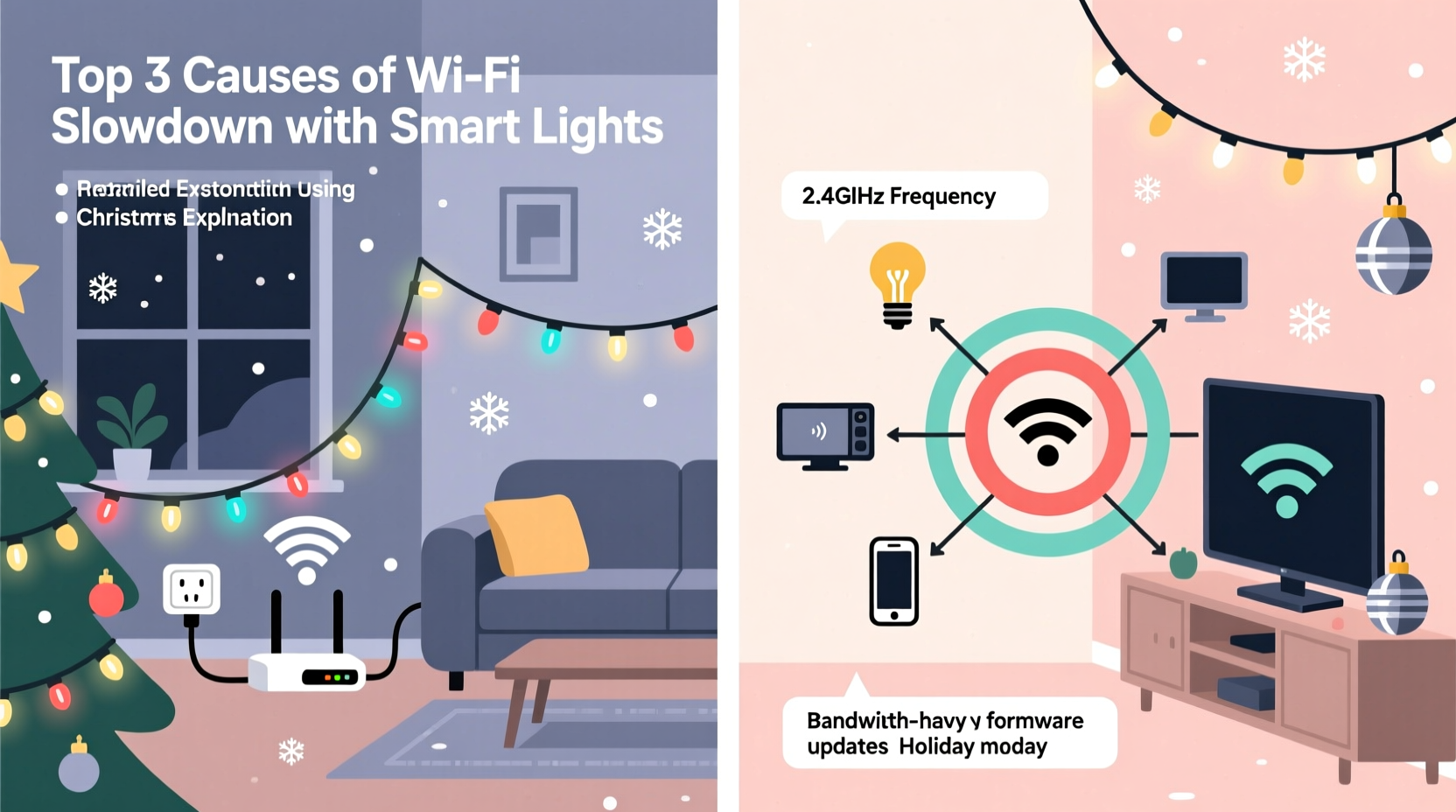
Most Wi-Fi-enabled smart lights connect directly to your home router—not through a dedicated hub. Each string, bulb, or controller becomes an independent client on your network. A single 200-bulb string may deploy up to five separate controllers (e.g., one per 40-bulb segment), each maintaining its own persistent TCP connection to the manufacturer’s cloud server.
That means your router must manage: • IP address assignments (via DHCP) for each controller • DNS lookups for cloud domains (e.g., api.lifx.com, cloud.wizconnected.com) • Encrypted TLS handshakes every time firmware checks occur • UDP keep-alive packets sent every 30–90 seconds to prevent NAT timeout • Firmware update downloads (often silently, at 2 a.m.)
Crucially, nearly all budget smart lights operate exclusively on the 2.4 GHz band—the same band used by baby monitors, older cordless phones, microwave ovens, and most IoT devices. Its longer wavelength travels farther through walls, making it ideal for whole-house coverage—but its total available bandwidth is just 65 Mbps (in ideal lab conditions). Real-world throughput under load rarely exceeds 25–35 Mbps. Add ten light controllers, two smart plugs, a security camera, and three smartphones—and congestion becomes inevitable.
The Four Primary Causes of Wi-Fi Slowdown
Slowdown isn’t monolithic. It manifests differently depending on which layer of your network stack is stressed. Here’s what’s actually happening:
- Bandwidth Saturation: Light controllers download firmware updates (5–15 MB each) or stream real-time sync data during animations. On a 100 Mbps plan, just two controllers updating simultaneously can consume 30–40% of your upstream bandwidth—slowing uploads for Zoom calls or cloud backups.
- Channel Congestion: The 2.4 GHz band has only three non-overlapping channels (1, 6, 11). If your neighbor’s router, your own microwave, and your lights all broadcast on Channel 6, signals interfere—forcing retransmissions and increasing latency from ~15 ms to >120 ms.
- Router CPU Overload: Consumer routers use low-power ARM chips with limited memory. Managing 30+ simultaneous TLS sessions, DNS queries, and DHCP leases pushes CPU usage past 85%. When that happens, packet queuing delays spike—and your Netflix stream stalls even though raw bandwidth remains available.
- ARP Table Exhaustion: Every device on your network must resolve IP addresses to MAC addresses via ARP. Budget routers cap ARP table entries at 64–128. With 25 smart devices, the table fills. New devices fail to join; existing ones drop connectivity intermittently as entries age out and refresh.
Do’s and Don’ts: Managing Smart Lights Without Sacrificing Wi-Fi
| Action | Do | Don’t |
|---|---|---|
| Network Segmentation | Create a separate 2.4 GHz guest network *just* for lights and IoT devices. Assign it a different SSID and disable “Allow access to local network.” | Connect lights to your primary network where laptops and phones live—especially if your router lacks QoS or VLAN support. |
| Channel Selection | Use a Wi-Fi analyzer app (like NetSpot or WiFi Analyzer) to find the least congested 2.4 GHz channel in your area—then manually set your router to it (avoid “Auto”). | Rely on “Auto” channel selection. Most routers default to Channel 6 and rarely reassess—even when neighbors add new networks. |
| Firmware & Updates | Disable automatic firmware updates in the light app. Manually update lights once per season—preferably during off-hours. | Leave auto-updates enabled. A single 12 MB update across 15 controllers can saturate upstream for 4–7 minutes. |
| Hardware Choice | Choose lights that support Matter over Thread (e.g., Nanoleaf Shapes, Philips Hue Sync Box + newer bulbs) — they route traffic off Wi-Fi entirely. | Purchase lights labeled “Wi-Fi only” with no Bluetooth or Zigbee fallback—especially models without local control (i.e., they require cloud access to function). |
A Real-World Example: The Suburban Home Network Crisis
Mark, a network engineer in Austin, TX, installed 320 RGB LED icicle lights across his roofline and patio—two strings controlled via Wiz app, three via TP-Link Kasa. His family’s 300 Mbps fiber plan performed flawlessly… until Thanksgiving. Suddenly, his wife’s telehealth appointments dropped calls mid-session. His son’s online gaming spiked from 25 ms to 350+ ms ping. Video calls pixelated relentlessly.
He ran a packet capture on his router. What he found wasn’t surprising—but revealing: • 47 active connections to cloud.wizconnected.com and iot-api.kasa.com • 22% of all UDP traffic was keep-alive pings from light controllers • His router’s ARP table cycled 112 entries per minute—exceeding its 128-entry limit • All controllers were on Channel 6, while his neighbor’s new mesh system occupied Channels 1 and 11
His fix? He repurposed an old Asus RT-AC68U as a dedicated IoT access point on Channel 1, isolated it with firewall rules, and moved every light, plug, and sensor onto it. Latency dropped to 18 ms. His primary network—now serving only phones, laptops, and TVs—regained full speed. Total time invested: 47 minutes.
“Most users assume ‘more Wi-Fi’ means ‘better Wi-Fi.’ But with IoT, it’s about *intelligent segmentation*. A $30 spare router, properly configured, often outperforms a $300 mesh system trying to serve 40 chatty lights alongside 4K streaming.” — Dr. Lena Torres, Senior Network Architect, OpenMesh Labs
Step-by-Step: Isolate Your Lights in Under One Hour
- Inventory & Disconnect: List every smart light product (brand, model, number of controllers). Power them all off. Note your router’s current 2.4 GHz channel (usually in Wireless Settings > Basic).
- Analyze Local Spectrum: Install WiFi Analyzer (Android) or NetSpot (macOS/Windows). Walk through your home. Identify the least-used 2.4 GHz channel (ideally with ≤2 competing networks). Write it down.
- Configure Guest Network: Log into your router admin panel. Enable Guest Network. Set SSID to something like “IoT-Lights-Only.” Disable “Allow access to local network” and “Allow guests to see each other.” Set channel to your chosen number. Save.
- Re-pair Lights: Reset each light controller (consult manual—usually 5–10 sec button hold). Reconnect *only* to the new guest SSID—not your main network. Verify in router admin that they appear under guest clients.
- Apply QoS (If Available): In router QoS settings, assign “Low” or “Background” priority to all light-related device names or MAC addresses. Prevent them from claiming bandwidth during video calls or gaming.
- Test & Monitor: Run a speed test on your primary network (not guest). Then trigger a complex light animation (e.g., audio-reactive mode). Re-test. Latency should remain stable within ±5 ms.
FAQ: Quick Answers to Common Concerns
Can I use a Wi-Fi extender to fix this?
No—most extenders rebroadcast the same congested 2.4 GHz signal, amplifying interference rather than alleviating it. A dedicated access point on a clean channel is far more effective. If you must extend, use an Ethernet backhaul (wired connection to extender) and configure it as a separate AP on Channel 1 or 11.
Why don’t these lights use Bluetooth or Zigbee instead?
They often do—but marketing favors “Wi-Fi” because consumers associate it with easy setup. Bluetooth has range limits (~30 ft) and can’t support hundreds of devices. Zigbee requires a hub (extra cost, extra complexity). Wi-Fi is cheap, universal, and needs no additional hardware—making it the default for mass-market lights, despite its network impact.
Will upgrading to Wi-Fi 6 solve this?
Partially—but not magically. Wi-Fi 6 improves efficiency with OFDMA and BSS coloring, helping routers serve multiple devices simultaneously. However, if your lights still flood the network with keep-alives and updates, and your router’s CPU or ARP table remains undersized, gains will be marginal. Prioritize segmentation first; upgrade hardware second.
Conclusion: Regain Control—Without Ditching the Magic
Your smart lights don’t have to be the villain in your home network story. They’re not poorly designed—they’re simply optimized for simplicity and cost, not coexistence with bandwidth-hungry human devices. The slowdown you experience isn’t a flaw in your internet service, your router, or the lights themselves. It’s a mismatch between legacy network architecture and modern IoT scale.
You now understand the four root causes: bandwidth saturation, channel congestion, CPU overload, and ARP exhaustion. You’ve seen how real users solved it—not with expensive gear, but with deliberate configuration. You have a step-by-step isolation plan, a comparison table to guide future purchases, and expert insight confirming that segmentation isn’t optional—it’s essential.
Start tonight. Pull up your router admin page. Create that guest network. Move the lights off your primary airwaves. Watch your video calls stabilize. Hear your game’s audio sync perfectly. Feel that quiet satisfaction when technology works—not despite you, but because you understood it.




 浙公网安备
33010002000092号
浙公网安备
33010002000092号 浙B2-20120091-4
Comments
No comments yet. Why don't you start the discussion?