
If your internet speeds plummet every evening—just when you’re trying to stream a movie, join a video call, or play online games—you're not imagining things. Millions of households experience degraded Wi-Fi performance after dark. The slowdown isn’t random; it’s usually the result of predictable network congestion, hardware limitations, or interference patterns that peak during high-usage hours. Understanding why this happens—and what you can do about it—is key to reclaiming a smooth, responsive connection.
This guide breaks down the top reasons behind nighttime Wi-Fi slowdowns, backed by real-world scenarios and expert insights. More importantly, it delivers practical, immediate solutions you can apply tonight to boost performance without spending hundreds on new equipment.
Network Congestion: The Prime Suspect
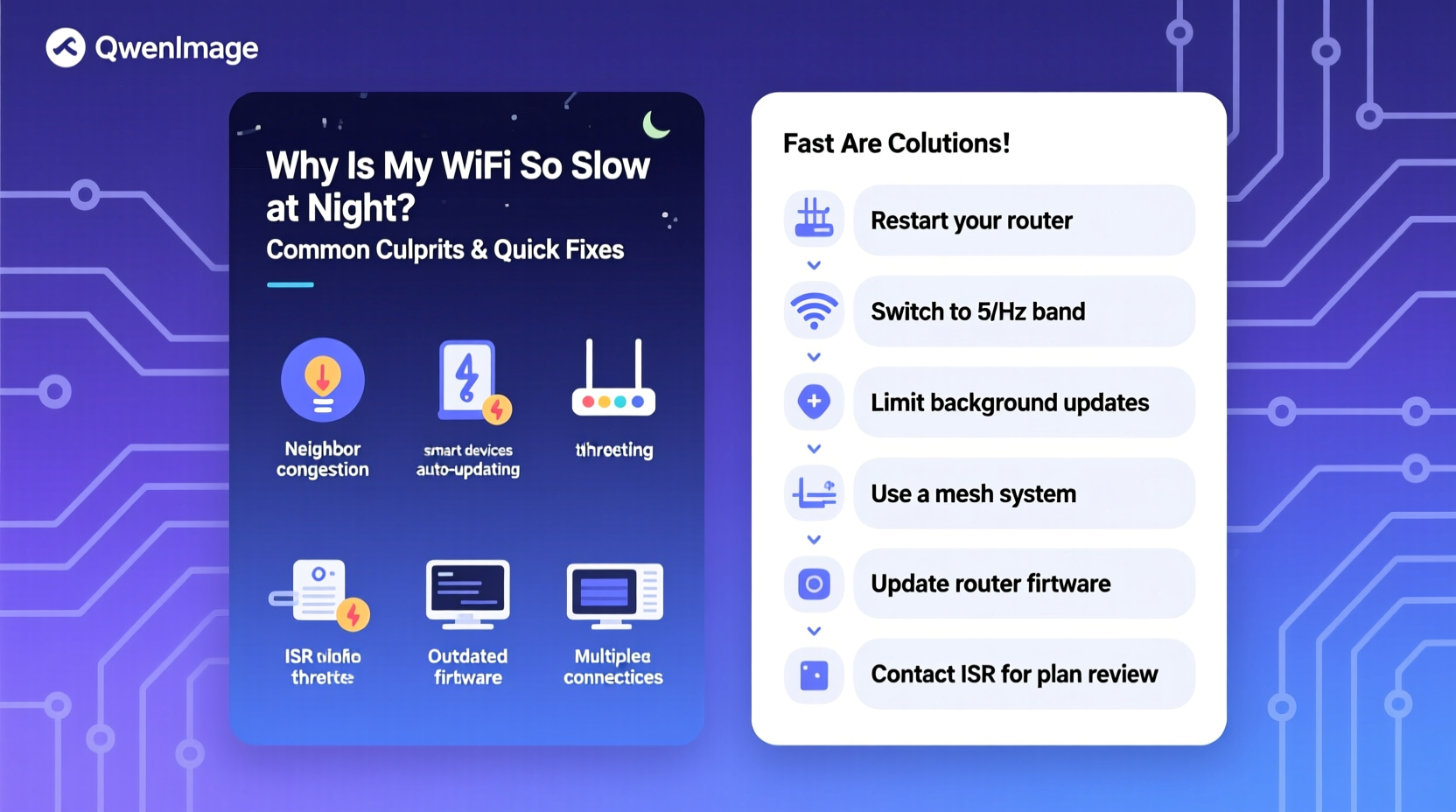
The most common reason for slow Wi-Fi at night is network congestion—both within your home and across your neighborhood. During the day, many people are at work or school, reducing demand on local networks. But once evening hits, everyone returns home, turns on devices, and starts streaming, gaming, and browsing simultaneously.
Your router has limited bandwidth. When multiple devices request data at once—smart TVs, phones, tablets, smart speakers, laptops—the available speed gets divided. This leads to buffering, lag, and long load times.
Outside your home, your Internet Service Provider (ISP) may also be dealing with network-wide congestion. If you live in a densely populated area, your ISP’s infrastructure might struggle to keep up with peak-hour traffic from thousands of users going online at the same time.
How to Identify Network Overload
To determine if congestion is your issue, try this test:
- Disconnect all devices except one (e.g., your phone).
- Run a speed test using a trusted app like Speedtest by Ookla.
- Repeat the test with all devices connected and actively in use.
If speeds drop significantly when more devices are online, congestion is likely the culprit.
Inefficient Router Placement and Signal Interference
Even a powerful router can underperform if placed poorly. At night, increased device usage amplifies signal weaknesses caused by physical obstructions and electromagnetic interference.
Common placement mistakes include:
- Putting the router in a closet or basement
- Locating it near thick walls, metal appliances, or mirrors
- Placing it next to cordless phones, microwaves, or baby monitors
Microwave ovens, for example, operate on the 2.4 GHz frequency band—the same as many older Wi-Fi routers. When used in the evening, they can disrupt signals within range, causing temporary but noticeable slowdowns.
Additionally, neighboring Wi-Fi networks often use the same default channels. In apartment buildings or suburban neighborhoods, overlapping signals create “co-channel interference,” where networks compete for airtime.
“Wi-Fi performance isn’t just about speed—it’s about signal clarity. A clean channel matters more than raw power.” — Dr. Lena Torres, Wireless Network Engineer at MITRE Corporation
Quick Fixes for Signal Issues
Outdated Equipment: Routers and Devices
Technology evolves quickly. A router purchased five years ago may not support modern Wi-Fi standards like Wi-Fi 5 (802.11ac) or Wi-Fi 6 (802.11ax). These newer protocols offer better efficiency, higher throughput, and improved handling of multiple devices.
Older routers often only support 2.4 GHz bands, which are slower and more prone to interference. Dual-band or tri-band routers allow you to offload devices to the less crowded 5 GHz band, drastically improving performance during peak times.
It’s not just the router—your end devices matter too. A smartphone or laptop with outdated Wi-Fi chipsets may bottleneck your connection, even if your network is capable of higher speeds.
Checklist: Is Your Equipment Holding You Back?
- ✅ Router is more than 3–4 years old?
- ✅ Only supports 2.4 GHz Wi-Fi?
- ✅ No Quality of Service (QoS) settings?
- ✅ Frequently overheats or needs rebooting?
- ✅ Connected devices use older Wi-Fi standards (802.11n or earlier)?
If three or more apply, upgrading your router could deliver immediate gains.
Bandwidth-Hungry Activities Peak at Night
Even with excellent hardware, certain activities consume disproportionate bandwidth. At night, these tend to cluster:
- 4K/HD video streaming (Netflix, YouTube, Disney+)
- Online gaming (especially multiplayer titles with voice chat)
- Cloud backups and software updates
- Video conferencing (for remote workers wrapping up late calls)
A single 4K stream uses up to 15 Mbps, while competitive online games may require low latency more than raw speed—but still need stable connections. When several such tasks run simultaneously, they strain your network.
Some ISPs also employ \"traffic shaping\" during peak hours, subtly throttling certain types of data (like video or peer-to-peer traffic) to manage load. While not always disclosed, this can contribute to perceived slowness.
Real Example: The Martinez Family’s Evening Struggle
The Martinez family of four noticed their Wi-Fi slowed to a crawl every night between 7 and 9 PM. Their son couldn’t game without lag, their daughter’s Zoom study group kept freezing, and dinner-time YouTube cooking videos constantly buffered.
After testing, they discovered their two-year-old dual-band router was overloaded. Ten devices were connected, including smart lights, TVs, and phones. Using the router’s QoS settings, they prioritized gaming and video calls. They also moved the router from a cabinet to an open shelf in the living room and switched their TV to the 5 GHz band.
Within 30 minutes, speeds improved by over 60%. Streaming stopped buffering, and online gameplay became smooth. The fix cost nothing but time and attention.
Step-by-Step Guide to Fix Slow Night Wi-Fi Fast
You don’t need to replace your internet plan or buy new gear immediately. Follow this timeline to diagnose and resolve the issue tonight:
- 8:00 PM – Run a Baseline Speed Test
Use speedtest.net on a wired connection (if possible) to check your actual download/upload speeds versus what your ISP promises. - 8:15 PM – Disconnect Non-Essential Devices
Turn off or disconnect smart appliances, secondary phones, tablets, and unused gadgets. Re-test speed to see improvement. - 8:25 PM – Check Router Channels
Log into your router’s admin page (usually via 192.168.1.1 or 192.168.0.1). Look under wireless settings for channel selection. On 2.4 GHz, switch to Channel 1, 6, or 11—these don’t overlap. For 5 GHz, choose a less congested channel (use a Wi-Fi analyzer app like NetSpot or Wi-Fi Analyzer to find the clearest option). - 8:35 PM – Enable QoS (Quality of Service)
In the same router menu, locate QoS settings. Prioritize devices or applications critical for evening use—gaming consoles, laptops for video calls, or streaming boxes. - 8:45 PM – Reboot Your Network
Power cycle your modem and router: unplug both, wait 60 seconds, plug in the modem first, wait until fully online, then restart the router. - 9:00 PM – Final Speed Test
Compare results. Most users see noticeable improvements within this 60-minute window.
Do’s and Don’ts of Nighttime Wi-Fi Optimization
| Do | Don't |
|---|---|
| Use the 5 GHz band for high-bandwidth devices | Place your router near a microwave or refrigerator |
| Update router firmware monthly | Ignore firmware update notifications |
| Limit automatic updates to off-peak hours | Allow all devices to update simultaneously at night |
| Use Ethernet for stationary devices (PCs, TVs) | Rely on Wi-Fi for everything, even desktops |
| Monitor connected devices via your router’s dashboard | Assume all devices on your network are authorized |
Frequently Asked Questions
Can my neighbors really slow down my Wi-Fi?
Yes. If multiple nearby networks operate on the same Wi-Fi channel—especially in apartments or dense housing—interference occurs. This is called “adjacent channel” or “co-channel” interference. Using a Wi-Fi analyzer app helps identify less crowded channels.
Should I upgrade to a mesh Wi-Fi system?
If you have a large home or dead zones, a mesh system (like Google Nest Wi-Fi or Eero) can eliminate weak spots and balance traffic more efficiently. However, for smaller homes, a modern dual-band router with proper placement often suffices.
Does turning off Wi-Fi at night help?
Turning it off doesn’t improve speed, but it can reduce interference for neighbors and enhance security. However, it disables smart home functions and automatic updates. Instead of turning it off, consider setting a schedule to limit non-essential device access during sleep hours.
Expert Insight: The Hidden Factor of Firmware
Many users overlook router firmware—the operating system that manages your network. Outdated firmware can introduce bugs, security flaws, and poor traffic management, especially under load.
“Firmware updates are like tune-ups for your car. Skipping them means running on reduced efficiency, especially when demand spikes.” — Rajiv Mehta, Senior Network Architect at Cisco Systems
Check your router manufacturer’s website or admin panel for updates. Set a monthly reminder to ensure you stay current.
Long-Term Solutions Worth Considering
If quick fixes provide only temporary relief, consider these upgrades:
- Upgrade to Wi-Fi 6: Offers better multi-device handling, lower latency, and improved battery efficiency for connected devices.
- Switch ISPs or plans: If your current plan offers less than 100 Mbps and you have multiple heavy users, consider upgrading. Gigabit fiber, where available, eliminates bottlenecks.
- Use wired connections: Ethernet cables deliver faster, more stable speeds than Wi-Fi. Connect desktops, TVs, and gaming consoles directly when possible.
- Install a managed switch or VLANs: Advanced users can segment networks (e.g., separate IoT devices from main traffic) to reduce congestion.
Conclusion: Take Control of Your Connection
Slow Wi-Fi at night doesn’t have to be inevitable. By understanding the interplay of congestion, interference, outdated hardware, and usage patterns, you gain the power to fix the problem—not just endure it. Many solutions require no financial investment, only awareness and a few strategic adjustments.
Start tonight. Run a speed test, reposition your router, optimize your channels, and prioritize critical devices. The difference could be dramatic. And if you’ve been blaming yourself for “using too much internet,” remember: the issue isn’t you—it’s the network setup. With the right tweaks, you can enjoy fast, reliable Wi-Fi whenever you need it.




 浙公网安备
33010002000092号
浙公网安备
33010002000092号 浙B2-20120091-4
Comments
No comments yet. Why don't you start the discussion?