
If you’ve invested in a modern mesh Wi-Fi system to eliminate dead zones, it can be frustrating when one room still suffers from sluggish speeds. You expect seamless connectivity throughout your home—streaming, video calls, and browsing should work flawlessly everywhere. Yet, that back bedroom, basement, or home office consistently underperforms. The issue isn’t necessarily with the mesh system itself, but rather how it interacts with your environment, device load, and configuration.
Mesh networks are designed to blanket your home with strong signal coverage by using multiple nodes that communicate wirelessly or via Ethernet. However, even the best systems can falter due to physical obstructions, interference, or suboptimal placement. Understanding why speed drops in a specific area allows you to diagnose and resolve the root cause—not just apply temporary fixes.
Common Causes of Slow Wi-Fi in One Room
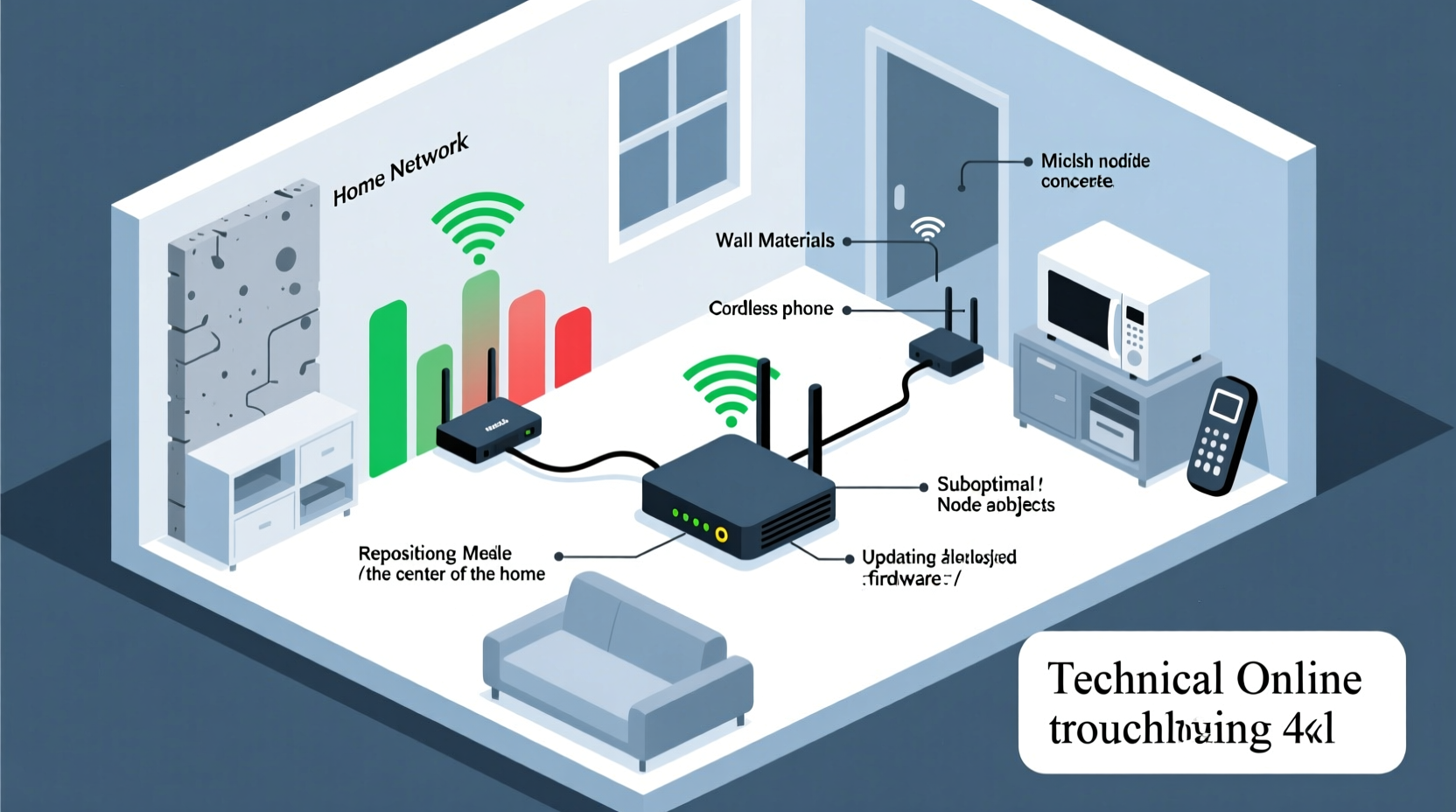
Before diving into solutions, identify what might be behind the slowdown. Unlike older single-router setups, mesh systems introduce new variables such as node-to-node communication, band steering, and backhaul efficiency.
- Physical barriers: Thick walls (especially concrete, brick, or metal lath), large appliances, mirrors, and water-filled fish tanks absorb or reflect Wi-Fi signals.
- Distance from nearest node: Even with mesh, extreme distance weakens signal strength, especially if there's no direct line of sight.
- Interference from other devices: Cordless phones, baby monitors, microwave ovens, Bluetooth gadgets, and neighboring Wi-Fi networks on overlapping channels can degrade performance.
- Poor node placement: Nodes tucked behind furniture, inside cabinets, or near metallic surfaces suffer reduced transmission efficiency.
- Backhaul congestion: In wireless-only mesh setups, data must travel between nodes over the air, consuming bandwidth and reducing available throughput to client devices.
- Client device limitations: Older smartphones, laptops, or IoT devices may only support 2.4 GHz bands or outdated Wi-Fi standards like 802.11n.
- Network congestion: Multiple users streaming, gaming, or downloading simultaneously can overwhelm even robust mesh systems.
Step-by-Step Troubleshooting Guide
Follow this structured approach to isolate and correct the issue affecting your mesh network in a specific room.
- Verify the problem is location-specific
Test internet speed on the same device in different rooms. If only one area shows poor performance, the issue is localized. Use tools like Ookla Speedtest or Fast.com for consistent results. - Check node proximity and placement
Ensure the affected room is within reasonable range of a satellite node. Ideally, each node should be no more than 30–50 feet apart with minimal obstructions. Avoid placing nodes near microwaves, refrigerators, or thick masonry walls. - Assess signal strength manually
On an iOS or Android device, go to Wi-Fi settings and look for “Signal” or “RSSI.” A value between -30 and -50 dBm is excellent; -60 to -70 is acceptable; anything below -75 suggests weak signal. - Switch to 5 GHz (if applicable)
While 2.4 GHz travels farther, 5 GHz offers faster speeds and less interference. If the slow room connects via 2.4 GHz despite being close enough, force reconnect or rename bands separately to guide devices appropriately. - Restart and update your mesh system
Power cycle all nodes. Then log into your mesh app (e.g., Google Nest Wifi, Eero, TP-Link Deco) and confirm firmware is up to date. Updates often include stability and roaming improvements. - Analyze channel interference
Use a Wi-Fi analyzer app (like NetSpot or WiFi Analyzer) to detect crowded channels. Most mesh systems auto-optimize, but manual intervention may help in dense urban areas. - Test with Ethernet backhaul (if possible)
If you have wired infrastructure, connect at least two nodes via Ethernet. This frees up wireless capacity for client devices and dramatically improves performance in distant rooms. - Limit high-bandwidth activities temporarily
Pause large downloads, cloud backups, or 4K streams on other devices to see if the slow room improves—this helps determine if congestion is the culprit.
Do’s and Don’ts of Mesh Node Placement
| Do’s | Don’ts |
|---|---|
| Place nodes in open areas, elevated off the floor | Hide nodes inside cabinets or bookshelves |
| Keep nodes away from large metal objects and appliances | Install near microwaves, washing machines, or HVAC units |
| Use central locations for optimal coverage distribution | Put all nodes in a straight line along exterior walls |
| Space nodes evenly based on square footage and layout | Place nodes too far apart (>60 ft without line of sight) |
| Prefer wired backhaul when running Ethernet is feasible | Rely solely on wireless backhaul through thick walls |
Real-World Example: Fixing a Basement Office
Consider Mark, who works remotely from his basement office. His living room has a primary Eero Pro 6 node, and a second node sits upstairs near the bedrooms. Despite having a third node placed halfway down the basement stairs, video calls frequently freeze and file uploads stall.
After testing, he discovered the basement node showed -78 dBm signal strength. The router was tucked behind a utility shelf next to a water heater—both major signal blockers. He moved the node to a higher shelf, away from pipes and appliances, and connected it via Ethernet to the main floor using existing cabling. He also enabled \"Dual-Band Steering\" in the app to prioritize 5 GHz for his laptop.
Result: Speed increased from 12 Mbps to 148 Mbps, and jitter dropped significantly. Roaming behavior improved, with seamless handoff when moving upstairs.
This case illustrates how combining strategic placement, wired backhaul, and proper configuration resolves persistent slowdowns—even in challenging environments.
Expert Insight: What Network Engineers Recommend
“Many people assume mesh means ‘set it and forget it,’ but optimal performance requires thoughtful node placement and understanding of RF physics. A concrete wall can reduce signal strength by 90%. Always test after repositioning—and consider hybrid setups where some nodes are wired.” — David Lin, Senior Network Architect at NetVelocity Systems
“The biggest myth is that more nodes always mean better coverage. Poorly placed nodes can actually create interference and confuse client roaming logic. Quality over quantity wins every time.” — Priya Mehta, Wireless Solutions Lead at ConnectFirst Labs
Advanced Optimization Tips
Beyond basic troubleshooting, these advanced techniques can further enhance performance in lagging zones.
- Separate SSIDs by band: Temporarily disable band steering and assign unique names to 2.4 GHz and 5 GHz networks. This lets you manually connect capable devices to the faster 5 GHz band in the slow room.
- Enable Fast Roaming (802.11k/v/r): These protocols help devices switch smoothly between nodes. Check your mesh system’s settings to ensure they’re activated.
- Reduce background traffic: Schedule automatic updates, cloud syncs, and smart home backups during off-peak hours.
- Upgrade client hardware: If your laptop uses an old Wi-Fi adapter, upgrading to a USB 3.0 Wi-Fi 6 dongle can make a noticeable difference in reception and speed.
- Use a Wi-Fi heatmap tool: Tools like Ekahau Sidekick (professional) or free alternatives like CellMapper help visualize coverage gaps and optimize node positions.
Troubleshooting Checklist
Use this checklist to methodically address slow Wi-Fi in one room:
- ✅ Confirm slowness occurs across multiple devices in the same room
- ✅ Measure current download/upload speeds and RSSI
- ✅ Reposition the nearest mesh node for better line of sight
- ✅ Eliminate nearby sources of interference (appliances, electronics)
- ✅ Update all mesh nodes to latest firmware
- ✅ Restart modem, gateway, and all mesh units
- ✅ Connect critical nodes via Ethernet backhaul if possible
- ✅ Switch device to 5 GHz network or use band steering effectively
- ✅ Limit bandwidth-heavy tasks during testing
- ✅ Consider adding a fourth node or Wi-Fi extender as last resort
Frequently Asked Questions
Can a mesh node be too close to another?
Yes. Placing nodes too close (within 10–15 feet) can cause co-channel interference, especially on the same band. The system may struggle to decide which node serves a device, leading to inconsistent performance. Maintain spacing of at least 20–30 feet unless covering distinct floors.
Should I add another node if one room is slow?
Not automatically. First, optimize existing node placement and connections. Adding a node without addressing interference or backhaul issues can worsen performance. Only expand the network after verifying that the new location fills a true coverage gap and won’t overlap excessively.
Why does my phone show full bars but still have slow internet?
Full signal bars don't guarantee speed. Bars reflect signal strength (RSSI), not throughput. Your device might be connected to a distant node over a congested backhaul, or the local channel could be saturated with noise. Always test actual speed rather than relying on visual indicators.
Final Recommendations and Next Steps
Slow Wi-Fi in one room with a mesh system is rarely a sign of faulty hardware—it’s usually a symptom of environmental factors, configuration oversights, or unrealistic expectations about wireless reach. By systematically evaluating placement, minimizing interference, leveraging wired connections, and validating performance with real-world tests, most issues can be resolved without additional cost.
Start with simple adjustments: move a node, restart the system, and measure results. Progress to advanced tweaks like band separation or Ethernet backhaul if needed. Remember, consistency matters more than raw speed—stable latency and reliable roaming enable smooth daily use.




 浙公网安备
33010002000092号
浙公网安备
33010002000092号 浙B2-20120091-4
Comments
No comments yet. Why don't you start the discussion?