
If your phone’s Wi-Fi feels sluggish—videos buffer, websites stall, and downloads crawl—you’re not alone. Millions of users experience inconsistent or poor wireless performance, often without understanding the root cause. While it’s easy to blame the router or internet provider, the issue frequently lies in a combination of device settings, network congestion, physical obstructions, or outdated hardware. This guide breaks down the most common reasons for slow Wi-Fi on mobile devices and provides actionable steps to restore fast, reliable connectivity.
Understanding the Common Causes of Slow Wi-Fi on Phones
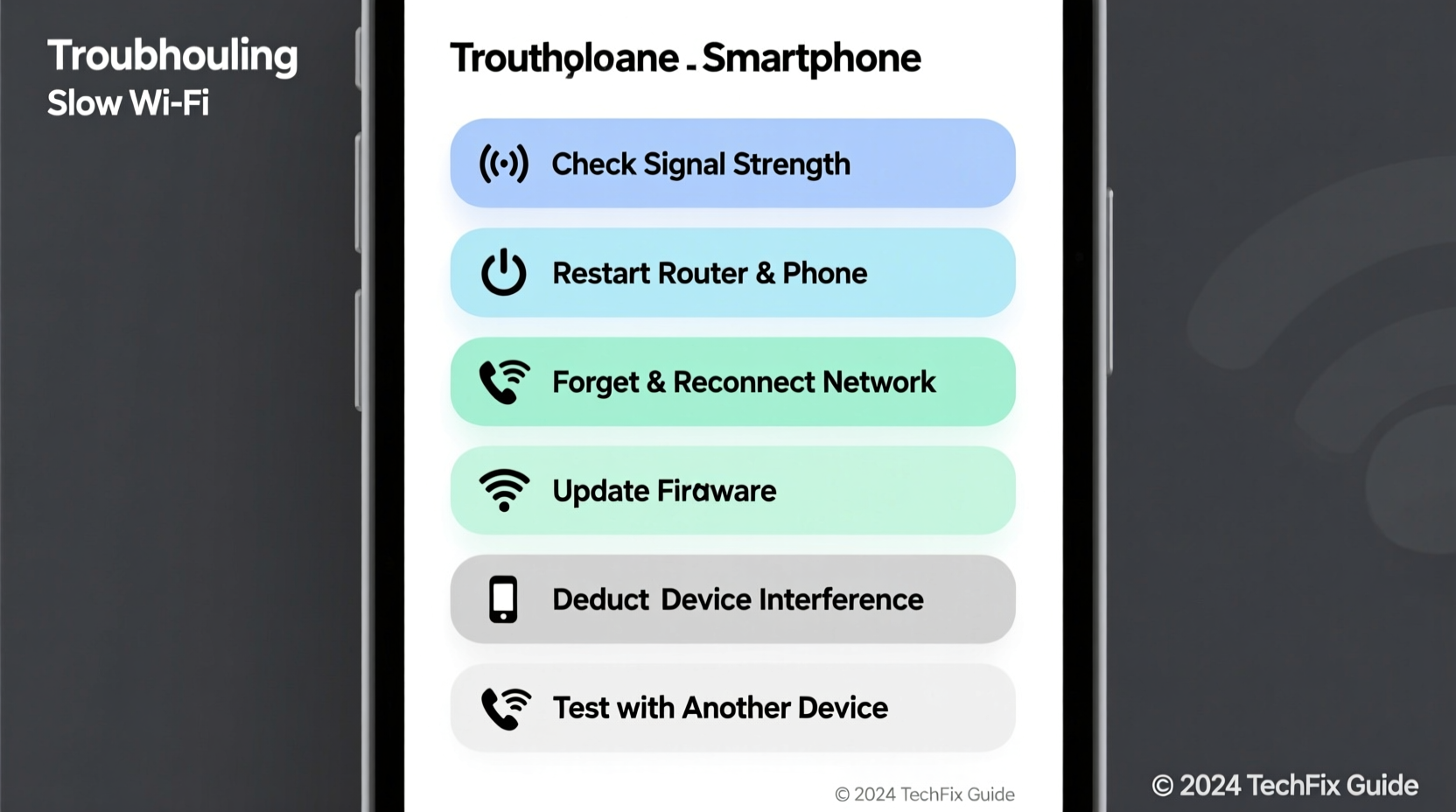
Before jumping into fixes, it’s important to recognize that Wi-Fi performance isn’t just about internet speed from your ISP. Your phone connects to a local network, which then routes traffic through your modem and out to the web. Any weak link in this chain can result in poor performance.
Common culprits include:
- Network congestion: Too many devices using bandwidth simultaneously.
- Distance and interference: Thick walls, appliances, or distance from the router weaken signal strength.
- Outdated phone software: Bugs or inefficient Wi-Fi drivers in older OS versions.
- DNS issues: Slow domain resolution can delay page loading even if download speeds are high.
- Router limitations: Older routers may not support modern Wi-Fi standards (like 802.11ac or Wi-Fi 6).
Step-by-Step Troubleshooting Process
Follow this logical sequence to identify and resolve the source of your slow Wi-Fi connection.
- Test speed on another device. Use a laptop or tablet on the same network. If they also perform poorly, the issue is likely with the router or internet service.
- Move closer to the router. Eliminate distance and obstacles temporarily to test maximum signal strength.
- Forget and rejoin the network. On your phone, go to Wi-Fi settings, tap the network, select “Forget,” then reconnect by entering the password again.
- Check for background apps. Streaming, cloud backups, or updates running in the background consume bandwidth.
- Restart your phone. Clears temporary memory and resets network services.
- Update your phone’s OS. Manufacturers regularly release patches that improve Wi-Fi stability and security.
Advanced Network Diagnostics
If basic steps don’t help, dig deeper:
- Use a Wi-Fi analyzer app (like NetAnalyzer or Wi-Fi Analyzer) to check signal strength (RSSI). A value above -70 dBm is ideal; below -85 dBm indicates a weak signal.
- Verify whether your phone is connecting to the 2.4 GHz or 5 GHz band. The 5 GHz band is faster but has shorter range. If you're far from the router, 2.4 GHz might be more stable despite lower speeds.
- Change DNS settings on your phone to Google DNS (8.8.8.8) or Cloudflare (1.1.1.1) for potentially faster domain lookups.
Do’s and Don’ts When Fixing Phone Wi-Fi Issues
| Do’s | Don’ts |
|---|---|
| Place your router centrally, elevated, and away from metal objects | Don’t place the router near microwaves, cordless phones, or Bluetooth speakers |
| Update your phone and router firmware regularly | Don’t ignore manufacturer security updates—they often include network improvements |
| Limit connected devices during critical usage (e.g., video calls) | Don’t assume more bars equal faster speeds—signal strength ≠ bandwidth |
| Use Quality of Service (QoS) settings on your router to prioritize mobile devices | Don’t factory reset your router unless necessary—it erases custom configurations |
Real-World Example: Maria’s Home Office Struggles
Maria, a freelance graphic designer, relied on her phone for client Zoom calls and file uploads. Despite having a 100 Mbps internet plan, her phone consistently showed buffering and lag. Her laptop worked fine, which confused her.
After testing, she discovered her phone was stuck on the 2.4 GHz band, even when near the router. She manually switched to the 5 GHz network (which had a slightly different name), and her speed jumped from 8 Mbps to 92 Mbps. Further investigation revealed her phone wasn’t automatically switching bands due to a firmware bug. A system update resolved the issue permanently.
This case highlights how device-specific quirks—not just network-wide problems—can cripple performance.
Expert Insight: What Network Engineers Say
“Phones are often the weakest link in home networks because they rely on small antennas and power-saving modes that throttle Wi-Fi performance. Many users don’t realize their phone may disconnect and reconnect silently, causing delays.” — David Lin, Senior Network Engineer at NetSecure Systems
Engineers emphasize that modern phones use aggressive battery optimization, which can reduce Wi-Fi radio activity during idle periods. This leads to slower wake-up times and perceived lag when opening apps.
Essential Checklist: Fix Slow Wi-Fi on Your Phone
Use this checklist to systematically eliminate causes:
- ✅ Restart your phone and router
- ✅ Move closer to the router to test signal improvement
- ✅ Forget the Wi-Fi network and reconnect
- ✅ Check for OS and app updates
- ✅ Close bandwidth-heavy background apps
- ✅ Switch from 2.4 GHz to 5 GHz (if within range)
- ✅ Change DNS to 8.8.8.8 or 1.1.1.1
- ✅ Test speed using apps like Speedtest by Ookla
- ✅ Reset network settings (Settings > General > Reset > Reset Network Settings)
- ✅ Consider upgrading router if over 4 years old
Frequently Asked Questions
Why is my Wi-Fi slow on my phone but fast on other devices?
This usually points to a device-specific issue. Possible causes include outdated software, corrupted Wi-Fi profiles, hardware degradation, or power-saving features limiting network performance. Try resetting network settings or updating the OS.
Does clearing cache improve Wi-Fi speed?
Not directly. Clearing app cache removes stored data that might be causing an app to malfunction, but it won’t boost raw internet speed. However, a misbehaving app using excessive data in the background can slow your experience—clearing cache may help in such cases.
Should I use Wi-Fi boosters or mesh systems?
If your phone struggles in certain areas of your home, a mesh Wi-Fi system (like Google Nest Wi-Fi or Eero) can significantly improve coverage. Unlike single routers, mesh systems use multiple nodes to blanket your space with strong signal. They’re especially effective in multi-story homes or large apartments.
Final Thoughts: Take Control of Your Connection
Slow Wi-Fi on your phone doesn’t have to be a permanent frustration. Most issues stem from correctable settings, environmental factors, or simple oversights. By methodically testing and applying the solutions in this guide—from forgetting networks to optimizing router placement—you can reclaim fast, seamless browsing, streaming, and communication.
Technology should serve you, not slow you down. With a few minutes of troubleshooting, you can transform a lagging connection into a reliable digital lifeline.




 浙公网安备
33010002000092号
浙公网安备
33010002000092号 浙B2-20120091-4
Comments
No comments yet. Why don't you start the discussion?