
Slow Wi-Fi can disrupt everything from video calls to streaming and online gaming. While it’s easy to blame your internet provider, the issue often lies closer to home—within your network setup, device configuration, or environment. Understanding the root causes and applying targeted fixes can dramatically improve your connection speed and reliability without upgrading your plan.
Common Causes of Slow Wi-Fi
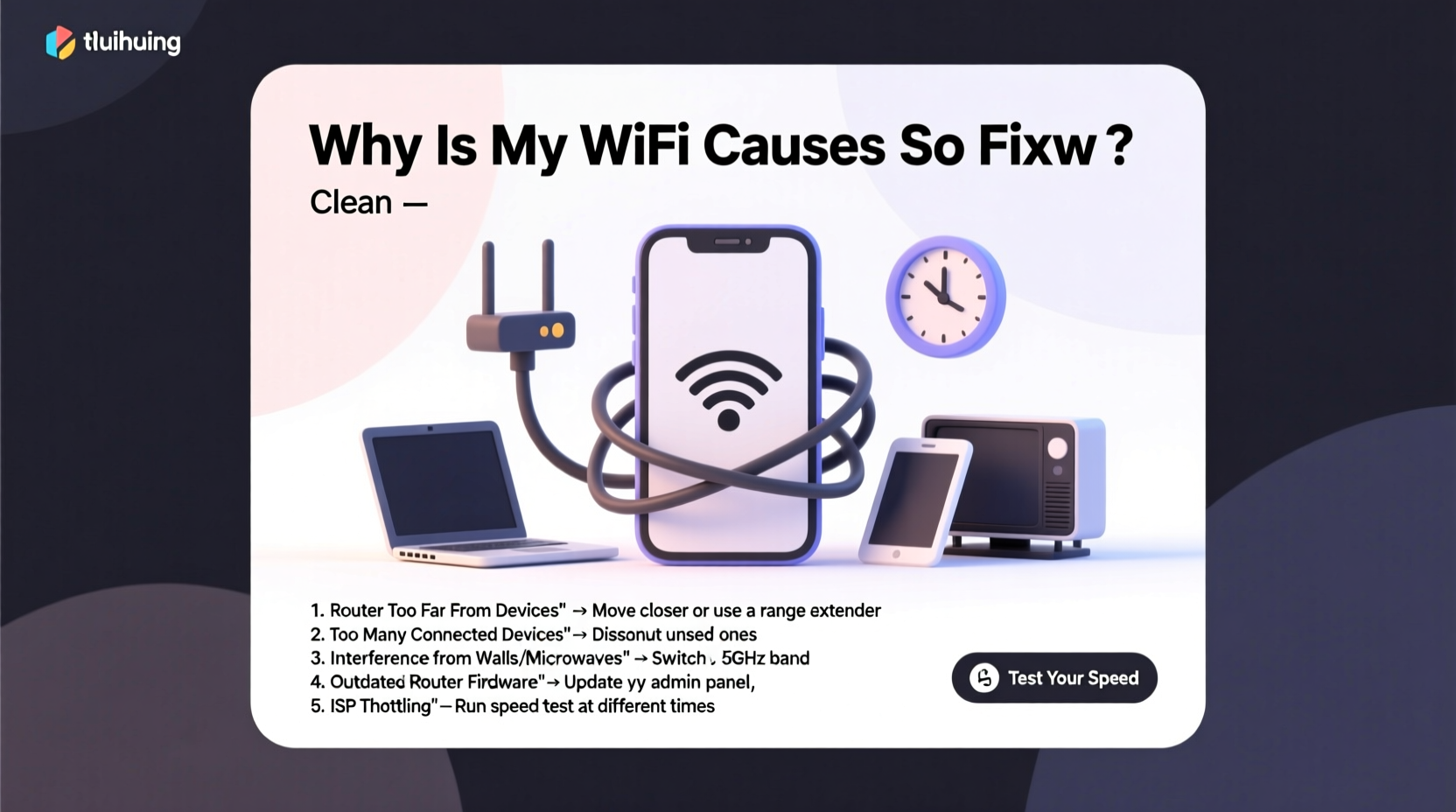
Before jumping into fixes, it helps to know what might be dragging down your signal. Wi-Fi performance depends on a combination of hardware, software, physical layout, and external interference.
- Distance from the router: The farther you are from your router, the weaker the signal becomes.
- Physical obstructions: Walls, floors, mirrors, and large appliances can block or weaken signals.
- Network congestion: Too many devices connected simultaneously can overwhelm your router.
- Outdated hardware: Older routers may not support modern speeds or security protocols.
- Interference from other electronics: Microwaves, cordless phones, and Bluetooth devices operate on similar frequencies.
- ISP throttling or service issues: Your provider may limit bandwidth during peak hours or have infrastructure problems.
Step-by-Step Troubleshooting Guide
Follow this systematic approach to identify and resolve your Wi-Fi slowdowns. Each step isolates a potential cause and applies a practical fix.
- Test your actual internet speed. Use a wired Ethernet connection to run a speed test at speedtest.net. If speeds are still slow, the issue is likely with your ISP or modem.
- Restart your router and modem. Unplug both devices, wait 30 seconds, then plug in the modem first, followed by the router after another 30 seconds.
- Check for firmware updates. Log into your router’s admin interface (usually via 192.168.1.1 or 192.168.0.1) and look for update options under settings.
- Reduce connected devices. Temporarily disconnect unused devices to see if performance improves.
- Move closer to the router. Conduct a speed test near the router and compare results to those from distant rooms.
- Change your Wi-Fi channel. Use a tool like Wi-Fi Analyzer (Android) to find less congested channels and adjust in router settings.
- Switch between 2.4 GHz and 5 GHz bands. 5 GHz offers faster speeds over short distances; 2.4 GHz travels farther but is slower and more crowded.
Optimize Router Placement and Environment
Location matters more than most people realize. A poorly placed router can cripple performance regardless of its capabilities.
Avoid tucking your router behind furniture or inside cabinets. These materials absorb or reflect radio waves, creating dead zones. Also, keep it at least three feet away from cordless phones, microwaves, and baby monitors.
If your home has multiple floors or an open floor plan over 1,500 sq ft, consider adding a mesh Wi-Fi system or Wi-Fi extender to eliminate coverage gaps.
Hardware and Network Upgrades That Work
Sometimes, no amount of tweaking will overcome outdated equipment. Knowing when to upgrade can save time and frustration.
| Device Type | Recommended Standard | Lifespan | Upgrade When? |
|---|---|---|---|
| Router | Wi-Fi 6 (802.11ax) | 3–5 years | Slower than plan speed, frequent disconnections |
| Modem | DOCSIS 3.1 | 4–7 years | ISP requires newer model or supports gigabit speeds |
| Devices | Wi-Fi 5/6 capable | Varies | Older smartphones/laptops struggle on fast networks |
“Many users don’t realize their five-year-old router can’t deliver the speeds they’re paying for—even if the ISP line is fast.” — David Lin, Network Engineer at NetSecure Labs
Real-World Example: Fixing a Laggy Home Office
Consider Sarah, a freelance graphic designer working from her basement office. She paid for a 200 Mbps fiber plan but consistently got only 15 Mbps on her laptop. After testing, she found her router was upstairs near the kitchen—three walls and a floor away from her workspace.
She tried moving her laptop closer and saw speeds jump to 180 Mbps. The problem wasn’t her ISP—it was signal degradation. Instead of buying new gear immediately, she repositioned the router to a central hallway and switched to the 5 GHz band for her office. Speeds stabilized at 120 Mbps, sufficient for her cloud-based tools and video meetings.
When that became inconsistent again after adding smart home devices, she upgraded to a dual-band mesh system. Now, every room gets full-speed coverage.
Essential Wi-Fi Optimization Checklist
Use this checklist to audit and improve your network performance monthly or whenever issues arise.
- ✅ Reboot router and modem
- ✅ Run a speed test on a wired connection
- ✅ Check for firmware updates
- ✅ Identify and remove unknown devices from your network
- ✅ Position router centrally and off the floor
- ✅ Switch to less congested Wi-Fi channel
- ✅ Separate 2.4 GHz and 5 GHz networks (if possible)
- ✅ Limit bandwidth-heavy activities during critical use times
- ✅ Consider upgrading to Wi-Fi 6 or mesh system if coverage is poor
Frequently Asked Questions
Why is my Wi-Fi slow even with a fast internet plan?
Your plan speed reflects what your modem receives from the ISP. Wi-Fi slowdowns happen locally due to distance, interference, outdated hardware, or too many connected devices. Always test with a wired connection first to isolate the issue.
Does turning off Wi-Fi at night help performance?
It doesn’t boost speed directly, but regular restarts prevent memory buildup in routers. Using a timer to power cycle your router nightly can maintain stability and security.
Can my neighbors’ Wi-Fi slow mine down?
Yes—especially on the 2.4 GHz band. Overlapping networks cause interference. Use a Wi-Fi analyzer app to find the least crowded channel and manually set it in your router settings.
Take Control of Your Connection
Slow Wi-Fi isn’t something you have to live with. Most issues stem from correctable factors: placement, congestion, outdated gear, or simple misconfigurations. By methodically testing, optimizing, and upgrading when necessary, you can unlock the speeds you’re already paying for.
Start today with a reboot and a speed test. Then walk through each step in the checklist. Small changes often yield dramatic improvements. Don’t let buffering or lag hold you back—your fastest connection is just a few adjustments away.




 浙公网安备
33010002000092号
浙公网安备
33010002000092号 浙B2-20120091-4
Comments
No comments yet. Why don't you start the discussion?