
It’s a frustrating scenario many users face: your laptop streams 4K video without buffering, downloads large files in seconds, and maintains a rock-solid connection—while your smartphone struggles to load a simple webpage on the same Wi-Fi network. Despite being connected to the same router, the disparity in performance can be baffling. The truth is, several factors contribute to this inconsistency, ranging from hardware limitations to network configuration and signal interference.
Understanding why your phone lags behind your laptop requires examining both devices’ capabilities, their interaction with your wireless network, and the environment in which they operate. This article breaks down the most common causes of slower Wi-Fi speeds on smartphones and provides actionable solutions to close the performance gap.
Differences in Wi-Fi Hardware and Capabilities
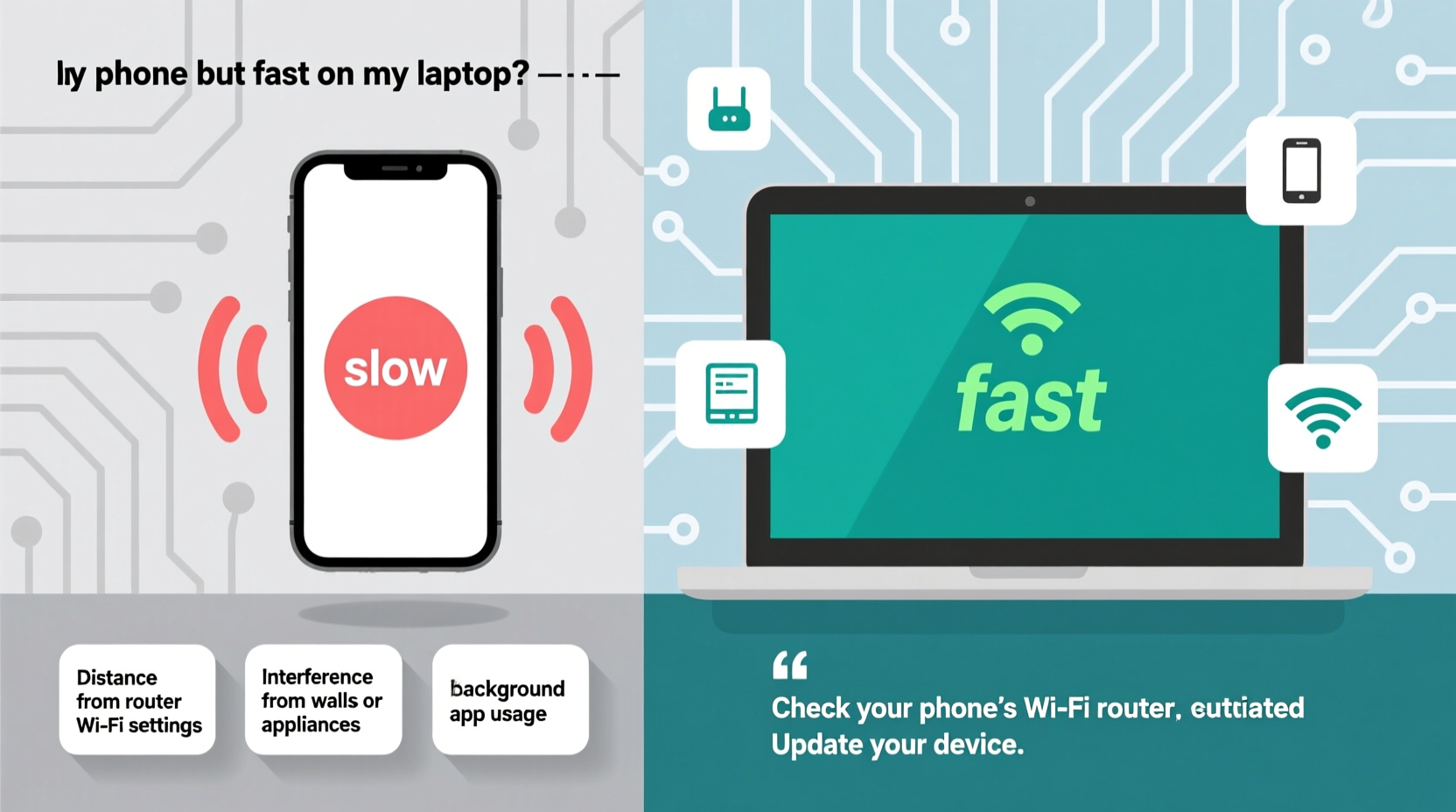
Not all Wi-Fi antennas are created equal. Laptops generally come equipped with more powerful wireless adapters than smartphones due to space, power, and thermal design advantages. While phones prioritize compactness and battery efficiency, laptops have room for larger antennas, better signal processing chips, and multiple-input multiple-output (MIMO) technology that enhances data throughput and range.
Modern laptops often support Wi-Fi 6 (802.11ax) or at least Wi-Fi 5 (802.11ac), while older or budget smartphones may only support Wi-Fi 4 (802.11n). This generational gap significantly impacts maximum theoretical speeds and real-world performance.
| Wi-Fi Standard | Max Speed (Theoretical) | Common Device Types | Frequency Bands |
|---|---|---|---|
| Wi-Fi 4 (802.11n) | 600 Mbps | Budget phones, older tablets | 2.4 GHz only or dual-band |
| Wi-Fi 5 (802.11ac) | 3.5 Gbps | Most modern laptops, mid-range phones | 5 GHz primarily |
| Wi-Fi 6 (802.11ax) | 9.6 Gbps | Newer flagship phones, high-end laptops | Dual-band with OFDMA |
If your phone supports only Wi-Fi 4, it will naturally underperform compared to a Wi-Fi 6 laptop—even when connected to the same access point. Additionally, internal antenna strength, receiver sensitivity, and chipset quality vary widely between phone models and brands.
Signal Interference and Physical Obstacles
Smartphones are typically used in more variable environments than laptops. You might hold your phone in your hand, place it on a metal surface, or use it behind thick walls—all of which degrade signal quality. Materials like concrete, mirrors, and metal furniture absorb or reflect Wi-Fi signals, reducing effective bandwidth.
Laptops, on the other hand, are often placed on desks or tables with a clearer line of sight to the router. Their larger size also allows for better antenna placement and reduced body blockage. In contrast, holding your phone in one hand can partially obstruct its internal antenna, especially if you cover the bottom or side edges where antennas are commonly located.
“Mobile device orientation and proximity to the human body can reduce received signal strength by up to 30%.” — Dr. Lin Zhao, Wireless Network Engineer at IEEE
Moreover, the 2.4 GHz band—commonly used by older or crowded networks—is highly susceptible to interference from Bluetooth devices, microwaves, cordless phones, and neighboring Wi-Fi networks. While laptops may dynamically switch to the cleaner 5 GHz band, some phones default to 2.4 GHz for better range, sacrificing speed.
Router Band Steering and Device Prioritization
Many modern routers use a feature called *band steering* to automatically direct devices to what the router believes is the optimal frequency band (2.4 GHz or 5 GHz). However, not all phones respond well to these signals. Some older or lower-end models may fail to maintain a stable 5 GHz connection, forcing them back to the slower 2.4 GHz band.
Additionally, routers don’t treat all devices equally. They allocate bandwidth based on signal strength, connection type, and traffic demand. A laptop with a strong, sustained signal may receive higher priority in Quality of Service (QoS) settings, especially if it's engaged in activities like video conferencing or large downloads.
Some Internet Service Providers (ISPs) or router firmware even deprioritize mobile devices during peak usage times, assuming they consume less bandwidth—an outdated assumption given today’s streaming-heavy mobile usage.
Steps to Optimize Router Behavior for Phones
- Log into your router’s admin panel (usually via 192.168.1.1 or similar).
- Navigate to the Wireless Settings section.
- Ensure both 2.4 GHz and 5 GHz bands are enabled and visible.
- Disable band steering temporarily to manually connect your phone to the 5 GHz network.
- Check QoS settings and ensure no device class is being throttled unnecessarily.
- Reboot the router after making changes.
Background Processes and Software Limitations
Your phone may appear idle, but background apps are constantly syncing data, updating content, and pinging servers. Social media apps, email clients, cloud backups, and location services all consume bandwidth silently. Even push notifications rely on persistent connections that eat into available throughput.
In contrast, laptops tend to run fewer background processes unless actively configured for cloud sync or automatic updates. Moreover, operating systems like Windows and macOS are optimized for consistent network performance, whereas mobile OSes (especially Android variants) may throttle Wi-Fi during screen-off states to conserve battery.
iOS and Android both include adaptive Wi-Fi features that reduce radio power when signal strength is adequate. While this extends battery life, it can limit peak speeds. On some Samsung and Xiaomi devices, “Intelligent Wi-Fi” or “Adaptive Connectivity” may even switch to mobile data mid-session if the Wi-Fi signal dips momentarily, causing perceived slowness.
Mini Case Study: The Office Worker’s Dilemma
Sarah, a remote project manager, noticed her Zoom calls were consistently choppy on her iPhone 12, despite smooth performance on her MacBook Pro. Both devices were within 10 feet of the router. After testing, she discovered her phone was connecting to the 2.4 GHz band, while her laptop used 5 GHz. Her router’s band steering wasn’t working properly with iOS devices.
She manually renamed her 5 GHz network (e.g., “Home-WiFi-5G”) and connected her phone directly. Call quality improved immediately. She also disabled iCloud Photos sync during work hours, freeing up background bandwidth. These two changes resolved 90% of her connectivity issues.
Network Congestion and Device Density
The number of connected devices in your home has skyrocketed over the past decade. Smart TVs, speakers, security cameras, and wearables all compete for bandwidth. While laptops often dominate in terms of data priority, phones can suffer from packet loss and latency spikes during peak usage.
Phones are particularly sensitive to network congestion because they frequently switch between active and idle states. Each time an app requests new data, the phone must re-establish a connection with the router—a process that becomes slower as more devices share the network.
To assess whether congestion is the issue, try disconnecting other devices temporarily and retest your phone’s speed. Use tools like Ookla Speedtest or Fast.com to measure download, upload, and ping before and after.
Checklist: How to Diagnose and Fix Slow Phone Wi-Fi
- ✅ Confirm both devices are connected to the same network (and ideally the 5 GHz band).
- ✅ Restart your phone and router.
- ✅ Forget and reconnect to the Wi-Fi network on your phone.
- ✅ Disable battery saver or adaptive Wi-Fi modes.
- ✅ Close unused apps running in the background.
- ✅ Update your phone’s OS and router firmware.
- ✅ Test speed at different locations in your home.
- ✅ Manually connect to the 5 GHz network if bands are split.
- ✅ Reset network settings on your phone (Settings > General > Reset > Reset Network Settings on iOS; Network > Reset Options on Android).
- ✅ Consider upgrading your router if it’s more than 3–4 years old.
Frequently Asked Questions
Can a phone’s age affect Wi-Fi speed?
Yes. Phones older than three years likely support only Wi-Fi 4 or early Wi-Fi 5 standards, lack advanced MIMO configurations, and may have degraded antenna performance due to wear or water exposure. Newer phones benefit from beamforming, better modulation schemes, and improved interference handling.
Why does my phone show full bars but still have slow internet?
Signal strength (bars) indicates how well your phone receives the router’s broadcast, not actual throughput. Full bars mean good signal-to-noise ratio, but poor speed can result from network congestion, outdated protocols, background usage, or ISP throttling. Always perform a speed test to verify real performance.
Will using a Wi-Fi extender help my phone?
It depends. Poor-quality extenders can halve your bandwidth and introduce latency. Instead, consider a mesh Wi-Fi system (like Eero, Google Nest, or TP-Link Deco) that provides seamless roaming and intelligent band selection. Mesh networks are especially effective in multi-story homes and reduce dead zones that disproportionately affect smaller devices like phones.
Conclusion: Take Control of Your Mobile Connectivity
The gap between laptop and phone Wi-Fi performance isn’t inevitable—it’s usually the result of correctable mismatches in hardware, configuration, and usage patterns. By understanding the underlying causes, from outdated Wi-Fi standards to hidden background activity, you can take meaningful steps to boost your phone’s connection speed.
Start with simple fixes: reboot your router, reconnect to the 5 GHz band, and close unnecessary apps. Then move to deeper optimizations like adjusting router settings or resetting network preferences. For long-term gains, consider upgrading aging equipment and adopting a mesh network for consistent coverage.




 浙公网安备
33010002000092号
浙公网安备
33010002000092号 浙B2-20120091-4
Comments
No comments yet. Why don't you start the discussion?