
It’s a common frustration: your phone shows full bars in the living room, but just a few steps away in the bedroom or basement, the signal vanishes. You’re not imagining it—WiFi signals don’t travel uniformly through every space. The strength you experience varies dramatically depending on construction materials, router placement, interference sources, and even household appliances. Understanding why this happens is the first step toward solving it.
Modern homes are filled with obstacles that block or weaken WiFi signals. Concrete walls, metal framing, mirrors, and large appliances absorb or reflect radio waves, creating dead zones. At the same time, older routers may lack the range or technology to cover larger floor plans effectively. This guide breaks down the science behind inconsistent WiFi coverage and provides actionable solutions to eliminate weak spots once and for all.
Understanding How WiFi Signals Travel
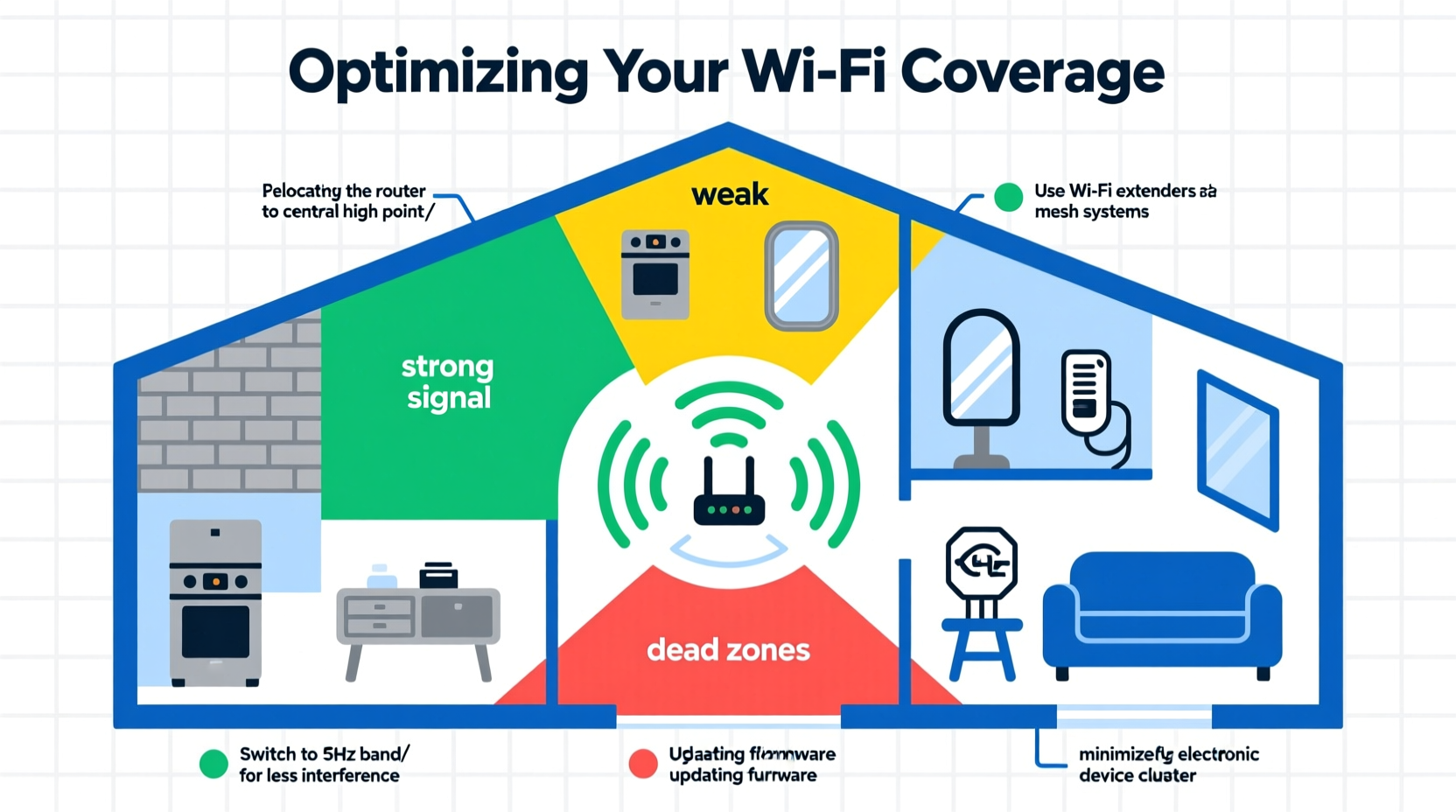
WiFi operates using radio frequencies—typically 2.4 GHz and 5 GHz—transmitted from your router to connected devices. While these signals can pass through air easily, they struggle with solid objects. The 2.4 GHz band travels farther and penetrates walls better but offers slower speeds. The 5 GHz band delivers faster performance but has a shorter range and is more easily blocked by physical barriers.
Signal propagation isn’t linear. It radiates outward in a spherical pattern from your router, weakening with distance and encountering resistance along the way. Think of it like sound: shouting from one room might be clear nearby, but muffled in another due to closed doors or thick walls. Similarly, WiFi degrades when passing through dense materials such as brick, plaster, or refrigerators.
“WiFi doesn’t just disappear—it gets absorbed, reflected, or interfered with. The key is identifying what’s standing between your router and your device.” — Dr. Lena Torres, RF Engineer at NetSignal Labs
Common Causes of Uneven WiFi Coverage
Several factors contribute to spotty connectivity throughout a home. Recognizing them helps pinpoint the root cause rather than guessing at solutions.
- Physical obstructions: Load-bearing walls, metal studs, mirrors, bookshelves, and water-filled appliances (like fish tanks) disrupt signal flow.
- Poor router placement: Routers tucked in closets, basements, or behind TVs suffer from reduced transmission efficiency.
- Interference from other electronics: Microwaves, cordless phones, baby monitors, and Bluetooth devices operate on similar frequencies and can drown out WiFi signals.
- Aged or underpowered hardware: Older routers lack beamforming, dual-band support, or sufficient antennas to maintain consistent coverage.
- Home layout complexity: Multi-level homes, long hallways, or L-shaped floor plans create natural signal shadows.
Step-by-Step Guide to Diagnose and Fix Dead Zones
Solving WiFi inconsistencies requires methodical testing and adjustments. Follow this timeline to identify problem areas and implement effective remedies.
- Map your current signal strength: Use a free app like WiFi Analyzer (Android) or NetSpot (Windows/Mac) to walk through each room and record signal levels in dBm. Anything below -70 dBm indicates poor reception.
- Check router location: Is it central? Elevated? Away from obstructions? Reposition it if necessary—ideally on a shelf in a high-traffic area.
- Test both frequency bands: Connect devices to 2.4 GHz and 5 GHz separately. Note where each performs better. Use 2.4 GHz for coverage, 5 GHz for speed in close proximity.
- Eliminate sources of interference: Turn off non-essential electronics temporarily. Run a microwave test: does streaming pause when it's on? If so, interference is likely.
- Update firmware: Log into your router’s admin panel and check for updates. Outdated firmware can reduce performance and stability.
- Restart equipment: Power cycle your modem and router every few weeks to clear memory leaks and refresh connections.
- Consider network expansion options: Based on results, decide whether a mesh system, extender, or powerline adapter is best suited for your layout.
Choosing the Right Solution: Extenders, Mesh, or Powerline?
Once you’ve identified dead zones, selecting the right technology matters. Each option has strengths and limitations depending on your home’s structure and usage needs.
| Solution | Best For | Limits | Installation Difficulty |
|---|---|---|---|
| WiFi Range Extender | Small to medium homes with one major dead zone | Can halve bandwidth; may create duplicate networks | Easy – plug into wall outlet |
| Mesh WiFi System | Large or multi-story homes needing seamless coverage | Higher upfront cost; requires multiple units | Moderate – sync nodes via app |
| Powerline Adapter | Homes with outdated wiring but stable electrical circuits | Performance depends on circuit quality; not ideal for kitchens | Easy – plug in and connect Ethernet |
Mesh systems like Google Nest WiFi or Eero provide the most reliable whole-home coverage. They use multiple nodes that communicate seamlessly, maintaining a single network name (SSID) throughout the house. Unlike traditional extenders, which often degrade speed, mesh networks dynamically route traffic through the strongest path.
Real-World Example: Eliminating Basement Dead Spots
Take the case of Mark and Sarah, who live in a two-story colonial home. Their router sat in a cabinet near the front door, giving excellent signal upstairs but leaving the finished basement unusable for video calls or streaming.
After mapping their signal, they found -85 dBm readings in the basement—essentially unusable. Moving the router to a central hallway improved upstairs coverage slightly but didn’t reach downstairs. A standard extender placed mid-stairwell failed due to interference from their laundry room’s washer and dryer.
Their solution? A three-node mesh system. One node stayed near the modem, a second was placed halfway down the stairs, and the third was mounted in the basement rec room. Within minutes, signal strength improved to -58 dBm, enabling smooth 4K streaming and lag-free gaming. Total setup time: under 30 minutes.
This illustrates a critical point: dead zones aren't always fixable with simple repositioning. Sometimes, investing in modern infrastructure is the only real fix.
Optimizing Router Settings for Better Coverage
Beyond hardware, software settings play a crucial role in maximizing signal distribution.
- Enable band steering: Allows compatible devices to automatically switch between 2.4 GHz and 5 GHz for optimal performance.
- Adjust channel selection: In crowded neighborhoods, manual selection of less congested channels (e.g., 1, 6, or 11 on 2.4 GHz) reduces interference.
- Turn on Quality of Service (QoS): Prioritizes bandwidth for critical tasks like video conferencing over background downloads.
- Use guest network wisely: Isolate IoT devices to prevent them from clogging your primary network.
Advanced users can also flash third-party firmware like OpenWRT or DD-WRT (if supported), unlocking deeper customization and monitoring tools. However, this carries risks and should only be attempted by experienced users.
WiFi Troubleshooting Checklist
Use this checklist to systematically improve your home network:
- ✅ Test signal strength in all rooms using a WiFi analyzer app
- ✅ Relocate router to a central, elevated position away from obstructions
- ✅ Ensure firmware is up to date
- ✅ Switch to less congested WiFi channels
- ✅ Disable unused devices consuming bandwidth
- ✅ Evaluate need for mesh system, extender, or powerline adapter
- ✅ Install secondary access point or node in dead zone area
- ✅ Monitor performance weekly during peak usage times
Frequently Asked Questions
Can thick walls really block WiFi?
Yes. Materials like concrete, brick, stone, and metal lath significantly attenuate WiFi signals. Even interior drywall with insulation or foil-backed vapor barriers can reduce penetration. Homes built before the 1980s often have plaster walls with metal mesh, which act like Faraday cages.
Is it better to have one powerful router or multiple mesh nodes?
For homes over 2,000 square feet or with complex layouts, multiple mesh nodes outperform even high-end single routers. While powerful routers offer extended range, they still emit signals directionally and weaken through obstacles. Mesh systems distribute intelligence across nodes, ensuring consistent handoffs and coverage.
Do WiFi boosters really work?
Basic “boosters” or generic extenders often do more harm than good by repeating degraded signals and reducing available bandwidth. Modern mesh systems are far superior. If using an extender, ensure it supports dual-band backhaul and seamless roaming (802.11k/v/r standards).
Final Thoughts: Take Control of Your Home Network
Inconsistent WiFi shouldn’t be accepted as inevitable. With a clear understanding of how signals behave and what impacts their delivery, you can transform frustrating dead zones into fully connected spaces. Start with small changes—reposition your router, update settings, map your signal—and progress to strategic upgrades like mesh networking when needed.
Remember, every home is different. What works in a ranch-style bungalow won’t necessarily apply to a split-level townhouse. Patience and testing are essential. But once optimized, a reliable, high-speed connection throughout your entire space becomes not just possible—but expected.




 浙公网安备
33010002000092号
浙公网安备
33010002000092号 浙B2-20120091-4
Comments
No comments yet. Why don't you start the discussion?