
It’s a frustratingly common scenario: your laptop streams 4K video without a hitch, while your phone struggles to load a simple webpage—both connected to the same Wi-Fi network. You’re not imagining it. There are real, measurable reasons why your phone might experience weaker Wi-Fi performance than your laptop, even when they're side by side. The good news? Most of these issues are fixable with practical steps you can take today.
Wi-Fi strength isn’t just about signal bars. It involves hardware capabilities, antenna design, software behavior, and environmental factors. Understanding the root causes empowers you to make informed adjustments that significantly improve your mobile browsing, streaming, and calling experience over Wi-Fi.
Why Phones Often Get Weaker Wi-Fi Than Laptops
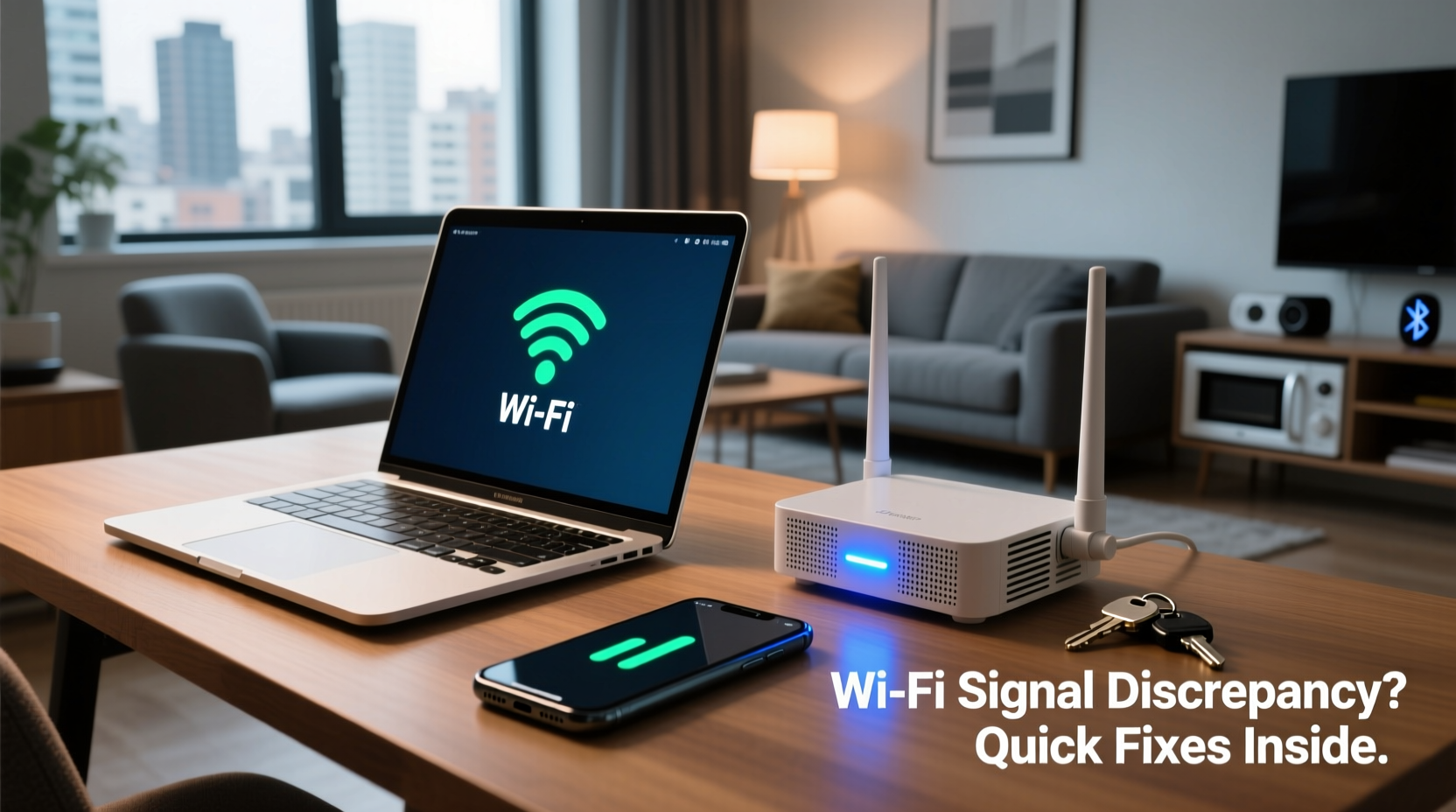
The first step in solving the problem is recognizing that laptops and phones are fundamentally different when it comes to wireless connectivity. These differences aren’t flaws—they’re trade-offs based on design priorities like size, battery life, and cost.
Antenna Design and Placement
Laptops have more internal space, allowing for larger, better-positioned antennas. Many laptops include dual or even triple antennas for MIMO (Multiple Input, Multiple Output) technology, which improves signal reception and data throughput. Phones, constrained by compact designs, often use smaller, less efficient antennas. Their placement—near the bottom or back—can also be blocked by your hand during use, further weakening reception.
Transmit Power and Sensitivity
Laptops typically operate with higher transmit power and better receiver sensitivity due to larger batteries and cooling systems. Phones, optimized for energy efficiency, may reduce radio power to save battery, especially in low-signal areas. This means your phone might “hear” the router less clearly than your laptop, leading to slower speeds or disconnections.
Wi-Fi Standards and Band Support
Not all devices support the same Wi-Fi standards. A modern laptop may support Wi-Fi 6 (802.11ax), while an older or budget phone might only go up to Wi-Fi 5 (802.11ac) or even Wi-Fi 4 (802.11n). Additionally, some phones don’t fully support 5 GHz bands or lack band-steering capabilities, forcing them to stay on the more congested 2.4 GHz band where interference is common.
Software and Background Processes
Phones run aggressive power-saving algorithms that can throttle background network activity. Features like Wi-Fi scanning, adaptive connectivity, and sleep modes may cause your phone to disconnect from optimal networks or delay reconnection. Laptops, especially when plugged in, maintain more consistent network presence.
“Many users assume their phone has the same Wi-Fi capability as their laptop, but the reality is quite different—especially in signal acquisition and stability.” — Dr. Alan Reeves, Wireless Network Engineer at NetSignal Labs
Quick Fixes to Improve Phone Wi-Fi Performance
You don’t need to replace your phone or router to see improvement. Many solutions are simple, free, and take under five minutes. Try these proven fixes in order:
1. Restart Your Phone and Router
A classic but effective step. Over time, both devices can develop temporary glitches in their network stacks. A full reboot clears cached connections and forces a fresh handshake with the router.
2. Forget and Reconnect to the Network
Go to your phone’s Wi-Fi settings, tap the network, and select “Forget.” Then reconnect by entering the password again. This resets the saved profile and can resolve authentication or IP assignment issues.
3. Disable Wi-Fi+ or Adaptive Connectivity
iOS calls this \"Wi-Fi Assist\"; Android brands it as \"Smart Network Switch\" or \"Adaptive Wi-Fi.\" These features automatically switch to cellular data when Wi-Fi is deemed “weak,” but they often act too aggressively. Disabling them gives your phone a chance to stabilize on the Wi-Fi network.
- iOS: Settings > Cellular > Wi-Fi Assist → Off
- Android: Settings > Network & Internet > Wi-Fi > Advanced > Switch to mobile data → Off
4. Manually Select the 5 GHz Band
If your router broadcasts separate SSIDs for 2.4 GHz and 5 GHz (e.g., “HomeNet_2G” and “HomeNet_5G”), connect your phone to the 5 GHz version. It offers faster speeds and less interference, though shorter range. If you’re close to the router, this is ideal.
5. Turn Off Battery Saver Mode
Battery saver modes often limit CPU performance and background network activity. While useful for extending charge, they can degrade Wi-Fi responsiveness. Test your connection with battery saver off to see if performance improves.
Step-by-Step Guide: Optimize Your Home Wi-Fi for Mobile Devices
Solving persistent phone Wi-Fi issues requires a systematic approach. Follow this timeline to diagnose and improve your setup.
- Day 1: Assess Device Capabilities
Check your phone’s supported Wi-Fi standards (Settings > About Phone > Hardware or Specifications online). Compare it with your router’s specs. If your phone lacks Wi-Fi 5 or 5 GHz support, manage expectations—it will never perform like newer devices. - Day 2: Evaluate Router Placement
Move your router to a central, elevated location away from metal objects, microwaves, and thick walls. Even a few feet can dramatically improve signal reach to mobile devices. - Day 3: Update Firmware
Log into your router’s admin page (usually 192.168.1.1 or via a manufacturer app) and check for firmware updates. Outdated firmware can cause compatibility issues with modern phones. - Day 4: Enable Quality of Service (QoS)
Configure QoS settings to prioritize your phone during video calls or streaming. This ensures bandwidth isn’t monopolized by background downloads on other devices. - Day 5: Test with a Wi-Fi Analyzer App
Use apps like WiFi Analyzer (Android) or NetSpot (iOS with limitations) to visualize signal strength, channel congestion, and neighboring networks. Choose the least crowded channel in your router settings.
When Hardware Matters: Comparing Device Limitations
Not all phones are created equal. Budget models often cut corners on Wi-Fi components to reduce costs. The table below outlines key differences between typical device classes.
| Feature | Budget Phone | Premium Phone | Laptop (Mid-Range) |
|---|---|---|---|
| Wi-Fi Standard | Wi-Fi 4 or 5 | Wi-Fi 6 or 6E | Wi-Fi 6 |
| Band Support | 2.4 GHz only or limited 5 GHz | Dual-band + band steering | Dual/tri-band with MIMO |
| Antenna Count | 1–2 | 2–3 | 2–4 |
| Receiver Sensitivity | Moderate (-85 dBm) | High (-90 dBm or better) | Very High (-92 dBm) |
| Typical Real-World Speed | 10–50 Mbps | 100–500 Mbps | 200–800 Mbps |
As shown, high-end phones can rival laptops in Wi-Fi performance—but only if your router supports modern standards. If your router is more than four years old, upgrading could yield dramatic improvements across all devices.
Mini Case Study: Sarah’s Streaming Struggles
Sarah noticed her iPhone buffered constantly during Zoom calls, while her MacBook Pro worked flawlessly. Both were in the same room, connected to the same network. After testing, she discovered her router used a single SSID for both 2.4 GHz and 5 GHz bands. Her iPhone kept connecting to the 2.4 GHz band due to a known iOS quirk with seamless roaming.
She logged into her router, split the bands into two separate networks, and manually connected her phone to the 5 GHz SSID. She also disabled Wi-Fi Assist. Result: Zoom calls stabilized, and her Netflix streams no longer paused. The entire fix took 12 minutes and cost nothing.
Checklist: Fix Weak Phone Wi-Fi in Under 10 Minutes
- ✅ Restart your phone and router
- ✅ Forget and reconnect to the Wi-Fi network
- ✅ Disable Wi-Fi Assist / Adaptive Wi-Fi
- ✅ Turn off battery saver mode temporarily
- ✅ Move closer to the router for testing
- ✅ Ensure you're on the 5 GHz band if available
- ✅ Check for OS updates on your phone
- ✅ Use a Wi-Fi analyzer app to verify signal strength
Frequently Asked Questions
Can a phone booster improve my Wi-Fi?
True Wi-Fi boosters don’t exist for phones. However, a mesh Wi-Fi system or Wi-Fi extender can expand coverage in your home, giving your phone a stronger signal from a nearby node. Avoid “signal booster” apps—they’re scams that can’t enhance hardware-limited reception.
Why does my phone show full bars but still perform poorly?
Signal bars are misleading. They reflect signal strength, not speed or reliability. Your phone might have a strong signal but suffer from packet loss, latency, or network congestion. Run a speed test and check ping times to get a clearer picture of actual performance.
Will resetting network settings help?
Yes. Resetting network settings (Settings > General > Reset > Reset Network Settings on iOS; System > Reset Options on Android) clears all saved Wi-Fi networks, Bluetooth pairings, and APN configurations. It’s a deeper reset than forgetting a single network and often resolves stubborn connectivity issues.
Conclusion: Take Control of Your Mobile Connectivity
Your phone doesn’t have to suffer from weak Wi-Fi while your laptop thrives. The disparity stems from real technical differences, but most of the gap can be closed with smart adjustments. From tweaking settings to optimizing router placement, the tools are already in your hands. Start with the quick fixes—many take less than a minute—and work through the deeper optimizations if needed.
Don’t accept poor performance as inevitable. Modern Wi-Fi is powerful, but it requires awareness and maintenance. By understanding how your devices interact with your network, you gain control over your digital experience. Implement one fix today, monitor the results, and build from there.




 浙公网安备
33010002000092号
浙公网安备
33010002000092号 浙B2-20120091-4
Comments
No comments yet. Why don't you start the discussion?