
If you’ve ever noticed that your smartphone shows full Wi-Fi bars while your laptop struggles to load a simple webpage, you’re not imagining things. This common frustration affects users across homes, offices, and co-working spaces. The root causes are often technical but solvable—ranging from hardware limitations to software misconfigurations. Understanding why this happens is the first step toward restoring reliable, high-speed internet across all your devices.
The disparity in Wi-Fi performance between phones and laptops isn’t random. Phones typically have newer wireless chipsets, better antenna designs, and optimized firmware for mobile networks. Laptops, especially older models or budget machines, may use outdated or lower-quality Wi-Fi adapters that simply can't keep up. But before assuming your laptop is obsolete, it’s worth investigating whether the issue stems from settings, interference, or avoidable configuration errors.
Understanding the Core Differences Between Devices
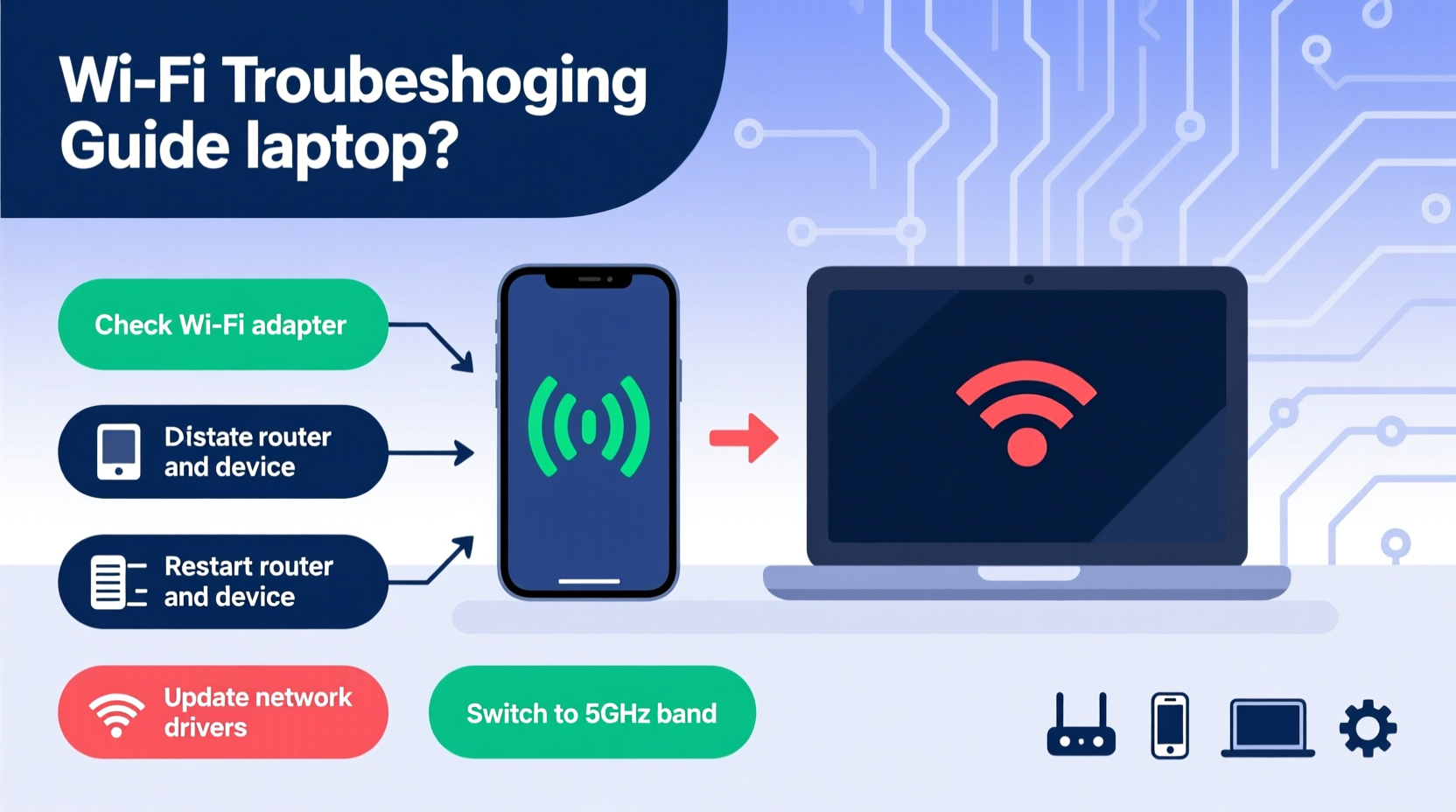
Not all Wi-Fi receivers are created equal. Your phone and laptop connect to the same router, but they do so using different hardware components and protocols. These differences explain why one device might thrive while another falters.
- Wi-Fi Standards: Modern smartphones often support Wi-Fi 6 (802.11ax), while many laptops—even relatively new ones—may only support Wi-Fi 5 (802.11ac) or earlier. Newer standards offer faster speeds, better efficiency, and improved handling of network congestion.
- Antenna Design: Phones are engineered with compact, multi-directional antennas optimized for mobility. Laptops, particularly thin-and-light models, may have smaller or poorly positioned internal antennas, reducing their ability to capture signals effectively.
- Transmit Power and Sensitivity: Mobile devices often have more aggressive power management for Wi-Fi radios, allowing them to maintain connections at lower signal strengths. Laptops may disconnect or throttle speed sooner under weak signal conditions.
- Operating System Optimization: iOS and Android prioritize background connectivity and roaming between access points. Windows and macOS sometimes lag in seamlessly switching channels or managing interference.
“Signal reception isn’t just about proximity—it’s a combination of hardware capability, driver optimization, and environmental factors.” — Dr. Lena Patel, Network Systems Engineer at NetSight Labs
Step-by-Step Troubleshooting Guide
Before upgrading hardware or replacing equipment, follow this systematic approach to identify and resolve the issue.
- Verify Signal Strength Consistency
Stand in the same location with both devices. Check the Wi-Fi signal indicator on each. If the phone shows 4–5 bars and the laptop shows 1–2, the discrepancy is confirmed. - Restart Both Devices and Router
A simple reboot clears temporary glitches. Turn off your laptop and phone, restart your router (unplug for 30 seconds), then power everything back on. - Check for Physical Obstructions
Walls, furniture, mirrors, and appliances like microwaves can block or reflect Wi-Fi signals. Metal laptop casings can also interfere with internal antennas. Try moving closer to the router without barriers in between. - Test on Different Networks
Connect your laptop to another Wi-Fi network (e.g., a friend’s home or public hotspot). If performance improves, the issue may be related to how your laptop interacts with your primary router’s settings. - Update Network Drivers
Outdated drivers are a leading cause of poor Wi-Fi performance on laptops. Go to your laptop manufacturer’s support site, enter your model number, and download the latest wireless LAN driver. - Disable Power-Saving Mode for Wi-Fi
Some laptops reduce Wi-Fi radio power to conserve battery. In Windows: go to Device Manager > Network Adapters > right-click your Wi-Fi adapter > Properties > Power Management > uncheck “Allow the computer to turn off this device to save power.” - Change Wireless Channel on Router
Congested channels (especially on 2.4 GHz) can degrade performance. Log into your router’s admin panel (usually via 192.168.1.1) and switch to a less crowded channel. Use tools like Wi-Fi Analyzer (on Android) to detect interference.
Common Hardware and Software Issues
Even with proper setup, certain underlying problems can cripple Wi-Fi performance on laptops.
| Issue | Description | Solution |
|---|---|---|
| Outdated Wi-Fi Adapter | Laptops older than 5 years may use 802.11n or early 802.11ac chips with limited range and speed. | Upgrade to a USB 3.0 Wi-Fi 6 adapter (~$25–$40). |
| Driver Conflicts | Windows updates can overwrite stable drivers with incompatible versions. | Roll back to previous driver or install manufacturer-signed version. |
| Dual-Band Misconfiguration | Laptop connects to 5 GHz band too far from router, where signal degrades quickly. | Temporarily disable 5 GHz on router; test on 2.4 GHz for stability. |
| Interference from Peripherals | USB 3.0 devices, external hard drives, or poorly shielded cables emit RF noise. | Disconnect peripherals one by one to isolate interference sources. |
| Malware or Background Apps | Bandwidth-hogging software can make the connection feel slow even if signal is strong. | Run antivirus scan and check Task Manager for high network usage. |
Mini Case Study: Sarah’s Home Office Struggle
Sarah, a freelance graphic designer, relied on video calls and cloud file transfers. She noticed her iPhone had flawless Zoom calls, but her 2018 MacBook Pro frequently dropped audio and froze during screen sharing. Initially, she blamed her ISP. After testing, she discovered her MacBook was connecting to the 5 GHz network from across the house—where the signal was weak. Her phone automatically switched to 2.4 GHz when needed, but her laptop stayed stubbornly on 5 GHz. By renaming her bands (e.g., “Home-WiFi-2G” and “Home-WiFi-5G”), she manually connected her laptop to the 2.4 GHz network. Stability improved instantly. Later, she upgraded to a mesh Wi-Fi system, eliminating dead zones entirely.
Optimizing Laptop Wi-Fi Settings for Better Performance
Unlike smartphones, laptops allow deep customization of network behavior. Adjusting these settings can yield significant improvements.
- Prioritize 2.4 GHz for Range, 5 GHz for Speed: Use 2.4 GHz when farther from the router; switch to 5 GHz when nearby for faster throughput.
- Set Preferred Networks: Remove old or unused networks from saved lists. Duplicate or hidden SSIDs can cause connection delays.
- Adjust Roaming Aggressiveness (Windows): In advanced Wi-Fi adapter settings, set “Roaming Sensitivity” to “Highest” to help your laptop stay connected longer in low-signal areas.
- Disable IPv6 Temporarily: Some routers handle IPv6 poorly. Disabling it can reduce latency and improve reliability.
- Use Ethernet When Possible: For critical tasks (streaming, gaming, large downloads), a wired connection bypasses Wi-Fi issues entirely.
When to Upgrade: Hardware Solutions That Work
Sometimes, troubleshooting isn’t enough. If your laptop consistently underperforms despite fixes, consider these upgrades.
External USB Wi-Fi Adapters
Plug-and-play adapters support Wi-Fi 6, dual-band operation, and external antennas. Look for models with high dB gain (e.g., TP-Link Archer TX20U or ASUS USB-AX56). They’re ideal for older laptops lacking modern wireless capabilities.
M.2 Wi-Fi Card Replacement
If you're comfortable opening your laptop, replacing the internal Wi-Fi card with a newer model (like Intel AX200 or AX210) can dramatically improve speed and range. Ensure compatibility with your laptop’s BIOS and physical slot.
Mesh Wi-Fi or Extenders
If the problem is coverage, not the laptop itself, a mesh system (e.g., Eero, Google Nest Wi-Fi) extends signal evenly throughout your space. Unlike single extenders, mesh networks provide seamless roaming and consistent naming.
“Upgrading a five-year-old laptop’s Wi-Fi module can restore 70% of the performance gap compared to modern smartphones.” — Carlos Mendez, IT Infrastructure Consultant
Troubleshooting Checklist
Follow this concise checklist to systematically eliminate common causes:
- ✅ Restart router and laptop
- ✅ Compare signal strength in the same location
- ✅ Update Wi-Fi driver from manufacturer’s website
- ✅ Disable Wi-Fi power-saving mode
- ✅ Test on a different Wi-Fi network
- ✅ Switch laptop to 2.4 GHz band temporarily
- ✅ Run malware scan and check for bandwidth-heavy apps
- ✅ Reposition router away from obstructions and electronics
- ✅ Consider using a USB Wi-Fi 6 adapter
- ✅ Evaluate mesh network for whole-home coverage
Frequently Asked Questions
Can a virus cause weak Wi-Fi on my laptop?
While viruses don’t directly weaken signal strength, malware can consume bandwidth in the background (e.g., crypto-mining, data exfiltration), making the connection appear slow. Always run a full system scan if unexplained network activity is detected.
Why does my laptop disconnect from Wi-Fi but my phone doesn’t?
This often points to driver instability or power management settings. Laptops may drop connections when entering sleep mode or due to aggressive power-saving features. Adjusting the Wi-Fi adapter’s power settings and ensuring driver updates are current usually resolves this.
Is it worth upgrading my laptop’s Wi-Fi card?
If your laptop is otherwise functional and meets your performance needs, upgrading the Wi-Fi card is cost-effective. A $30 AX210 card can add Wi-Fi 6E, Bluetooth 5.3, and superior reception, extending the machine’s useful life by years.
Conclusion: Take Control of Your Connectivity
The imbalance between strong phone Wi-Fi and weak laptop signal is a widespread but fixable issue. It often stems from overlooked settings, aging hardware, or environmental interference—not inherent flaws in your internet service. By methodically testing, updating drivers, optimizing configurations, and considering targeted upgrades, you can achieve consistent, reliable performance across all your devices.
Don’t accept spotty connectivity as inevitable. Whether you're working remotely, streaming content, or attending virtual meetings, a stable Wi-Fi connection is essential. Apply these strategies today, and transform your laptop from a bottleneck into a seamless part of your digital ecosystem.




 浙公网安备
33010002000092号
浙公网安备
33010002000092号 浙B2-20120091-4
Comments
No comments yet. Why don't you start the discussion?