
Nothing disrupts productivity or gaming performance like a lagging wireless mouse. One moment you're smoothly navigating spreadsheets or lining up a headshot, the next—jittery movement, delayed clicks, or complete disconnection. While frustrating, most wireless mouse lag issues are rooted in identifiable causes and can be resolved quickly with the right approach. The problem isn’t always the mouse itself; often, it's environmental interference, outdated drivers, or simple hardware oversights. This guide dives deep into the real reasons behind wireless mouse lag and delivers practical, step-by-step solutions to restore seamless operation—often in under five minutes.
Understanding the Root Causes of Wireless Mouse Lag
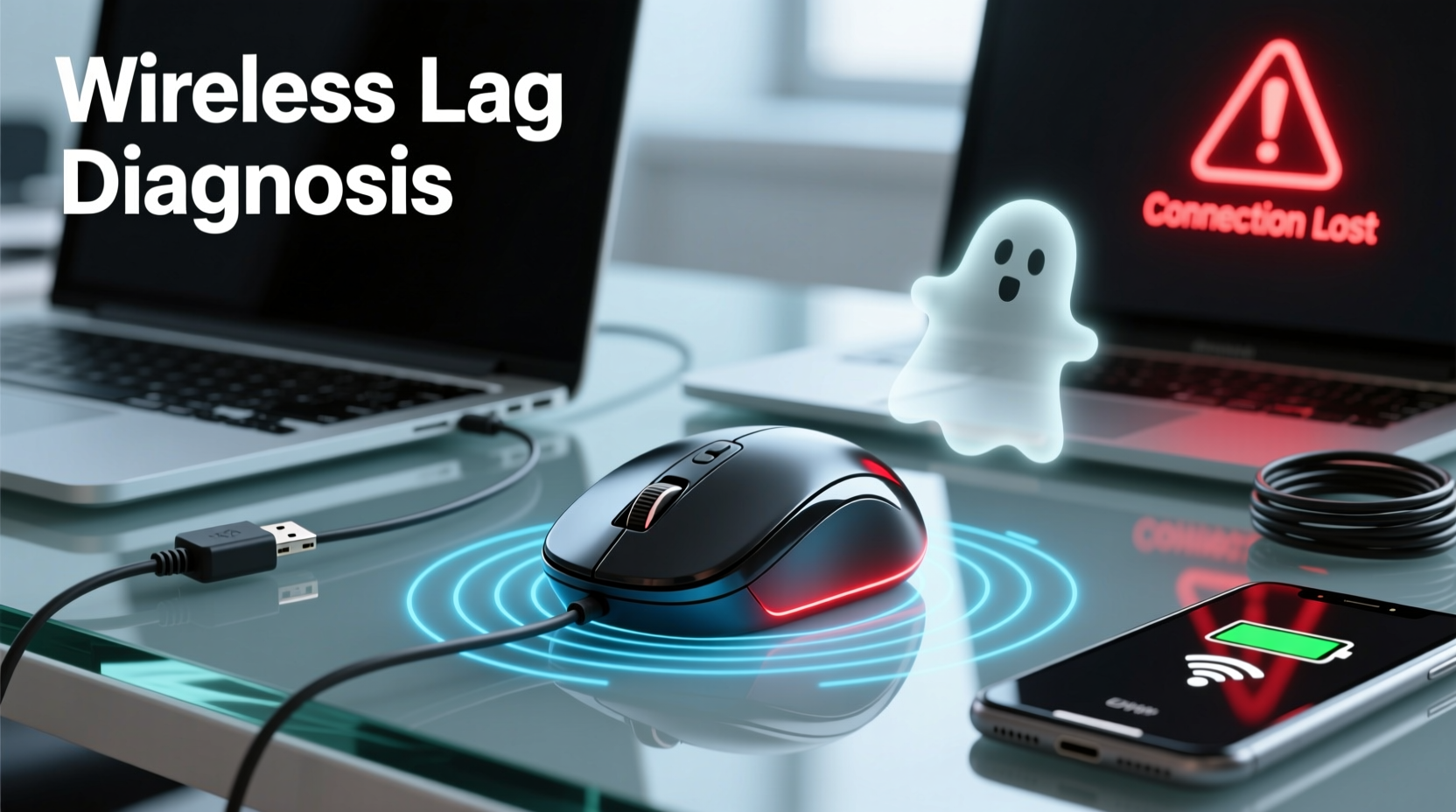
Wireless mice rely on stable signal transmission between the device and receiver (usually via USB dongle or Bluetooth). Any disruption in this communication can cause input delay, cursor stuttering, or intermittent unresponsiveness. Unlike wired mice, which offer direct data transfer, wireless models are vulnerable to several external and internal factors.
The most common culprits include:
- Signal interference from other wireless devices (Wi-Fi routers, cordless phones, microwaves)
- Low battery power, leading to reduced transmission strength
- Outdated or corrupted drivers on the host computer
- Poor USB port placement or use of USB hubs that degrade signal quality
- Bluetooth congestion when multiple devices share the same frequency band
- Physical obstructions between the mouse and receiver
- Dongle placement issues, especially if the USB port is blocked or far from the desk surface
Before assuming your mouse is faulty, consider that over 70% of reported lag cases stem from easily correctable setup flaws rather than hardware failure. Recognizing the source is half the battle.
Step-by-Step Guide to Fix Wireless Mouse Lag Instantly
Follow this systematic troubleshooting sequence to identify and eliminate the cause of your mouse lag. Most fixes take less than two minutes and don’t require technical expertise.
- Replace or recharge the batteries
Start with the simplest solution. Weak batteries reduce transmission power. Swap in fresh ones—even if the battery indicator shows “medium.” Alkaline cells can maintain voltage readings while failing under load. - Reposition the USB receiver
If using a USB dongle, ensure it’s plugged directly into a front or side USB port on your PC—not through a hub or extension cable. Use a USB extension cable to move the receiver closer to the mouse if necessary. Keep it at least six inches above metal surfaces and away from monitors or speakers. - Switch to a different USB port
Try another USB port, preferably one on the opposite side of your system or a different controller. Some ports suffer from power delivery issues or electromagnetic interference. - Check for wireless interference
Turn off nearby devices like cordless phones, baby monitors, or microwave ovens temporarily. Move Wi-Fi routers at least three feet away from your workspace. For 2.4 GHz mice, avoid placing them near large metal objects or thick walls. - Update or reinstall mouse drivers
Go to Device Manager (Windows) or System Information (macOS), locate your mouse under “Mice and pointing devices,” and update the driver. Alternatively, uninstall the device and let the OS reinstall it automatically upon replugging. - Disable Bluetooth devices temporarily
If using both Bluetooth and Wi-Fi, disable non-essential Bluetooth peripherals (keyboards, headphones) to reduce channel congestion. Prioritize your mouse by connecting it via dedicated dongle instead of shared Bluetooth. - Clean the sensor lens
Use a dry microfiber cloth to wipe the optical sensor on the bottom of the mouse. Dust, hair, or smudges can cause erratic tracking that feels like lag. - Test on a different surface
Avoid reflective, transparent, or patterned mouse pads. These confuse optical sensors. Use a plain matte surface or official mousepad for consistent tracking.
After each step, test the mouse by moving it slowly and rapidly across the screen. Click frequently to check responsiveness. If lag persists after all steps, proceed to deeper diagnostics.
Do’s and Don’ts: Best Practices for Stable Wireless Performance
Maintaining a lag-free experience requires ongoing attention to setup hygiene. The table below outlines key behaviors to adopt—and avoid—for reliable wireless mouse operation.
| Do’s | Don’ts |
|---|---|
| Use a USB extension cable to position the receiver near your mouse | Plug the receiver into a USB hub or behind your PC where signals are blocked |
| Keep firmware updated using manufacturer software (Logitech G Hub, Razer Synapse) | Ignore firmware notifications—outdated firmware can introduce bugs |
| Use high-quality alkaline or lithium batteries for consistent voltage | Mix old and new batteries or use cheap zinc-carbon cells |
| Place the receiver away from metal objects and monitors | Rest the receiver on top of a laptop chassis or near a power brick |
| Limit simultaneous wireless devices in dense environments | Run multiple 2.4 GHz devices (keyboard, headset, mouse) without spacing them apart |
Expert Insight: What Engineers Say About Signal Stability
Wireless peripheral design involves balancing range, power efficiency, and interference resistance. According to Dr. Alan Reeves, senior RF engineer at a leading peripheral manufacturer:
“Most consumer-grade wireless mice operate in the 2.4 GHz ISM band, which is shared with Wi-Fi, Bluetooth, and many household devices. Even minor RF congestion can increase packet loss, causing the system to retransmit data—this creates perceived lag. Proper antenna placement in the receiver and adaptive frequency hopping are critical, but user setup plays an equally important role.” — Dr. Alan Reeves, RF Systems Engineer
This insight underscores that while technology has improved, optimal performance still depends on environment and configuration. A well-designed mouse can still struggle in a poorly arranged workspace.
Real-World Example: Resolving Lag in a Home Office Setup
Sarah, a freelance graphic designer, began experiencing severe mouse lag during client Zoom calls. Her Logitech MX Master 3 would freeze mid-click, disrupting presentations. She assumed the mouse was failing and considered replacement.
Instead, she followed a diagnostic checklist:
- She replaced the batteries—no change.
- She moved the USB receiver from a rear desktop port to a front one using an extension cable—tracking improved slightly.
- Then she noticed her Wi-Fi router was sitting directly beside the PC tower, less than eight inches from the USB port.
- She relocated the router to the other side of the room and switched her laptop to Ethernet.
The result? Immediate restoration of smooth cursor movement. The proximity of the high-power Wi-Fi transmitter had been drowning out the mouse’s low-power 2.4 GHz signal. No hardware was replaced—just smarter placement.
When to Consider Hardware or Connection Upgrades
If basic fixes fail, consider upgrading your setup. Not all wireless technologies are equal. Here are scenarios where investment makes sense:
- Switch to a dual-mode mouse that supports both Bluetooth and proprietary 2.4 GHz dongles. The latter typically offers lower latency and better interference handling.
- Use a mouse with Lightsync or Adaptive Frequency Technology (e.g., Logitech’s “Lightspeed”) that dynamically avoids congested channels.
- Upgrade to a wireless gaming mouse if you’re a competitive player. These prioritize speed, polling rates up to 1000 Hz, and optimized firmware.
- Replace aging hardware—mice older than 3–5 years may lack modern signal processing and suffer from worn internal components.
Additionally, if you're using Bluetooth on a crowded system (e.g., MacBook with multiple accessories), pairing the mouse via a dedicated USB-C to USB-A adapter with a dongle often yields better results than native Bluetooth pairing.
Frequently Asked Questions
Can a bad USB port cause mouse lag?
Yes. Faulty or underpowered USB ports can deliver inconsistent voltage, leading to intermittent communication. Try different ports, especially those directly on the motherboard rather than front-panel hubs. On desktops, rear panel ports are usually more reliable.
Does USB 3.0 interfere with wireless mice?
Yes—USB 3.0 ports can emit electromagnetic noise in the 2.4 GHz range, interfering with wireless signals. Keep your mouse receiver at least four inches away from USB 3.0 ports or use ferrite-core shielded extension cables to reduce crosstalk.
Is Bluetooth or 2.4 GHz better for reducing lag?
For performance, 2.4 GHz with a dedicated dongle is superior. It offers lower latency, higher polling rates, and less competition with other services. Bluetooth is convenient but shares bandwidth with audio, keyboards, and phones, increasing the chance of delay.
Conclusion: Take Control of Your Wireless Experience
Wireless mouse lag is rarely a permanent flaw—it's usually a solvable mismatch between technology and environment. By understanding signal dynamics, optimizing placement, and maintaining your hardware, you can eliminate delays and enjoy responsive, reliable control. Most fixes require no tools, cost nothing, and take mere minutes. Don’t rush to replace your mouse; instead, methodically troubleshoot the connection chain. With the right adjustments, even an older model can perform like new. Apply these strategies today and reclaim the precision your work—or play—demands.




 浙公网安备
33010002000092号
浙公网安备
33010002000092号 浙B2-20120091-4
Comments
No comments yet. Why don't you start the discussion?