
If you've opened Microsoft Word recently and found yourself staring at a black or dark gray interface with white text, you're not alone. Dark mode has become increasingly popular for reducing eye strain and conserving battery life on certain devices. However, if you didn’t intentionally enable it—or if it suddenly appeared without warning—it can be disorienting. The question “Why is Word in dark mode?” is more common than you might think, especially after system updates or new Office installations.
This guide explains why Word may default to dark mode, how to identify the source of the setting, and most importantly, how to switch back to light mode—or customize your preferred theme—with confidence.
Understanding Why Word Switched to Dark Mode
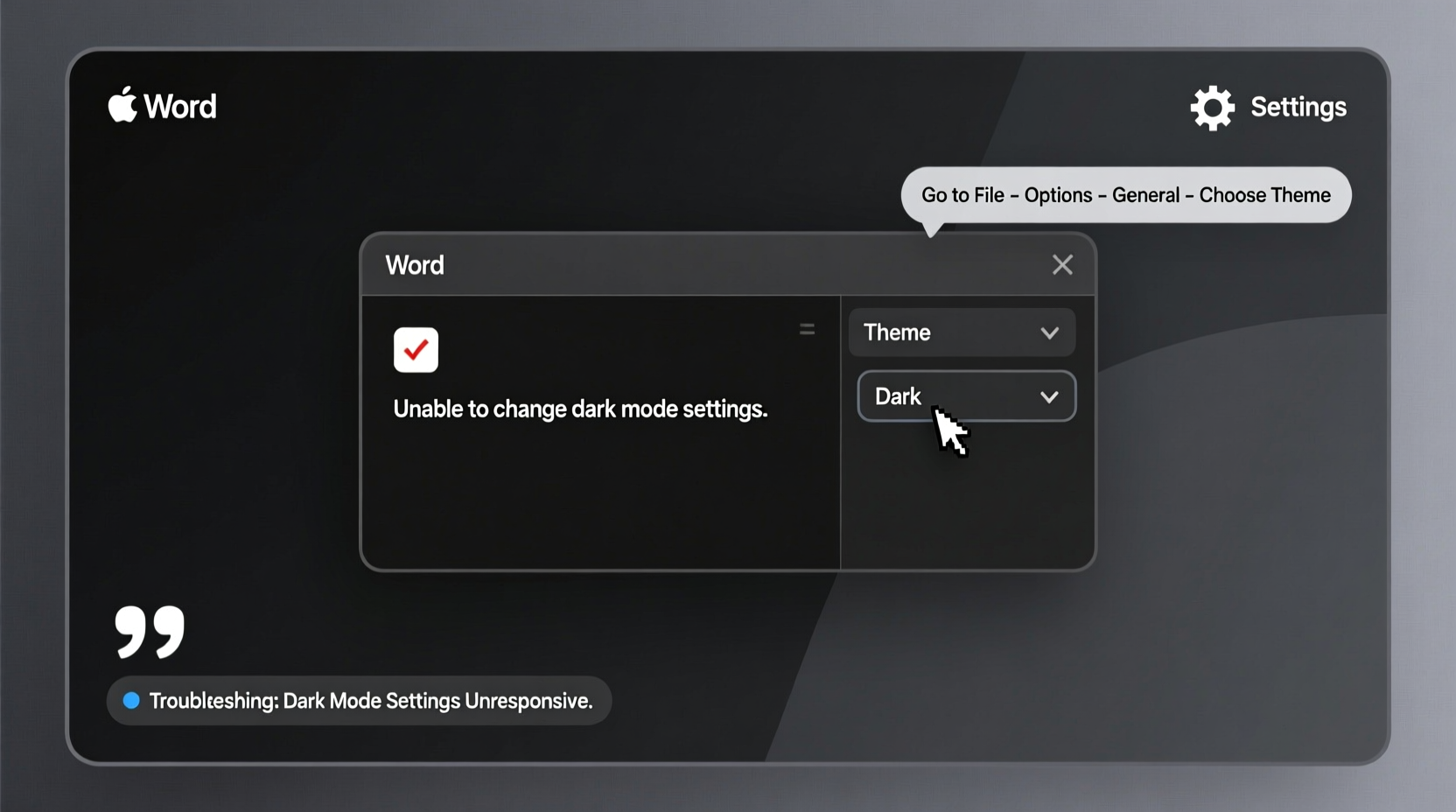
Microsoft Word doesn’t decide on its own to go dark. The appearance is typically inherited from one of several system-level or application-specific settings. Common triggers include:
- Windows/Mac OS theme settings: If your operating system is set to dark mode, Office applications often follow suit.
- Office Account Sync: If you use a Microsoft account across multiple devices, theme preferences may sync automatically.
- Recent Office Updates: Newer versions of Office 365 and Microsoft 365 default to dark mode under certain conditions.
- User Profile Corruption: In rare cases, corrupted user profiles can cause unexpected UI behavior, including unintended dark themes.
Before making changes, it’s important to determine where the dark mode instruction is coming from—your OS, your Office app, or your Microsoft account.
How to Change Word Back to Light Mode (Step-by-Step)
Changing Word’s appearance involves navigating through the Options menu. Follow these steps regardless of whether you're using Windows or Mac—though minor interface differences exist.
- Open Microsoft Word.
- Click on File in the top-left corner (Windows) or Word in the menu bar (Mac).
- Select Options (Windows) or Preferences (Mac).
- In the window that appears, choose General.
- Look for the section labeled Personalize your copy of Microsoft Office.
- Find the dropdown menu next to Office Theme or Color Scheme.
- Select White or Light Gray instead of Black or Dark Gray.
- Close the options window. Word will apply the change immediately.
The ribbon, toolbar, and background should now reflect a lighter color scheme. This adjustment affects all Office apps (Excel, PowerPoint, Outlook) unless they are configured separately.
Platform-Specific Fixes and Settings
Different operating systems interact with Office in unique ways. Here’s how to troubleshoot dark mode based on your platform.
On Windows 10/11
Windows exerts strong influence over app appearance. Even if you set Word to light mode, a system-wide dark theme can override it.
To check:
- Press Windows + I to open Settings.
- Go to Personalization > Colors.
- Under \"Choose your color,\" select Light.
- Ensure \"Choose your default app mode\" is also set to Light.
After this, restart Word. It should now display in light mode unless overridden by an Office-specific setting.
On macOS
macOS handles dark mode globally. If your Mac is in dark mode, Word will usually follow—unless manually changed.
To fix:
- Click the Apple logo in the top-left corner.
- Select System Settings (or System Preferences on older versions).
- Go to Appearance.
- Switch from Dark to Light.
Note: You can keep your Mac in dark mode while forcing Word into light mode by adjusting the Office Theme independently, as outlined earlier.
| Platform | System-Level Fix | App-Level Fix |
|---|---|---|
| Windows 10/11 | Settings > Personalization > Colors > Light | File > Options > General > Office Theme > White |
| macOS | System Settings > Appearance > Light | Word > Preferences > General > User Interface Theme > Light |
| Office Online (Web) | Browser follows system theme | Profile icon > Office Theme > White |
Common Pitfalls and What Not to Do
While changing themes seems straightforward, users often run into avoidable issues. Below are frequent mistakes and how to prevent them.
- Mistake: Only changing the document background instead of the app theme.
Solution: Document color (Design > Page Color) affects only page fill, not the UI. Focus on the Office Theme setting. - Mistake: Assuming the setting is per-document.
Solution: Theme choice applies to the entire Office suite, not individual files. - Mistake: Forgetting about synced Microsoft accounts.
Solution: Log into office.com and check your theme settings there—they may push changes to your desktop apps.
“Many users don’t realize that their cloud profile settings can override local preferences. Always verify your online account settings when troubleshooting unexpected UI changes.” — Daniel Reed, Microsoft 365 Support Specialist
Troubleshooting When Light Mode Won’t Stick
Sometimes, even after selecting light mode, Word reverts to dark mode on restart. This persistent issue usually stems from one of three causes:
- Synced Microsoft Account Theme: Visit office.com, sign in, click your profile picture, and choose a light theme under \"Office Theme.\"
- Corrupted Normal.dotm Template: This hidden file controls default settings. Rename it (found in
C:\\Users\\[User]\\AppData\\Roaming\\Microsoft\\Templates) to reset Word defaults. - Group Policy or Admin Restrictions: In workplace environments, IT policies may enforce dark mode. Contact your administrator if changes don’t persist.
FAQ
Does dark mode save battery?
Yes—but only on OLED or AMOLED screens. On standard LCD monitors (most laptops and desktops), the power savings are negligible. The benefit is primarily reduced eye strain in low-light environments.
Can I have different themes for Word and Excel?
No. The Office Theme setting applies uniformly across Word, Excel, PowerPoint, Outlook, and other installed Office apps. You cannot set Word to light and Excel to dark natively.
Why does Word look different from other apps even after changing the theme?
Some third-party add-ins or legacy compatibility modes can interfere with UI rendering. Disable add-ins temporarily via File > Options > Add-ins to test if appearance normalizes.
Expert Recommendation: Customize for Comfort
While light mode remains the default for readability and professional printing workflows, personal preference plays a major role. Some users find dark mode easier on the eyes during evening work sessions.
Rather than sticking rigidly to one theme, consider adopting a dynamic approach:
- Use light mode during daytime hours for better contrast and clarity.
- Switch to dark mode at night to reduce glare.
- Leverage Windows’ “Schedule dark mode” feature or macOS automation tools to toggle themes automatically.
The goal isn’t uniformity—it’s sustainability. Choose what keeps you productive and comfortable over long writing sessions.
Conclusion
The sudden appearance of dark mode in Word is rarely a glitch—it’s usually the result of cascading settings from your OS, account, or recent updates. By understanding where the theme originates, you regain control. Whether you prefer the crisp clarity of light mode or the sleek minimalism of dark, the ability to switch confidently empowers your workflow.
Take a moment today to review your system, Office, and account settings. Align them with your visual comfort and work environment. Small adjustments like these don’t just improve aesthetics—they enhance focus, reduce fatigue, and make daily tasks more enjoyable.




 浙公网安备
33010002000092号
浙公网安备
33010002000092号 浙B2-20120091-4
Comments
No comments yet. Why don't you start the discussion?