
If your device isn’t accurately reflecting your current location, it can disrupt everything from navigation to fitness tracking and social check-ins. While occasional glitches are normal, persistent failure to update your position is more than just frustrating—it can impact safety, productivity, and convenience. The root cause might be software-related, hardware-based, or environmental. This guide dives deep into practical solutions beyond the basics, helping you diagnose and resolve why your location isn't updating—quickly and effectively.
Understanding How Location Services Work
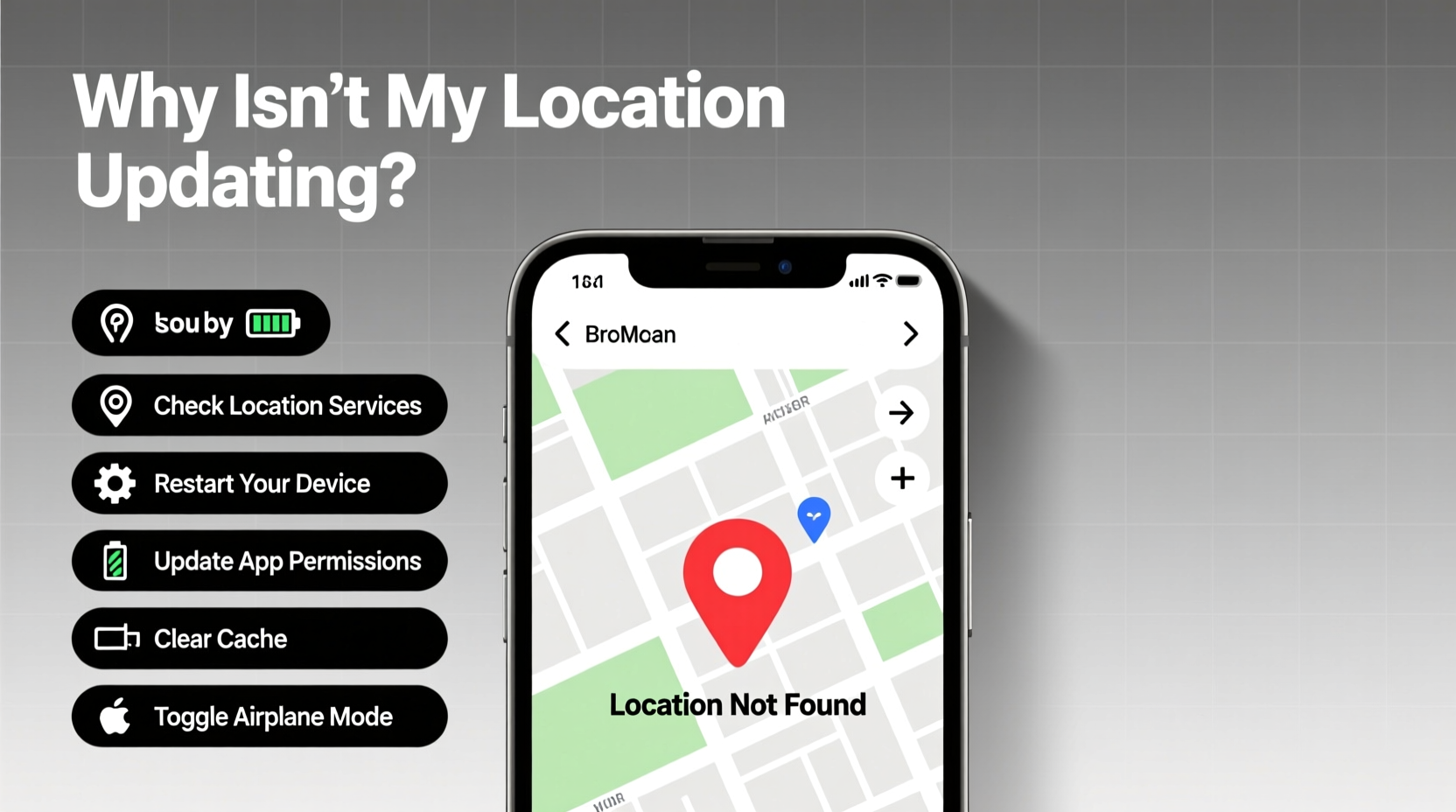
Your smartphone doesn’t rely solely on GPS satellites to determine your position. Instead, it uses a combination of technologies: GPS for outdoor precision, Wi-Fi positioning for indoor accuracy, cellular tower triangulation in areas with weak satellite signals, and Bluetooth beacons in smart environments. When one or more of these systems fail to communicate properly, your location may freeze, jump erratically, or fail to load entirely.
Modern operating systems like Android and iOS use adaptive location modes (e.g., “High Accuracy,” “Battery Saving”) that balance performance and power consumption. If set incorrectly, your phone may limit location updates to conserve energy—even when you need real-time tracking.
“Location accuracy depends on a dynamic mix of sensors and network inputs. A single point of failure can cascade across the entire system.” — Dr. Lena Torres, Mobile Systems Engineer at GeoTech Labs
Step-by-Step Guide to Restore Accurate Location Updates
Before jumping to conclusions about faulty hardware, follow this structured diagnostic process:
- Verify Location Settings: Ensure location services are enabled globally and for the specific app experiencing issues.
- Switch to High Accuracy Mode: On Android, go to Settings > Location > Mode and select “High Accuracy.” On iOS, ensure both “Precise Location” and “Share My Location” are toggled on where applicable.
- Restart the Device: A simple reboot clears temporary cache glitches affecting sensor data flow.
- Check App Permissions: Confirm the app has permission to access location even when in use. Re-grant permissions if unsure.
- Clear App Cache (Android): Go to Settings > Apps > [App Name] > Storage > Clear Cache. Avoid clearing data unless necessary.
- Update Software: Install the latest OS and app updates—many bugs related to geolocation are patched in newer versions.
- Calibrate the Compass: Open Google Maps, tap the blue dot, and follow prompts to move your phone in a figure-eight motion. This helps align internal sensors.
- Toggle Airplane Mode: Turn Airplane Mode on for 10 seconds, then off. This resets all wireless radios including GPS.
- Reset Network Settings: As a last resort, reset network settings (Settings > System > Reset Options). Note: This erases saved Wi-Fi passwords.
- Test in Open Sky: Move outdoors away from tall buildings or tunnels to rule out signal obstruction.
Common Causes and Their Fixes
Not all location problems stem from user error. Some are environmental, while others relate to deeper system conflicts. Below is a breakdown of frequent culprits and targeted remedies.
| Issue | Possible Cause | Solution |
|---|---|---|
| Location frozen or outdated | Inactive background app refresh | Enable Background App Refresh for the app in settings |
| No GPS signal indoors | Satellite blockage | Use Wi-Fi-based location; enable indoor mapping features |
| Wrong location shown | Wi-Fi spoofing or incorrect network database | Forget nearby networks, disable Wi-Fi scanning temporarily |
| Battery-saving mode interference | OS restricts background location use | Add app to battery optimization whitelist |
| Delayed updates during travel | Poor cellular coverage | Download offline maps; use airplane mode + Wi-Fi trick |
Mini Case Study: Commuter Struggles with Ride-Sharing Pickup
Jamal, a daily commuter in Chicago, found that Uber drivers often arrived at the wrong corner despite his phone showing he was at the correct pickup point. After repeated delays, he discovered that his phone’s location mode was set to “Battery Saving,” which relied only on Wi-Fi and cell towers. In dense urban areas, these signals bounced between buildings, creating false location clusters. Switching to “High Accuracy” mode resolved the issue instantly. He now checks his location mode every morning before commuting.
Advanced Troubleshooting: When Basic Steps Fail
If standard fixes don’t restore functionality, consider these advanced interventions:
- Reinstall Problematic Apps: Corrupted installations can break location integration. Uninstall and reinstall the app from the official store.
- Check for Hardware Damage: Physical damage—especially near the top edge of smartphones—can impair GPS antenna reception. Look for signs of past drops or water exposure.
- Use Third-Party Diagnostic Tools: Apps like GPS Test (iOS/Android) display satellite visibility, signal strength (SNR), and time-to-first-fix (TTFF), helping identify hardware-level issues.
- Manually Set Time Zone: Incorrect system time can desynchronize GPS calculations. Enable “Set Automatically” under Date & Time settings.
- Factory Reset (Last Resort): Back up your data and perform a factory reset if multiple apps show location errors. This eliminates deep-seated software corruption.
Frequently Asked Questions
Why does my location update on some apps but not others?
This usually points to permission settings. One app may have full location access while another is denied background usage. Check each app individually in privacy settings. Also, some apps use coarse location (network-based), which is less accurate than GPS.
Can a screen protector or phone case interfere with GPS?
Generally, no. GPS signals operate at frequencies that pass through most plastics and glass. However, cases with metal plates (common in magnetic car mounts) can partially block signals if positioned over the antenna zone—typically near the top rear of the phone.
Does low battery affect location accuracy?
Yes. When battery saver mode activates, many phones throttle background location polling. Even if GPS appears active, updates may occur infrequently. Disable battery saver during critical navigation tasks.
Essential Checklist for Reliable Location Updates
Keep this checklist handy whenever you suspect a location problem:
- ✅ Ensure Location Services are turned ON
- ✅ Select “High Accuracy” mode (Android) or enable Precise Location (iOS)
- ✅ Grant app permission to access location “While Using” or “Always”
- ✅ Restart the device to refresh sensor data
- ✅ Calibrate compass using figure-eight motion
- ✅ Toggle Airplane Mode to reset wireless modules
- ✅ Update operating system and relevant apps
- ✅ Test outside with clear sky view
- ✅ Clear cache for problematic apps (Android)
- ✅ Whitelist apps from battery optimization
Conclusion: Take Control of Your Location Accuracy
Accurate location tracking shouldn’t be left to chance. Whether you're navigating unfamiliar cities, logging workouts, or coordinating meetups, reliable positioning is essential. Most issues aren’t permanent—they’re fixable with the right knowledge and tools. By understanding how location services integrate GPS, Wi-Fi, and cellular data, and by applying systematic troubleshooting, you regain control over your digital presence in the physical world.




 浙公网安备
33010002000092号
浙公网安备
33010002000092号 浙B2-20120091-4
Comments
No comments yet. Why don't you start the discussion?