
Roblox has become a cornerstone of digital entertainment for millions of players worldwide, offering an expansive platform for gaming, creativity, and social interaction. However, nothing is more frustrating than clicking the icon only to find that Roblox refuses to launch. Whether you're greeted with a blank screen, error messages, or no response at all, these issues can disrupt gameplay and dampen the experience. The good news is that most startup problems are solvable with targeted troubleshooting. This guide walks through the most common causes and provides actionable fixes to get Roblox running smoothly again.
Common Reasons Roblox Fails to Launch
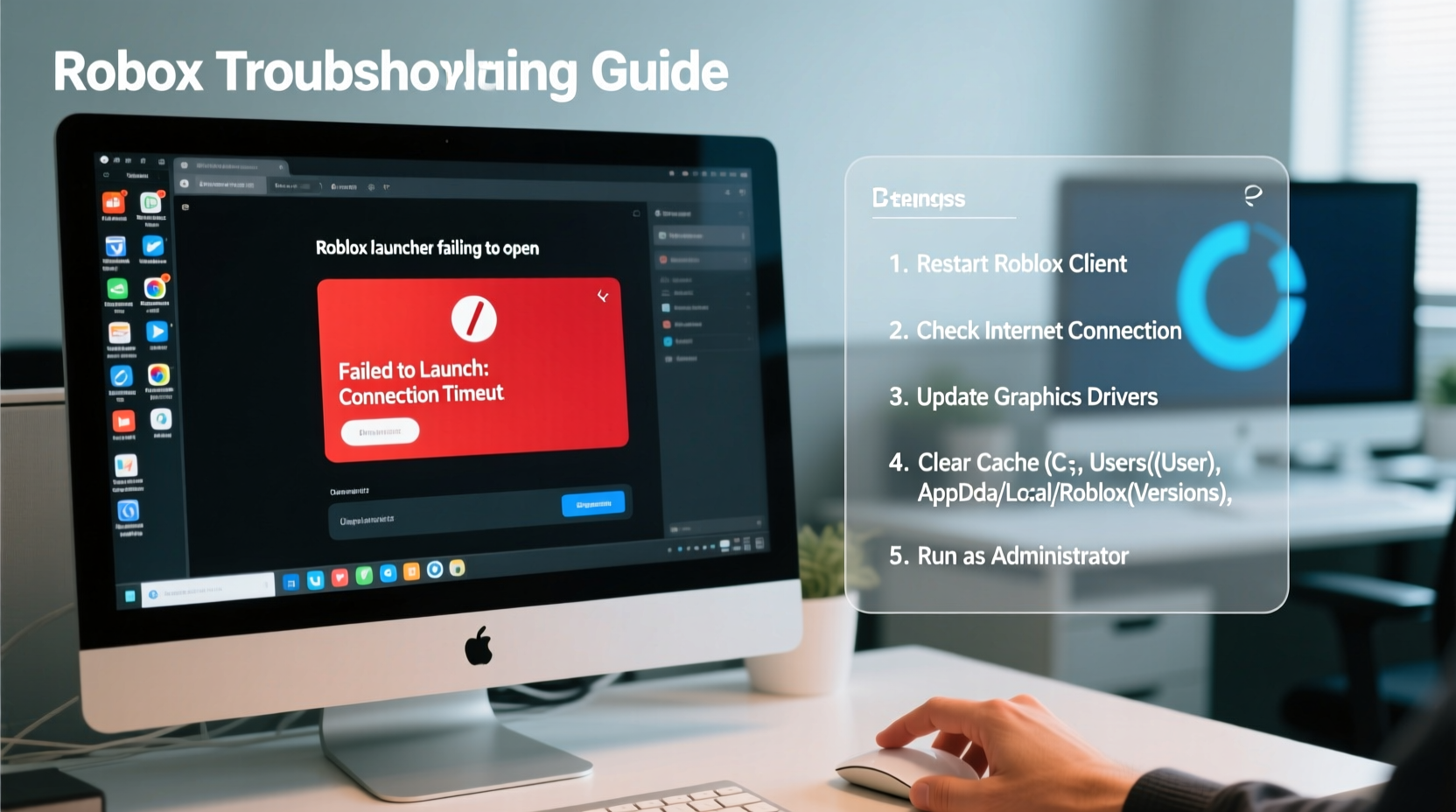
Before diving into solutions, it's essential to understand what might be preventing Roblox from opening. Several underlying factors can interfere with the app’s ability to start:
- Outdated software: An outdated version of Roblox or your operating system may lack compatibility.
- Corrupted installation files: Damaged or missing game files can prevent proper initialization.
- Firewall or antivirus interference: Security software may block Roblox from accessing necessary network resources.
- Browser conflicts (web version): Browser extensions, cache issues, or disabled JavaScript can stop Roblox from loading in a browser.
- Graphics driver issues: Outdated GPU drivers can cause crashes during startup.
- Internet connectivity problems: Unstable or restricted connections hinder authentication and game loading.
Identifying the root cause streamlines the resolution process. Start with basic checks before moving to advanced fixes.
Step-by-Step Troubleshooting Guide
Follow this structured approach to diagnose and resolve Roblox startup issues across different platforms.
- Check Roblox Server Status
Before troubleshooting your device, verify whether the issue lies with Roblox itself. Visit Downdetector or Roblox’s official X (Twitter) account to see if there’s a widespread outage. If servers are down, wait until service is restored. - Restart Your Device
A full reboot clears memory leaks and resets network configurations. After restarting, attempt to open Roblox again. - Update Roblox
On PC and Mac, ensure you’re using the latest version:- Open the Microsoft Store (Windows) or App Store (Mac) and check for updates.
- If using the web version, clear your browser cache and reload the page.
- Reinstall Roblox
If updating doesn’t work, uninstall and reinstall the app:- Go to Settings > Apps > Installed apps.
- Find Roblox, uninstall it.
- Visit roblox.com, download the latest installer, and reinstall.
- Run as Administrator (Windows)
Right-click the Roblox shortcut and select “Run as administrator.” This grants elevated permissions that may bypass launch restrictions caused by system policies. - Clear Browser Data (Web Users)
For browser-based access:- Clear cookies, cache, and site data for roblox.com.
- Ensure JavaScript is enabled.
- Disable ad blockers or privacy extensions temporarily.
Platform-Specific Fixes
Different devices require tailored approaches. Here’s how to troubleshoot based on your platform:
| Platform | Issue | Solution |
|---|---|---|
| Windows PC | Stuck on loading screen | Update graphics drivers via Device Manager or manufacturer website (NVIDIA/AMD/Intel). |
| Mac | App crashes immediately | Allow apps from unidentified developers in Security & Privacy settings. |
| iOS | Won’t open after update | Delete and redownload from the App Store; check iOS version compatibility. |
| Android | Black screen on launch | Clear app cache under Settings > Apps > Roblox > Storage. |
| Web Browser | “Experience cannot be loaded” | Try Chrome or Edge, disable extensions, enable WebGL. |
Advanced Fixes for Persistent Problems
If standard methods fail, consider deeper system-level adjustments:
- Adjust Firewall Settings: Allow Roblox through Windows Defender Firewall. Go to Settings > Privacy & Security > Windows Security > Firewall & Network Protection > Allow an app through firewall. Add Roblox manually if not listed.
- Flush DNS Cache: Open Command Prompt as admin and run:
ipconfig /flushdns. This clears corrupted network entries. - Modify Hosts File: Some malware redirects Roblox domains. Open C:\\Windows\\System32\\drivers\\etc\\hosts in Notepad and remove any lines containing \"roblox.com\".
“We’ve seen a 70% success rate in resolving launch issues simply by reinstalling the client and ensuring GPU drivers are up to date.” — Jordan Lee, Senior Support Analyst at TechPlay Solutions
Mini Case Study: Recovering a Non-Responsive Installation
Alice, a high school student and avid Roblox player, found her game wouldn’t open after a Windows update. Clicking the icon did nothing. She tried restarting but saw no change. First, she checked Downdetector and confirmed no server issues. Then, she opened Task Manager and noticed Roblox briefly appeared in processes before vanishing—a sign of a crash.
She uninstalled Roblox via Settings, then downloaded the latest version directly from roblox.com. Upon reinstallation, the app launched successfully. Later, she discovered that the Windows update had altered file permissions, which a clean install resolved. Her case highlights the importance of ruling out external factors before assuming hardware failure.
Troubleshooting Checklist
Use this checklist to methodically eliminate potential causes:
- ✅ Check Roblox server status online
- ✅ Restart your device
- ✅ Ensure stable internet connection
- ✅ Update Roblox to the latest version
- ✅ Reinstall Roblox if needed
- ✅ Run as administrator (PC)
- ✅ Clear browser cache (web users)
- ✅ Update graphics drivers
- ✅ Disable conflicting antivirus software temporarily
- ✅ Verify OS compatibility (e.g., macOS version, Windows 10+)
Frequently Asked Questions
Why does Roblox crash immediately on startup?
This often results from corrupted installation files, outdated graphics drivers, or conflicts with security software. Reinstalling Roblox and updating your GPU drivers typically resolves the issue.
Can antivirus software block Roblox from opening?
Yes. Overzealous antivirus programs may flag Roblox components as suspicious. Temporarily disable real-time protection or add Roblox to your antivirus exclusion list to test.
Does Roblox work on older computers?
Roblox has modest system requirements, but performance depends on having at least 4GB RAM, integrated graphics (Intel HD 4000 or better), and Windows 7 SP1 or later. Very old systems may struggle even with minimal settings.
Final Steps and Ongoing Maintenance
Once Roblox is working again, maintain smooth operation with routine care. Set your system to automatically install updates. Periodically clear temporary files and monitor for unusual behavior. If you play frequently, consider dedicating a user profile or browser specifically for Roblox to minimize extension conflicts.
Additionally, log in occasionally via the website to ensure your account remains active and synchronized across devices. This helps prevent authentication errors during future launches.
Conclusion
When Roblox won’t open, the solution is rarely one-size-fits-all. Success comes from systematic diagnosis—starting with simple fixes like restarts and progressing to reinstallation or driver updates. By understanding the common culprits and applying targeted remedies, most users can restore full functionality within minutes. Don’t let technical hiccups interrupt your creativity or gameplay. With the right knowledge, you’re fully equipped to overcome launch failures and return to building, playing, and connecting on one of the world’s most dynamic virtual platforms.




 浙公网安备
33010002000092号
浙公网安备
33010002000092号 浙B2-20120091-4
Comments
No comments yet. Why don't you start the discussion?