
Silence from your speakers when you expect music, a video, or a Zoom call can be more than frustrating—it can disrupt work, entertainment, and communication. Audio problems are among the most common technical issues users face, yet they’re often fixable without professional help. Whether you're using a desktop, laptop, or hybrid device, understanding the root causes of sound failure and knowing how to methodically address them can save time and stress. This guide walks through proven troubleshooting techniques, from basic checks to advanced fixes, ensuring you can diagnose and resolve audio issues efficiently.
Check the Obvious First
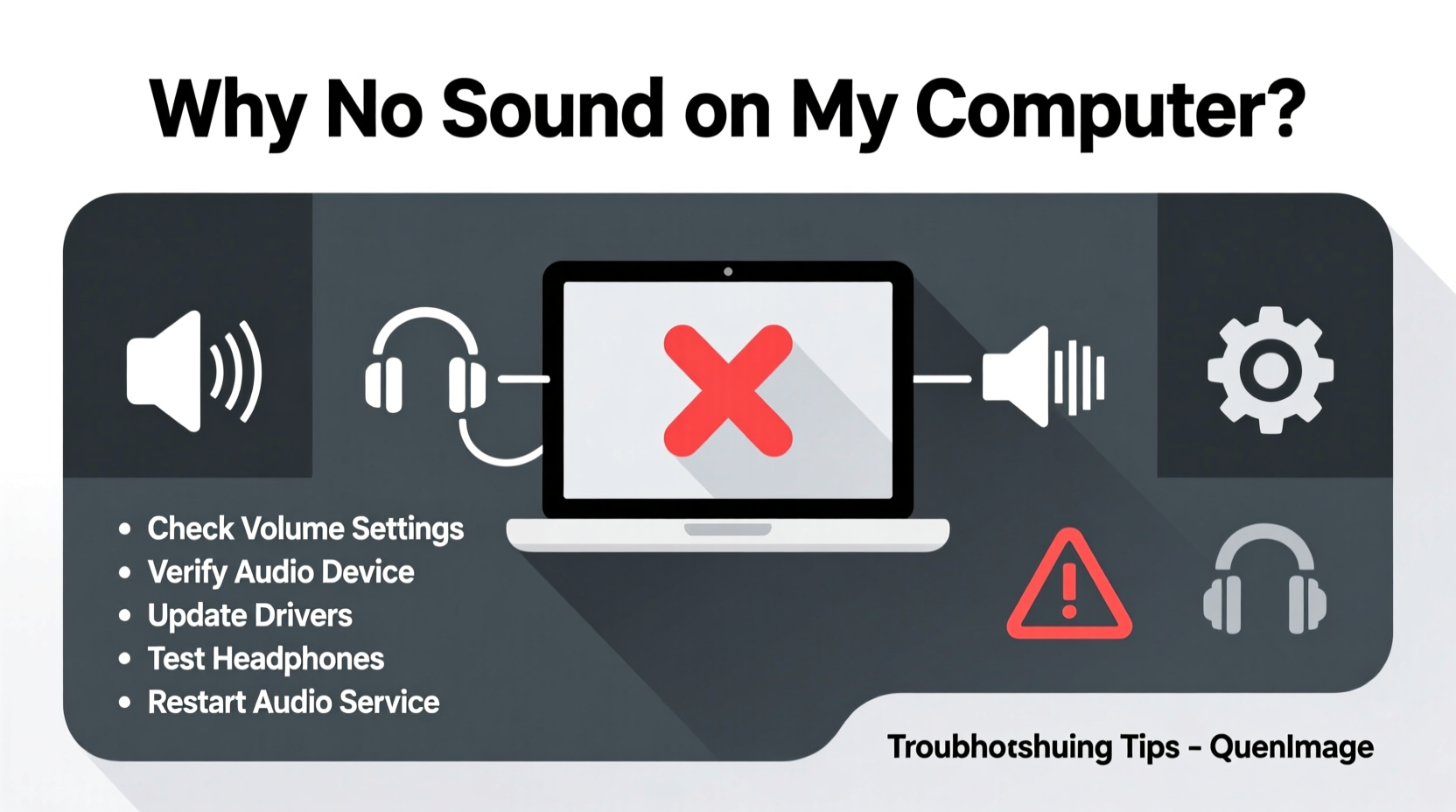
Before diving into complex diagnostics, eliminate simple oversights. Many “no sound” issues stem from easily correctable user errors rather than hardware or software failures.
- Verify that your volume is not muted or turned down too low—check both system settings and application-specific controls.
- Ensure external speakers or headphones are properly connected and powered on if applicable.
- Confirm that the correct output device is selected in your system’s sound settings.
- Inspect physical connections: loose cables, damaged ports, or improperly seated jacks can interrupt signal flow.
Step-by-Step Troubleshooting Guide
Follow this logical sequence to identify and fix the cause of missing sound. Each step builds on the previous one, minimizing guesswork.
- Restart your computer. A reboot resolves many temporary glitches affecting drivers or system processes.
- Play audio from different sources. Try a local music file, YouTube video, and a voice call app. If only one source fails, the problem may be app-specific.
- Open sound settings. On Windows, right-click the speaker icon and select \"Sounds.\" On macOS, go to System Settings > Sound > Output.
- Select the correct output device. Make sure speakers or headphones are chosen and not grayed out.
- Run the built-in audio troubleshooter. In Windows, go to Settings > System > Sound > Troubleshoot. macOS users can use Apple Diagnostics during startup.
- Check for driver updates. Outdated or corrupted audio drivers are frequent culprits.
- Test in Safe Mode (Windows) or Safe Boot (macOS). This helps determine if third-party software is interfering.
Common Causes and Fixes by Operating System
Different platforms handle audio differently. Knowing OS-specific quirks improves troubleshooting accuracy.
Windows-Specific Issues
Windows machines often experience audio dropouts due to driver conflicts or service interruptions.
- Audio Service Not Running: Press Win + R, type
services.msc, locate \"Windows Audio,\" and ensure its status is \"Running.\" - Driver Corruption: Open Device Manager, expand \"Sound, video and game controllers,\" right-click your audio device, and choose \"Update driver\" or \"Uninstall device\" (then restart to reinstall).
- Exclusive Mode Conflicts: In Sound Settings > Playback tab > Properties > Advanced, uncheck \"Allow applications to take exclusive control.\"
macOS-Specific Issues
Apple systems are generally stable, but audio issues can arise after updates or peripheral changes.
- Core Audio Not Responding: Open Activity Monitor, find \"coreaudiod,\" and restart it if CPU usage is high.
- Incorrect Output Selection: Some Macs auto-switch outputs when HDMI or Bluetooth devices connect. Manually reselect internal speakers.
- SMC/PRAM Reset: For persistent issues, reset the System Management Controller (SMC) or Parameter RAM (PRAM) via Apple’s official procedures.
| Issue | Windows Fix | macOS Fix |
|---|---|---|
| No sound after boot | Restart Windows Audio service | Restart coreaudiod process |
| Only headphones work | Reinstall Realtek HD Audio driver | Reset audio preferences with Terminal command: sudo killall coreaudiod |
| Distorted or crackling sound | Disable audio enhancements | Check sample rate in Audio MIDI Setup |
Expert Insight
“Over 60% of ‘no sound’ reports we see are resolved by updating or rolling back audio drivers. Users often overlook driver health until other fixes fail.” — Daniel Reyes, Senior Support Engineer at TechAid Solutions
Driver integrity is critical. While automatic updates are convenient, they sometimes install incompatible versions. If sound disappeared after an update, consider rolling back to a previous driver version via Device Manager.
Real-World Example: The Case of the Silent Laptop
A freelance editor reported sudden audio loss on her Windows 11 laptop during video editing. She confirmed volume was up, headphones worked on another device, and no recent hardware changes occurred. Following standard checks, she discovered that a recent Windows update had replaced her audio driver with a generic version lacking proper support for her sound card. After downloading the manufacturer’s latest driver from the OEM website and performing a clean installation, full audio functionality returned. This case highlights the importance of verifying driver authenticity—even when the OS claims everything is up to date.
Essential Audio Troubleshooting Checklist
Use this checklist to quickly assess and resolve sound issues:
- ✅ Volume not muted (system and app level)
- ✅ Correct output device selected
- ✅ Cables and ports physically intact
- ✅ External speakers powered and functioning
- ✅ Audio service running (Windows) or coreaudiod active (macOS)
- ✅ Audio drivers updated or reinstalled
- ✅ No conflicting third-party audio software
- ✅ BIOS/UEFI settings haven’t disabled onboard audio
Frequently Asked Questions
Why does my computer show audio playing but produce no sound?
This usually means the audio signal is being processed but not transmitted. Check if the output device is correctly assigned, test with different speakers/headphones, and verify that audio enhancements aren’t distorting or muting the signal. Also, inspect mixer settings—some apps may route sound to inactive channels.
Can a virus cause no sound on my computer?
Directly, it’s rare. However, malware can corrupt system files or disable essential services like the Windows Audio service. If troubleshooting fails and unusual behavior persists (e.g., pop-ups, slowdowns), run a full antivirus scan.
Why did my sound stop after a Windows update?
Updates can overwrite or misconfigure audio drivers. Microsoft occasionally pushes generic drivers that lack full functionality. Visit your PC or motherboard manufacturer’s website to download and install the correct audio driver. You can also roll back the driver in Device Manager under your audio device’s properties.
Final Steps When All Else Fails
If none of the above solutions restore sound, consider deeper hardware or firmware issues. Test with a Linux live USB or bootable macOS installer—if audio works there, the problem is likely software-related within your main OS installation. If no sound appears across operating systems, the onboard audio chip or motherboard connection may be damaged. In such cases, using a USB audio adapter or external DAC provides a reliable workaround without costly repairs.
“Don’t underestimate the power of a USB sound card. They cost under $20 and can bypass faulty internal components entirely.” — Lena Patel, Hardware Diagnostician
Conclusion
Dealing with no sound on your computer doesn’t have to mean panic or immediate repair costs. Most issues stem from manageable causes: incorrect settings, outdated drivers, or minor software hiccups. By following a structured approach—starting with basic checks and progressing to system-level fixes—you can restore audio functionality efficiently. Don’t skip small details; sometimes, the mute button or a loose cable is all standing between silence and sound.




 浙公网安备
33010002000092号
浙公网安备
33010002000092号 浙B2-20120091-4
Comments
No comments yet. Why don't you start the discussion?