
App download failures are more common than you think—whether it’s a new game, productivity tool, or social media update, getting stuck at 0% or seeing “Download Pending” can be frustrating. While the cause might seem random, most issues stem from predictable technical or environmental factors. Understanding the root causes—and knowing exactly what steps to take—can save time, data, and unnecessary device resets.
This guide breaks down the most frequent reasons apps fail to download, offers practical solutions across both iOS and Android platforms, and includes real-world examples to help you get your app installed quickly and securely.
Common Causes of App Download Failures
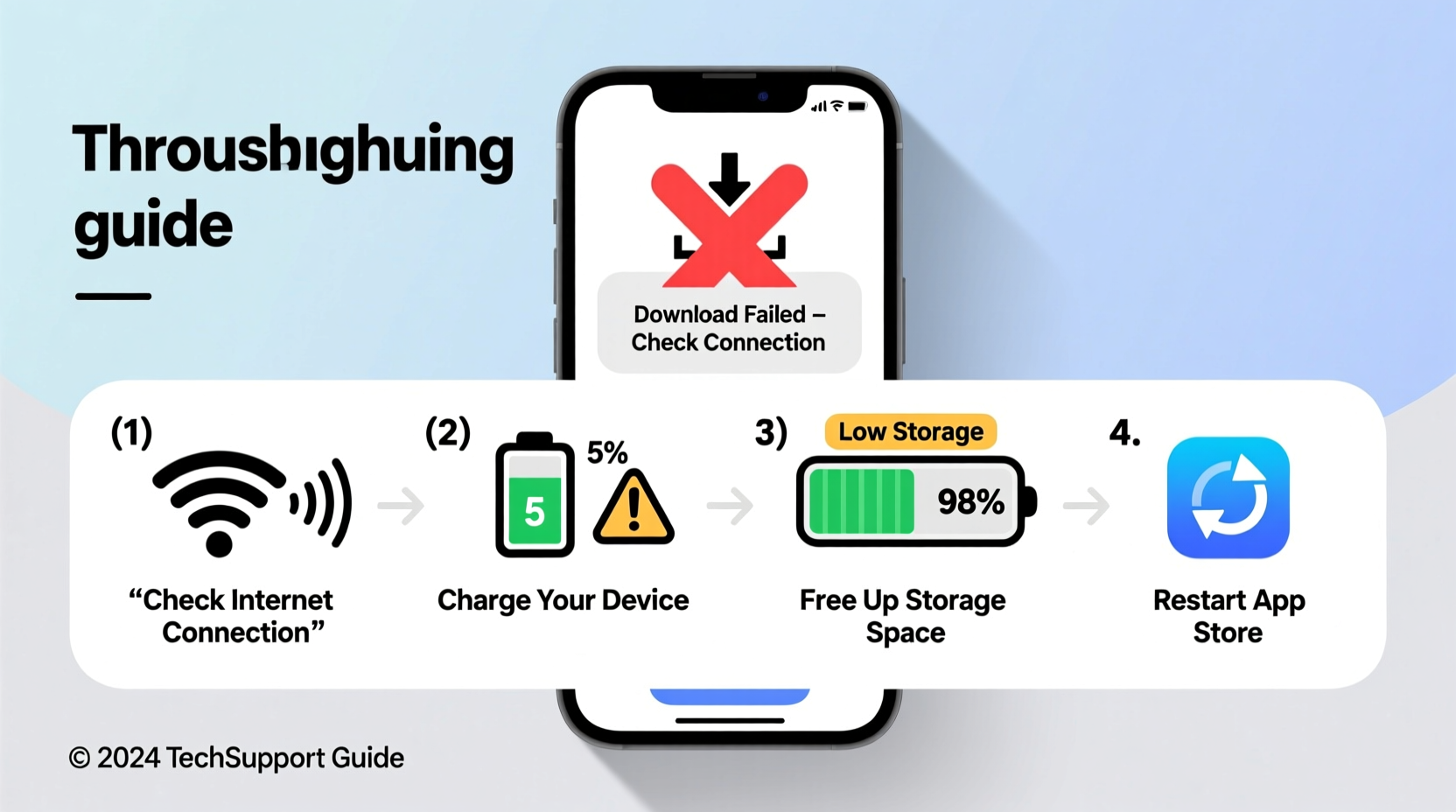
Before jumping into fixes, it helps to understand what’s going wrong behind the scenes. App downloads rely on multiple systems working in sync: internet connectivity, device storage, operating system compatibility, account status, and app store functionality. A breakdown in any one area can halt the process.
- Poor or unstable internet connection – Wi-Fi drops or weak cellular signal interrupt downloads.
- Insufficient storage space – Devices block downloads when free space falls below the app’s size.
- Outdated operating system – Newer apps often require recent OS versions.
- Corrupted app store cache or data – Especially on Android, cached data can prevent proper communication with Google Play.
- Apple ID or Google account issues – Payment method problems, expired subscriptions, or authentication errors block downloads.
- Regional restrictions or app unavailability – Some apps aren’t accessible in certain countries.
- Server-side outages – The App Store or Google Play may be experiencing downtime.
Step-by-Step Troubleshooting Guide
Follow this logical sequence to isolate and fix the problem efficiently. Start with basic checks before moving to advanced solutions.
- Check Internet Connection
Switch between Wi-Fi and mobile data. Test by loading a website or streaming a short video. If speeds are slow, restart your router or toggle airplane mode on and off. - Verify Available Storage
Go to Settings > General > iPhone Storage (iOS) or Settings > Storage (Android). Delete unused apps, photos, or clear caches if space is under 1 GB. - Restart Your Device
A soft reboot clears temporary glitches. Press and hold the power button, then slide to power off. Wait 30 seconds before turning it back on. - Update Your Operating System
Older OS versions may not support newer app builds. Check for updates in Settings > General > Software Update (iOS) or Settings > System > System Update (Android). - Sign Out and Back Into Your Account
On iOS: Settings > [Your Name] > Media & Purchases > Sign Out, then sign back in. On Android: Google Play > Profile > Settings > Manage Accounts > Remove and re-add your Google account. - Clear App Store Cache (Android Only)
Go to Settings > Apps > Google Play Store > Storage > Clear Cache and Clear Data. Repeat for Google Play Services. - Reset Network Settings
If connectivity remains unstable, reset network settings (iOS: Settings > General > Transfer or Reset iPhone > Reset > Reset Network Settings; Android: Settings > System > Reset Options > Reset Wi-Fi, Mobile & Bluetooth). - Try Downloading a Different App
This helps determine if the issue is app-specific or system-wide.
Do’s and Don’ts When Fixing Download Issues
| Do | Don't |
|---|---|
| Use a stable Wi-Fi network with strong signal strength | Attempt large downloads over spotty public Wi-Fi |
| Keep at least 2 GB of free storage for smooth operation | Ignore low-storage warnings until apps fail to install |
| Regularly update your OS and apps | Delay OS updates just to maintain an older interface |
| Check app compatibility before downloading | Assume all apps are available in your region |
| Clear app store cache monthly (Android) | Delete the Google Play Store app entirely |
Real-World Example: Sarah’s Missing Fitness App
Sarah recently bought a new Android phone and tried downloading her favorite fitness tracking app. The download started but stalled at 15%, then disappeared. She retried multiple times without success.
After checking her internet (which worked fine for YouTube), she realized she hadn’t updated her phone’s software since setup. Her OS was two versions behind. After installing the latest update, she cleared the Google Play Store cache and signed out of her account. Upon signing back in, the app downloaded successfully within seconds.
The root cause? An outdated OS combined with stale authentication tokens in the Play Store. This case illustrates how multiple small issues can compound into a persistent failure—even on a brand-new device.
Expert Insight: What Developers Say About Failed Downloads
“Over 60% of download failures we see in analytics are due to poor network conditions or insufficient storage. Users often overlook simple fixes like clearing cache or switching networks. A systematic approach saves hours.” — Raj Patel, Mobile App Infrastructure Lead at NexaSoft Labs
Troubleshooting Checklist
- Test internet speed on another device
- Ensure at least 1–2 GB of free storage
- Restart your phone or tablet
- Update your operating system
- Check Apple ID or Google account status
- Clear app store cache (Android)
- Toggle airplane mode to refresh connection
- Try downloading a different app to test functionality
- Verify app availability in your country
- Contact carrier or ISP if issues persist
Frequently Asked Questions
Why does my app start downloading but then stop or disappear?
This usually happens due to interrupted internet, insufficient storage mid-download, or corrupted cache. The app store begins the download but cancels it when it detects instability. Free up space, ensure a strong connection, and retry after restarting your device.
Can antivirus or firewall software block app downloads?
Yes. Some third-party security apps, especially on Android, restrict background data or interfere with Google Play. Temporarily disable such apps to test. On iOS, built-in security rarely blocks downloads unless parental controls are enabled.
Why can’t I download apps even though I have Wi-Fi and storage?
Beyond connectivity and space, account issues are a common culprit. Check if your Apple ID has an expired payment method (even for free apps) or if your Google account has 2FA interruptions. Also, ensure date and time settings are automatic—incorrect settings can break SSL verification needed for downloads.
When to Seek Further Help
If you’ve completed all troubleshooting steps and still can’t download apps, consider these next actions:
- Contact your device manufacturer – Samsung, Apple, Google, etc., offer remote diagnostics.
- Reach out to your internet service provider – Some ISPs throttle app store traffic or use restrictive DNS.
- Visit an authorized service center – In rare cases, firmware corruption may require professional repair.
Also, monitor official status pages: Apple System Status and Google Play Service Status. These confirm whether the issue is widespread.
Conclusion: Take Control of Your App Experience
App download issues are rarely permanent—and almost always solvable with methodical troubleshooting. Most people give up after one or two failed attempts, not realizing that a simple cache clear or OS update could resolve everything. By understanding the ecosystem of downloads—network, storage, accounts, and software—you gain control over your digital experience.




 浙公网安备
33010002000092号
浙公网安备
33010002000092号 浙B2-20120091-4
Comments
No comments yet. Why don't you start the discussion?