
Wi-Fi connectivity is essential in daily life—whether you're working remotely, streaming content, or staying in touch with family. When your Wi-Fi won’t turn on, it can disrupt productivity and cause unnecessary stress. The good news is that most Wi-Fi issues have simple solutions. Instead of immediately calling technical support, try these practical, step-by-step fixes that address common causes across devices like laptops, smartphones, and routers.
1. Restart Your Device and Router
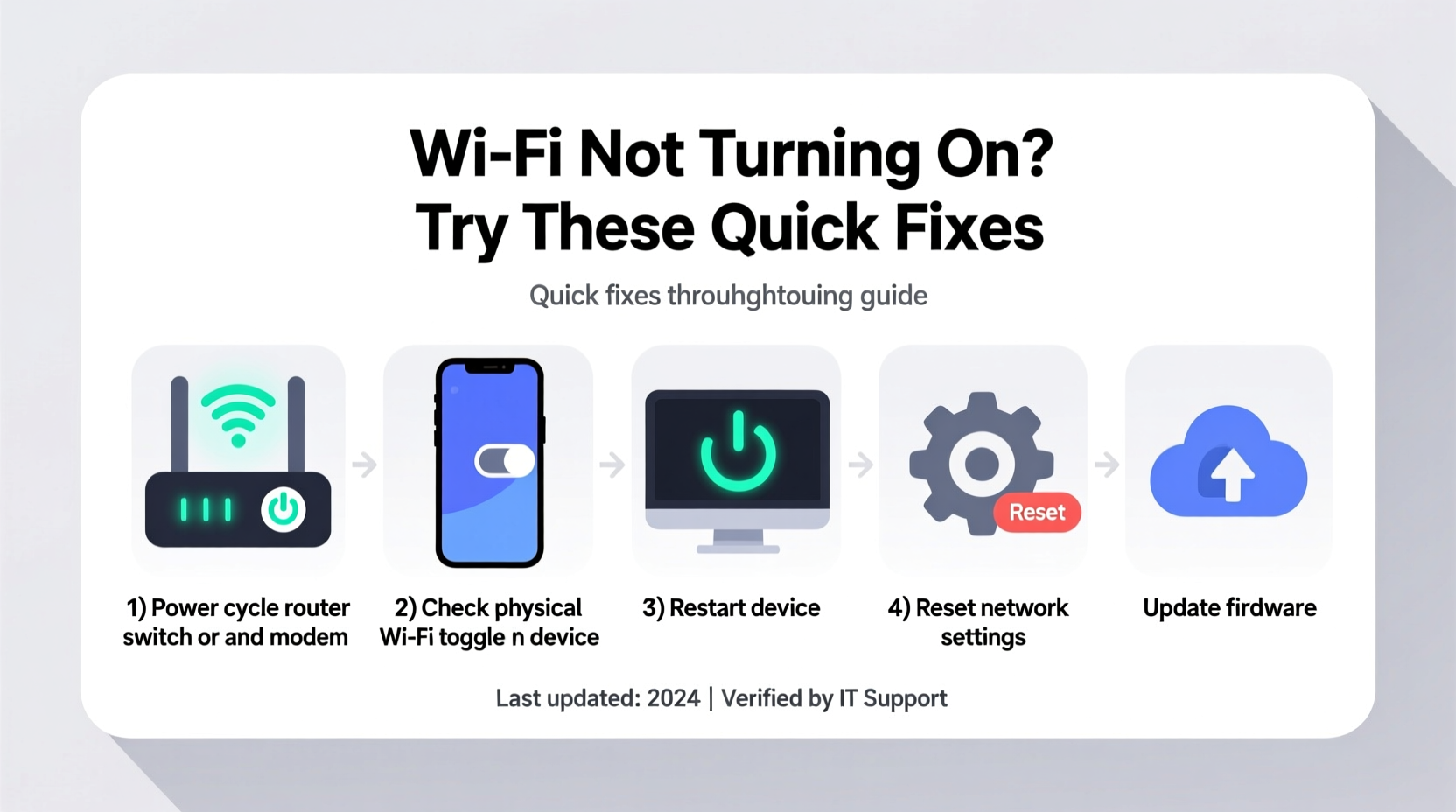
One of the most overlooked yet effective solutions is a full system reboot. Many temporary glitches stem from software hiccups or memory overload in your device or router.
Follow this sequence:
- Turn off your phone, laptop, or tablet completely.
- Unplug your router and modem from power.
- Wait at least 30 seconds (60 seconds is better).
- Plug the modem back in, wait 15 seconds, then plug in the router.
- Once both devices fully boot up (all lights stable), power on your device.
- Try enabling Wi-Fi again.
This process clears cached network data, resets connection protocols, and often resolves invisible errors preventing Wi-Fi activation.
2. Check Airplane Mode and Physical Switches
A surprisingly common reason Wi-Fi won’t turn on is an enabled Airplane Mode or a disabled physical switch.
- On smartphones: Swipe down from the top of the screen to access Quick Settings. Ensure Airplane Mode is off and Wi-Fi is toggled on.
- On laptops: Some models have a physical Wi-Fi switch or a function key (e.g., F12 or Fn + F2) to toggle wireless. Check the sides or front of the device for a hardware switch.
- On Windows: Press Windows + A to open Action Center and confirm Airplane Mode is disabled.
- On macOS: Click the Apple menu > System Settings > Network > Wi-Fi. Ensure it's turned on.
If Airplane Mode was accidentally enabled, disabling it should restore Wi-Fi functionality instantly.
3. Run Built-in Network Troubleshooters
Modern operating systems include diagnostic tools designed to detect and fix network problems automatically.
Windows Network Troubleshooter
- Go to Settings > System > Troubleshoot > Other troubleshooters.
- Find \"Internet Connections\" and click Run.
- Follow on-screen prompts. The tool may reset adapters, clear conflicts, or suggest fixes.
macOS Wireless Diagnostics
- Hold the Option key and click the Wi-Fi icon in the menu bar.
- Select Open Wireless Diagnostics.
- Follow the assistant to analyze signal strength, interference, and configuration.
Android & iOS
While mobile OSs lack formal troubleshooters, using “Reset Network Settings” can help (note: this erases saved networks).
“Over 60% of Wi-Fi activation issues are resolved by resetting network configurations or running diagnostics.” — David Lin, Senior Network Support Engineer at NetSecure Solutions
4. Update or Reinstall Network Drivers
Outdated, corrupted, or missing drivers prevent Wi-Fi hardware from functioning properly, especially after OS updates.
For Windows Users:
- Press Windows + X and select Device Manager.
- Expand Network adapters.
- Locate your wireless adapter (e.g., Intel Dual Band Wireless-AC, Realtek 8821CE).
- Right-click it and choose Update driver.
- Select Search automatically for updated driver software.
If updating doesn’t work:
- Right-click the adapter and select Uninstall device.
- Restart your computer. Windows will reinstall the driver automatically.
For macOS and Mobile Devices:
Ensure your system is up to date:
- macOS: Apple menu > System Settings > Software Update.
- iOS: Settings > General > Software Update.
- Android: Settings > Software update.
Driver-level issues are more common after major updates, so keeping firmware current prevents future disruptions.
5. Perform a Network Reset (Advanced Fix)
If Wi-Fi still won’t turn on, a full network reset can eliminate deep-seated configuration errors.
On Windows:
- Go to Settings > Network & Internet > Advanced network settings > Network reset.
- Click Reset now and confirm.
This reinstalls all network adapters and resets IPv4/TCP settings. You’ll need to reconnect to Wi-Fi networks afterward.
On macOS:
- Navigate to /Library/Preferences/SystemConfiguration/.
- Delete files:
com.apple.network.eapolclient.configuration.plist,NetworkInterfaces.plist,preferences.plist. - Restart the Mac. It will rebuild network settings.
Note: Back up important network configurations before deleting system files.
On Android:
Use “Reset Wi-Fi, mobile & Bluetooth” as mentioned earlier.
On iPhone:
Settings > General > Reset > Reset Network Settings.
| Action | Effect | When to Use |
|---|---|---|
| Restart device/router | Clears temporary glitches | First step for any issue |
| Check Airplane Mode | Enables/disables wireless radios | Wi-Fi button unresponsive |
| Run troubleshooter | Auto-detects common faults | Unclear error messages |
| Update drivers | Fixes compatibility bugs | After OS update or new install |
| Network reset | Wipes and rebuilds config | Persistent failure after other steps |
Mini Case Study: Resolving a Frozen Wi-Fi Toggle on a Laptop
Sarah, a freelance graphic designer, couldn’t connect her Windows 11 laptop to Wi-Fi. The Wi-Fi toggle in Settings was grayed out. She tried restarting, but the issue persisted. After checking online, she opened Device Manager and noticed a yellow exclamation mark next to her wireless adapter. She updated the driver manually from the manufacturer’s website. Upon restart, the Wi-Fi toggle became active again. Sarah reconnected successfully within minutes—saving her from missing a client deadline.
This case illustrates how driver issues can silently disable Wi-Fi functionality, even when hardware appears intact.
FAQ
Why does my Wi-Fi option disappear completely?
This usually indicates a driver failure, disabled service, or hardware switch turned off. Check Device Manager (Windows) or System Information (macOS) to verify if the wireless adapter is detected. If not, it may be disabled in BIOS or physically damaged.
Can a virus prevent Wi-Fi from turning on?
Rarely, but malware can modify network settings or disable services. If standard fixes fail and you suspect compromise, run a full system scan with trusted antivirus software and consider restoring from a clean backup.
What if none of the fixes work?
If Wi-Fi remains non-functional across multiple troubleshooting attempts, the wireless adapter may be faulty. For desktops, consider installing a USB Wi-Fi dongle. Laptops with integrated chips may require professional repair. Alternatively, use Ethernet or tether via smartphone hotspot temporarily.
Final Checklist: Wi-Fi Not Turning On? Do This Now
- ✅ Restart your device and router.
- ✅ Disable Airplane Mode and check physical switches.
- ✅ Run the built-in network troubleshooter.
- ✅ Update or reinstall Wi-Fi drivers.
- ✅ Reset network settings as a last resort.
- ✅ Test on another device to isolate the problem.
Conclusion
Dealing with Wi-Fi that won’t turn on doesn’t have to mean hours of frustration or costly repairs. Most issues stem from simple oversights or temporary software conflicts that you can resolve in under 15 minutes. By methodically checking settings, restarting components, and updating drivers, you regain control over your connectivity. Don’t underestimate the power of a reboot or the insight from a system diagnostic tool. These small actions often yield big results.




 浙公网安备
33010002000092号
浙公网安备
33010002000092号 浙B2-20120091-4
Comments
No comments yet. Why don't you start the discussion?