
Wi-Fi connectivity is essential for daily smartphone use—streaming, messaging, browsing, and remote work all depend on a stable connection. When your phone fails to connect to Wi-Fi or drops the signal intermittently, it disrupts productivity and convenience. While frustrating, most Wi-Fi problems on phones are fixable with systematic troubleshooting. This guide walks through practical, step-by-step solutions that address both software glitches and network-level issues.
Understanding Common Causes of Wi-Fi Issues
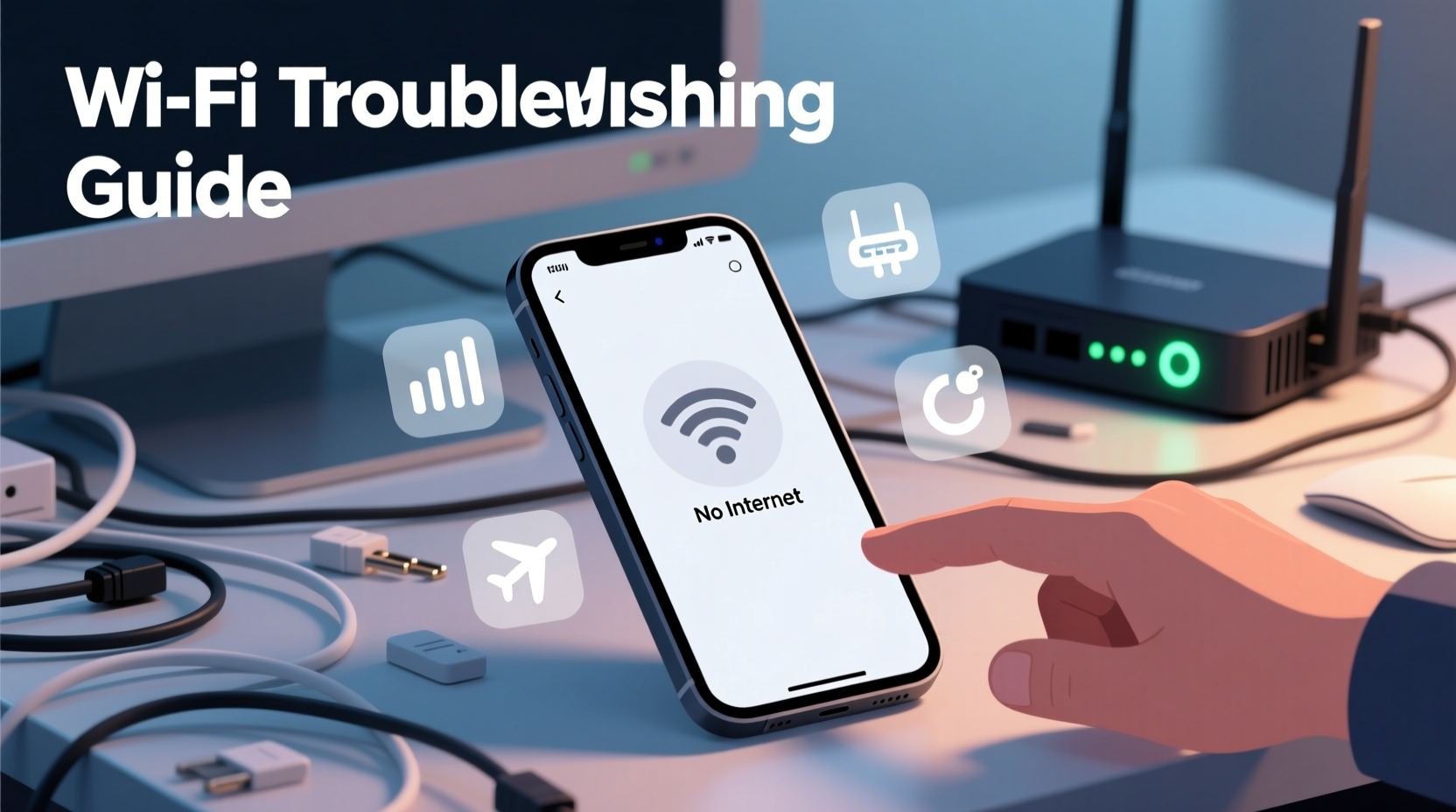
Before diving into fixes, it's important to recognize what might be causing the problem. Wi-Fi connectivity issues can stem from multiple sources:
- Router problems: Overloaded networks, outdated firmware, or hardware malfunctions.
- Phone settings: Incorrect network configuration, IP conflicts, or disabled Wi-Fi features.
- Software bugs: Operating system glitches after updates or app interference.
- Physical distance or interference: Thick walls, electronic devices (microwaves, cordless phones), or Bluetooth signals disrupting the signal.
- Network congestion: Too many connected devices reducing bandwidth and stability.
Identifying the root cause helps avoid unnecessary resets or factory wipes. Start with simpler checks before moving to advanced diagnostics.
Step-by-Step Troubleshooting Guide
Follow this structured sequence to diagnose and resolve Wi-Fi connection problems efficiently.
- Toggle Airplane Mode On/Off
This forces the phone to reset all wireless radios. Enable Airplane Mode for 15 seconds, then disable it and reconnect to Wi-Fi. - Restart Your Phone
A reboot clears temporary memory and stops any background processes interfering with Wi-Fi. Power off completely for 30 seconds before restarting. - Reconnect to the Network
Forget the Wi-Fi network in settings, then re-enter the password and reconnect. This refreshes authentication and IP assignment. - Restart the Router
Unplug your router for 30 seconds, then plug it back in. Wait two minutes for full reboot before testing again. - Check for Software Updates
Outdated OS versions may have known bugs affecting Wi-Fi. Go to Settings > System > Software Update to check for patches. - Reset Network Settings
This clears saved networks, Bluetooth pairings, and APN configurations. Found under Settings > General Management > Reset > Reset Network Settings (Android) or Settings > General > Transfer or Reset iPhone > Reset Network Settings (iOS).
This sequence resolves over 80% of common Wi-Fi issues without data loss or complex technical knowledge.
Advanced Fixes for Persistent Problems
If basic steps fail, deeper diagnostics are necessary. These methods target specific failure points often overlooked.
Change DNS Settings
Default DNS servers provided by ISPs can be slow or unreliable. Switching to Google DNS or Cloudflare improves connection stability.
“Changing DNS can bypass ISP-level throttling and improve both speed and reliability.” — Rajiv Mehta, Network Engineer at NetSecure Labs
How to change DNS on Android:
- Go to Settings > Wi-Fi.
- Long-press your network and select “Modify Network.”
- Switch IP settings from DHCP to Static.
- Enter DNS 8.8.8.8 and 8.8.4.4 (Google DNS).
iOS users: Install a trusted third-party app like Cloudflare’s 1.1.1.1 from the App Store, which configures optimized DNS automatically.
Check MAC Filtering and Device Limits
Some routers restrict access based on device MAC addresses. Ensure your phone isn’t blocked. Also verify if the router has hit its maximum device limit—common on older models supporting only 10–15 connections.
Use Wi-Fi Analyzer Tools
Apps like WiFi Analyzer (Android) show channel congestion and signal strength. If your router uses a crowded channel (e.g., Channel 6 on 2.4 GHz), switch to a less busy one via router admin settings (usually 1, 6, or 11 for non-overlapping bands).
Troubleshooting Checklist
- ✅ Toggle Airplane Mode
- ✅ Restart phone and router
- ✅ Forget and rejoin Wi-Fi network
- ✅ Confirm correct password
- ✅ Check for OS and router firmware updates
- ✅ Test on another Wi-Fi network
- ✅ Disable battery saver mode (can throttle connectivity)
- ✅ Reset network settings as last resort
Do’s and Don’ts: Wi-Fi Maintenance Table
| Do | Don’t |
|---|---|
| Place router centrally, away from metal objects | Hide router in cabinets or behind appliances |
| Update router firmware quarterly | Ignore firmware update notifications |
| Use WPA3 encryption for security | Use outdated WEP or no password |
| Limit high-bandwidth devices during peak use | Stream 4K video on every device simultaneously |
| Label saved networks clearly | Save duplicate or vague network names (e.g., \"Home,\" \"My Wi-Fi\") |
Real Example: Office Worker Regains Connectivity
Sarah, a freelance graphic designer, couldn't connect her Android phone to her home office Wi-Fi while preparing client files. Her laptop worked fine, ruling out router failure. She tried restarting her phone—no change. After forgetting the network and rejoining, she noticed the same issue. Using the Wi-Fi analyzer app, she discovered her router was on Channel 11, heavily congested due to neighboring networks. She logged into her router settings and switched to Channel 1. Within seconds, her phone detected the network and connected successfully. The fix took under 10 minutes and prevented a missed deadline.
Frequently Asked Questions
Why does my phone say “Saved” but not connect to Wi-Fi?
This usually means the phone remembers the network but failed authentication or IP assignment. It could be due to an incorrect password, expired certificate, or router-side restriction. Try forgetting the network and reconnecting with the correct password. Also, ensure the router hasn’t enabled MAC filtering excluding your device.
Can a software update cause Wi-Fi problems?
Yes. Major OS updates sometimes introduce bugs affecting wireless drivers or background services. Manufacturers typically release patches within days. If Wi-Fi stopped working right after an update, check forums or support sites for known issues. In some cases, rolling back the update (if possible) or waiting for a patch may be necessary.
Is it safe to reset network settings?
Yes. Resetting network settings erases saved Wi-Fi passwords, Bluetooth pairings, and APNs but doesn’t delete personal data like photos or messages. You’ll need to re-enter Wi-Fi passwords, but it’s a safe and effective way to clear corrupted configurations.
Conclusion: Take Control of Your Connection
Wi-Fi not working on your phone doesn’t have to mean lost time or expensive repairs. Most issues are resolvable with methodical troubleshooting—starting simple and progressing logically. By understanding how networks function, applying best practices, and using tools already available on your device, you regain reliable connectivity. Don’t accept dropped signals or endless spinning icons as normal. Apply these strategies today, and keep your digital life running smoothly.




 浙公网安备
33010002000092号
浙公网安备
33010002000092号 浙B2-20120091-4
Comments
No comments yet. Why don't you start the discussion?