
Slow speeds, dropped signals, or a complete inability to connect—Wi-Fi issues can bring productivity to a halt. While the first instinct might be to blame the router, the problem often lies deeper: in driver settings, network configurations, or interference from nearby devices. Understanding the root causes and applying targeted fixes can restore connectivity without unnecessary frustration.
Common Causes of Wi-Fi Connection Failures
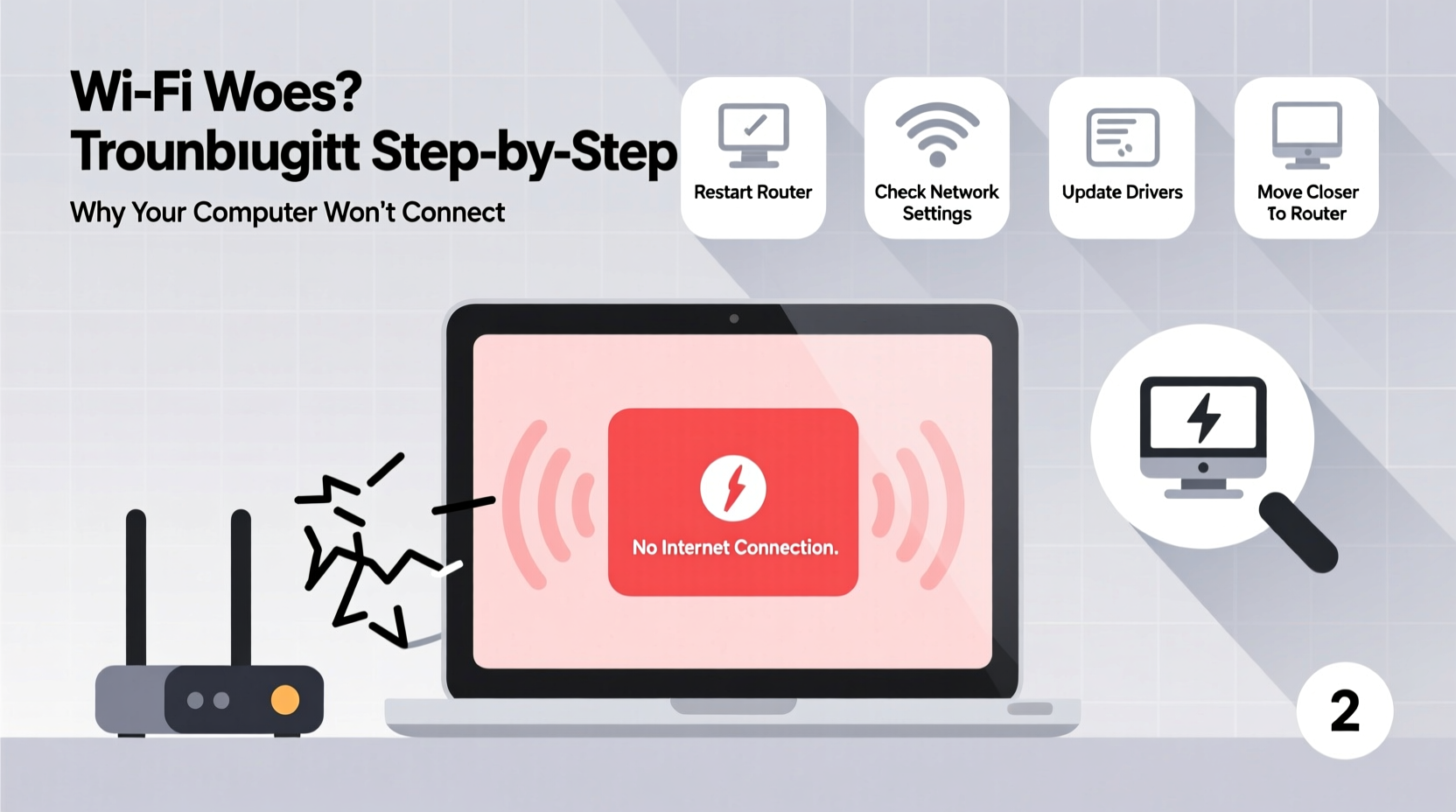
Before diving into solutions, it's essential to identify what’s disrupting the connection. Computers may fail to connect to Wi-Fi for a range of reasons, some hardware-related, others software-based. The most frequent culprits include:
- Outdated or corrupted network drivers – Especially common after system updates.
- Router misconfigurations – Incorrect security settings or firmware bugs.
- IP address conflicts – When two devices are assigned the same IP on the same network.
- Interference from other electronics – Microwaves, cordless phones, or neighboring networks.
- Disabled wireless adapter – Accidentally turned off via function key or BIOS setting.
- Operating system glitches – Windows, macOS, or Linux network services failing silently.
Step-by-Step Troubleshooting Guide
Follow this structured approach to systematically eliminate potential causes. Start simple and escalate only if needed.
- Restart your computer and router. This resolves temporary glitches in 60% of cases.
- Check if other devices connect. If they don’t, the issue is likely with the router or ISP.
- Verify Wi-Fi is enabled on your device. Look for the airplane mode toggle or physical switch.
- Forget the network and reconnect. Go to network settings, remove the saved profile, then re-enter the password.
- Run the built-in network troubleshooter. On Windows: Settings > Network & Internet > Network Troubleshooter. On macOS: Apple menu > System Settings > Network > Assist me.
- Update network drivers. Outdated drivers are a leading cause of disconnection issues.
- Reset TCP/IP stack and flush DNS. Open Command Prompt as admin and run:
netsh int ip reset
ipconfig /flushdns
netsh winsock reset - Change the wireless channel on your router. Use channels 1, 6, or 11 (for 2.4 GHz) to avoid overlap.
Driver and Software Fixes That Work
Modern operating systems manage network hardware through drivers—software intermediaries between the OS and the Wi-Fi card. When these become outdated or corrupt, connections fail.
To update your driver on Windows:
- Press Win + X and select Device Manager.
- Expand “Network adapters.”
- Right-click your wireless adapter (e.g., Intel Dual Band Wireless-AC, Realtek 8821CE).
- Select “Update driver” > “Search automatically for updated driver software.”
If no update is found, visit the manufacturer’s website (e.g., Dell, HP, Lenovo support page) and download the latest driver using your model number.
On macOS, keep your system updated via System Settings > General > Software Update. Apple includes driver updates within OS patches.
“Over 70% of ‘no internet’ complaints we see in help desks trace back to outdated wireless drivers or misconfigured power-saving settings.” — Carlos Mendez, Senior Network Support Engineer at TechCare Solutions
Advanced Diagnostics Using Built-In Tools
Beyond basic resets, your computer has diagnostic tools that reveal deeper issues.
Using Command Line to Test Connectivity
Open Command Prompt or Terminal and use these commands:
| Command | Purpose |
|---|---|
ping 8.8.8.8 |
Tests if you can reach the internet (bypassing DNS). |
ping google.com |
Checks DNS resolution—if this fails but 8.8.8.8 works, DNS is the issue. |
tracert google.com |
Maps the route packets take; reveals where delays or drops occur. |
netsh wlan show interfaces |
Displays signal strength, SSID, and connection status on Windows. |
If ping 8.8.8.8 fails, your internet connection is down. If it succeeds but google.com doesn’t resolve, change your DNS to Google (8.8.8.8) or Cloudflare (1.1.1.1).
Checking Router Logs
Many routers allow access to logs via their admin interface (typically http://192.168.1.1). Log in with your credentials and look for:
- “DHCP failure” – Indicates IP assignment problems.
- “Authentication rejected” – Suggests password or encryption mismatch.
- Frequent disconnections from the same device – May point to MAC filtering or hardware faults.
Real-World Case: The Office Laptop That Wouldn’t Connect
A marketing firm reported that one employee’s laptop consistently failed to join the office Wi-Fi, while all other devices worked flawlessly. Initial checks showed the Wi-Fi was enabled and the password correct.
The IT team discovered that the laptop had previously connected to a guest network with the same SSID but different security settings. The OS was auto-connecting to the outdated profile. After deleting the old network profile and rejoining, the issue resolved instantly.
This case highlights the importance of managing saved networks—especially in environments with multiple access points or overlapping networks.
Prevention Checklist: Avoid Future Wi-Fi Issues
Maintaining reliable connectivity requires proactive habits. Follow this checklist monthly:
- ✅ Reboot your router and modem every 2–4 weeks.
- ✅ Keep your OS and network drivers up to date.
- ✅ Remove unused or duplicate saved Wi-Fi networks.
- ✅ Position your router centrally, away from metal objects and microwaves.
- ✅ Upgrade router firmware quarterly (check manufacturer’s site).
- ✅ Use dual-band routers and connect high-demand devices to 5 GHz.
- ✅ Disable power-saving mode for the Wi-Fi adapter in Device Manager.
FAQ: Common Questions About Wi-Fi Connectivity
Why does my computer see the Wi-Fi network but not connect?
This usually indicates an authentication or IP assignment problem. Try forgetting the network, restarting the router, or changing the security type (e.g., from WPA3 to WPA2) temporarily to test.
Can a virus prevent Wi-Fi connection?
While rare, malware can modify network settings or disable services. Run a full system scan with trusted antivirus software if unusual behavior persists.
Should I use a Wi-Fi extender or upgrade my router?
If your router is over three years old or supports only 802.11n, upgrading is better than adding extenders. Modern Wi-Fi 6 routers offer faster speeds, better range, and improved device handling.
Conclusion: Take Control of Your Connection
Wi-Fi issues are rarely magic—they’re mechanical, logical, and solvable. By methodically testing each layer of the connection chain, from hardware to DNS, most problems can be diagnosed and fixed without technician visits or equipment replacement. The key is patience and precision: don’t skip steps, document changes, and isolate variables.




 浙公网安备
33010002000092号
浙公网安备
33010002000092号 浙B2-20120091-4
Comments
No comments yet. Why don't you start the discussion?